Start here
Which reMarkable you are holding, and why it changes the answer
Almost every argument on the forums about how one of these tablets behaves turns out to be two people describing two different devices. The pen charges wirelessly, or it has no battery at all. The screen has a reading light, or it does not. Tilt works to fifty degrees, or sixty. All of those pairs are true, each of one particular model, which is why a reMarkable guide that opens with instructions rather than with identification tends to be wrong for two thirds of the people reading it. So the first thing worth settling is what is actually on your desk.
There are three current tablets and one recent ex. The Paper Pro is the 11.8 inch colour flagship. The Paper Pure is the 10.3 inch monochrome model that took over the entry slot. The Paper Pro Move is the 7.3 inch colour one that fits in a jacket pocket. The reMarkable 2 was discontinued in 2026 and replaced by the Paper Pure, and reMarkable’s own store page says accessories remain on sale and the software updates continue, so an rM2 is not an abandoned device. It is simply no longer the one being sold, and it is the device most of the older advice on the web was written about.
| Paper Pro | Paper Pure | Paper Pro Move | |
|---|---|---|---|
| Screen | 11.8″, Canvas Color | 10.3″, Carta 1300 mono | 7.3″, Canvas Color |
| Resolution | 2160 x 1620, 229 ppi | 1872 x 1404, 226 ppi | 1696 x 954, 264 ppi |
| Weight | 525 g | 360 g | 230 g |
| Reading light | Yes | No | Yes |
| Storage | 64 GB | 32 GB | 64 GB |
| Marker in the box | Yes | Yes | Yes |
| Price from | $629 | $399 | $449 |
Two of those rows are the ones that catch people out. The Paper Pure has no reading light, which is the single most common assumption to get wrong about it, and the colour on the Pro and the Move is Canvas Color, reMarkable’s name for an E Ink Gallery 3 panel. That is not the same technology as the Kaleido screens in colour readers from other brands: Gallery 3 carries colour in the ink itself rather than behind a filter, so colour renders at the panel’s own resolution and refreshes more slowly. If you have been reading comparisons that treat the two as the same physics, they are not, and half the conclusions drawn from that premise do not hold.
The pen matters just as much for identification. The Marker that ships with a Paper Pro, Paper Pure or Move carries an 80 mAh battery and charges wirelessly when it is docked magnetically to the side of the tablet. Only the reMarkable 2 Marker is fully passive with nothing to charge. Anyone moving from an rM2 to a Pure should also know the old pen will not work on the new tablet, which is a genuinely expensive surprise if you planned around it. Our breakdown of the Marker and Marker Plus covers the two generations properly, including the 19 g against 15 g weight difference that reMarkable treats as a feature.
The first hour
The setup choices that are annoying to undo later
Setup is short and mostly obvious: language, wifi, account, a software update that will probably arrive within the first ten minutes. Three of the steps deserve more attention than the flow gives them, because each one quietly shapes how the device behaves for months afterwards.
The first is handedness. You are asked whether you write with your left or your right hand, and the answer moves the on-screen toolbar to the other side so your writing hand does not sit on top of it. It is changeable afterwards under Settings and then Accessibility, but almost nobody discovers that, so people who tapped through the question quickly spend a year reaching across the page. It takes twenty seconds to fix and it is worth doing on day one.
The second is the account. The tablet works without one, and it will keep working without one, but every sync route, the desktop and mobile apps, handwriting conversion and the cloud copy of your notebooks all run through it. Skipping the account to stay offline is a legitimate choice, and it is the right one for some people, but it should be a decision rather than something you postponed during setup and never returned to.
The third is the screensaver, which sounds cosmetic and is not. The image the tablet shows when it sleeps is the image you see every time you pick it up, and reMarkable ships a handful of defaults that get old quickly. Replacing it is a small job with a large return on how the thing feels to use; we walk through it in the screensaver guide. Everything else in setup can be revisited from Settings without cost.
Files
Getting documents onto the tablet, and getting them off again
There are four routes in and they suit different habits. The desktop app is the one to use for anything long: drag a PDF or an EPUB into the window and it appears on the device after a sync. The mobile app does the same job from a phone and is the fastest way to send something you were just reading. The web interface at my.remarkable.com works from any browser without installing anything, which matters on a work machine you do not control. And the cloud integrations pull from Google Drive, Dropbox and OneDrive, which reMarkable lists among the features available whether or not you subscribe to Connect.
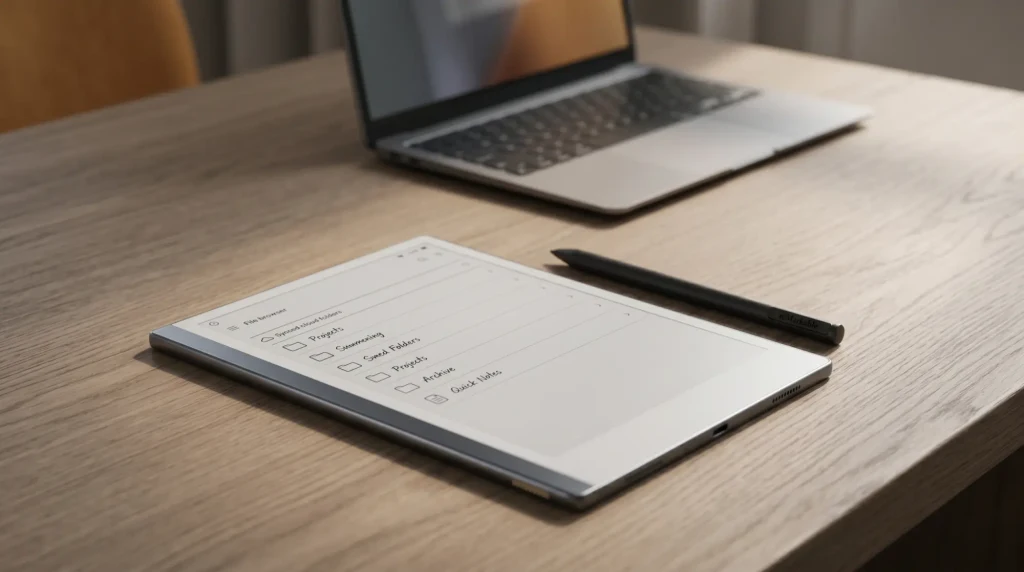
Getting work back out is where people get stuck, usually because they are looking for a file browser that does not exist. The tablet exports rather than exposes: open a notebook, choose export and share, and you can send a PDF or a PNG by email, or push it back through the app to your desktop. Handwriting conversion is part of that menu rather than a separate feature, and it does not require a subscription on the device itself. Our handwriting recognition piece covers where conversion is free and where it is gated, because that boundary is the single most misreported thing about these tablets.
Two practical notes. If you live in Google Drive, the integration is worth setting up once rather than mailing files to yourself forever; we have a walkthrough for connecting Drive. And if the desktop app is misbehaving on Windows, which it does periodically after updates, the Windows app notes cover the usual causes. Neither is exotic; both save an evening.
Templates
What the templates menu will and will not do
This is the section that saves the most wasted time, because the thing most people want here is not supported and the workaround is better than it sounds. reMarkable’s own support documentation is direct about it: custom templates are not supported, and third-party templates, or anything that interacts with or alters the tablet’s software, are not supported either. There is no official installer, in the desktop app or in device settings, on any firmware. If a blog post tells you to enable one, it is describing something that does not exist.
What you can do is import a PDF and write on it. reMarkable spells this out too: you could design a PDF to use as a template and import it, duplicating it before you write if you want to reuse it. The caveat in their documentation is that an imported PDF will not appear in the Templates menu and will not act as a notebook background. It arrives as its own document. In practice that difference matters less than it sounds, because a well-built PDF planner has its own internal navigation and you spend your time inside the document rather than in the Templates menu at all.
The exception worth knowing about is RCU, a paid third-party tool that genuinely does install templates into the menu. It is not endorsed by reMarkable and it sits outside supported territory, but the honest argument for it is not the install itself: it repairs custom templates automatically after a firmware upgrade, which is precisely what manual approaches fail to survive. If you only want good pages to write on, the PDF route is simpler and never breaks. Our free templates and the wider template guide both assume the PDF route for that reason.
The Marker
Marker tips: when to change one, and what a pack costs
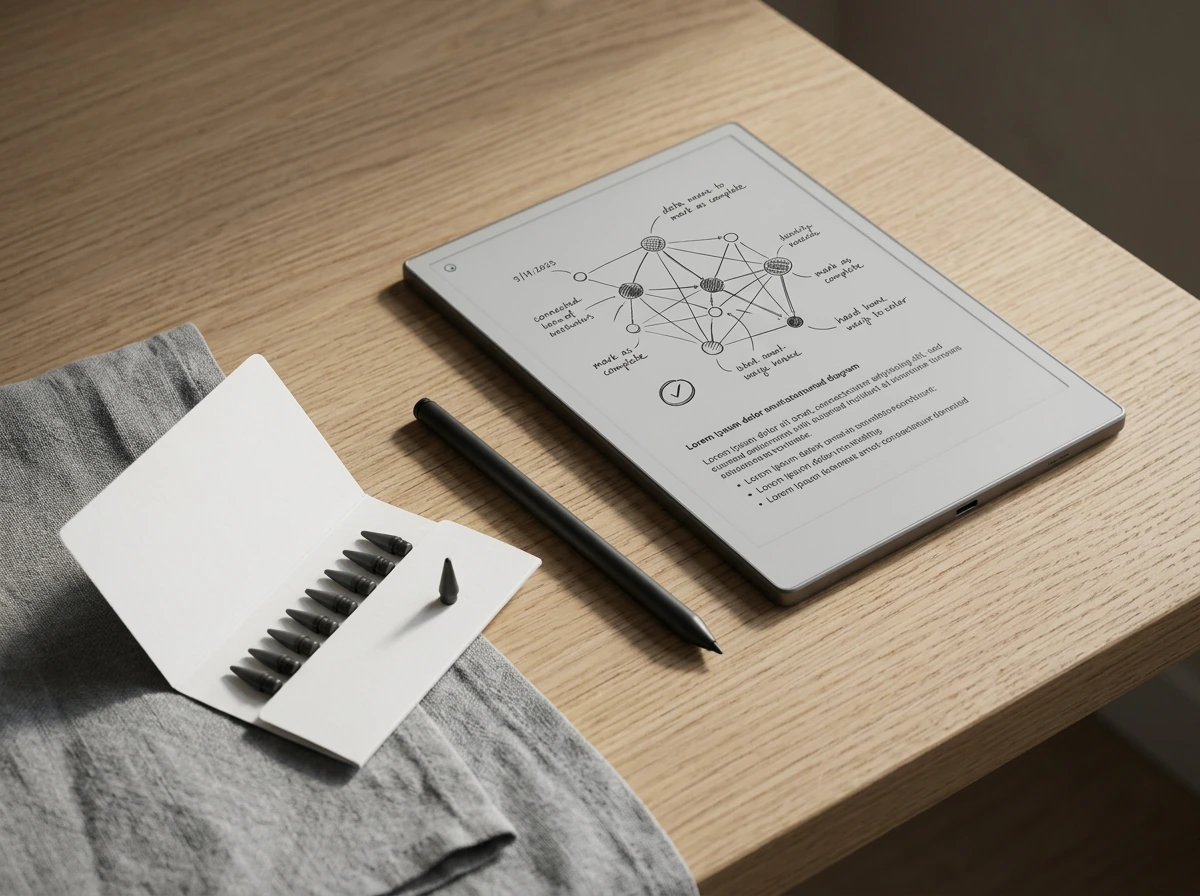
Pen tips are the most searched thing about these tablets after the tablets themselves, and the reason is that nobody tells you they are consumable. They are. The tip is a soft nib dragged across a textured glass surface, and that friction is the whole point of how the device feels, so the tip wears down in exchange for the writing experience. This is normal, it is designed, and it is not a defect.
reMarkable’s own user guide puts one tip’s life at three to seven weeks for someone writing every day, and ships nine spares on a tip card with every Marker and Marker Plus. That range is wide because it depends almost entirely on how hard you press. A light writer can go a couple of months on one tip; someone who presses through the page will be changing them monthly. Official replacement packs are $19. Third-party tips exist and are cheaper, and they vary enough in hardness that a bad batch can feel like a different device.
The tell for a worn tip is not the length, it is the shape. A fresh tip is conical and the point sits at the centre; a worn one flattens on one side, following the angle you hold the pen at, and the flat edge starts catching on the screen texture instead of gliding over it. Lines get slightly broader and the drag feels uneven. Changing one takes a few seconds: grip the old tip with the tweezers on the tip card, pull it straight out, push a new one in until it seats. There is nothing to unscrew and no calibration afterwards.
Worth noting for the anxious: the tips wear, the screen does not, at least not on any timescale where tip replacement is the relevant maintenance. The soft nib is the sacrificial part by design, which is why it costs $19 rather than the price of a tablet.
The subscription
What Connect adds, and what you already have without paying
reMarkable Connect is $3.99 a month or $39.90 a year, with a 50-day free trial, read from reMarkable’s own shop page in September 2026. There is one plan. If you have seen a two-tier structure described anywhere, with a cheap basic and an expensive full version, that structure does not exist and never appears on the vendor’s page.
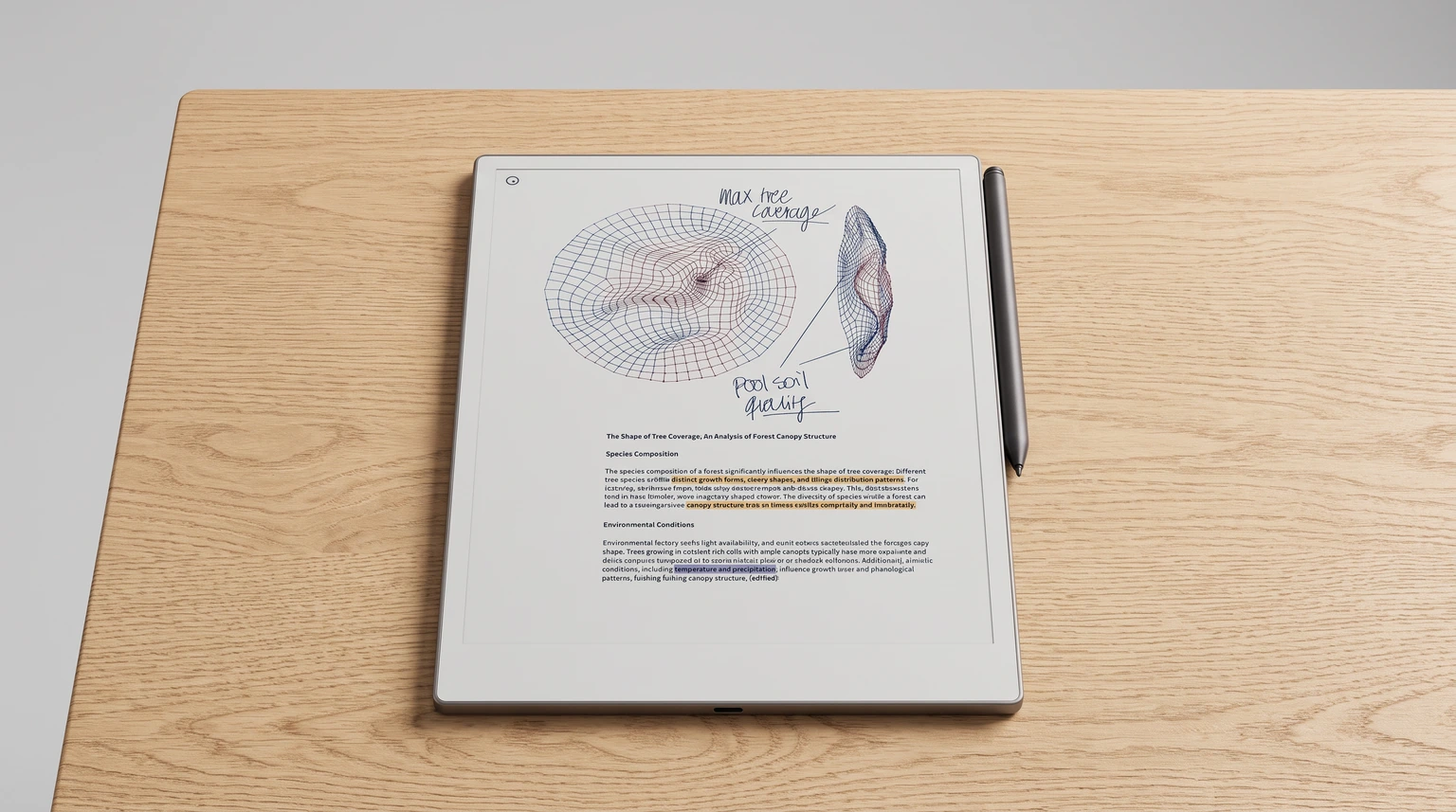
The more useful question is what you get without it, and the answer is more than most write-ups suggest. reMarkable’s support page on using the tablet without a subscription lists Google Drive, Dropbox and OneDrive integration, handwriting conversion that turns handwritten notes into typed text, Read on reMarkable for web pages and documents, Screen Share for presenting live what you are writing, sending notebooks and PDFs by email, and tags for organising content. All of that is in the box. Connect adds handwriting search across handwritten and typed notes, unlimited cloud storage, conversion inside the desktop and mobile apps, Convert to Notebook, the meeting notes tool, and additional templates.
Which brings us to the one fact that actually costs people something. Without a subscription, in reMarkable’s own words, only files used and synced online in the last 50 days will continue to be stored in the cloud and updated in the apps. That is a per-file recency window, not a document count and not a storage cap, and it is not a trial period either, though it gets reported as all three. The practical consequence is unusual: a light user with six notebooks can lose the cloud copies of some of them by not opening those particular files for two months, while a heavy user with two hundred notebooks who touches them all keeps everything.
The free tier’s fifty is days per file, not documents. The fix is to open the files you care about, not to own fewer of them.On what the free tier actually limits
Read that way, the subscription decision gets simpler. If your notebooks are an active workload you touch constantly, the free tier keeps them and Connect is buying search and app-side conversion. If your notebooks are an archive you consult occasionally, Connect is buying the archive itself. We go through the arithmetic in the Connect guide, and the narrower question of whether a reMarkable has a monthly fee at all has its own page, because it is the thing people most want answered before they buy rather than after.
When it misbehaves
Restart, force off, factory reset, in that order
Almost everything that goes wrong with one of these tablets is fixed by the least drastic option, and the ladder is worth knowing before you need it. On the Paper Pro generation the power button is a five-way control that behaves differently depending on how long you hold it: a short press sleeps the device, two seconds wakes it, three seconds brings up the prompt to power off properly, ten seconds forces it off when the screen has stopped responding, and twenty-five seconds puts it into the reset mode used for reflashing from the app or the web.
Start at the top of that ladder. A frozen screen or a sync that has stalled is nearly always cured by a proper power off and restart, and a forced ten-second shutdown handles the case where the interface will not respond at all. Neither one touches your files. Only the last step is destructive, and the ordering exists precisely so that you exhaust the harmless options first.
Before any factory reset, get your notebooks off the device, and do not assume the cloud has them. If you are on the free tier, anything you have not opened in the last fifty days may no longer have a cloud copy to restore from, which is exactly the moment that window stops being trivia and starts being expensive. Export what matters through the desktop app first, confirm the files opened on the computer, and only then reset. If the problem is a specific app or sync rather than the tablet, the device-specific guides below usually name the cause before a reset becomes necessary.
Where to go next
The reMarkable guide that matches your tablet
Everything above is common ground. The parts that differ by model, gestures, what the toolbar holds, which settings exist, how colour behaves where there is colour, live in the three device guides. How to use a reMarkable 2 is the one to read if you own the discontinued model, and it remains the most detailed of the three because that device has been in people’s hands the longest. How to use the Paper Pro covers the colour flagship, including the settings paths this page has only pointed at. How to use the Paper Pro Move covers the small one, where the smaller screen genuinely changes which workflows are comfortable.
If you have not bought yet and this page has raised more doubts than it settled, that is a reasonable outcome, and our comparison of the alternatives is more useful than another page about reMarkable. The tablets are good at one narrow thing and openly bad at several others, and knowing which side of that line you are on before spending several hundred dollars is worth an afternoon. The reMarkable hub collects everything else we have written, from templates to accessories, and if you would rather have all of this as one offline document than as a set of pages, that is what the reMarkable Device Guide is.
What this page cannot cover is the thing that actually decides whether one of these works for you, which is the specific job you bought it for. If you have a workflow that took a while to figure out, or a question none of the guides answered, the comments are the right place for it. The gaps people report are what these pages get rebuilt around.
FAQ
Common questions, answered briefly
What is a reMarkable tablet, in plain terms?
How long do reMarkable pen tips last?
Do you need a subscription to use a reMarkable?
What does the 50 days on the free tier actually limit?
Can you install custom templates on a reMarkable?
If your question is not up there, leave it in the comments and we will add it. The one we would most like more reports on is tip life by writing style, because the official three to seven weeks is a wide range and the people at either end of it rarely compare notes.
People also ask