Frame
What reMarkable handwriting recognition actually does
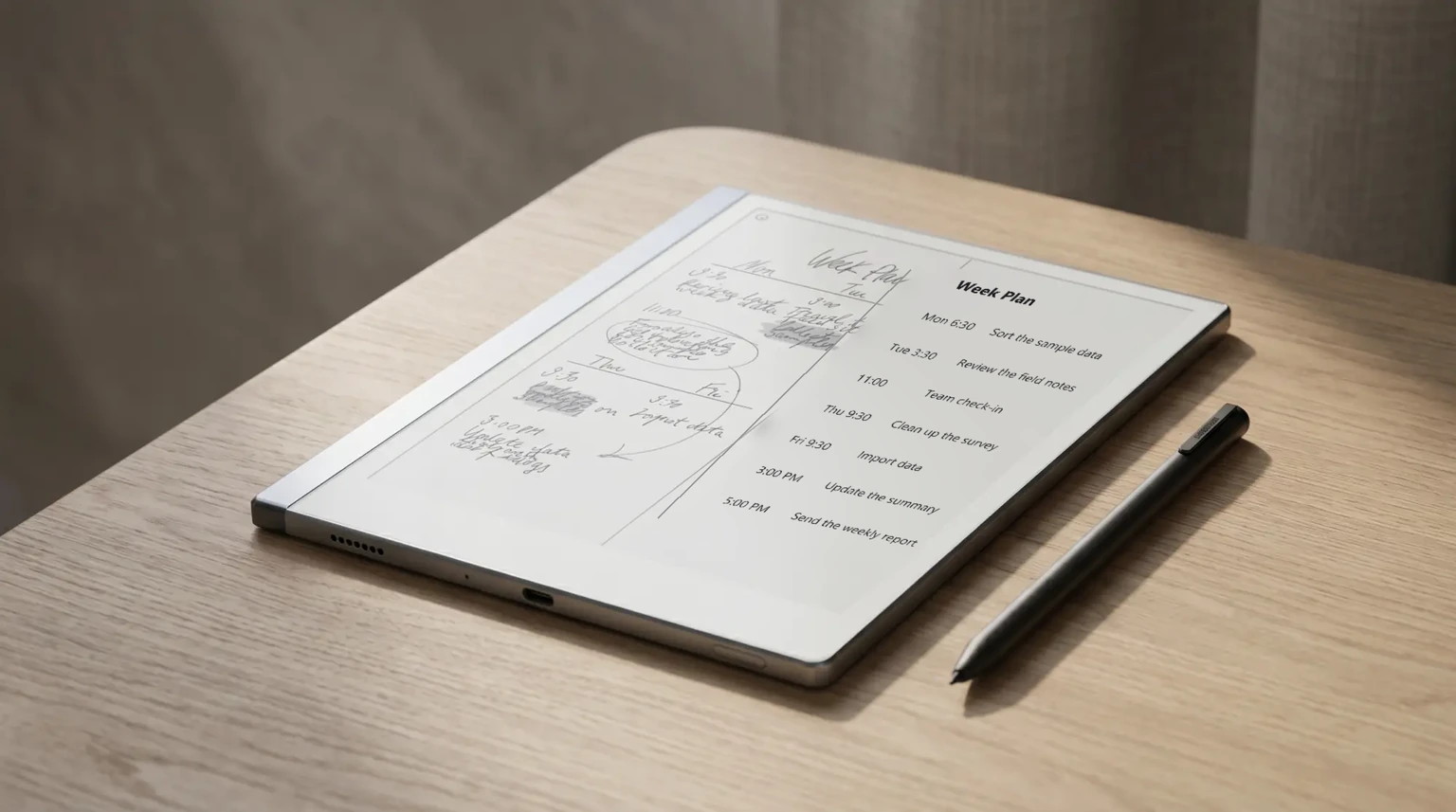
reMarkable handwriting recognition is the feature reMarkable calls Convert to Text. The user opens a notebook page on the device, taps the menu, and selects Convert to Text. The handwritten ink on the page is processed through the MyScript recognition engine, and the device returns a typed transcript that can be sent via email or exported alongside the original handwritten PDF. The handwriting layer remains untouched on the source page; the typed transcript is a separate artifact, not a replacement for the ink.
The use case Convert to Text was built for is moving handwritten notes off the device into typed form (an email, a Google Doc, a meeting summary). It isn’t designed to be a search index inside the device or to convert ink to text in real time as a user writes. Both of those would be reasonable feature requests, but neither is what Convert to Text does in 2026.
Subscription
The reMarkable Connect subscription and what it covers
Here is the part most roundups get wrong. On the device, Convert to Text is free: you do not need reMarkable Connect to turn a handwritten page into typed text and email or export it from the tablet. What Connect adds is everything around that conversion, not access to it. As of 2026 Connect is a single plan, not a set of tiers.
- Free on the device. Convert to Text run from the page menu, the handwriting kept as ink on the source page, the typed transcript emailed or exported. No account tier required.
- Connect, $3.99 a month (50-day free trial). Handwriting conversion inside the desktop app, handwriting search across notebooks, unlimited cloud storage and sync, the Read on reMarkable and Google Drive integrations, screen sharing, and reMarkable’s AI-assisted tools. One plan, no tiers.
So the honest read is this. If you only convert the occasional page on the tablet, you pay nothing. Connect earns its $3.99 a month once you want to convert from the desktop app, search your handwriting across notebooks, or sync an unlimited library across devices. The on-device recognition is the same either way; Connect is about where and how far that conversion travels, not access to the feature itself.
Accuracy
How accurate is reMarkable handwriting recognition
Recognition accuracy on reMarkable depends on three variables: handwriting style, handwriting size, and language. The MyScript engine is the same recognition technology powering Nebo, Goodnotes, and Notability’s handwriting features, and its strengths and weaknesses are predictable.
- Print handwriting: 90-95 percent accuracy for clean, consistently sized print. Most words are recognized correctly on the first pass; the typical error is a confused letter pair (l vs 1, o vs 0, u vs n) that a quick proofread cleans up.
- Cursive handwriting: 75-85 percent accuracy depending on legibility. Tight, consistent cursive holds up well; loopier or inconsistent cursive drops accuracy meaningfully. The engine has gotten better in recent firmware updates but cursive remains the harder case.
- Mixed cursive and print: 80-90 percent accuracy. Most users land here in practice. The engine handles the mix without choking, with errors clustering on the cursive segments.
- Numbers, dates, and code: Strong on numbers and dates, weak on programming syntax. A handwritten
x = arr[i] + 1is unlikely to convert correctly; a handwritten March 14, 2026 almost always does.
Print holds up well. Cursive is decent. The engine has gotten better with firmware updates, and a quick proofread fixes most of what the engine misses.
Templacity editorial
Workflow
How to use Convert to Text on reMarkable
-
1
Open the notebook page
Open the notebook page on the reMarkable. Convert to Text works one page at a time; multi-page batch conversion isn’t supported.
-
2
Tap the page menu
Tap the page menu (three dots in the top toolbar) and select Convert to Text. The device processes the ink and shows a preview of the typed result.
-
3
Review the preview
The MyScript engine is strong but errors slip through, and the preview is the right place to catch them before sending. Light proofreading is part of the workflow.
-
4
Send via email
Send via email from the device, with the typed text in the email body and the original handwritten PDF as an attachment. Alternatively, sync the conversion to the desktop or mobile app and copy the text from there.
For multi-page documents, the workflow scales by repeating per page. There’s no batch conversion in 2026, which is a known limitation that comes up in user feedback. For users who do regular long-form handwritten note conversions, this is the friction point that decides whether Convert to Text is the right tool for the job.
Languages
Languages reMarkable handwriting recognition supports
Convert to Text supports more than 60 languages through MyScript, including English, Spanish, French, German, Italian, Portuguese, Dutch, Danish, Swedish, Norwegian, Finnish, Polish, Czech, Hungarian, Russian, Ukrainian, Greek, Turkish, Arabic, Hebrew, Japanese, Korean, simplified Chinese, and traditional Chinese. The full list lives in the device’s Settings under Language.
Recognition language is set per-page rather than globally, so a user can write a French notebook page and an English notebook page in the same notebook and have each convert correctly. The language selector defaults to the device’s UI language, and changing it for a specific page is a one-tap action in the page menu.
Alternatives
Alternatives to reMarkable handwriting recognition
The on-device Convert to Text is free, so most users never need an alternative. But if you want desktop-app conversion or batch OCR without paying for Connect, two paths cover most use cases.
- Export the handwritten PDF and run it through a separate OCR tool. Send the PDF off the device through email or cloud sync (which works without Connect on supported folders), then run it through ABBYY FineReader, OneNote’s handwriting OCR, or Apple’s built-in OCR on a Mac. Quality varies but is workable for one-off conversions.
- Use the reMarkable mobile app’s view-and-share path. The free reMarkable mobile app lets you view notebooks on a phone or tablet without Connect on a single-device basis, useful for occasional reference even without conversion.
For most users who picked the reMarkable specifically for handwriting workflows, the free on-device Convert to Text is the cleaner path, and Connect at $3.99 a month is worth it only if desktop conversion or cross-device search matters. The friction of an external OCR tool stacks up fast for anyone who converts notes more than once or twice a week.
For deeper integration with Google Drive (where converted text often lands), our connect reMarkable to Google Drive piece walks through the setup. For the reMarkable desktop app, reMarkable app for Windows covers that side. For comparing the reMarkable to the Boox lineup (which handles handwriting differently), reMarkable Paper Pro vs Boox is the head-to-head. The reMarkable hub indexes the rest.
FAQ
Common questions, answered briefly
Does reMarkable handwriting recognition require a subscription?
How accurate is reMarkable handwriting recognition?
Does reMarkable handwriting recognition work on the Paper Pro?
What languages does reMarkable handwriting recognition support?
Can reMarkable handwriting recognition handle cursive?
Does the reMarkable convert handwriting to text in real time?
If you’ve been running Convert to Text on a reMarkable for a while, drop the accuracy notes in the comments. Real-world handwriting recognition data is more useful than vendor claims, and we’d rather have a current page than a tidy one.