Download
Where to download the reMarkable desktop app
The reMarkable desktop app does not sit on a public download page. reMarkable keeps the installer behind your account: log in at my.remarkable.com, open the menu in the upper-left corner, click Devices and apps, then Desktop app, then Download. That is the same route on Windows and on a Mac, and it is the one reMarkable’s own support article gives. If a search result offers the installer on any other site, skip it.
Mac owners have a second route. reMarkable AS publishes the app in the Mac App Store as reMarkable desktop, listed as free, which also means macOS handles its updates for you. On Windows, the app tells you when a new version is out, and you can also reinstall the latest one from the same Desktop app page on my.remarkable.com.
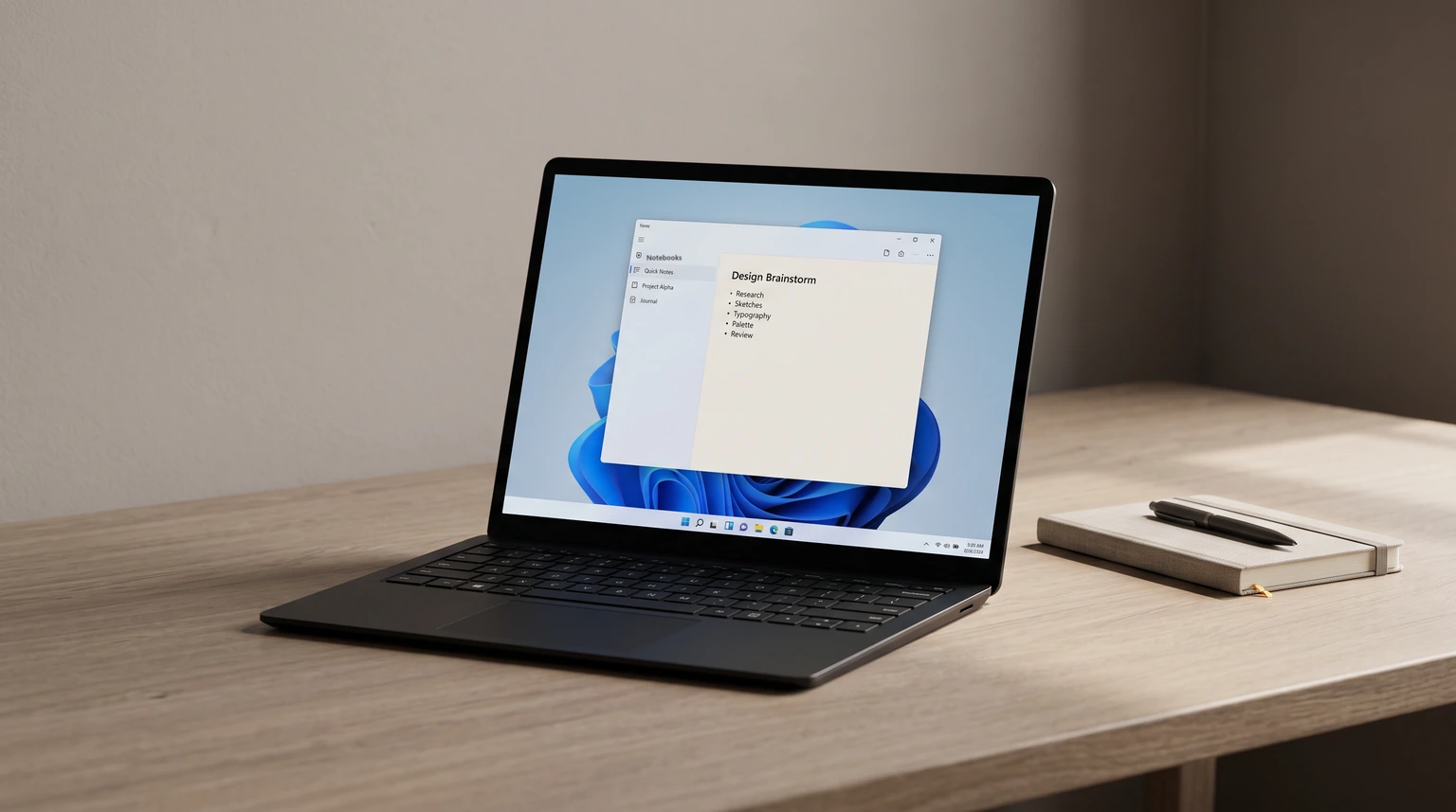
Check the requirements before you download, because this is where most failed installs start. reMarkable supports Windows 10 and newer, 64-bit only, version 1809 or newer, and macOS 13 and newer. That is the whole list. There is no Linux build, and, the one that catches people with new laptops, the app does not support Windows computers running ARM-based processors.
Pair
Installing the app and pairing it with your account
One thing has to happen first: the paper tablet itself must already be set up and paired with the reMarkable cloud. The desktop app pairs with your account, not with the tablet directly, so a tablet that was never paired leaves the app with nothing to show.
Install the app from the file you downloaded.
On a managed or company computer, installing or updating may ask for admin credentials. That comes from your IT policy, not from reMarkable, so ask IT rather than retrying.
Open the app and click Log in.
The app opens a browser window at my.remarkable.com. If the browser asks you to sign in, do it: you are signing in to fetch a pairing code, not creating anything new.
Copy the code, paste it into the app, click Pair the app.
That is the whole setup. From then on your notebooks and documents sync across your devices whenever they are on Wi-Fi.
Free vs Connect
What the reMarkable desktop app does free, and what needs Connect
Most pages about the reMarkable desktop app either say it does everything or that it is useless without a subscription. reMarkable’s own help article draws the line more precisely than either.
Without a subscription, you can view your notebooks and documents, export individual pages, and sort everything by the tags you added on the tablet. You can import files with the import button at the top of the window, or by dragging a supported file straight onto the app, which uploads it to your cloud and sends it to the tablet. Exports come out as PDF, PNG or SVG from the right-click menu. Screen Share is on reMarkable’s list of features included without a subscription too, and it runs through this app.
If the file you are importing is a PDF, our reMarkable 2 PDF guide covers the four other routes onto the tablet, the 100 MB cap on two of them, and how the annotated copy comes back out.
With Connect, the app stops being a viewer and becomes a place to work. You can type and edit notes, create new notebooks and quick sheets, add pages to existing notebooks, PDFs and ebooks, and copy, delete or rearrange files from the action menu. If most of your writing happens on the tablet and the computer is where you read it back, the free tier covers that. If you want to add to a notebook from your keyboard, that is what you would be paying for. Our reMarkable Connect guide covers what else the subscription includes.
Troubleshooting
When the reMarkable desktop app will not install
A Windows laptop with an ARM chip. If your laptop runs a Snapdragon or another ARM processor, the installer is not the problem and no setting will fix it: reMarkable does not support Windows on ARM. You can check under About this PC, where the system type reads ARM-based. The workaround reMarkable points to is the browser. Import files at my.remarkable.com, and for presenting, the web app at app.remarkable.com has Screen Share too, as long as the tablet runs software 3.27 or newer.
Antivirus quarantined the installer. Some antivirus programs pull the downloaded file into quarantine before it runs. Add an exception for the reMarkable desktop app in the antivirus or firewall, download the installer again from Devices and apps, install it, then restart the antivirus program.
You expected it to add templates. It will not, and nothing else official will either: reMarkable’s support site states that custom templates are not supported on the tablet. A PDF you import lands as a separate document, not as a page background. The workable options are third-party, and our reMarkable template installer post walks through them. If you also want files arriving from cloud storage, connecting reMarkable to Google Drive happens on the tablet, not in this app.
For everything past setup, our reMarkable guide collects the how-to pages in one place, and how to use the reMarkable Paper Pro covers the tablet side. If the desktop app is failing in a way this page does not cover, tell us in the comments which computer and which system version you are on; the recurring ones go into the next update.
FAQ
Common questions, answered briefly
Is the reMarkable desktop app free?
Does the reMarkable desktop app work on Windows on ARM?
Is there a reMarkable desktop app for Linux?
Can I take notes in the reMarkable desktop app without Connect?
Can the reMarkable desktop app install custom templates?
If your question is not here, leave it in the comments and we will answer it in the next update.
People also ask