PDF path
How to add templates to reMarkable Paper Pro through the PDF path
The fastest way to add templates to reMarkable Paper Pro is the PDF path. Open the reMarkable mobile app on iOS or Android (or the reMarkable desktop app on Windows or Mac), drag the template PDF into the app, and let the device sync. Within a few seconds the template appears on the Paper Pro under My Files, ready to open and write on as a notebook. The template stays as a static PDF page; you write directly on top of it with the Marker, and your handwriting saves with the notebook.
The PDF path works for any template designed for the Paper Pro. Templates ship as A4-proportional PDFs or as PDFs set to the Paper Pro’s own page size, 509.34 x 679.13 pt (179.69 x 239.58 mm); both render correctly. Pixels are the wrong unit to specify a PDF in, since a PDF carries a page size and the device rasterises it to whatever the panel needs. Our e-ink PDF size database carries that page size and the equivalent for 28 other devices. The advantage of the PDF path is that it requires no setup, no developer mode, no risk to firmware. The trade-off is that you start a new notebook each time you want a fresh template page; the template does not become the default background for every new page you create. For that, you want the PNG path.
PNG path
How to add templates to reMarkable Paper Pro as page backgrounds (PNG)
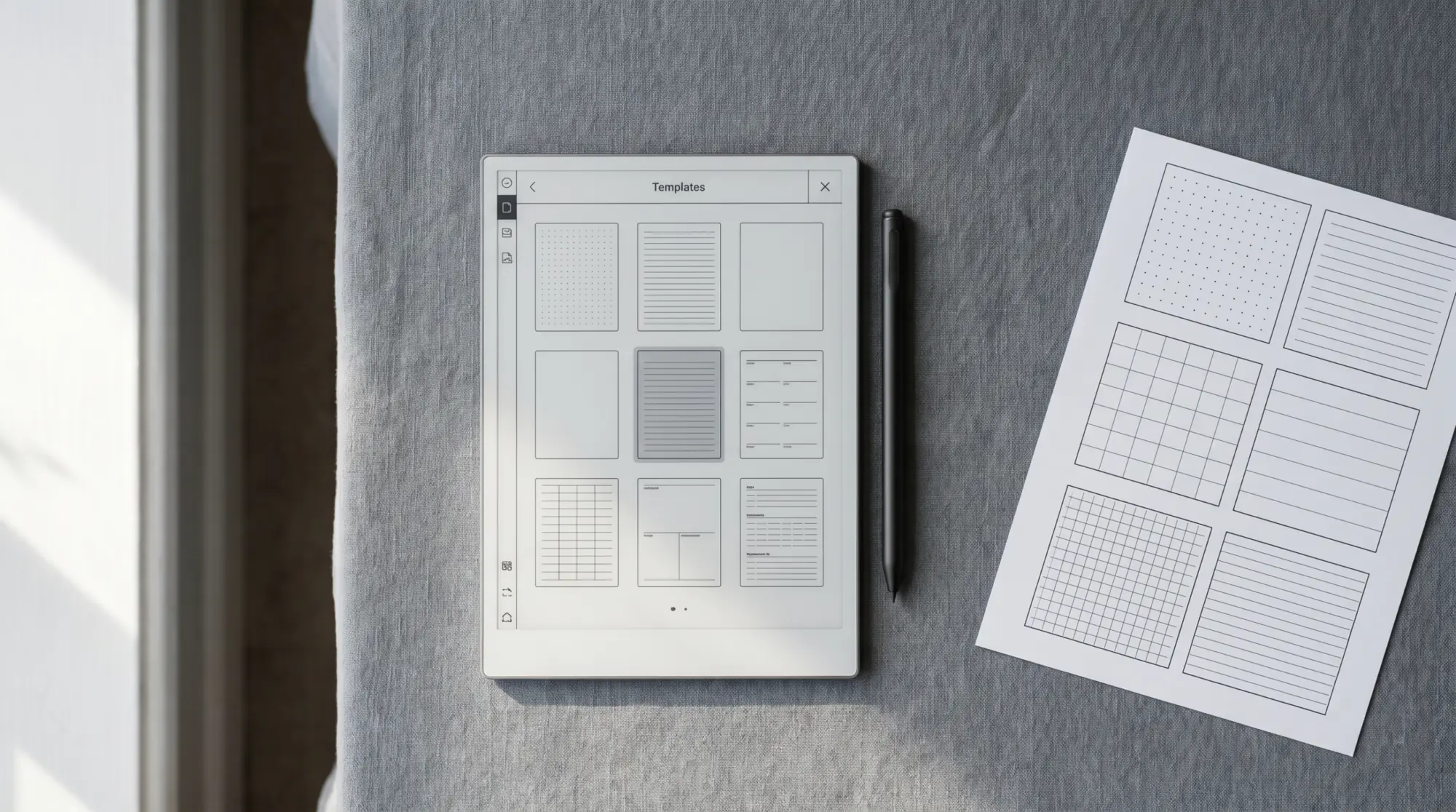
The PNG path installs a template as a page background that appears on every new page of every new notebook automatically. Before anything else, know that reMarkable does not offer this. Its own Templates article states that custom templates are not supported, and that a PDF you import will not appear in the Templates menu and cannot be applied as a notebook background. There is no official installer in the desktop app or in device settings, on any firmware. Any guide telling you otherwise is describing something that does not exist.
Two unofficial routes do work. RCU (reMarkable Connection Utility) is a $12 desktop app, version 5.1.1, released 20 August 2026, covering reMarkable 1, 2, Paper Pro, Move and Paper Pure on system software 1.8.1.1 to 3.28.0.172 (checked September 2026); it uploads PNG, SVG or RMT templates over USB. Manual SSH is the free route and does the same job by hand. Size Paper Pro templates at 1620 x 2160 pixels either way.
Between the two, RCU is the one to use, and the reason is the opposite of what most guides claim. Firmware updates overwrite the templates directory, so a template installed by hand over SSH has to be re-applied after every major update. RCU states on its own page that it repairs your custom templates automatically after a firmware upgrade, even if the files are no longer on your computer. That is the whole argument for paying the $12: not the upload, which SSH does free, but never having to redo it.
For most people none of this is worth doing. A PDF template is a document you write into, it needs no install, and no firmware update can touch it. Reach for the PNG path only when you genuinely need the same ruling on every new page of every new notebook. Our reMarkable template installer guide walks the unofficial routes step by step, and the same flow works on the Paper Pro and Paper Pro Move.
Sizing
Template sizing for Paper Pro
The Paper Pro renders at 1620 x 2160 pixels on its 11.8-inch panel, which works out to 229 PPI. Templates designed at that native resolution use every pixel cleanly. Templates designed at the older rM2 size (1404 x 1872) are the same 3:4 shape, so they fill the panel edge to edge with nothing cropped and no empty bars; the device scales them up by about 15 percent, which softens fine line work a little but leaves every proportion intact. A4 is a taller, narrower shape than the panel (1:1.41 against 1:1.33), so an A4-proportioned page renders with a thin margin down each side, which most users prefer for visual breathing room anyway.
For maximum legibility, design or pick templates at 1620 x 2160 pixels with form lines in light grey (handwriting reads cleaner against light lines than against black lines). If you’re picking from a template marketplace, look for Paper Pro variants or A4-proportional sizing. Our Paper Pro templates roundup covers what we ship and what to look for in third-party templates.
If you’ve worked out a template install workflow that handles a lot of Paper Pro templates cleanly, drop the pattern in the comments. The two paths above cover most users; the patterns that matter for users with twenty-plus custom templates (naming conventions, category organisation, sync timing) are the parts we’re still iterating on.
FAQ
Common questions, answered briefly
What’s the easiest way to add templates to reMarkable Paper Pro?
How do PNG templates differ from PDF templates on the Paper Pro?
What size should a Paper Pro template be?
Do I need Connect to add templates to the Paper Pro?
Will a firmware update remove my custom Paper Pro templates?
If yours isn’t above, drop the question in the comments and we’ll fold it in next refresh.
People also ask