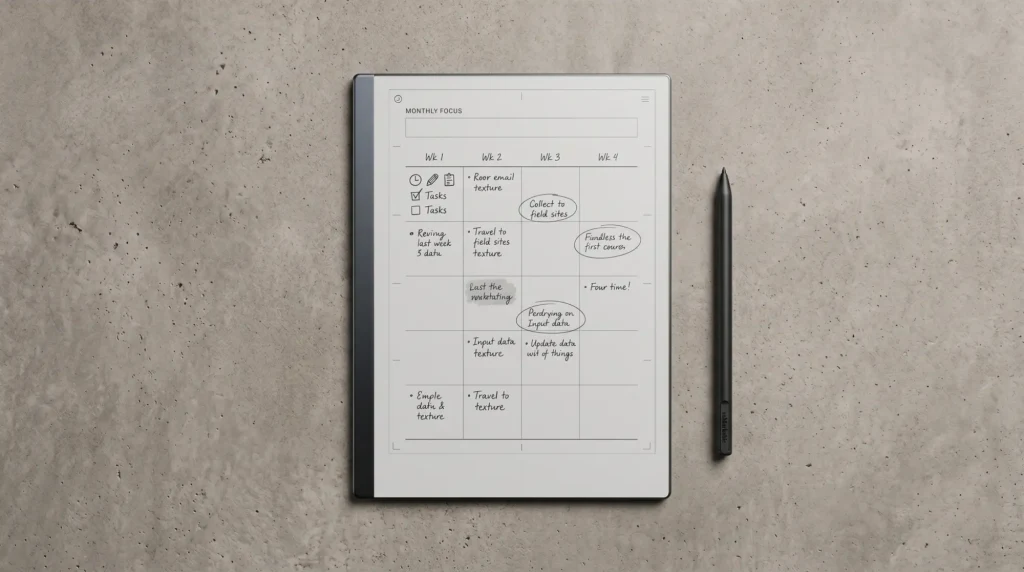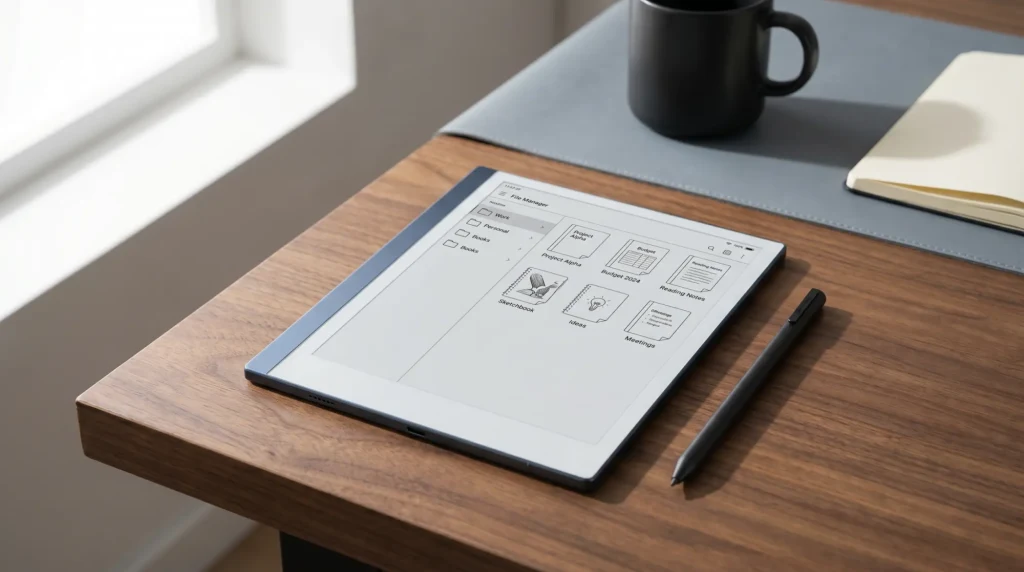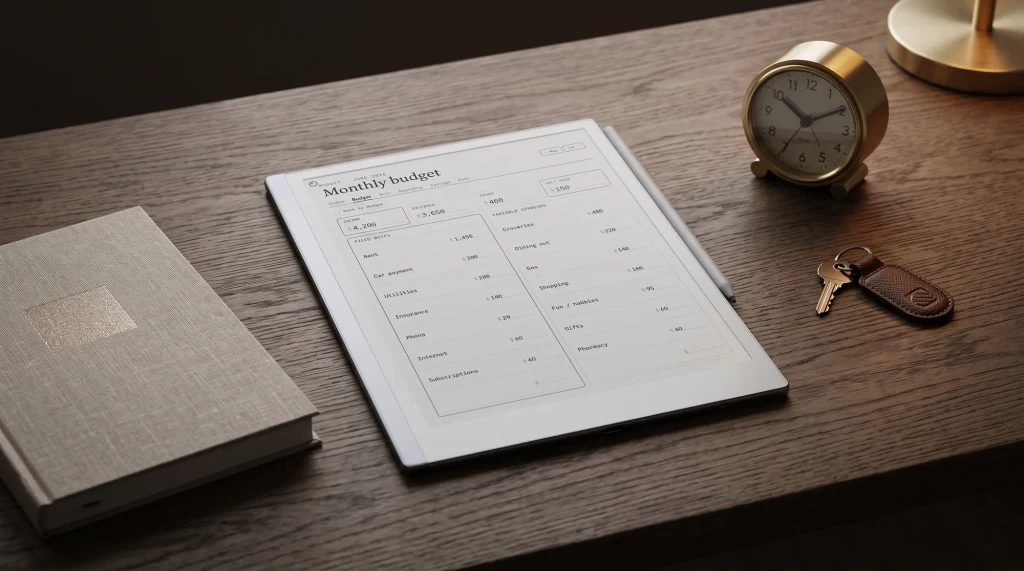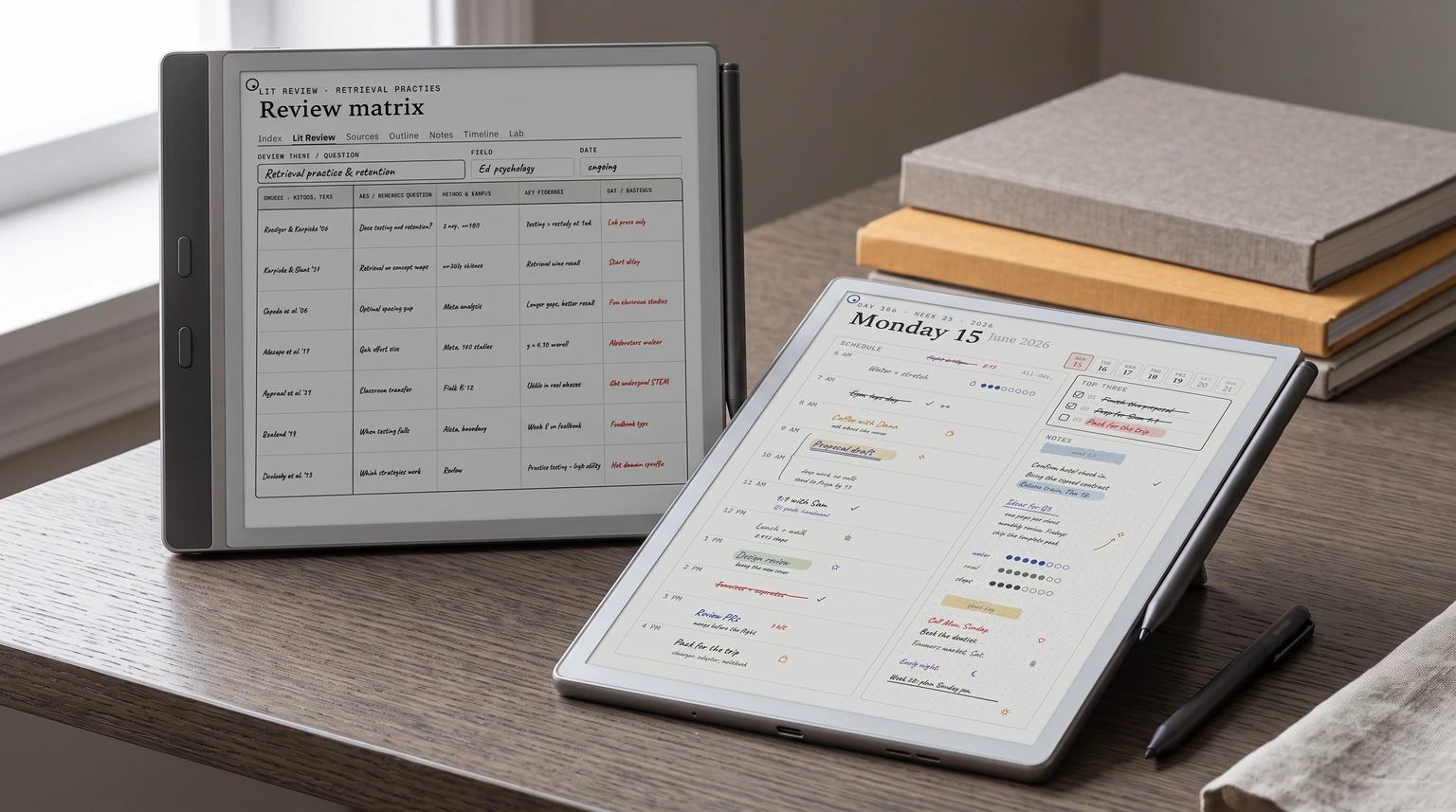
For the broader buyer’s guide on running a remarkable planner across the lineup (which device fits, native templates vs PDF imports vs Connect’s Methods, free vs paid tradeoffs, and the Kindle Scribe comparison), see the pillar.
Size canon
What “fits the Paper Pro” actually means in pixels
The Paper Pro renders a working page at 1620 x 2160 pixels on an 11.8-inch Canvas Color panel, 229 ppi. That is the canonical canvas for any template built native to the device. reMarkable Paper Pro templates that were drawn for the rM2 (1404 x 1872 at 226 ppi on a 10.3-inch screen) still load, and because both panels are exactly 3:4 they fill the screen rather than sitting inside a white border; what you lose is sharpness, since the device upscales them by about 15 percent. Fine for a quick note, less fine for a planner you stare at every morning.
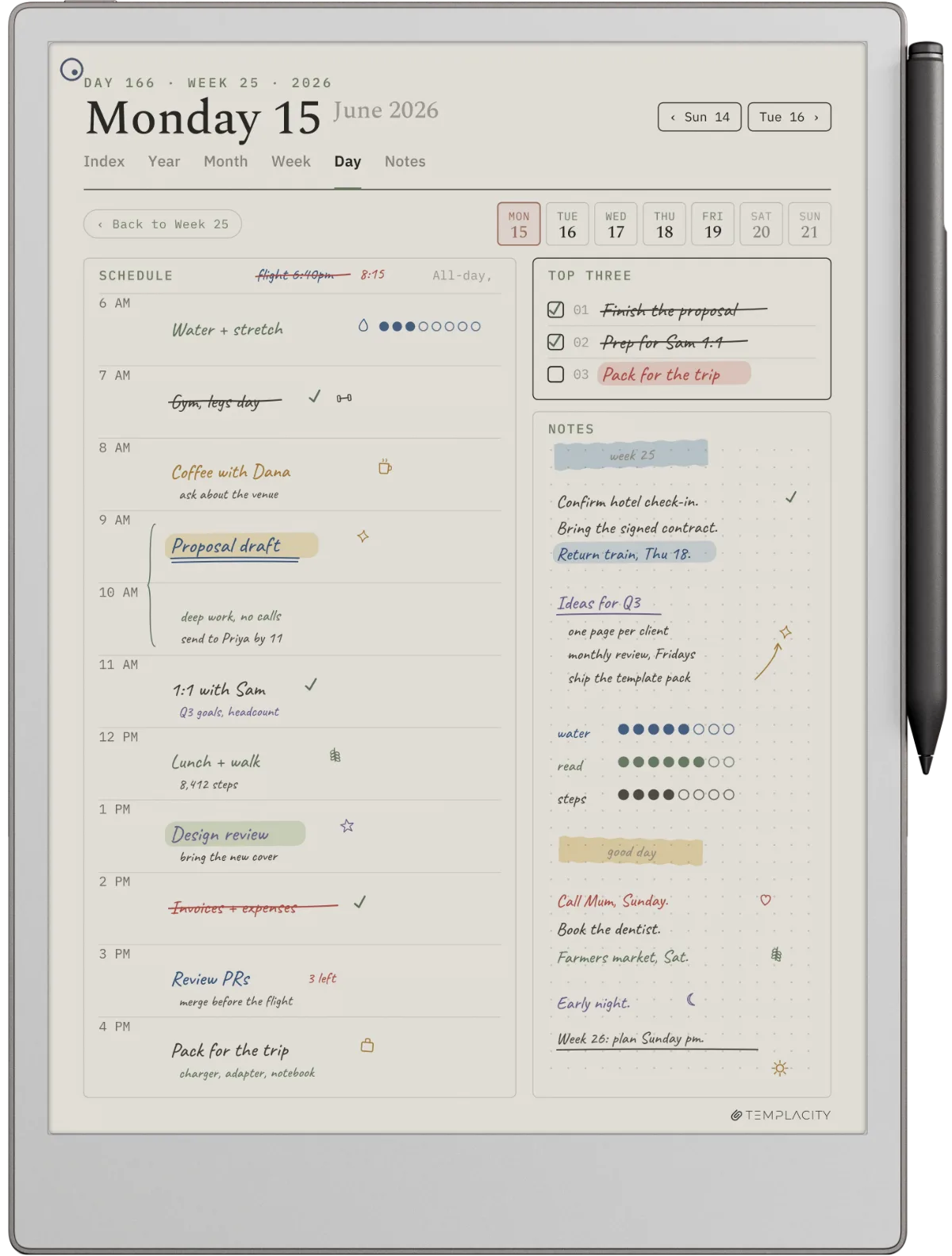
The fastest way to tell whether reMarkable Paper Pro templates are native or rM2 ports is to check the file’s page size before you import it, because on screen both fill the panel edge to edge. A native file keeps hairline rules crisp, while a scaled rM2 file fills the same screen and softens them slightly. For a deeper write-up of the math, our reMarkable 2 template size piece covers the rM2 dimensions and how they cascade.
| Spec | Paper Pro | rM2 | Notes |
|---|---|---|---|
| Working pixels | 1620 x 2160 | 1404 x 1872 | Portrait orientation |
| Pixel density | 229 ppi | 226 ppi | Effectively identical |
| Screen size | 11.8 in | 10.3 in | 1.5 in larger |
| Panel | Canvas Color | Mono e-ink | Colour at the full 229 ppi on Pro |
| Native aspect ratio | ~3:4 | ~3:4 | Same ratio, bigger canvas |
So reMarkable Paper Pro templates need to be drawn for the larger pixel count. The aspect ratio is unchanged, which is why old rM2 templates still fill the screen; the file is right-shaped, just under-sized, so it gets scaled up. The other meaningful change is the panel: Canvas Color renders colour, which lets a template use red for urgent, green for done, blue for blocks, and so on without the pattern-fill workarounds that rM2 templates used.
Picks
Three reMarkable Paper Pro templates worth installing
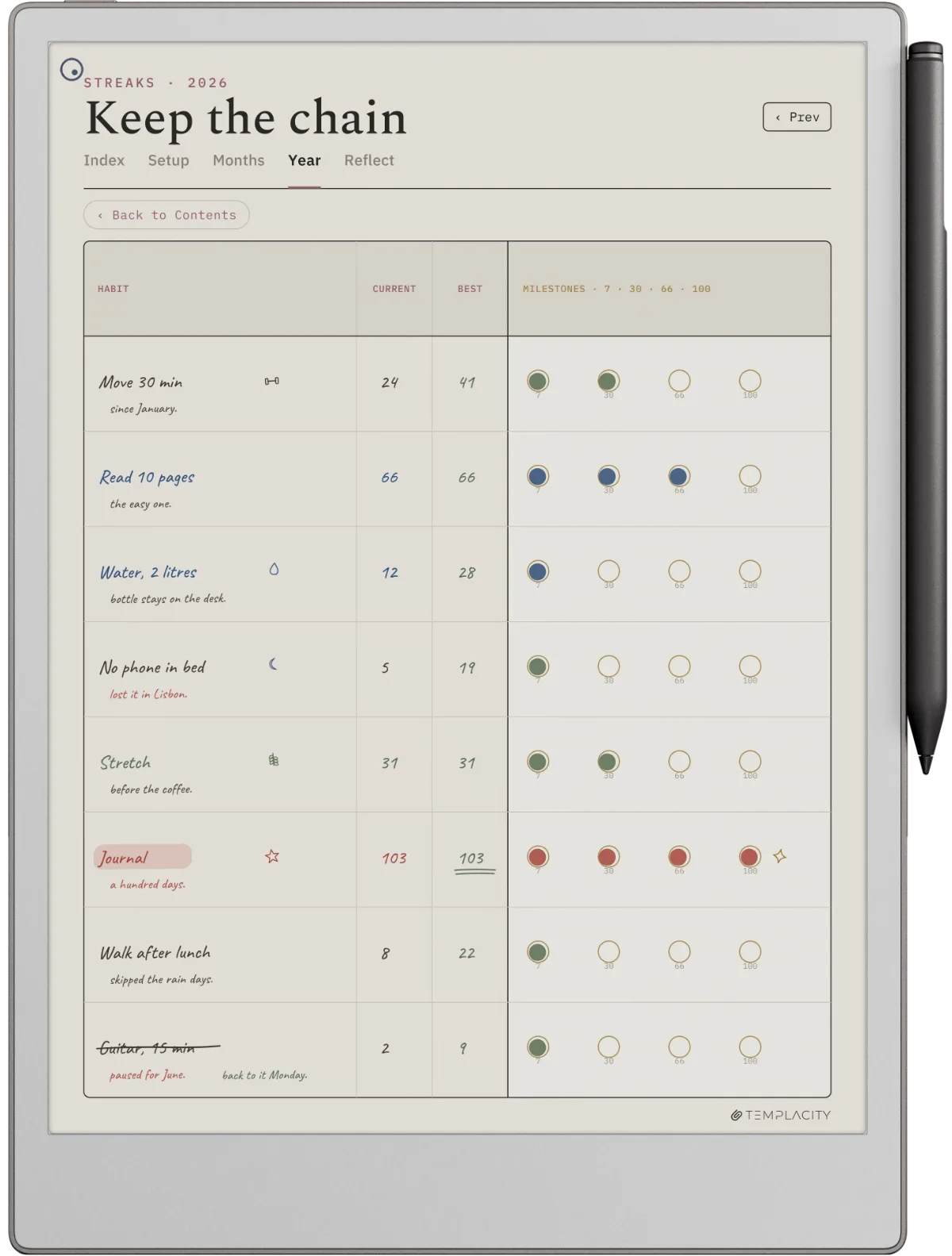
The pool of reMarkable Paper Pro templates that actually fit the canvas is small. Three routes are worth the time today: reMarkable’s own built-in templates (free, baseline), a PDF planner drawn for the Paper Pro (paid), and community files (free, but you do the filtering).
1. reMarkable’s built-in templates (free, baseline)
Every Paper Pro ships with reMarkable’s own templates in the new-notebook flow, drawn for the device, so they are guaranteed to fit and cost nothing. Subscribers to Connect ($3.99 a month or $39.90 a year) also get reMarkable’s Methods templates. The ceiling is that the built-in set is small and in reMarkable’s house style, and reMarkable’s own templates documentation says custom templates are not supported, so you cannot add your own files to that menu through any official route.
2. The Planner for reMarkable (paid, drawn for the Paper Pro)
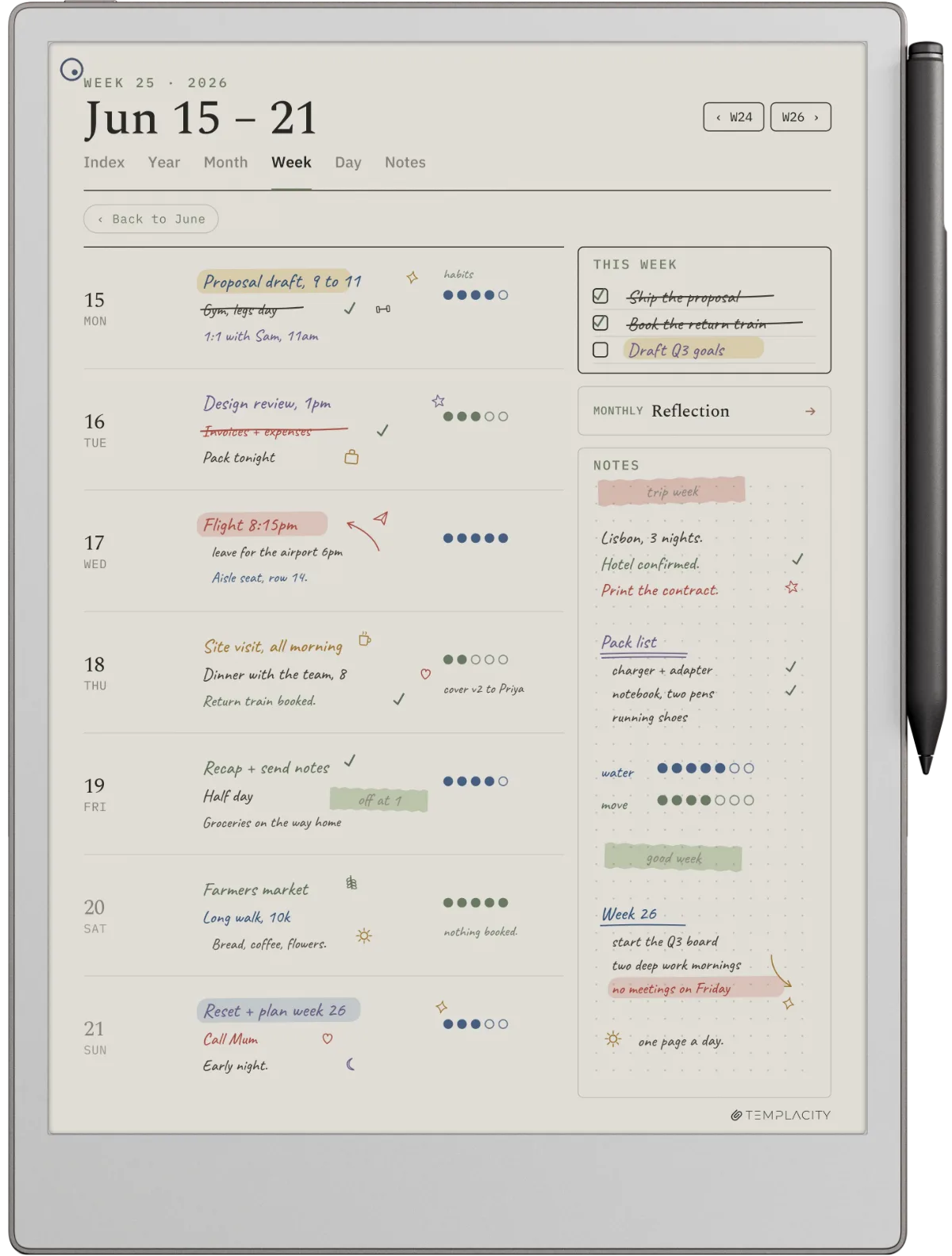
Disclosure: ours. The Planner for reMarkable is one hyperlinked PDF, dated 2026 and 2027, with Index, Year, Month, Week, Day and Notes tabs on every page, cut separately for the Paper Pro, the Paper Pure, the reMarkable 2 and the Move so the file you install matches your panel. It imports as a document, which is the route reMarkable supports, rather than as a template-menu entry. Best fit if you want one linked planner instead of piecing together single pages.
3. r/RemarkableTablet community files (free, requires curation)
The reMarkable subreddit’s community threads are the largest pool of free user-made templates. Quality is uneven, so plan on filtering. Worth the time if you want a niche template the built-in set does not cover, such as sheet-music staves or tabletop game sheets. Community files rarely say which device they were drawn for, so check the page size before installing.
Install
How reMarkable Paper Pro templates get onto the device
Three routes exist, and only the first is one reMarkable supports.
Import the PDF as a document (supported).
Add the file through the reMarkable desktop or mobile app, or over USB-C. It arrives in your library as a document you write on directly, and you can duplicate it whenever you want a fresh copy. reMarkable’s templates documentation describes exactly this: imported files do not join the Templates menu and are imported as separate documents.
RCU, a paid third-party tool.
RCU is sold by its developer for $12 and lists the Paper Pro among the devices it supports, including installing custom templates into the menu. It is not a reMarkable product, and reMarkable does not support third-party tools that alter the tablet’s software.
A manual install over SSH.
The do-it-yourself version copies files onto the device and edits its template list by hand. It is unsupported, and a major software update can undo it. Our install guide walks the steps if you still want that route.
A native file keeps hairline rules crisp, while a scaled rM2 file fills the same screen and softens them slightly.Size canon
DIY
When to make your own reMarkable Paper Pro templates
For some workflows, the right answer is none of the three routes above. It is to build your own template once, native, and use it for years. The time investment is real (about 2-4 hours for a clean planner template in Figma or Affinity Publisher) but pays off because the layout matches your actual practice rather than someone else’s house style.
The DIY case is strongest for three workflow types: domain-specific (sermon prep, design crit boards, sheet music, code review checklists) where no off-the-shelf template fits the field; idiosyncratic planners (someone who plans by energy level rather than time blocks, or someone running a non-standard week) where the published reMarkable Paper Pro templates assume a default rhythm that does not match; and minimalist setups where you want exactly four ruled lines and a date stamp and nothing else, which the gallery templates can never quite deliver because they are designed to be all things at once.
The DIY case is weakest when you mostly need standard daily/weekly/monthly views and a Cornell note page. For those, one of the three picks above already covers the territory, and the build hours are better spent on the actual work the templates are meant to serve. A useful rule of thumb: if you can describe the template you want with a published example URL, install that one. If you cannot, build it.
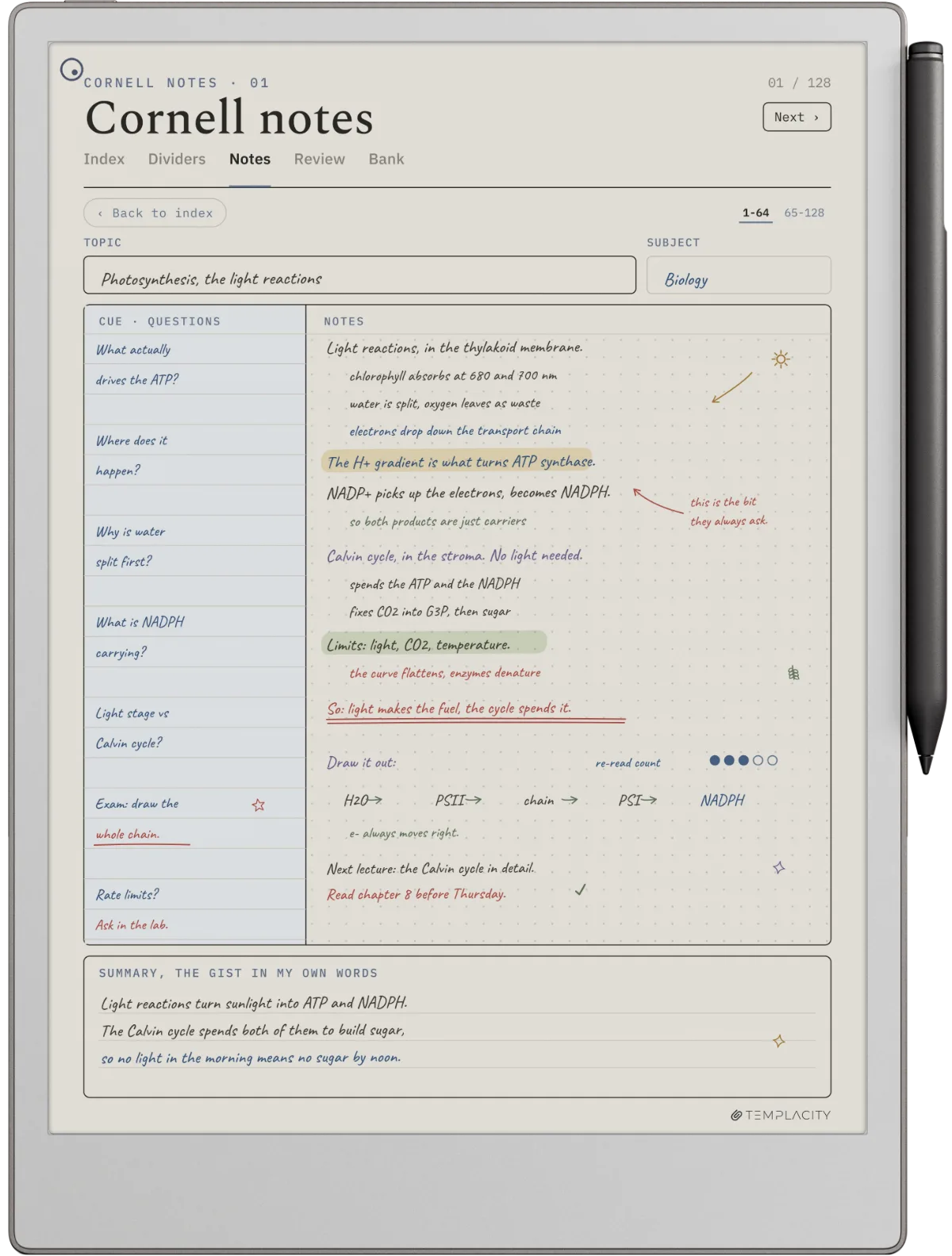
The two constraints to respect when building: stay at 1620 x 2160 pixels, or set the PDF page to 509.34 x 679.13 pt (single page), and keep colour to a few clearly distinct hues so each one still reads as a category on e-ink. Our reMarkable template guide covers the build process for any rM device, including the Paper Pro specifics. The exact page size for the Paper Pro, and for every other e-ink tablet worth building for, sits in our e-ink PDF size database.
FAQ
Common questions, answered briefly
What is the correct reMarkable Paper Pro template size?
Will rM2 templates work on the Paper Pro?
Does the Paper Pro support color in reMarkable Paper Pro templates?
Can I install reMarkable Paper Pro templates without SSH access?
Are there free reMarkable Paper Pro templates worth installing?
If your situation is not above, drop the question in the comments and we’ll add it.
People also ask