| Job | Our pick | Price | Free alternative |
|---|---|---|---|
| Projects, clients, meetings and a weekly overview | OneNote Templates for Work | $89 | Page Templates pane (Windows) |
| Running projects: kanban, RACI, risks | OneNote Project Management Template | $29 | A task table on one page |
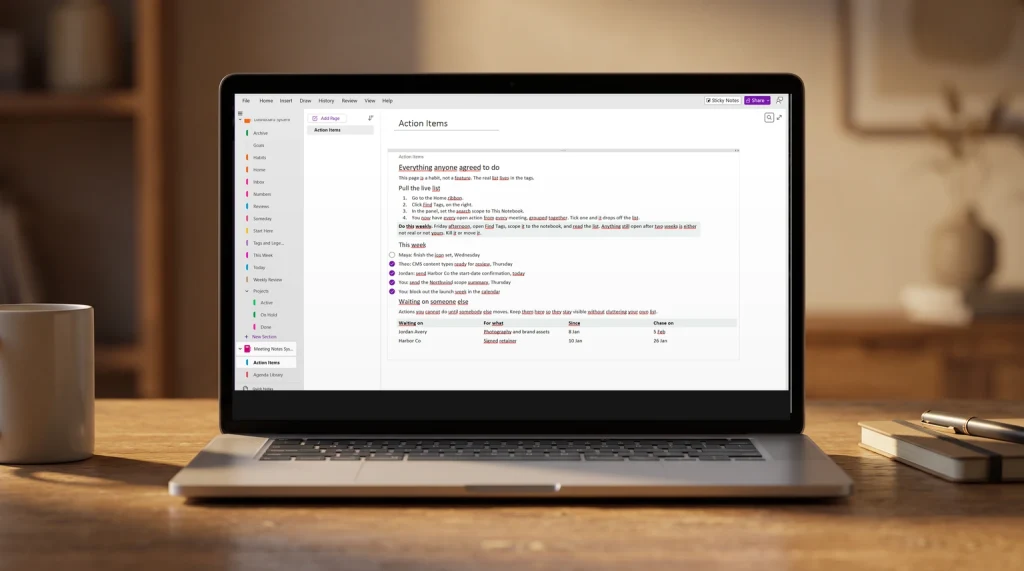
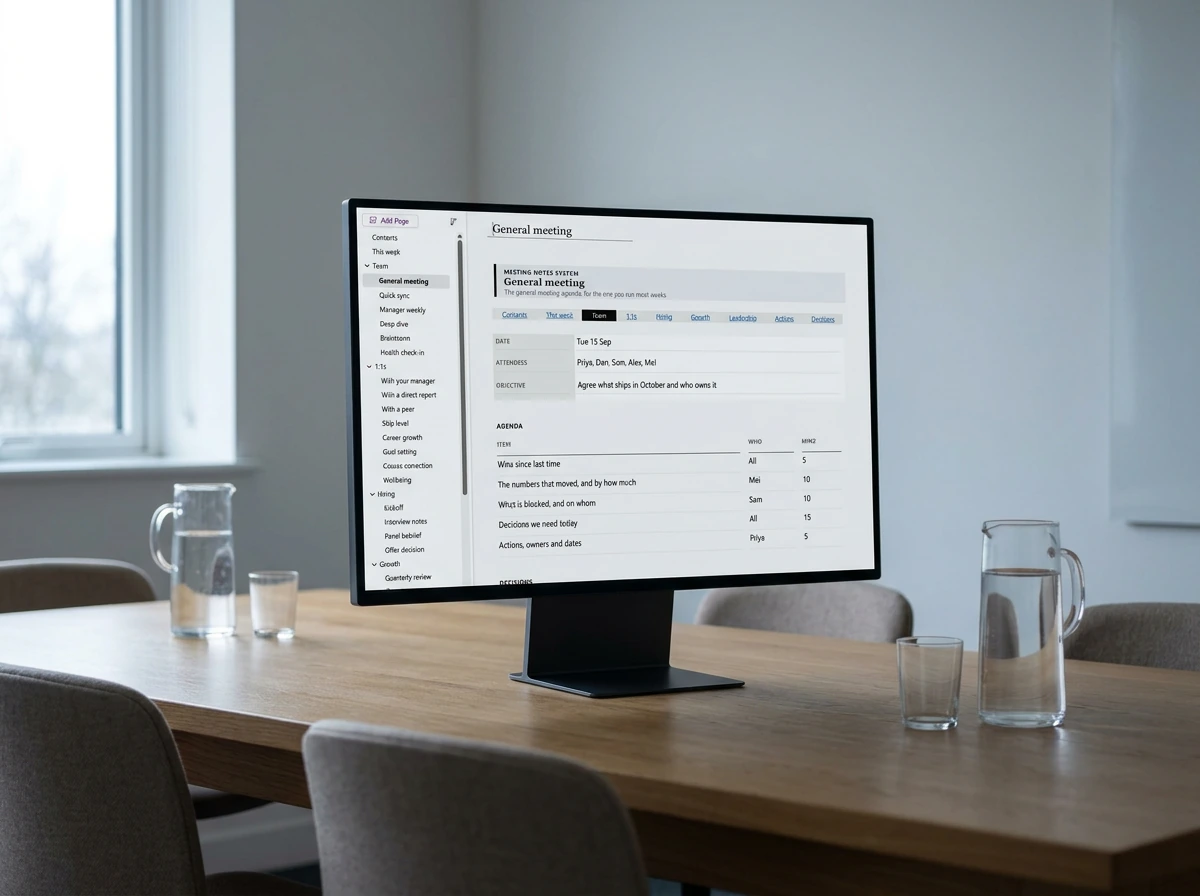
| Meeting agendas, decisions and actions | OneNote Meeting Notes Template | $29 | A copied agenda page |
| Clients, deals and renewals | OneNote CRM Template | $29 | A contact table |
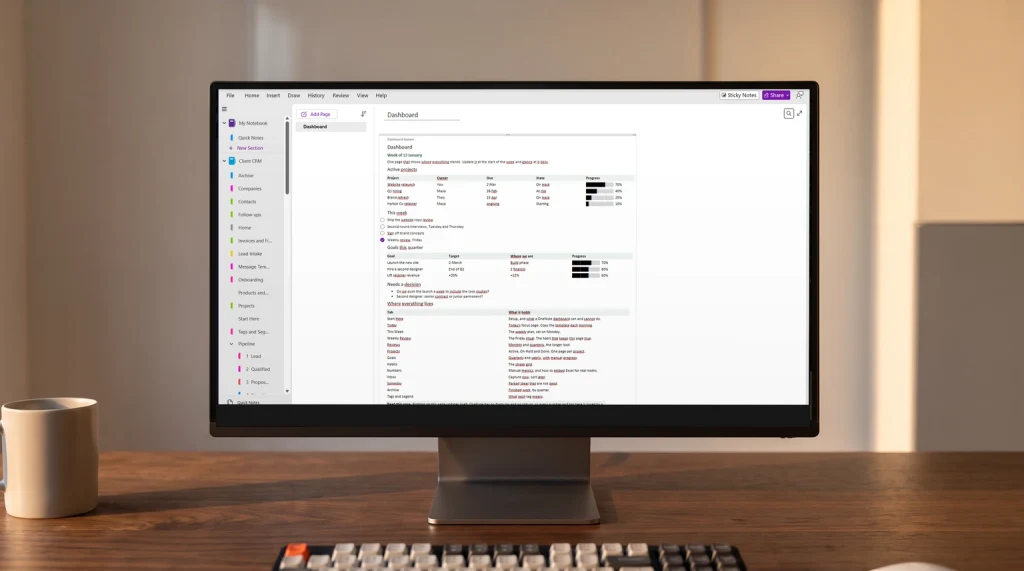
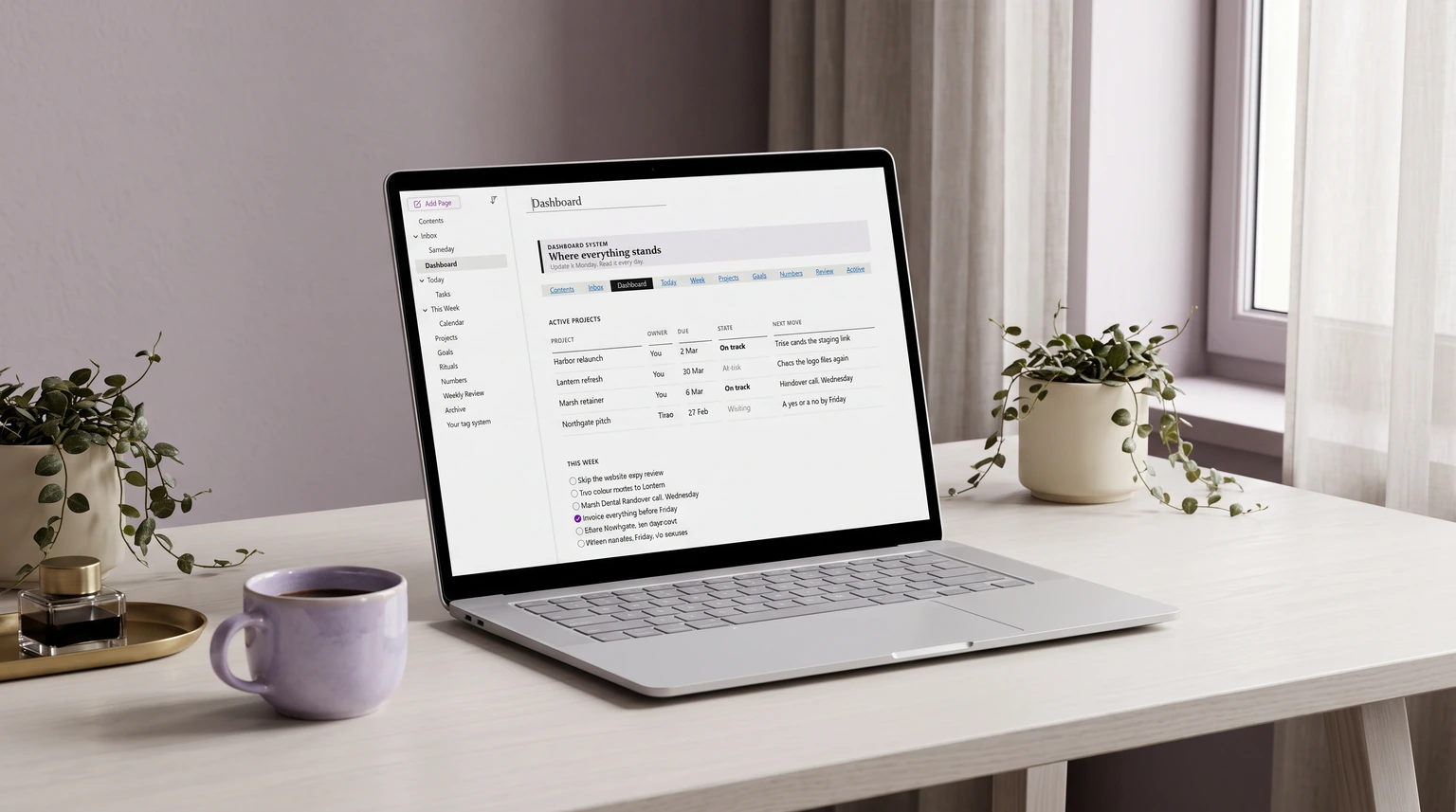
| One page for where everything stands | OneNote Dashboard Template | $29 | A weekly overview page |
Frame
What a OneNote template actually does
A OneNote template is a page whose structure you save once and reuse for every new entry of the same kind, so a meeting page always opens with the same agenda, decisions, and action-item blocks instead of a blinking cursor on an empty sheet. That is the whole value: the layout stops being a decision you remake every Monday and becomes a starting line you step onto. A blank notebook is freedom; a template is freedom minus the ten minutes you would otherwise spend rebuilding the same table, the same headings, and the same tags before you can do any real work.
The reason people search for a OneNote template rather than just typing into OneNote is that OneNote gives you a very free-form canvas and almost no scaffolding. You get notebooks, then sections (the tabs across the top), then pages and subpages down the side. You get tags, tables, and checkboxes. What you do not get out of the box is a ready-made project tracker or a meeting sheet; you assemble those from the raw parts. A template is simply that assembly, done once and frozen, so the parts snap into place the same way every time.
Before the eight layouts, it helps to know the building blocks every good OneNote template is made from. Learn these six and you can read any template in this guide, tweak it, or build one from nothing.
| Element | What it is for |
|---|---|
| Sections (tabs) | The top-level split. One section per project, client, or subject keeps pages from piling into one endless list. A good template starts by deciding what a section stands for. |
| Pages and subpages | The unit you actually reuse. A template is a page. Subpages nest detail under a parent (a project page with a subpage per meeting), which is how a flat notebook gains a shape. |
| Tags | The To Do tag makes a checkbox; Important, Question, and custom tags mark lines you can later gather into one summary. Tags are what turn a page of notes into a list you can act on. |
| Tables | The backbone of any tracker. A task table, a contact table, a seven-day grid. Press Tab to add a cell and the table grows with you, which is why most templates are really one or two tables. |
| Checkboxes | A To Do tag on a line gives you a tick box that survives across sessions. Checklists, agendas, and task pages all lean on it, and it is the fastest tag to reach for. |
| Page Templates pane | The built-in tool (OneNote on Windows desktop) that saves a page as a reusable template and can set it as the default for a section. Where it is missing, you copy a page instead. |
Everything below is built from those six parts. Once you can see a template as a small stack of sections, tables, and tags rather than a mysterious download, choosing the right one and adapting it to your work gets much simpler.
The eight
The eight OneNote templates worth building
Most OneNote template lists run to forty entries and quietly repeat themselves. In practice, eight layouts cover almost everything people use OneNote for at work and in study. Each one is a page you can build in minutes or download as a starting point, and each maps to a clear job.
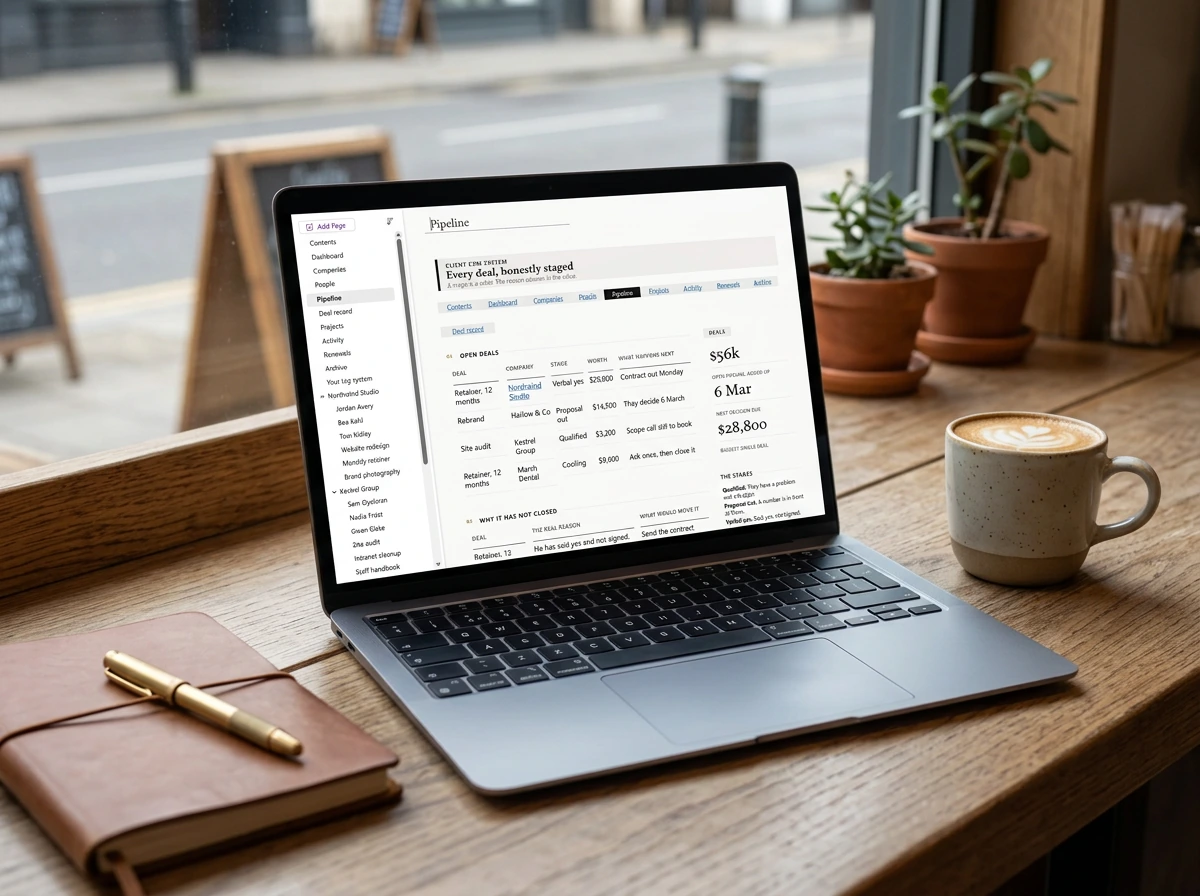
The table below is the working shortlist: what each OneNote template is best for, the core blocks it is made from, and roughly how much setup it takes. Setup effort is a rough guide, not a rule, since a plain version of any of these takes far less time than a heavily linked one.
| Template | Best for | Core blocks | Setup effort |
|---|---|---|---|
| Project management | Running a project end to end | Task table, status tags, milestone list | Medium |
| Project dashboard | One-page status across projects | Summary table, page links, status tags | Medium |
| Meeting notes | Agendas and action items | Agenda list, decisions box, To Do tags | Low |
| Task management | A personal or team to-do system | To Do tags, priority table, weekly section | Low |
| Client tracker (CRM) | Tracking clients and follow-ups | Contact table, page per client, next-step tags | Medium |
| Study notes | Lectures and revision | Cornell columns, cue tags, summary box | Low |
| Checklist / SOP | Repeatable procedures | Numbered steps, To Do tags, owner column | Low |
| Weekly planner | Planning the week by day | Seven-day table, priorities box, habit row | Low |
Read down the setup column and a pattern shows: the templates that hold up longest are usually the plainest. A meeting page with an agenda list and a decisions box gets used every week; a color-coded project cockpit with twelve linked pages looks impressive in a screenshot and gets abandoned by the second month. Start at the low-effort end, and only add structure when a real gap in your week asks for it.
If meetings are the page you rebuild most, our OneNote meeting notes template is that page done for you: 26 ready agendas in five groups, a decision log and action items rolled up by tag, imported once.
Projects
Project management and dashboard templates
Project work is where OneNote earns its place, because a project is exactly the kind of thing that needs one home for notes, tasks, and status rather than three apps that never quite agree. The project management template is the workhorse: a page (or a section) per project, with a task table at the top, status tags down the side, and a short milestone list so the shape of the thing stays visible. Our OneNote project management templates guide walks the full build, and how to use OneNote for project management covers the workflow around it.
The dashboard is the project template’s companion, and the two are easy to confuse. A project management page runs one project in depth; a project dashboard sits above several of them and shows status at a glance, with a summary table whose rows link down to each project page. Build the dashboard second, once you have more than two projects worth tracking, so it summarizes something real instead of sitting empty. Our OneNote project dashboard template is the one-page cockpit, and the broader OneNote dashboard guide covers the same idea for non-project uses like habits or team overviews.
The trap with both is over-linking. A dashboard with a link to every page in the notebook stops being a summary and becomes a second table of contents you have to maintain by hand. Keep the dashboard to the handful of things you actually check each morning, let the project pages hold the detail, and the pair stays useful long after the novelty of building it wears off.
If you would rather see the finished shape before building your own, here is how we structure ours. The counts below are the real ones, and the point of showing them is less the totals than the shape: the meetings notebook carries twenty six ready agendas in five groups rather than one generic page, because the format you reach for on a Tuesday is the one that already matches the meeting in front of you.
What’s inside
OneNote Templates for Work
- .onepkg notebook
- Install guide
- Full PDF copy
Best for someone running projects, clients and meetings out of one notebook rather than three apps.
- Projects
- Tasks
- Milestones
- Executive command center
- Companies
- People
- Pipeline
- Deal record
- Renewals
- Four-company pack
- 26 agendas, five groups
- Decisions
- Actions
- This week
- Today
- This week
- Calendar
- Tasks
- Someday
- Numbers
- Weekly review
90 pages across three rebuilt notebooksClient CRM 39, meeting notes 36, dashboard 15, each with its own drawn sticker set
Structure current 4 September 2026 See the notebooks
One honest note on all four, and on any OneNote template you build yourself: OneNote has no formulas and no rollups. Nothing here adds a column up for you or updates itself, and Find Tags is a query you re-run rather than a live screen. What OneNote does have is tags, search that genuinely works, offline access, and sync to every device you own. Build on those and the notebook lasts; build expecting spreadsheet behaviour and you will be disappointed in week two.
Meetings and tasks
Meeting notes and task templates
If you build only one OneNote template, make it the meeting page, because it is the layout you will open most and the one where a fixed structure saves the most scramble. The shape is simple: a header with date and attendees, an agenda list you fill before the meeting, a decisions box, and an action-item area where every line carries a To Do tag so nothing agreed on quietly evaporates. Set it as the default page for your meetings section and every new meeting opens ready to type into. Our OneNote meeting template guide has the full layout and the tag setup.
The task template is the other daily driver, and the reason it is separate from the meeting page is that tasks arrive from everywhere, not just meetings. A working version is a single page with a priority table (task, owner, due, status) and a To Do tag on each line, which lets you run a tag search later and pull every open task in the notebook into one list. That tag-search trick is the quiet payoff of using tags consistently across your OneNote template set: the tags you add in a meeting page and a project page all surface in the same roundup. Our OneNote task management template covers the personal and the team versions.
Meetings and tasks work best as a pair. The meeting page generates action items; the task page collects them. Keep the tag names identical across both (one To Do tag, not three near-duplicates) and OneNote does the collecting for you. That consistency, more than any single clever layout, is what separates a OneNote template set you still use in six months from a folder of pretty pages you forgot about.
Clients and study
Client tracker, CRM, and study templates
OneNote makes a surprisingly capable light client tracker, which is why “OneNote CRM” is a real search and a real use. The pattern is a contact table on a section front page (name, company, last contact, next step) with a page per client behind it holding the running history of calls, emails, and notes. Add a next-step tag to the one line that matters for each client and a tag search becomes your follow-up list for the week. It will not replace a full sales platform, but for a freelancer or a small team it removes the gap between “notes about the client” and “what I owe the client.” Our OneNote CRM template builds the tracker, and using OneNote for sales management takes it further into pipeline and follow-up cadence.
Study is the other place a OneNote template quietly outperforms fancier tools. The classic layout is a Cornell page: a narrow cue column on the left for questions and keywords, a wide notes column on the right for the lecture, and a summary box across the bottom you write from memory afterward. In OneNote that is a two-column table plus a box, saved as the default page for each subject section, so every lecture opens in the same revision-ready shape. Tag the lines you do not understand yet with a Question tag, and your revision list builds itself as the term goes on. If you are weighing OneNote against other study apps first, our best note taking app guide covers where each one fits.
Both the client tracker and the study page reward the same discipline as the rest: decide what a section stands for, keep one table doing the heavy lifting, and use tags the same way every time. A client CRM and a Cornell notes page look unrelated, but under the surface they are the same two or three OneNote building blocks arranged for a different job.
What Microsoft ships
Microsoft’s built-in OneNote templates, and where they stop
Before building anything, it is worth knowing what Microsoft already gives you, because the answer is smaller than most roundups imply. OneNote ships built-in page templates covering decorative backgrounds, simple to-do lists, and a handful of academic and business layouts. You reach them from the ribbon with Insert, then Page Templates, expanding the category names in the task pane on the right. That pane is also where your own saved OneNote templates appear, under My Templates.
Two limits catch people out, and both come from Microsoft’s own documentation rather than from us. The first generates the most confused forum posts: a template applies only to a new page that does not already contain notes. Start writing, then decide you want the structure, and OneNote will not retrofit it. Microsoft’s stated workaround is to create a new page from the template and copy your existing notes across, which works, but is better known before you have half a page of meeting notes and no agenda around them.
The second limit is about which OneNote you are running. Microsoft’s page-template documentation applies to OneNote for Microsoft 365, 2024, 2021 and 2016, all of them Windows desktop builds. For the browser version the company is unusually blunt: creating and customizing new page templates is not possible in OneNote for the web. You can open and edit pages built from a template, and apply formatting and tags to start a layout, but Microsoft directs you to finish saving it in the desktop app on a Windows PC. That is why the copy-a-master-page habit below is worth building even if you own a Windows machine: it is the only method that behaves the same everywhere.
One phrase deserves clearing up, because it sends people hunting through menus for a button that was never there. There is no OneNote notebook template in the way there is a page template: OneNote templates operate on pages, not on whole notebooks. What people mean by a notebook template is a notebook whose sections already hold the master pages they want, which you get by copying a notebook or importing a pack.
One thing changed quietly and is worth recording. Microsoft Create, the gallery that used to host browsable Microsoft OneNote templates, no longer lists OneNote at all; its sections now cover Word, Excel, PowerPoint, Designer and Clipchamp. Any guide still sending you there points at something that has moved on. Built-in templates, your own saved pages, and imported packs are the three real sources now.
Add and reuse
How to save and reuse a template in OneNote
Here is the part most guides skip and most of the confusion lives in: OneNote does not have a template store, and the way you reuse a layout depends on which version of OneNote you run. There are three honest routes, and knowing which one applies to you saves a lot of clicking. The same split decides what a calendar can be in OneNote, which is why our OneNote calendar template guide starts there rather than with a download.
- Save your own page as a template (Windows desktop). Build the page the way you want it, open the Insert tab, choose Page Templates, and in the pane on the right pick Save current page as a template. You can also set a template as the default for a section so every new page opens from it. This is the closest thing OneNote has to a real template feature, and Microsoft documents it for OneNote for Microsoft 365, 2024, 2021 and 2016, all of them Windows desktop builds.
- Copy a master page (everywhere else). OneNote for the web can open and edit pages that were made from a template, but Microsoft is explicit that creating and customizing new ones is not possible there, and points you back to the Windows desktop app to finish the job. So the portable move is to build one master page, right-click it, choose Copy, and paste a fresh copy each time. Keep a Templates section holding your masters and copying takes seconds. Our OneNote for iPad guide covers the tablet version of this habit.
- Drop in a downloaded pack. A downloaded OneNote template usually arrives as a notebook or a set of pages you import once, then copy from like your own masters. This is the fastest way to a polished layout you did not have to design, and it is what our template pack is built for.
Two small habits make any of the three routes stick. First, keep every master in one clearly named Templates section so you never hunt for the original. Second, learn two or three tag shortcuts (the To Do tag is the one to know) so filling a template stays fast; our OneNote keyboard shortcuts guide has the short list worth memorizing. Microsoft’s own page templates walkthrough is the official reference for the desktop route, and our OneNote hub collects the rest of our guides in one place.
Verdict
Which OneNote template to build first
Whichever layout you begin with, give it a fortnight of honest daily use before you judge it. Most OneNote template regret comes from redesigning the page every few days and never running any single version long enough to find out whether it fits. Pick one, keep it plain, and let two weeks of real notes tell you what to change. If your team has moved some of this into Microsoft’s newer collaboration app, note that Microsoft Loop templates work differently: there is no file to import, and a saved one cannot leave the workspace it was made in.
FAQ
Common questions, answered briefly
Does OneNote have templates?
How do I add a template to OneNote?
What is the best OneNote template to start with?
Are there free OneNote templates?
Can I use a OneNote template on my iPad?
What is the difference between a OneNote template and a page?
Have a use case the FAQ misses? The share row below carries an email link. We keep this guide current as OneNote’s apps shift, so tell us which layout you would add.
People also ask