The frame
What a OneNote dashboard template actually needs
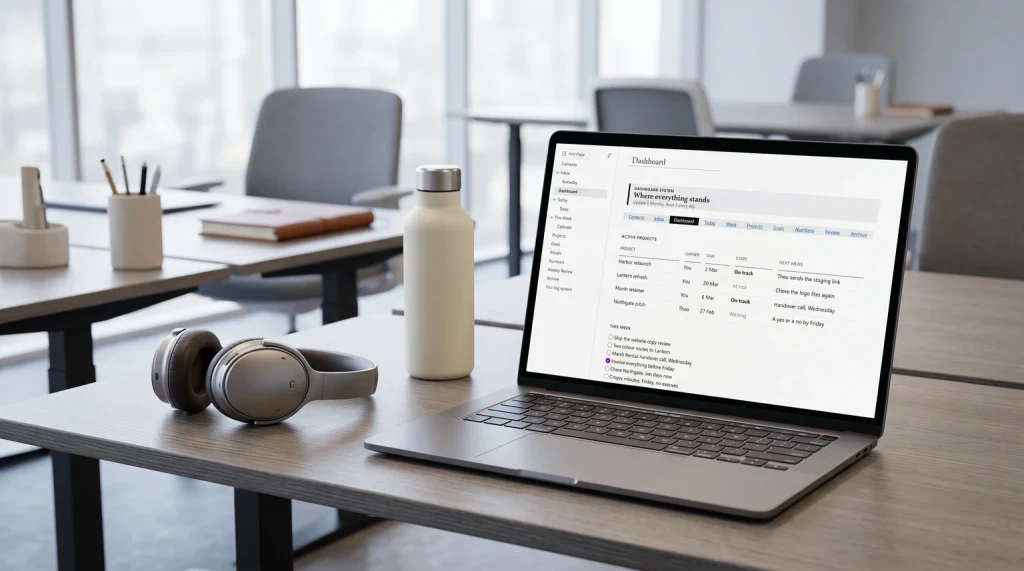
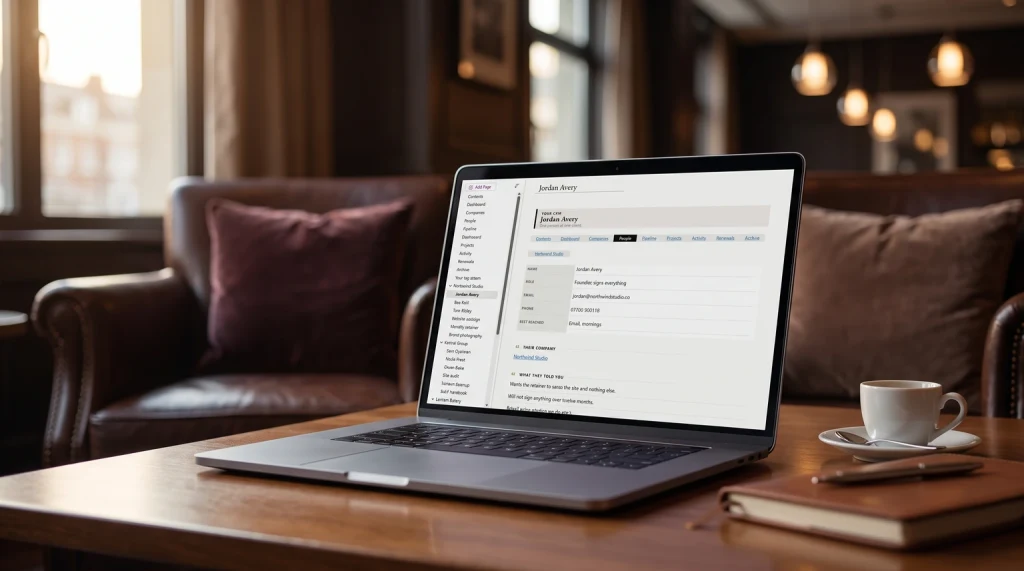
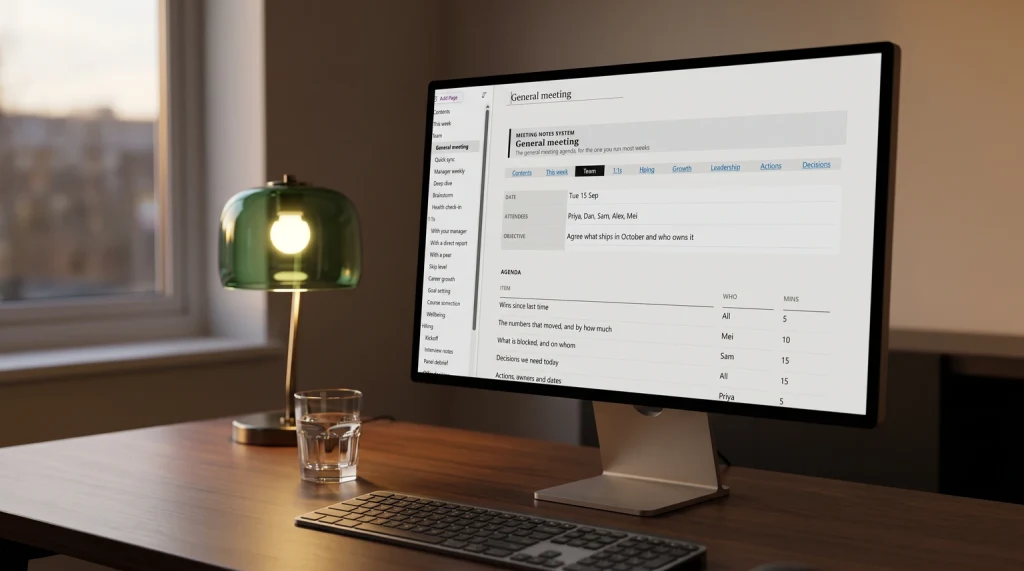
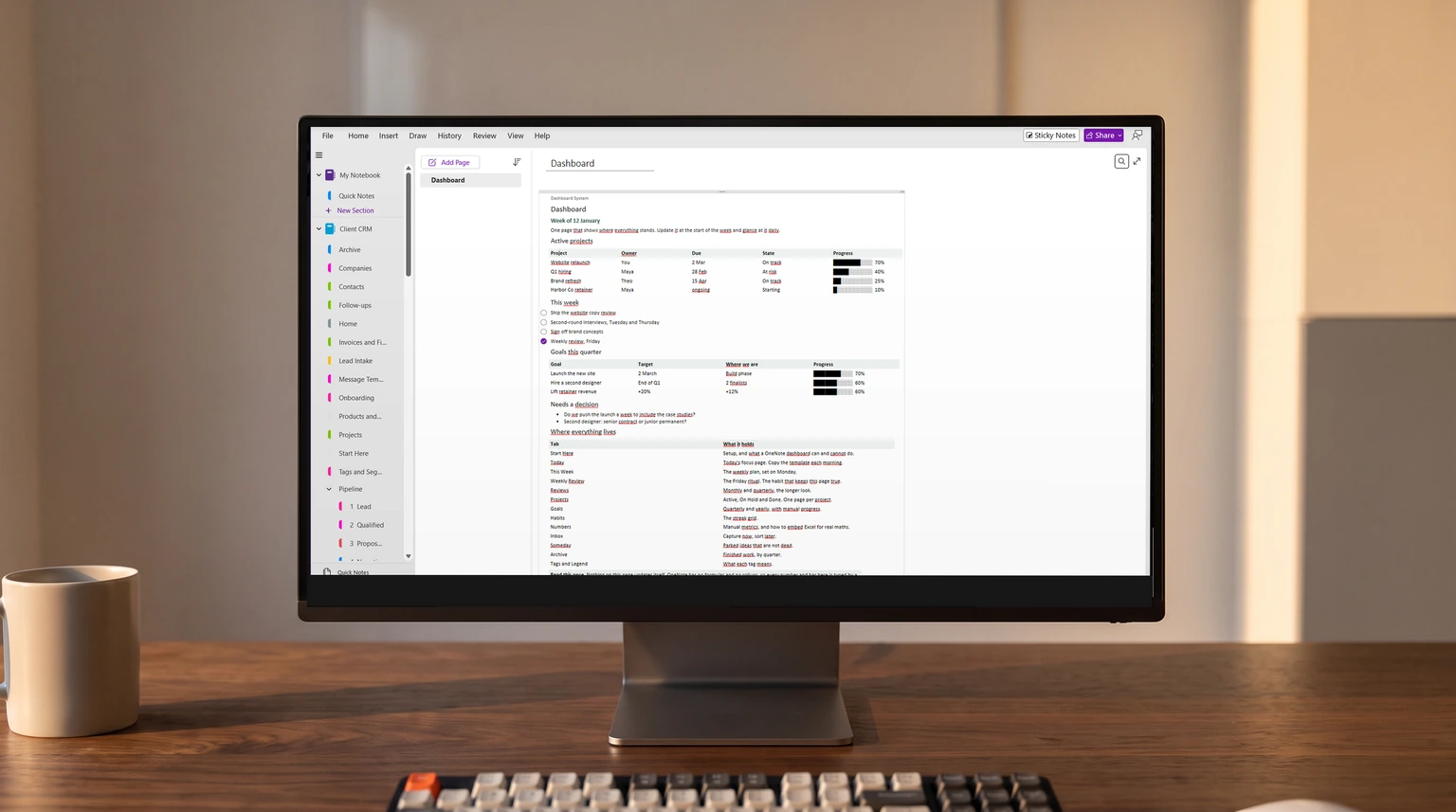
A OneNote dashboard template works when it answers one question on one screen at 9am: what is the state of this project today? The temptation is to add everything (tasks, risks, owners, calendar, files); the working dashboard says no to most of that and trusts the rest of the notebook to hold it. Four layouts cover the real shapes; the rest is bloat.
The single most important spec is the page-fold. The first screen of the page, the part that loads without scrolling, is the dashboard; everything below is appendix. The Microsoft OneNote help center documents the page-anchor feature that the working dashboards rely on for jump-links.
The picks
The four OneNote dashboard template layouts worth using
| Layout | Best for | Top of page shows |
|---|---|---|
| Status-first | Daily standup teams | One-sentence current state, top of page |
| Milestone-first | Phased projects | Next milestone date and what is owed |
| Risk-first | High-risk or compliance work | Top three risks and mitigation owners |
| Owner-first | Cross-team coordination | One row per owner with their current commit |
The four are different shapes of the same OneNote dashboard template; the second screen-fold of each looks similar. The first screen is where the choice matters; pick the one that matches what you actually open the dashboard to check.
Layout 1: Status-first
The status-first layout opens with one sentence: the current state of the project as of today. Below it, four headed paragraphs (Scope, Risks, Owners, Next). Below those, a chronological recent-activity list. The 9am check is the first sentence; everything below is context for when you need it.
This layout works for daily-standup teams and any project with frequent state changes. The status sentence gets updated each working day; the four paragraphs get refreshed weekly. The activity list flows continuously.
Layout 2: Milestone-first
The milestone-first layout opens with the next milestone date and what is owed by it. Below that, a list of the remaining milestones with their dates. Below that, the typical status/risks/owners structure.
This layout works for phased projects, especially ones where slippage on a milestone cascades. The dashboard makes the cascade visible: a milestone slipping is the first thing the reader sees. Pair this layout with our OneNote project management guide for the surrounding workflow.
Layout 3: Risk-first
The risk-first layout opens with the top three current risks and the owner mitigating each. Below that, the rest of the risk register with status. Below that, status and next steps.
This layout works for high-risk or compliance-driven work where the risk profile is what the team checks first. It also works as a project-recovery dashboard: when a project goes red, switching to a risk-first dashboard temporarily can re-center the team on what needs to clear before anything else moves.
Layout 4: Owner-first
The owner-first layout opens with a table: one row per owner, what they have committed to this week, and the date of their last update. Below the table, the typical status structure.
This layout works for cross-team coordination, especially when the project has owners in different time zones or business units. The table format makes silence visible: if an owner has not updated in two weeks, that fact sits at the top of the page until they do.
Build it
How to build a OneNote dashboard in five minutes
Make one page, named for the project.
Put it at the top of the project’s section so the notebook opens to it. One page per project; never a shared dashboard across projects.
Write the status sentence at the very top.
One line, today’s date, the current state in plain words. This is the part you update daily and the part most readers will only ever read.
Add three headed blocks: Next, Owners, Risks.
Short headed paragraphs, not tables. These are the weekly-refresh layer. Keep them above the page-fold so they load without scrolling.
Link, do not embed.
Use OneNote page anchors to jump to detail pages, and link heavy files (the schedule, the budget) in OneDrive rather than embedding them.
Set a refresh cadence.
Status sentence daily, the three blocks weekly. A dashboard that goes stale stops being trusted within a fortnight.
Ideas
OneNote dashboard ideas and examples to steal
Beyond the four layouts, a handful of small components show up on the dashboards that survive longest. A month grid is one of them, and it has a shape problem of its own: our OneNote calendar template guide covers why it should be undated. Add the ones that match how your team actually checks in.
- RAG status header
- One coloured word (Red, Amber, Green) next to the status sentence; the fastest read on the page
- This-week strip
- A single line of the three things due this week, cleared and rewritten every Monday
- Decisions log
- A running dated list of decisions made, so nobody relitigates a settled call
- Blocked-items callout
- A short boxed list of what is stuck and who can unstick it
- Links bar
- A row of jump-links to the schedule, the budget, and the spec, kept out of the body
These are also the closest thing to a free OneNote dashboard template: there is no file to download because the value is the structure, and the structure copies in a minute. Build the page once, then duplicate it for the next project. For the surrounding project pages, the OneNote project management template piece carries the rest of the system.
Skip this
Why embedded-spreadsheet dashboards fail in OneNote
The most common OneNote dashboard template mistake is embedding an Excel spreadsheet into the page. The embed renders slowly, breaks on mobile, locks the data when OneNote is offline, and fights any team member who wants to edit the spreadsheet directly. Link to the spreadsheet in OneDrive; do not embed it.
The same principle applies to embedded files generally. OneNote is fast when the page is mostly text; it slows down when the page tries to be a database. Keep the dashboard textual and link to the heavier objects elsewhere. The project management template piece covers the linking patterns from the project-page side, and the OneNote hub sits behind both.
FAQ
Common questions, answered briefly
What is the best OneNote project dashboard layout?
Should I embed a spreadsheet in the OneNote dashboard?
How often should the dashboard be updated?
Should each project have its own dashboard page?
Can the dashboard be shared with stakeholders outside the team?
What are some good OneNote dashboard ideas?
Is there a free OneNote dashboard template?
If your question isn’t above, drop it in the comments.
People also ask