For the canonical buyer’s comparison of OneNote against Notion, Evernote, Apple Notes, Obsidian, and Google Keep, see our best note taking app pillar.
Premise
What a OneNote project management template actually has to do
A OneNote project management template’s job is to give the project a shape OneNote can hold without fighting the app. OneNote is built around three primitives: notebooks (top level), sections (tabs across the top of a notebook), and pages (titled pages inside a section). A good project management template uses each primitive for one thing: notebooks for client or company scope, sections for project phases or projects themselves, pages for tasks or deliverables. Templates that ignore this hierarchy end up with too much information per page and lose the search-and-link advantage OneNote actually gives you.
The honest framing for picking a OneNote project management template is what OneNote does well versus what it does poorly. Done well: long-form notes, mixed media (handwriting, images, files, embedded documents), section-based organisation, search across notebooks, page links for dependencies, tags for status. Done poorly: drag-and-drop boards (a OneNote board moves cards by cut and paste, with no automation), Gantt charts at scale (the layout breaks past 20 rows), shared real-time collaboration (functional but laggier than Notion or Asana). Pick a template that leans into the first list, not the second.
If you would rather import a finished notebook than build one, our OneNote project management template is the kanban board, portfolio view and per-project pack described below, already assembled. The rest of this guide shows how to build each shape yourself.
If the plan has to live in a spreadsheet the whole team can open rather than in a notebook, our project plan template guide covers the same plan in Google Sheets: eight sections on one screen and a task list that draws its own timeline.
Picks
Four OneNote project management template shapes worth picking
| Shape | Best for | OneNote primitives used | Works on web + mobile |
|---|---|---|---|
| Single-section project | Solo projects, small scope, single notebook | Section + pages + tags | Yes |
| Section-group multi-project | Consultants, PMs managing 5-10 projects | Section groups + sections + pages | Yes |
| Dashboard template | Executive overview, linked deep-dives | Page links + tags + table layout | Yes |
| Kanban-style task tracker | Weekly status board | Table, cut and paste (no native Kanban) | Yes, except iPhone |
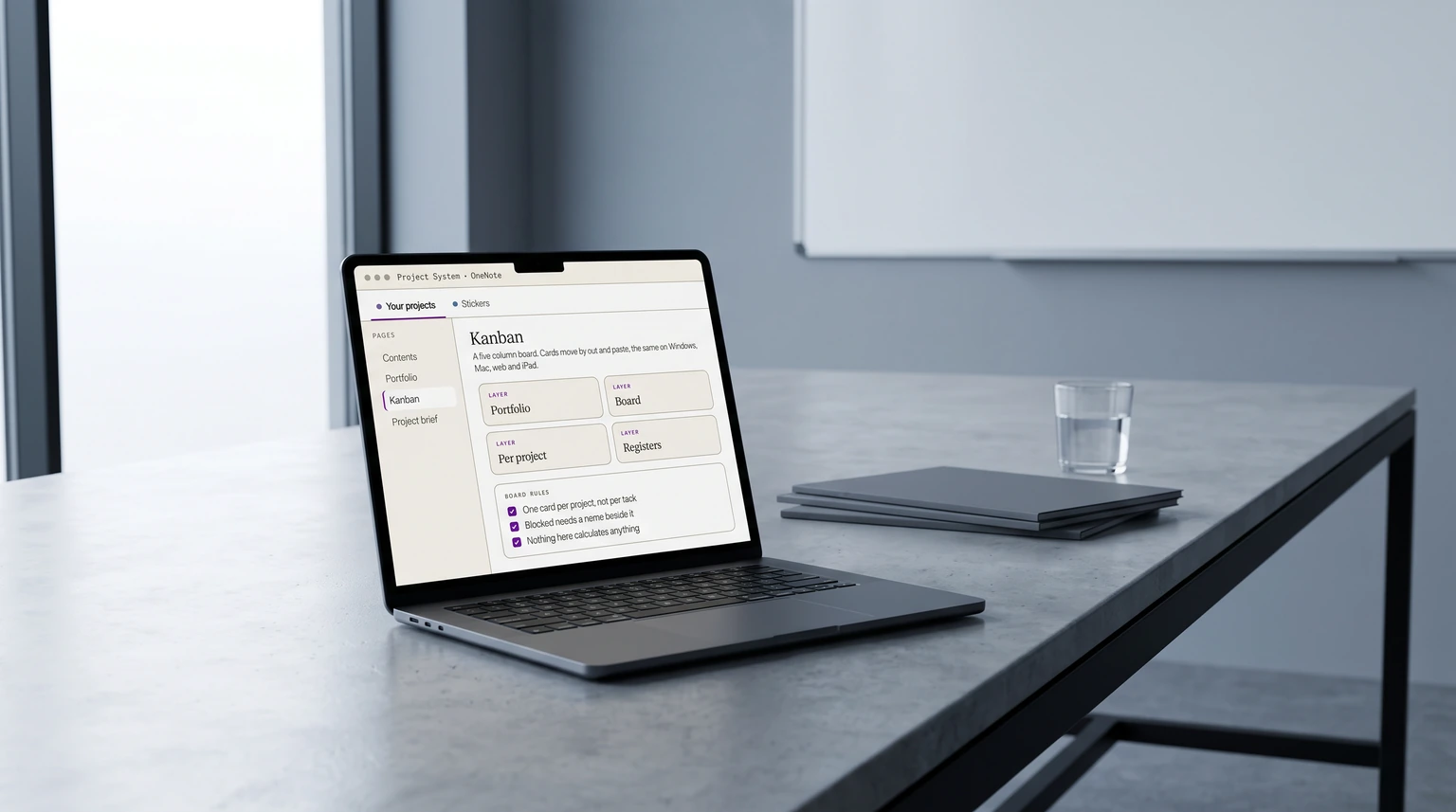
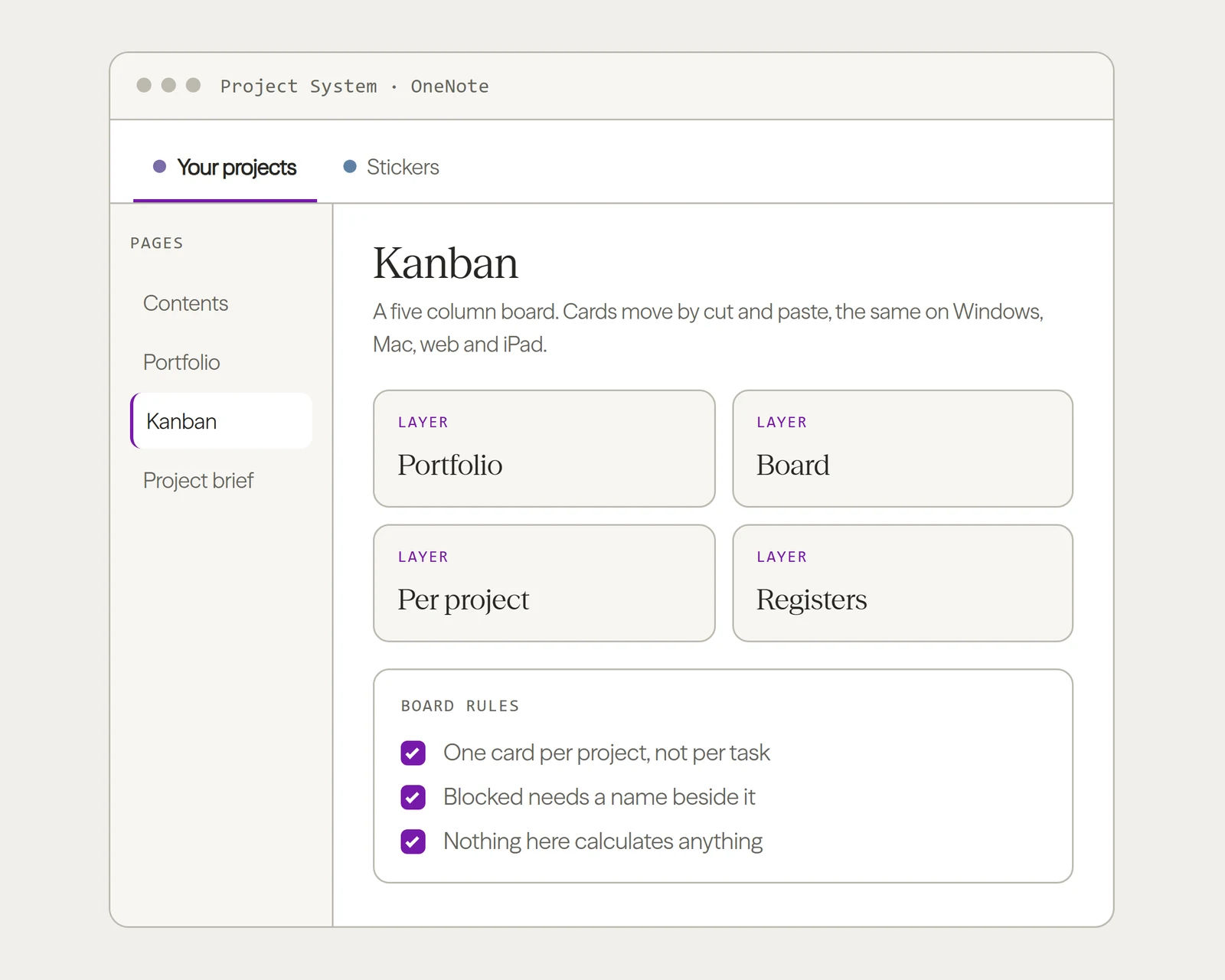
All four shapes earn their place, with one condition on the Kanban. OneNote has no native board, so the board is a table and cards move by cut and paste. That works on Windows, Mac, the web and the iPad; the iPhone app cannot insert a table. The Kanban disappoints when it tries to be Trello, with a card per task and an expectation of drag-and-drop. Kept to one card per project, it is the fastest status view in the notebook, and our OneNote Kanban board guide has the build.
Single project
Single-section OneNote project management template: the default
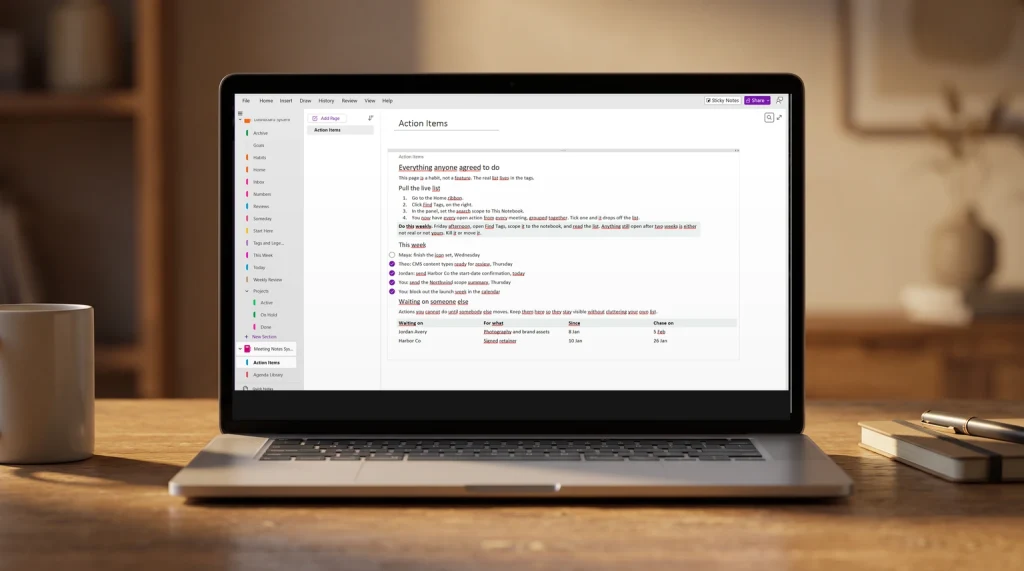
The single-section OneNote project management template is the right default for solo or small-team projects. One notebook for the company or client, one section for the project itself, pages inside the section for each task or deliverable. The section’s first page is the project overview (goal, deadline, key stakeholders, current status); subsequent pages are tasks named with the deliverable verb-first (“Draft proposal”, “Schedule kickoff”, “Submit invoice”). Tags on each page mark status: to-do, in-progress, blocked, done. This shape uses OneNote’s primitives directly without fighting them.
The single-section template scales to about 30 tasks per project before search becomes the navigation path. Past that, split into a section-group multi-project structure (next section). The template’s strength is simplicity: a new team member can be productive on it in 10 minutes. Its weakness is that it doesn’t handle dependencies well; page links work but are easy to forget when the page count grows. If your project has complex dependencies, lean toward the section-group shape with explicit dependency pages.
Multi-project
Section-group multi-project OneNote template: the consultant pick
The section-group multi-project OneNote project management template is the right pick for consultants, project managers, and anyone running 5 or more concurrent projects. One notebook for the company, section groups for client or workstream categories, sections inside each group for individual projects, pages inside each section for tasks. The structure scales to dozens of active projects without the section-tab bar becoming unreadable, because section groups collapse into one tab each at the notebook root.
The template’s setup is the part that takes time. You define the section groups up-front (by client, by quarter, by workstream), build a template section that includes the project-overview page + task page template, and copy that template section into each new project. The discipline is in keeping the section structure consistent across projects, which makes search reliable. Without consistent structure, a search for “kickoff” returns 40 unrelated pages and the search advantage evaporates.
The OneNote project management template that survives long-term is the one that uses OneNote’s section + page + tag primitives natively. Templates that fight the UI by imitating Trello or Asana quietly lose every time.Premise section
Dashboard
Dashboard OneNote project management template: the executive view
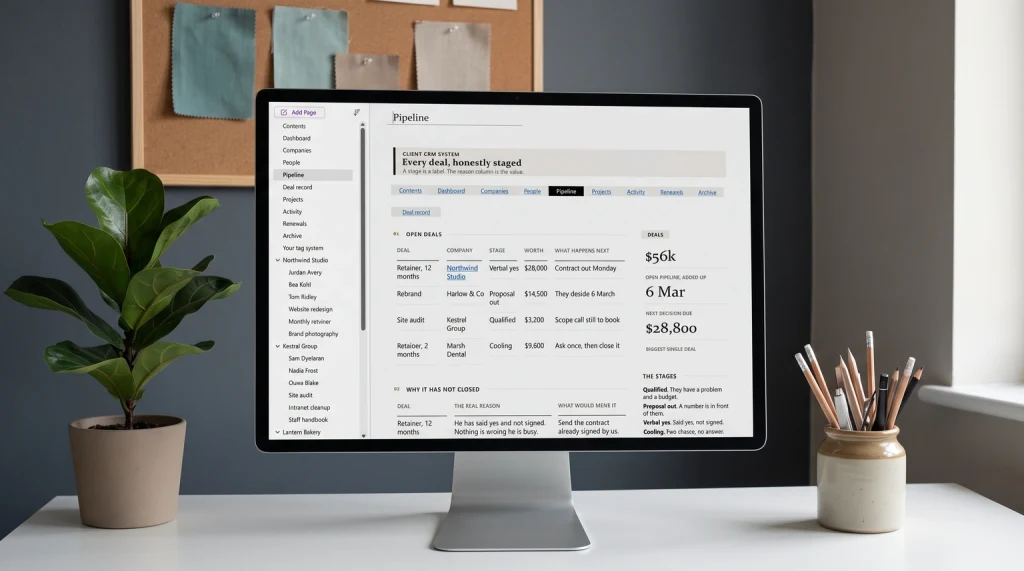
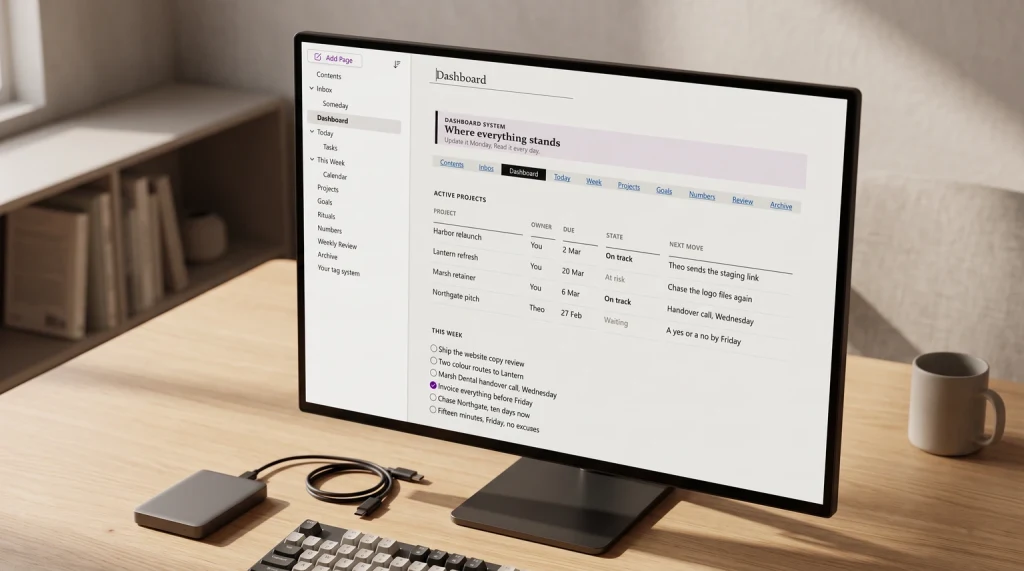
The dashboard OneNote project management template is the executive overview shape: one page that summarises everything at a glance, with page links into the deep-dive pages for each project. The dashboard page lives at the top of the section (or section group) and includes a table of active projects, status tags, deadlines, and links to the project’s section. Click into a project and you’re in the single-section or multi-project template; back-link returns you to the dashboard.
The dashboard shape works because OneNote’s page links are robust: they survive renames, sync across devices, and open the linked page directly even from web or mobile. The shape falls apart when teams forget to update the dashboard table; the deep-dive pages drift from the dashboard summary and the executive view stops matching reality. Pick the dashboard shape only if someone owns the dashboard update cadence (weekly minimum). Without that ownership, the single-section or section-group templates are more honest.
Built
What a built OneNote project management template contains
Shapes are easier to judge against something built. Ours is one notebook in four layers rather than a section per project: the board and the portfolio sit above the work, a per-project pack gets copied once per project, and the registers a project is audited on sit underneath all of it. Here is the page list, so you can see the structure before deciding whether to build your own or start from this one.
What’s inside
OneNote Project Management Template: Kanban, RACI and Risk Register
- OneNote notebook
- Instant download
- Six page sticker set
Best for one person or a small team running several projects out of one notebook, who want the artefacts a project actually runs on rather than a weekly planner with “project management” in the name.
- Kanban
- Backlog
- Board rules
- Portfolio
- Portfolio review
- Capacity
- Project brief
- Kickoff
- Scope
- Plan
- Task breakdown
- Status report
- Retrospective
- Close out
- Tasks
- Done
- Milestones
- Timeline
- Risks
- Issues
- Assumptions
- People
- RACI
- Stakeholder map
- Comms plan
- Changes
29 pages in four layersPlus a Contents page, a tag system, and a six page sticker set so an edited page still matches the book
Page list checked against the live product, 11 September 2026 See the notebook
Two things in that list are worth copying whether or not you buy anything. The first is that the dashboard is a page, not a section: it lives at the top of the notebook and links outward, so there is exactly one front door. The second is that the per-project pack is copied per project rather than rebuilt per project, which is the difference between a notebook you still use in March and one you abandon in February. Neither needs our file. Both take an afternoon to build yourself.
Decide
Pick the OneNote shape for your situation
Three shapes earn their place; one doesn’t. Read across the row that matches your work.
| Your situation | The shape | Why |
|---|---|---|
| One project at a time | Single-section | One notebook, one section per project; lowest friction to start |
| Five or more projects or clients in parallel | Section-group | One section group per project, clean separation, no cross-bleed |
| Reporting up to stakeholders | Dashboard | A linked summary page over the deep-dive sections; needs a weekly update owner |
| You think you want a Kanban board | Build it as a table, see below | No native board; one card per project, cut and paste to move |
Kanban
Kanban in OneNote project management templates, and where it breaks
Most OneNote project management template searches eventually surface a Kanban-style template: three or four columns (To Do, In Progress, Review, Done) with task cards arranged inside them. OneNote does not have native Kanban support, so the columns are a table and cards move by cutting and pasting. Microsoft documents tables in OneNote for Mac, for the iPad and for the web; the one exception is the iPhone, which cannot currently insert a table. So the board itself works across devices. What breaks it is scope: a card per task buries the page within weeks, and nothing on it moves, counts or alerts on its own.
If your workflow needs a board that many people update every hour, with automation and alerts, a board-first tool such as Trello or Asana is the better home, and OneNote holds the notes, files and reference content around the project. If the board is a weekly status view for one person or a small team, a OneNote table board with one card per project does the job without leaving the notebook. Our OneNote Kanban board guide walks through the build and the three rules that keep it honest.
If you’ve built a OneNote project management template that has stuck across a multi-quarter project lifecycle, drop the structure in the comments. The shape that earns long-term use varies by team size and discipline; specific patterns from PMs and consultants help calibrate the recommendations above.
FAQ
Common questions, answered briefly
What’s the best OneNote project management template?
How do I use OneNote for project management?
Does OneNote have project management features?
Can OneNote replace Trello or Asana for project management?
Do OneNote project management templates work on web and mobile?
If yours isn’t above, drop the question in the comments and we’ll fold it in next refresh.
People also ask