The idea
What a hyperlinked digital planner is
A paper planner has one quiet advantage nobody talks about: you can open it at next Thursday in a second, because your thumb knows where the pages are. A 487-page PDF on a tablet has no thumb-feel at all. Scroll to next Thursday and you are flicking for half a minute. A hyperlinked digital planner exists to fix exactly that problem, and nothing else about it matters as much.
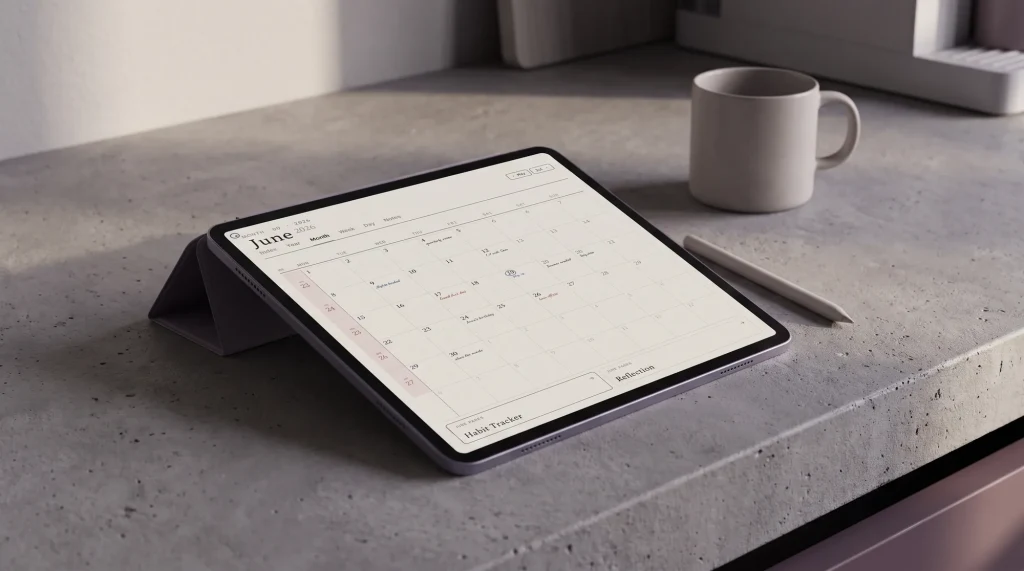
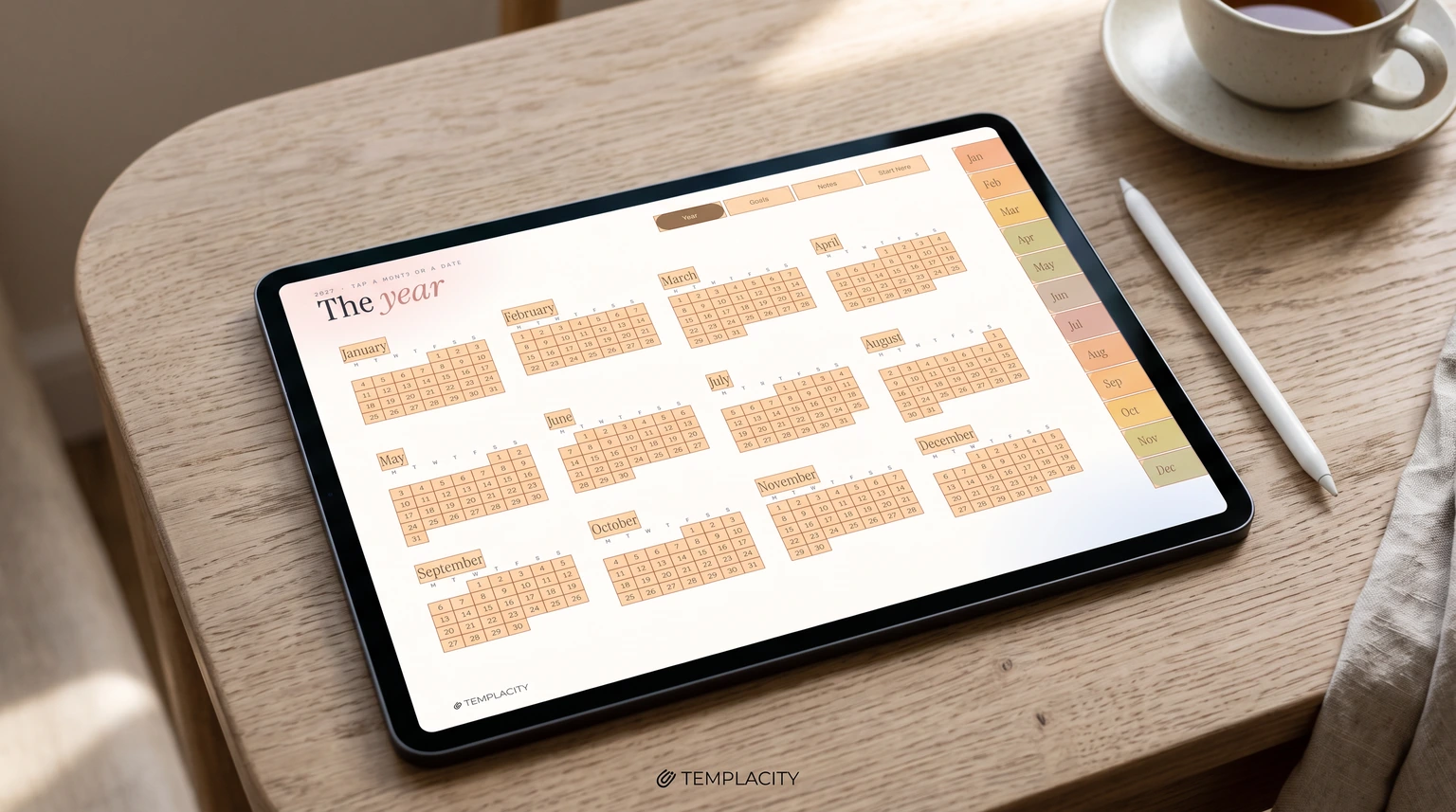
Technically it is an ordinary PDF. What makes it a planner is a layer of internal links drawn over the page: invisible rectangles that say “when someone taps here, go to page 214”. The month tabs down the side are links. The dates on the year page are links. The little arrows that move you to the next week are links. You open the file in a note-taking app, write on it with a stylus, and move around it by tapping, the way you would flip a paper planner open at a ribbon.
That is also why two planners that look identical in a shop preview can feel completely different on the tablet. The art is the part you see in the listing. The links are the part you use forty times a day, and they are invisible until you tap one. Our digital planner guide covers the wider choice of formats; this post is about the links themselves: how they are laid out, which apps follow them, and what we count before a planner of ours ships.
The layout
How the links in a hyperlinked planner are laid out
Almost every hyperlinked planner uses the same three kinds of link, and knowing them makes any planner easier to judge.
Tabs. A row or column of links printed on every page: the twelve months, plus shortcuts such as Year, Notes or Habits. Tabs are the planner’s spine. Because they sit on every page, you are never more than one tap from any month, wherever you are writing.
The index chain. The year page links to each month, each month links to its weeks and days, each week links to its seven days. This is the “drill down” route: year, month, week, day, in three taps. A planner that links the year to the months but stops there is half built.
Back and sideways links. From a day page you want to go up to its week or month, and across to tomorrow. Small arrows and a breadcrumb of tabs (Year, January, Week 1) do this. They are the links people forget to check before buying, and the ones you miss most when they are absent.
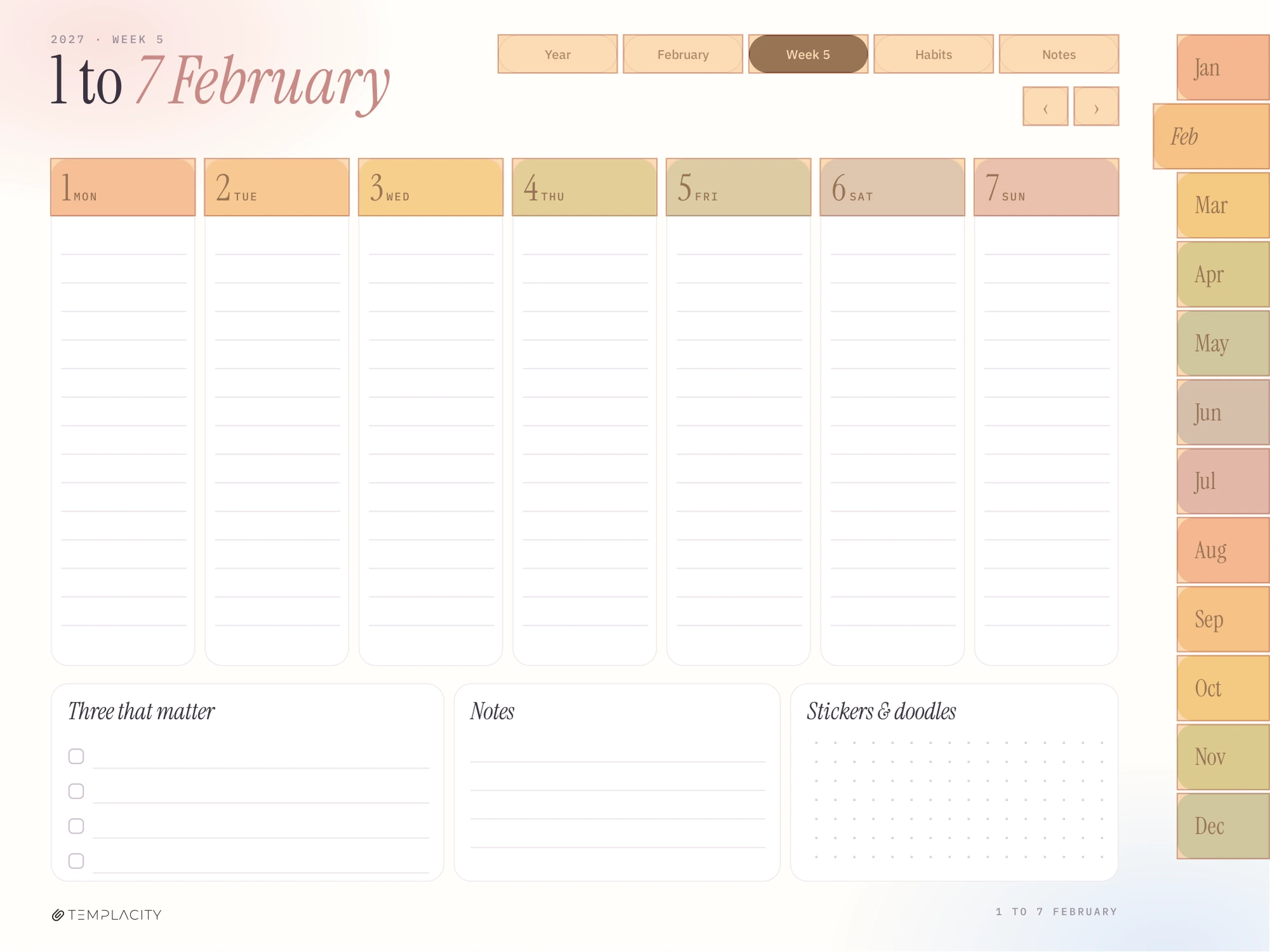
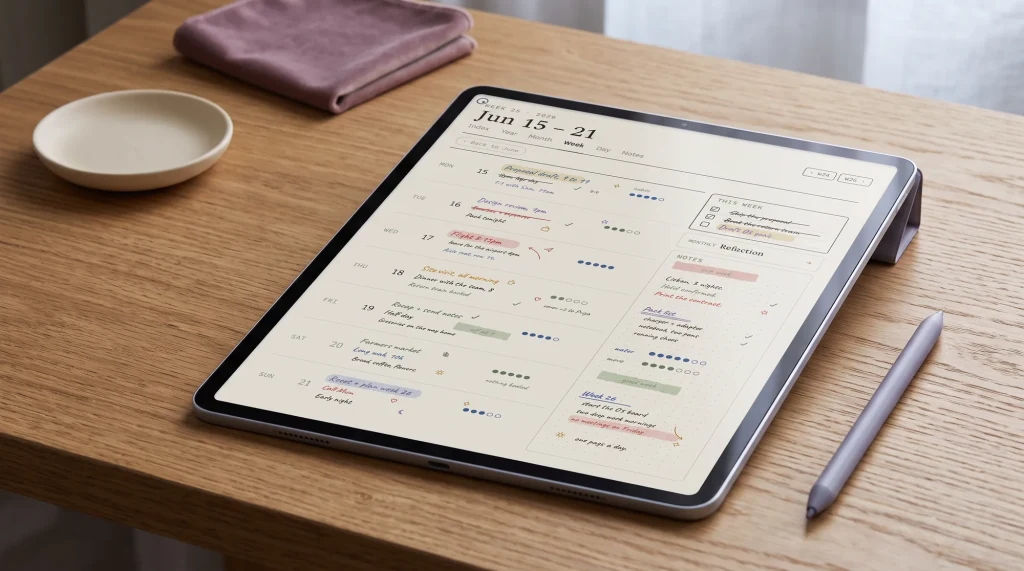
The week page above shows all three at once. The tabs across the top go up to the year and the month, and across to habits and notes. The arrows go to the week before and after. The month tabs on the right reach any month in one tap. The outlined areas are every link on that page: 26 of them, each pointing at a real page in the same file.
The apps
Which apps follow the links
A hyperlinked digital planner only works if the app you open it in follows PDF links, and apps differ more than their marketing suggests. Here is what each vendor documents on its own pages.
| App | Links in an imported PDF | How you tap |
|---|---|---|
| Goodnotes (iPad, iPhone) | Documented | Select the linked element |
| Goodnotes (Android, Windows, Web) | Documented | Read Only Mode, or press and hold |
| Notability | Outlines documented, links not | Content Manager, Outlines |
| reMarkable | Documented | Tap the link |
| Boox Notes app | Documented | Add the PDF with Page+, From Files |
Goodnotes is the clearest. Its help page on opening hyperlinks in imported PDFs uses a digital planner as its own example, an index linking to monthly, weekly and daily pages. On iPad and iPhone you select the linked element. On Android, Windows and the web you switch on Read Only Mode first, or press and hold the link in Edit Mode and choose Open Link. Two details from Goodnotes are worth knowing. If a tap draws a stroke instead of jumping, Read Only Mode is the fix. And if you export your planner, choose the Editable PDF format: Goodnotes says a flattened export loses the links and outline that came with the file.
Notability documents a different route. Its PDF Outlines page explains how Notability lists a PDF’s headings in the Content Manager on iPad, iPhone and Mac, so you tap a heading to jump there. Ginger Labs does not document tapping a link printed on an imported planner page, so we do not promise it. For Notability, the planner to buy is one that ships a real PDF outline, and our Goodnotes vs Notability comparison covers the rest of that choice.
reMarkable added internal PDF links in software 2.6, announced on its blog in March 2021: navigation links within PDFs let you jump from one page to another with a tap. Our best reMarkable planner guide covers files drawn for its screens. Boox documents it for its Notes app: on the Handwritten Notes help page, a page added from a file through Page+ keeps its PDF hyperlinks clickable. Our Boox templates guide walks through it. On a Kindle Scribe we have not found an Amazon help page that covers links inside a personal PDF, so we leave that claim out here; our Kindle Scribe planner guide deals with that device on its own terms.
Behind the design
What we count before a hyperlinked digital planner ships
Most planner listings tell you how many pages you get. Very few tell you whether the links reach them. So here are the numbers for one of ours, read from the exact file a buyer downloads today: the colour iPad Planner 2027, Monday-start edition, which comes with The Planner for Goodnotes.
- 487 pages and 13,161 links, every one of them pointing to a page inside the same file. None goes out to a website.
- Zero broken links. We followed each of the 13,161 to the page it points at. Every one lands on a real page.
- 486 of 487 pages can be reached by a tap. The one exception is the cover, which is where you start, so nothing needs to point back at it.
- No page has fewer than 15 links. The year page carries 393, one for every month name and every date. Month pages carry 50 to 55, week pages 21 to 26, and day pages 20 to 25.
- A 507-entry PDF outline sits underneath the links, which is what Notability and other apps use to list the months, weeks and days in a sidebar.
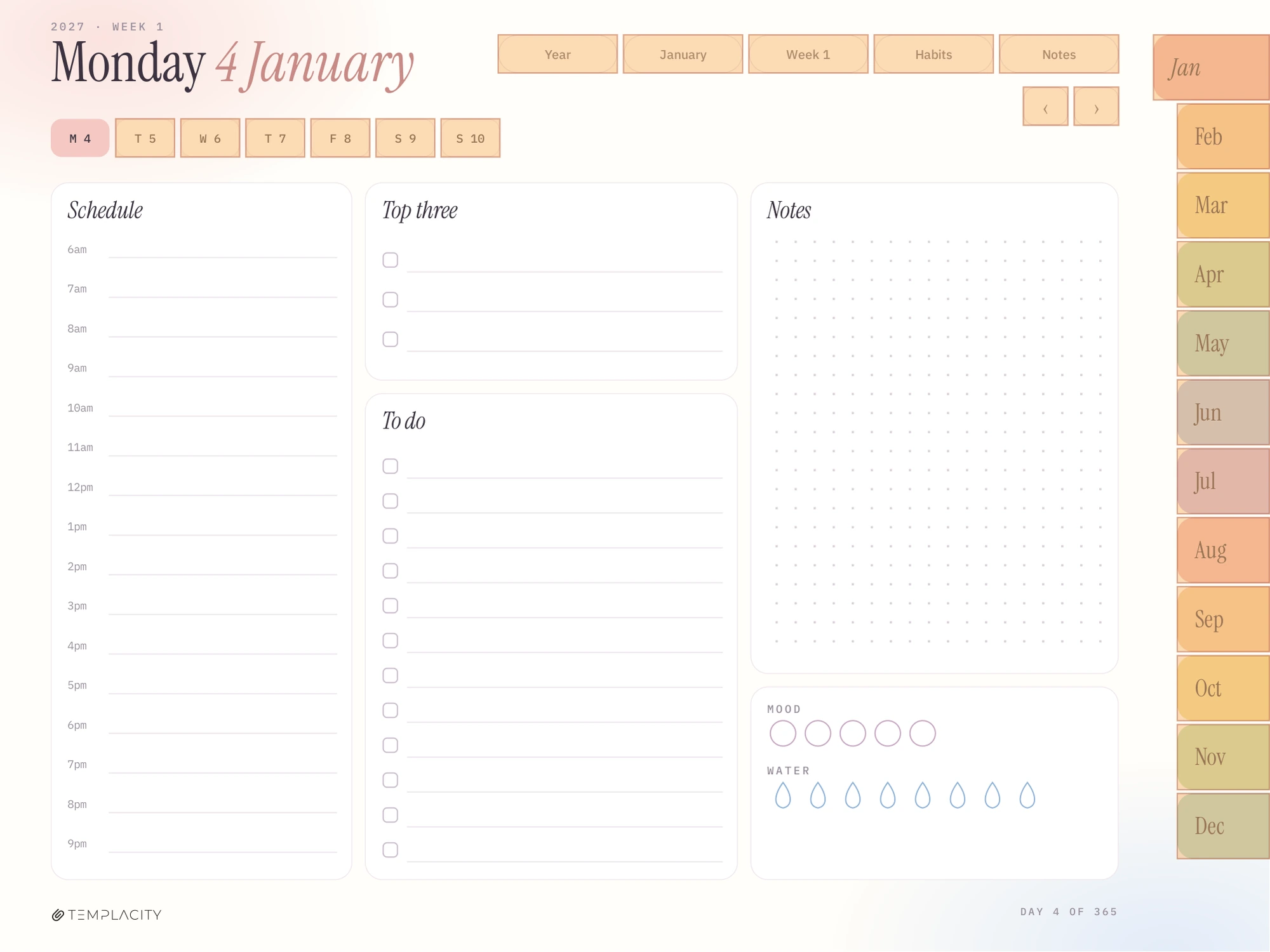
The day page above is a fair picture of what those numbers mean in use. Five tabs across the top take you up to the year, the month and the week, or across to habits and notes. Two arrows go to yesterday and tomorrow. The weekday chips jump to any other day of the same week. Twelve month tabs run down the right. That is 25 ways out of the kind of page you open every day, and not one of them is a dead end.
We are not quoting these to win a numbers contest. Some planners advertise far bigger link counts, and a bigger count is not a better planner. A link is only worth having if it goes where you expect and comes back. The figure we care about is the zero: no tap that takes you somewhere wrong, on any of the 487 pages.
The art is the part you see in the listing. The links are the part you use forty times a day.Templacity
Using one
How to use a hyperlinked digital planner
Setting one up takes a few minutes, and a few habits keep the links working for the whole year.
- Import the PDF into your app as one document. Keep it whole: splitting the file into months breaks every link that crossed the split.
- Tap a month tab and a date on the year page. If the tap draws a line instead of jumping, switch to your app’s read or navigation mode and try again.
- Start each day from the same place, usually the week page, and use the tabs rather than scrolling. Within a week the habit sticks.
- Add any extra pages at the very end of the document. The planner’s tabs only know the pages it shipped with, so a page tucked into March has no link pointing at it and is easy to lose.
- When you back up or share the planner, export it in a format that keeps links, such as Goodnotes’ Editable PDF.
The iPad digital planner guide goes through the Goodnotes and Notability import screens step by step, and the Goodnotes planner template guide helps you choose between daily, weekly and monthly layouts so you are not paying for spreads you will skip.
Before you buy
What to check in any hyperlinked planner PDF
You rarely get to tap through a planner before you pay, but a listing can still tell you most of what you need if you know what to look for.
The day pages link back up. Look at a preview of a day page. If it shows tabs or a breadcrumb to its week and month, the chain goes both ways. If the day page is bare, expect to scroll.
The word “fully” is backed by a picture. “Fully hyperlinked” is in nearly every title. A video or a GIF of someone tapping from the year to a day is worth more than the phrase.
An outline, if you use Notability. Since Notability documents navigation through outlines, the listing should say the PDF has one.
Dated pages for the year you need. A dated hyperlinked planner can link a date to its day page; an undated one cannot link dates at all, only page numbers you fill in. Both are valid, but they are different products.
A maker who answers questions. If a link misbehaves in your app, you want someone who will tell you why. The Goodnotes digital planner buyer’s guide compares the main places to buy, from the Goodnotes Marketplace to independent shops.
Ours
Our planners, and a bias note
We make and sell hyperlinked planners, so weigh this section as a maker talking about their own files. The Planner for Goodnotes ($49) is the one whose numbers are above: the colour iPad Planner 2027 in Monday-start and Sunday-start editions (English), alongside our original planner dated 2026 and 2027. The Goodnotes Digital Planner Set ($29) is a lighter set of everyday layouts as separate linked files, and Notability Templates ($29) is that same set for Notability readers. You pay for each of ours once and keep the files.
What we do not sell is a sticker kit. The pages stay plain so a full week still reads at a glance, and if decorating is the part of planning you enjoy, a boutique maker will suit you better than we will. Everything for Goodnotes sits on our Goodnotes hub, and our Notability planner templates roundup covers the Notability side.
Links are the part of a planner nobody photographs, so we would like to hear where they let you down. If a hyperlinked digital planner ever sent you to the wrong page, or a tab you wished existed was missing, tell us in the comments. Those notes shape what the next edition links to.
FAQ
Common questions, answered briefly
What is a hyperlinked digital planner?
Do hyperlinks work in Goodnotes?
Do hyperlinked planners work in Notability?
Why did my planner links stop working after export?
Can I add pages to a hyperlinked planner?
How many links should a digital planner have?
If yours isn’t above, drop the question in the comments and we’ll add it.
People also ask