Frame
What a digital planner actually is in 2026
A digital planner is a planner you use on a screen instead of on paper, and in almost every case it is a hyperlinked PDF: tap a month tab to jump to that month, tap a day to open the daily page, all without scrolling. You load that file into a note app on a tablet, write on it with a stylus or type into it, and the tabs do the navigation a paper planner would need physical flipping for. That is the whole idea, and it is why a digital planner replaces a stack of dated paper inserts with a single file that never runs out of pages. The paper version of the same habit is a book you buy again every autumn, which is the trade we work through in our guide to hobonichi alternatives.
The confusion most buyers hit is that “digital planner” points at two different things. One is the file (the hyperlinked PDF template with the monthly, weekly, and daily spreads). The other is the surface it runs on (the iPad, the Android tablet, the e-ink device, or the printout). You choose both, and the file usually matters less than the surface, because the surface decides how the planner feels every single day. The paper system most of these files are measured against is the Japanese page-a-day book, and our explainer on what a Hobonichi is covers what it actually prints on a page. This guide walks the five surfaces, names the setup that wins for each kind of planner, and lands on a recommendation that fits the reader instead of pretending one answer suits everyone.
What this guide skips: a feature-by-feature teardown of forty planner apps. That list gets abandoned by the second screen. What decides whether you are still using one a year from now is not the app with the longest feature list; it is whether the setup fits the device in your bag and the way you already think. The comparison table further down is the working version of that filter.
Platforms
The five ways to run a digital planner
Every digital planner in 2026 lives on one of five surfaces. Each is the right answer for a specific person and the wrong answer for the others.
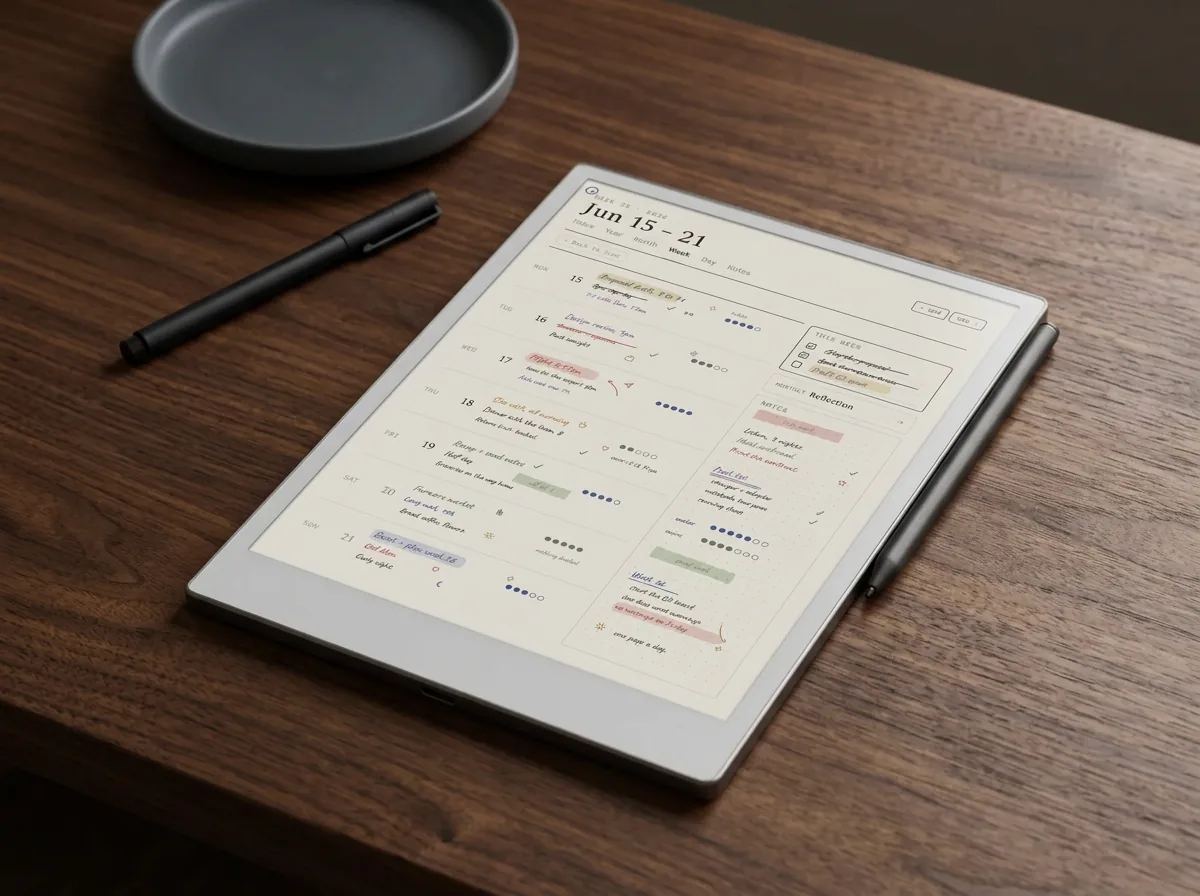
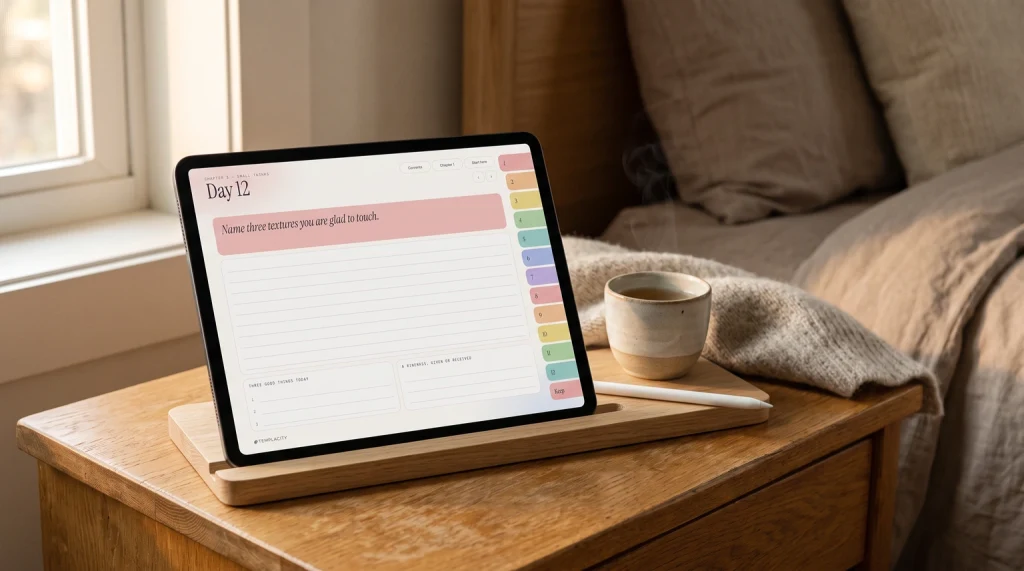
iPad note apps. The mainstream route. Load a hyperlinked PDF planner into Goodnotes or Notability on an iPad, write with an Apple Pencil, and you have the setup most digital-planner tutorials assume. Color, handwriting, and a large app ecosystem, at the cost of a screen that lights up and pings. Android note apps. The same idea outside the Apple world: a PDF-annotation app (Xodo, Noteshelf, or Samsung Notes on a Galaxy Tab) running the same planner file. Fewer polished planner apps than iPad, but the file is identical.
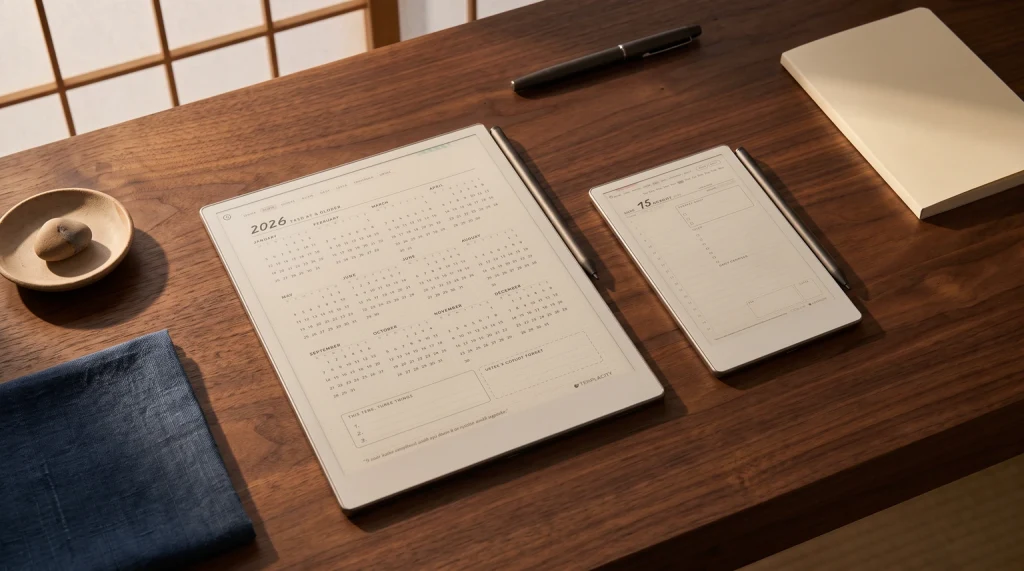
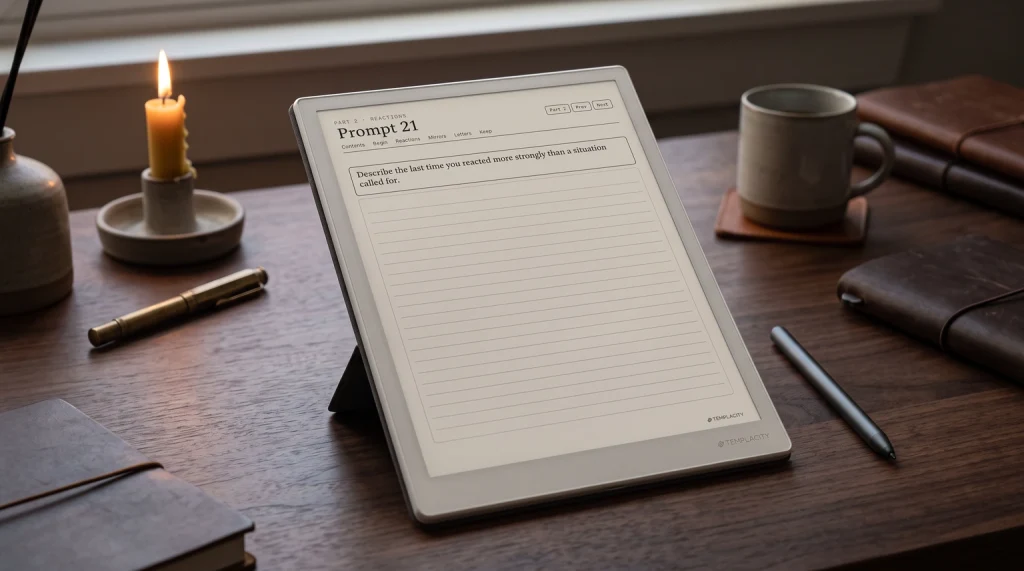
E-ink devices. A reMarkable, a Kindle Scribe, or a Boox tablet: a paper-like screen with no apps, no notifications, and a battery measured in weeks. You lose color and speed; you gain focus. This is the planner for people who want the writing without the distraction. Printable PDF. The same planner file printed at home, or used on any screen you already own. Free if you print it, and the fallback that works on hardware you have not bought yet. All-in-one apps. Notion and similar tools, where the planner is a set of linked database pages rather than a written-on layout. No handwriting, but unmatched for people who plan in tables and want their planner to also be a project tracker.
Compare
Digital planner platforms compared
The same five surfaces, side by side, on the factors that actually decide daily use. Prices are the platform cost, not the planner file, and shift with sales, so treat them as the shape of the cost rather than a quote.
| Factor | iPad appGoodnotes | Android appPDF note app | E-ink devicereMarkable, Kindle Scribe | Printable PDFany printer | All-in-oneNotion |
|---|---|---|---|---|---|
| Handwriting | Excellent, color | Good | Excellent, mono | On paper only | None |
| Hyperlinked tabs | Yes | Yes | Yes | No | Built differently |
| Distraction | High, full tablet | High, full tablet | Very low | None | High, on a computer |
| Cost shape | Tablet plus app | Tablet plus app | Device only | Free to print | Free tier |
| Best for | Most people | Android owners | Focus, long writing | Trying it free | Database planners |
The pattern across the row is simple: the tablet routes buy you color and speed at the cost of the notifications that pull you off the page, the e-ink route trades both away for focus, and the printable route costs nothing but hands you paper. No surface wins every row, which is exactly why the digital planner question is a fit question, not a ranking one.
Choose
How to choose a digital planner
Six questions settle almost every digital planner decision. Answer them in order and the shortlist narrows to one or two options before you look at a single layout.
| Question | What it decides |
|---|---|
| What device do you already own? | The cheapest good planner is the one that runs on hardware you already have. An iPad points to Goodnotes; an Android tablet to a PDF note app; a reMarkable or Kindle Scribe to a PDF template set; nothing yet points to a printable PDF while you decide. |
| Write by hand or type? | Handwriting rules out Notion and points to a note app or an e-ink device. Typing points to an app-based planner. Most people underestimate how much they want handwriting until they lose it. |
| How much do notifications cost you? | If a lit screen and app badges routinely pull you off the plan, an e-ink device earns its price on focus alone. If you have the discipline, a tablet gives you color and speed. |
| Do you need hyperlinked navigation? | Tap-to-jump month and day tabs are the feature that makes a planner faster than paper. Any note app handles a hyperlinked PDF; a printout does not, which is the real trade for going free. Hyperlinked is only a yes or a no, though, and the question underneath it is how many taps the longest trip in the file takes. |
| What is your budget shape? | Free means a printable PDF on a device you own. Low means a note app plus a paid planner file. Higher means a dedicated e-ink device. The planner file is the small line item in all three. |
| How much does backup matter? | A PDF planner in your own cloud folder is portable and yours. App-locked planners move less cleanly between ecosystems, so if you switch devices often, keep the planner as a plain PDF. |
Run those six and the answer is usually obvious. The device you own does most of the work; the input method breaks the last tie. Everything after that is picking a layout you like, which is the fun part and the least consequential one.
Navigation
Ask how many taps, not how many pages
Page count is the number every planner listing competes on, and it is the one that predicts the least. Page count tells you how much is in a planner. It tells you nothing about whether you can get to it. A big file with flat navigation is worse to live in than a small one, because every section you added is another thing to scroll past on the way to the page you actually wanted.
The question worth asking instead is how far apart the pages are. From wherever you are in the file, how many taps to the page you want? Call it tap distance. Most planner PDFs are hyperlinked in the narrow sense that the month tabs work, and then stop: reaching meeting note 41 means going back to a home page, into an index, down a list, and often scrolling the last stretch anyway. That distance grows as the planner fills up, which is exactly backwards, because a planner is least useful in January and most useful in October.
You can test this from a listing before you buy. Pick the deepest page you can imagine needing, the twelfth project or the fortieth meeting, and count the taps the description implies from a standing start. If the listing does not say, that is an answer too. Nobody in this category publishes a navigation figure, which is why page count ended up as the thing everyone compares on: it is the only number on the table.
We hold our own files to a stated limit, which we call the three-tap rule: any page in the book reaches any other page in three taps or fewer, and no page is stranded. The Digital Work Planner is the one that currently passes. It is 297 pages, every page is checked against every other page rather than a sample, which is about 88,000 pairs, and the worst case is three taps with zero unreachable pairs. The same file before its rebuild needed up to 18 taps and had 1,429 pairs that could not reach each other at all. A file that breaks the rule fails the build and does not ship, which is what makes the number quotable rather than a slogan.
That is one product’s figure and we are not extending it to the rest of the line, which is still being rebuilt to the same limit. Take the same skepticism to ours as to anyone else’s: the useful thing here is the criterion, not the claim. Ask any planner you are considering what its worst case is. The answer, or the silence, tells you how the file was built.
Page count tells you how much is in a planner. It tells you nothing about whether you can get to it.
Picks
The best digital planner for each kind of planner
There is no single best digital planner, only a best one for each kind of planner. Here is the pick for each, with the honest reason.
Best digital planner for iPad: Goodnotes. It is the app most hyperlinked planners are built and tested for, handles color handwriting well, and has a free tier you can test a planner in before paying (three files, watermarked exports). Notability is the close second and better at audio-synced notes. Our Goodnotes digital planner guide covers the iPad setup end to end.
Best digital planner for focus: an e-ink device. A reMarkable or Kindle Scribe running a PDF planner gives you the writing with none of the notifications. It is the setup for people who plan to think, not to browse. Our digital planner for reMarkable, Kindle Scribe, and Boox guide is the e-ink-specific companion to this page, and the Kindle planner and reMarkable planner guides go deeper on each device.
Best free digital planner: a printable PDF. A hyperlinked PDF planner used on a device you already own, or printed at home, costs nothing beyond the file, and plenty of good ones are free. It is the right first step for anyone testing whether the habit sticks before spending on hardware. Best for Android: a PDF note app (Xodo, Noteshelf, or Samsung Notes) running the exact same file an iPad would. Best for database planners: Notion, where the planner is linked tables rather than a written page; our best note taking app guide covers where Notion and its rivals fit.
Setup
Getting your first digital planner working
The setup is shorter than the shopping. Once you know the surface, four steps get a planner running the same afternoon.
- Pick the surface, not the layout. Decide iPad, Android, e-ink, or printable first, using the checklist above. The layout is a five-minute choice once the surface is set.
- Install the note app. Goodnotes or Notability on iPad, a PDF note app on Android, or nothing extra on an e-ink device, which reads PDFs natively.
- Load the hyperlinked PDF. Import the planner file, confirm the month and day tabs jump correctly, and set it as a favorite so it opens in one tap.
- Set your pen and a weekly habit. Choose two or three pen colors, then commit to opening the planner at the same time each day for two weeks. The habit, not the file, is what makes a digital planner stick.
Verdict
What we would actually pick
Whichever surface you choose, the decision worth making this month is to pick one and run it for sixty days. Most planner regret comes from app-hopping every few weeks and never building enough of a routine in any one setup to know whether it fits. Pick the surface, load one file, and give it a real two months before you judge it.
FAQ
Common questions, answered briefly
What is a digital planner?
What is the best digital planner for iPad?
Is there a free digital planner?
Do you need an iPad for a digital planner?
What is the difference between a digital planner and a planner app?
Can you use a digital planner on an e-ink tablet?
Have a use case the FAQ misses? The share row below carries an email link. We keep this guide current as the app and device landscape shifts, so tell us what you would add.
People also ask