Prereq
Do you need Connect to connect reMarkable to Google Drive?
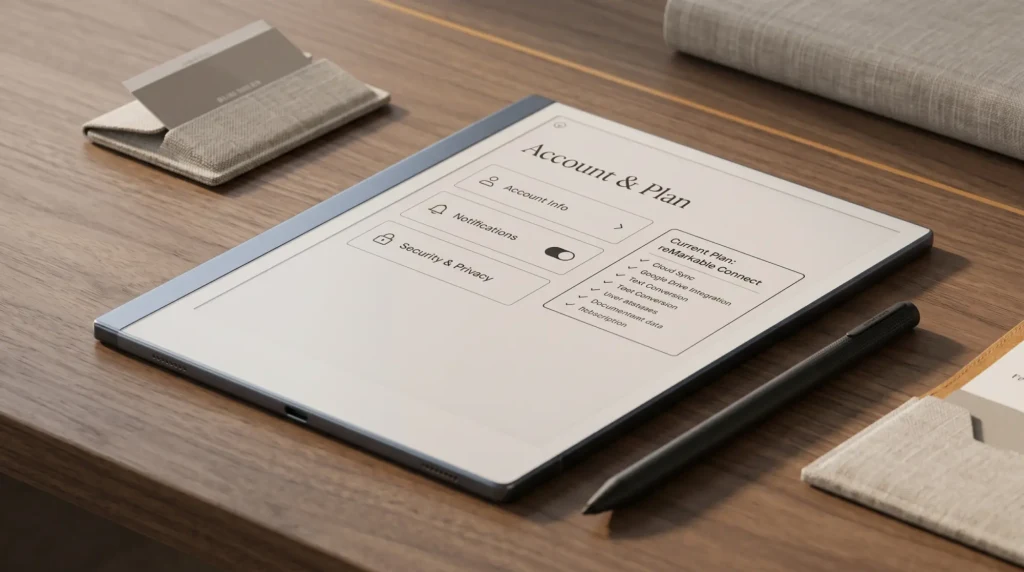
No. This is the part most guides get wrong, and it is worth settling before anything else. reMarkable’s own support article on using the tablet without a subscription puts Google Drive, Dropbox and OneDrive integration first on the list of what is included for free: you can browse stored files, copy them to the tablet, and upload notes and documents back to your account from the device.
What the paid Connect subscription adds on top of the integration is narrower. reMarkable names Convert to Notebook, which imports Word files, text files and Google Docs as editable notebooks instead of fixed PDFs, plus unlimited cloud storage in place of the free plan’s rule that only files used and synced in the last 50 days stay in the reMarkable cloud. If all you want is to move PDFs between Drive and the tablet, the free plan already does it.
Setup
How to connect reMarkable to Google Drive in four steps
The connection is made on the web, from your reMarkable account, and the tablet picks it up from there. There is no cloud-services screen in the tablet’s settings to look for. These are the steps reMarkable publishes in its integrations article:
- Go to my.remarkable.com and sign in with the account your tablet is registered to.
- Click the menu in the upper-left corner and select Integrations.
- Accept the terms and conditions, then click Confirm.
- Click Add next to Google Drive and sign in to your Google account. You can name the link, such as Work or Personal, which helps once you have more than one.
To unlink an account later, go back to Integrations at my.remarkable.com, click Edit next to it and choose Remove. Removing and adding it again is also the fix reMarkable gives when shared folders fail to show up.
Import
Bringing Google Drive files onto the reMarkable
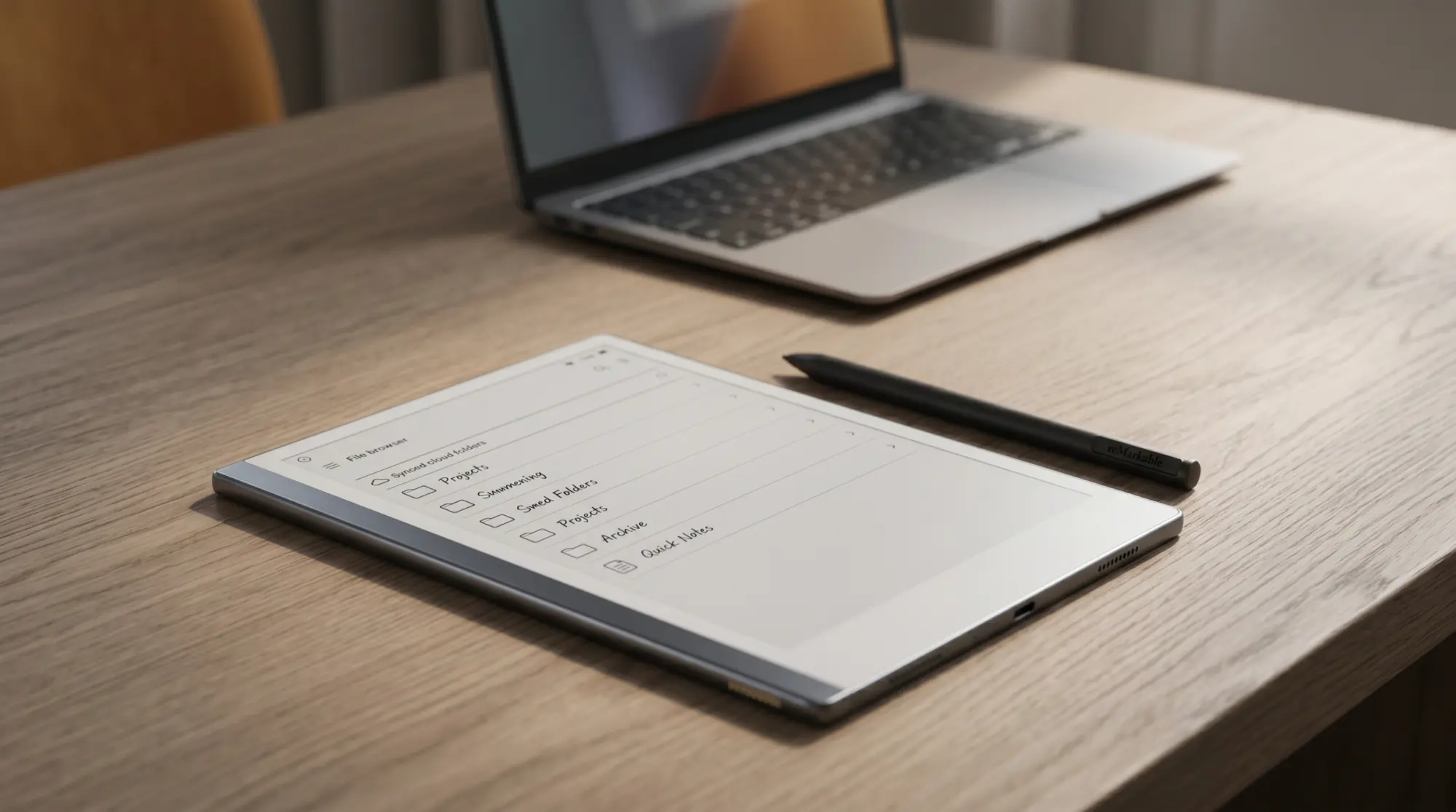
On the tablet, tap the menu in the upper-left corner and you will find Integrations in the sidebar, with your Google Drive listed under it. Browse to a file, long-press it and tap Import. To bring in several at once, long-press one and tap the others. Shared drives in Google Drive appear as folders at the top of the list.
An import is a copy. reMarkable copies the file into My files so you can work on it offline, which also means the original in Drive does not change when you write on the tablet. PDFs and EPUBs import on every plan. Google Docs, Sheets and Slides arrive as PDFs unless you are a Connect subscriber using Convert to Notebook, which brings a Google Doc or Word file in as a notebook you can keep editing.
An import is a copy. reMarkable copies the file into My files so you can work on it offline, which also means the original in Drive does not change when you write on the tablet.Import section
Export
Sending notes back to Google Drive
There are two ways back. For a whole document, long-press it in My files, tap Export in the top bar and choose your Google Drive; the file is saved there as a PDF. For a single page, open the notebook, tap the three-dot menu, tap Share and choose Drive, and the page uploads as a PDF to the main folder of your Drive.
Because every export lands in Drive as a PDF, what you get back is a flattened copy with your handwriting on it, not a file the tablet keeps updating. Writing more and exporting again creates a fresh PDF. That is the honest shape of the reMarkable Google Drive link: a clean bridge you cross on purpose, not a folder that mirrors itself.
Troubleshoot
When the reMarkable Google Drive link misbehaves
Three things account for most of the confusion. First, people look for the setup in the tablet’s settings and find nothing, because the account is linked at my.remarkable.com. Second, an edited file seems not to reach Drive; that is expected, since imports are copies, and the way back is an export or a page share. Third, shared folders do not appear: reMarkable’s fix is to remove the integration at my.remarkable.com and add it again, signing in fresh.
If you also want files off the tablet on a computer without Drive in the middle, the reMarkable desktop app is the other route, and our reMarkable hub collects the rest of the setup guides.
Using Drive with your reMarkable in a way this page does not cover, a team folder or a review loop with someone who never touches the tablet? Tell us in the comments; the setups readers send in are how this guide gets better.
FAQ
Common questions, answered briefly
Do I need a Connect subscription to use Google Drive on reMarkable?
Where do I add Google Drive to my reMarkable?
Does reMarkable sync automatically with Google Drive?
Can I edit a Google Doc on the reMarkable?
How many Google accounts can I connect to one reMarkable?
People also ask