How to Add Templates to reMarkable Paper Pro: The Definitive Guide (2025)

SHARE THIS POST

Sidebar Promo Card
Save 58%
reMarkable Bundle
5 Templates Included

UNLOCK YOUR REMARKABLE

Stop treating your device like a scratchpad. Get the Ultimate 2026 System designed for deep work.

Daily Weekly Daybook Infinite Notes
$116 $49
Get the Bundle
Paper Pro • Paper Pro Move • reMarkable 1 & 2

Table of Contents

How to Add Templates to reMarkable Paper Pro | Templacity Guide
Software & Workflow

How to Add Templates to reMarkable Paper Pro: The Definitive Guide

The hardware is brilliant, but the software can feel restrictive. This guide details exactly how to add templates to remarkable paper pro to bypass limitations and load custom productivity engines onto your 11.8″ Canvas Color display.

how to add templates to remarkable paper pro
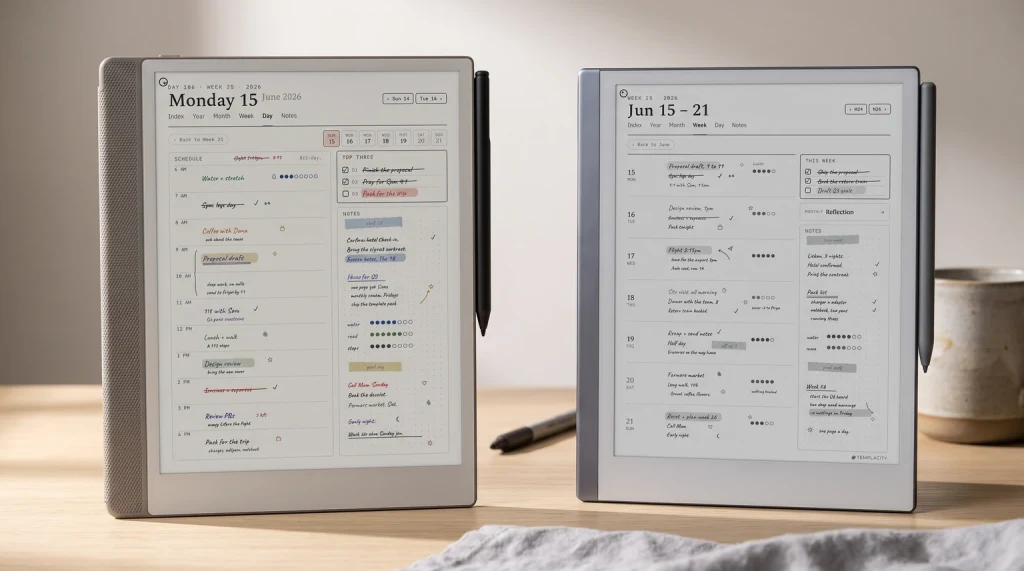
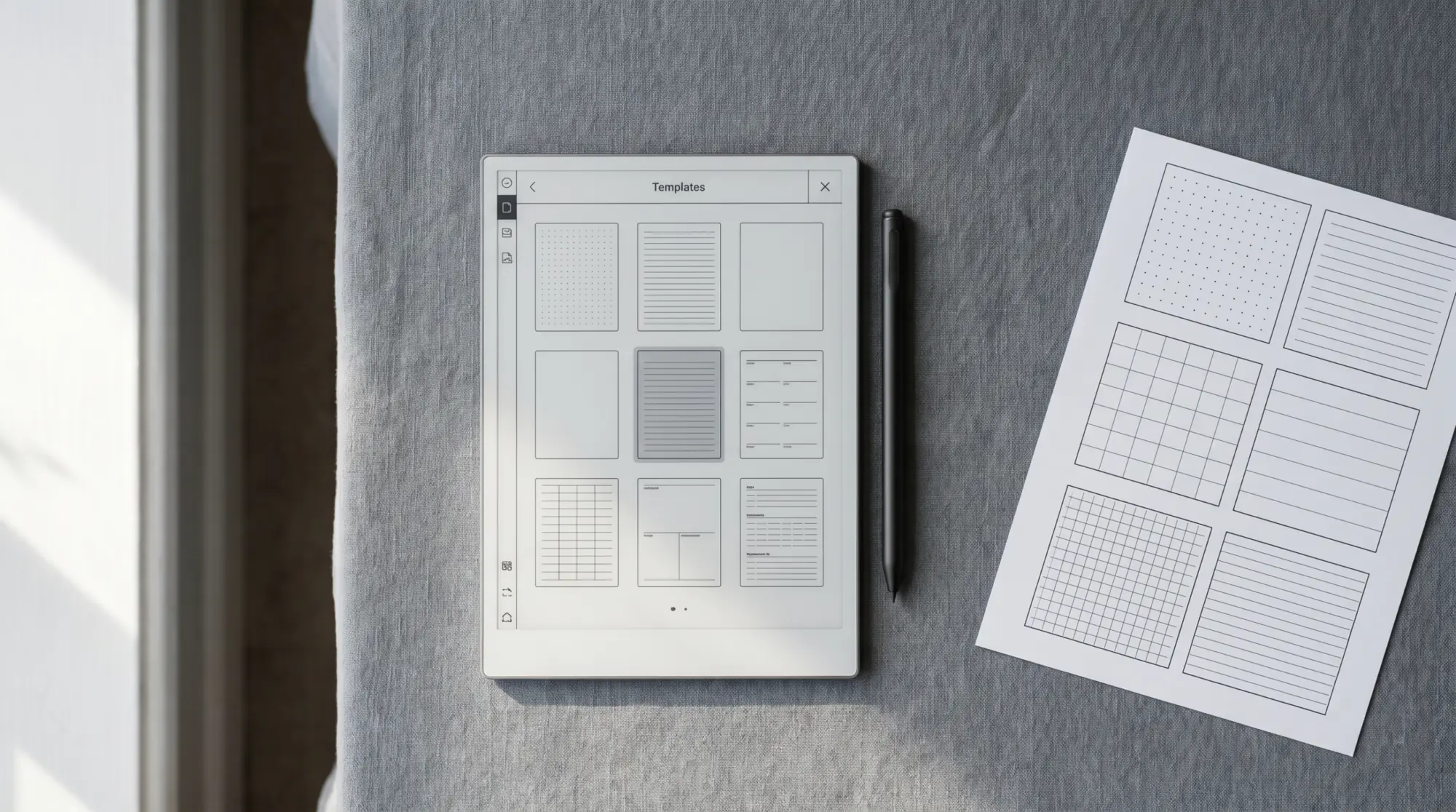
The 11.8″ screen shines when paired with the right PDF grid.

1. The “Dirty Secret” of reMarkable Templates

If you just unboxed your shiny new device, you’ve likely spent the last hour marveling at the 1620 x 2160 resolution and that distinctively crunchy writing feel. But once the honeymoon phase fades, you hit a wall: the default templates. Sure, the “Lined” and “Grid” options are serviceable for doodles, but for serious professionals—project managers, architects, or students juggling five semesters of organic chemistry—the stock options are painfully basic. They lack structure. They lack intent.

This is where learning how to add templates to remarkable paper pro becomes the most important skill in your productivity arsenal. The reality that reMarkable doesn’t explicitly advertise is that there are two very different types of “templates,” and knowing the difference is critical to your workflow.

  • Native Templates (SVG/PNG): These are the background layers built into the operating system. Changing these requires “hacking” the device via SSH, voiding warranties, and risking software instability after updates. We generally advise against this for the average user.
  • PDF Templates (The Templacity Method): This is what 99% of “power users” actually do. You import a high-quality PDF planner or tracker and write on top of it.

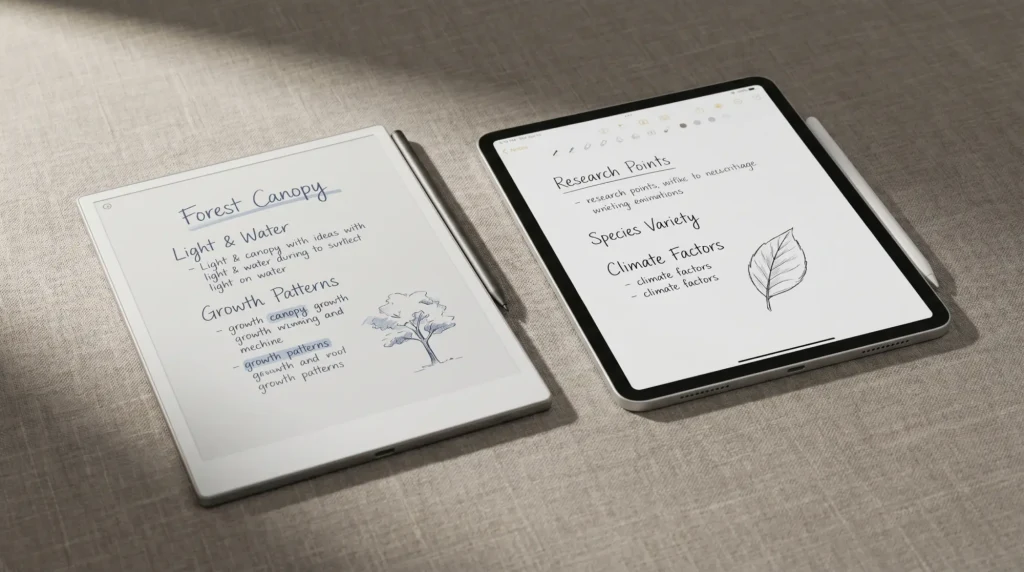
When you ask how to add templates to remarkable paper pro, what you are really asking is how to import hyperlinked, smart PDF documents that function as an interactive operating system for your life. The iPad is for “doing” things; the reMarkable is for “thinking” things. Using a PDF template bridges that gap.

2. Method A: The Desktop App (The Easy Way)

The vast majority of users should use the official reMarkable cloud ecosystem. It’s seamless, usually reliable, and keeps your documents backed up. However, the desktop app has its quirks, and understanding them is part of learning how to add templates to remarkable paper pro effectively.

Pro Tip: Before starting, ensure your reMarkable Paper Pro is updated to the latest firmware. The color rendering engine (Canvas Color) handles PDF layers differently than the monochrome reMarkable 2, and older software versions may result in “muddy” template lines.

Step-by-Step Instructions:

  1. Download the Connect App: Ensure you have the latest version of the reMarkable app installed on your PC or Mac. Older versions may not recognize the specific file attributes of newer Paper Pro templates.
  2. Prepare Your File: Locate your Templacity PDF file. (Note: If you are using a zip file, unzip it first. The Paper Pro cannot read .zip files directly).
  3. Drag and Drop: Open the reMarkable app. Simply drag your PDF file onto the file list. You will see a “Syncing” icon at the bottom.
  4. Wait for the Cloud: This is where patience is key. The file goes from your PC -> reMarkable Cloud -> Your Device. Depending on your Wi-Fi speed and the file size (complex planners can be 10MB+), this can take 10 to 60 seconds.

Once the file appears on your tablet, tap to open it. You can now duplicate this file as many times as you want (creating a fresh “notebook” for every new project) without needing to re-upload the original template. Mastering how to add templates to remarkable paper pro via the desktop app is usually the best route for beginners because it ensures your files are backed up to the cloud automatically.

It is worth noting that you can also perform this action via the mobile app on iOS or Android. The process is identical: share the file to the reMarkable app, and let the cloud sync it to your tablet. This is particularly useful for adding templates on the go.

3. Method B: The USB Web Interface (The Private Way)

Not everyone loves the cloud. Whether you are working with sensitive corporate data or simply prefer an air-gapped workflow, the USB web interface is a powerful, underutilized feature. It is also often faster for transferring heavy PDF templates and is a crucial alternative method for how to add templates to remarkable paper pro securely.

how to add templates to remarkable paper pro via usb
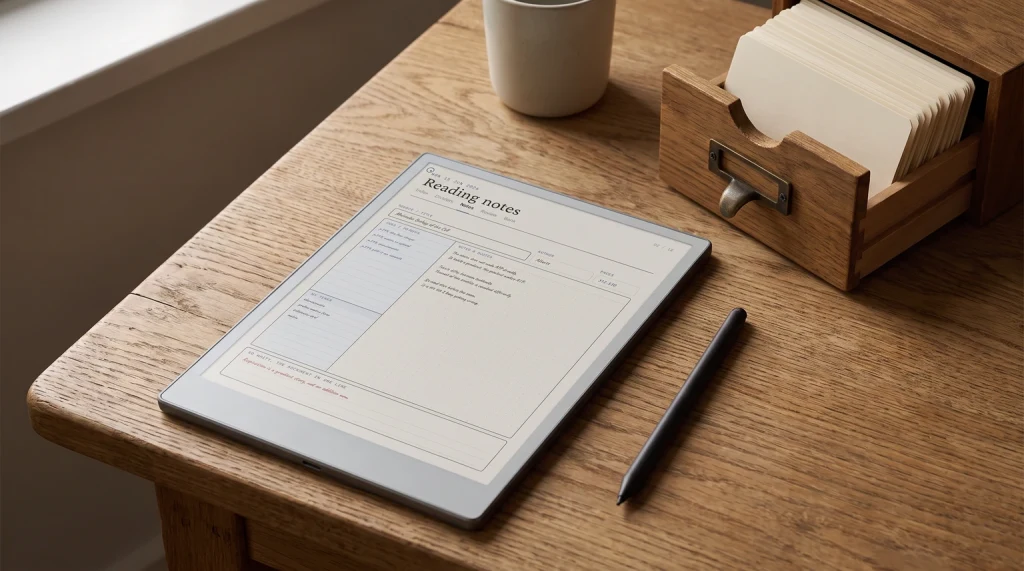
Enable the USB interface in settings to bypass the cloud entirely.

According to official support documentation, this feature is built-in but requires a toggle switch to activate.

How to execute the USB transfer:

  1. Connect your Paper Pro to your computer via the USB-C cable.
  2. On the tablet, go to Settings > Storage > USB Web Interface and toggle it to “On.”
  3. Open a web browser on your computer and type 10.11.99.1 in the address bar.
  4. You will see a bare-bones file manager. Drag your PDF template into the browser window.

This method bypasses the internet entirely. It is instant. If you are struggling with how to add templates to remarkable paper pro because your office Wi-Fi blocks the reMarkable cloud servers, this is your workaround. It transforms your expensive tablet into a simple mass storage device, allowing for rapid file management without the latency of cloud syncing.

4. Optimizing for the Paper Pro (Resolution & Color)

This is where the hardware specs matter. If you use a template designed for an iPad or a Kindle Scribe on your reMarkable, it might look… wrong. Contrast issues and ghosting are common if the file isn’t tuned for E-Ink. Part of knowing how to add templates to remarkable paper pro is understanding what kind of templates to add.

The Resolution War

The reMarkable 2 operates at 226 DPI (1404 x 1872). The reMarkable Paper Pro bumps this up to 229 DPI with a massive 1620 x 2160 resolution. If you use an old rM2 template, it will scale up, but you might lose that crisp, razor-sharp edge definition that makes E-Ink look like printed paper. When you learn how to add templates to remarkable paper pro, always ensure you are sourcing files that match this native resolution to avoid pixelation.

The Color Factor (Kaleido Tech)

The Paper Pro uses E Ink’s Gallery 3 technology (modified as “Canvas Color”). It displays thousands of colors, but they are not backlit like an OLED. They are reflective.

Design Insight: Avoid templates with dark, saturated backgrounds. On the Paper Pro, a dark blue background will look muddy and reduce contrast, making your black handwriting hard to read. Stick to templates with white backgrounds and subtle colored accents (Cyan, Magenta, Yellow) for the best visibility.
Device Specification Comparison
Feature reMarkable 2 reMarkable Paper Pro Kindle Scribe
Screen Size 10.3″ 11.8″ 10.2″
Resolution 1404 x 1872 1620 x 2160 ~1860 x 2480
Color Support Monochrome (Grey) Canvas Color Monochrome (Grey)
Best Template Type High Contrast B&W Color Accents / White BG High Contrast B&W

Furthermore, when you consider how to add templates to remarkable paper pro, think about layers. The PDF template sits as the bottom layer. You can create new layers above it for your handwriting. This allows you to erase your notes without accidentally erasing the lines of the calendar or grid—a massive advantage over using standard notebooks.

5. Troubleshooting Common Issues

Even the best hardware glitches. Here are the most common issues users face when trying to figure out how to add templates to remarkable paper pro and how to solve them quickly.

The “Ghosting” Effect

If you switch pages on a complex PDF and see faint remnants of the previous page, your screen refresh rate is lagging. The Paper Pro is faster than the rM2, but it still happens.
Fix: Force a refresh by closing the document and reopening it, or simply wait 2 seconds. E-Ink requires physical pigment movement.

Hyperlinks Not Working

You bought a hyperlinked planner, but tapping the tabs does nothing? This is a frequent stumbling block for people learning how to add templates to remarkable paper pro.
Fix: Ensure you are in “Read Mode” or that your finger (not the pen) is tapping the link. The reMarkable software often distinguishes between pen input (writing) and touch input (navigation). Check The Verge’s coverage on E-Ink UI quirks for more context on this interface logic.

Margins are Cut Off

The Paper Pro has a slightly different aspect ratio than the rM2.
Fix: Ensure “Fit to Screen” is selected in your view settings, or purchase templates specifically designed for the 11.8″ viewport. If the PDF is too large, the device may crop the navigation tabs, rendering the planner useless.

File Size Limitations

Sometimes a file simply won’t sync. If you are stuck on how to add templates to remarkable paper pro because the progress bar never finishes, check your file size. While the device has ample storage, the sync engine struggles with single PDFs over 100MB. Compress your PDF before uploading if it is image-heavy.

6. The Verdict: Why Custom PDFs Win

The reMarkable Paper Pro is a luxury device. It costs a premium. Using it with blank pages is like buying a grand piano and only playing “Chopsticks.” When you learn how to add templates to remarkable paper pro, you aren’t just changing the background; you are changing how you think.

A structured “Deep Work” planner forces you to prioritize. A “Cornell Notes” layout forces you to synthesize information. A “Quarterly ROI” tracker keeps you honest. The device provides the focus. The template provides the direction. You provide the genius.

Ultimately, the process of how to add templates to remarkable paper pro is a one-time setup that pays dividends for months. Once your planner is loaded, you have a distraction-free command center that no LCD screen can replicate.

For more technical details on E-Ink technology, you can visit the E Ink Corporation website to understand the physics behind your screen.

Transform Your Paper Pro Today

Don’t let your expensive hardware go to waste. Get the “CEO Productivity Bundle”—specifically optimized for the reMarkable Paper Pro’s 1620 x 2160 Canvas Color display.

Shop the Collection →

Templacity is an independent creator of digital stationery. We are not affiliated with, endorsed by, or sponsored by reMarkable AS, Amazon, or E Ink Corporation.

SHARE THIS POST

Leave a Reply

Join the reMarkable Circle

Get exclusive reMarkable templates, productivity tips, and workflow guides designed to help you plan, write, and stay organized with your tablet.

Table of Contents

Sidebar Promo Card
Save 58%
reMarkable Bundle
5 Templates Included

UNLOCK YOUR REMARKABLE

Stop treating your device like a scratchpad. Get the Ultimate 2026 System designed for deep work.

Daily Weekly Daybook Infinite Notes
$116 $49
Get the Bundle
Paper Pro • Paper Pro Move • reMarkable 1 & 2