What opens
What books open on a reMarkable 2
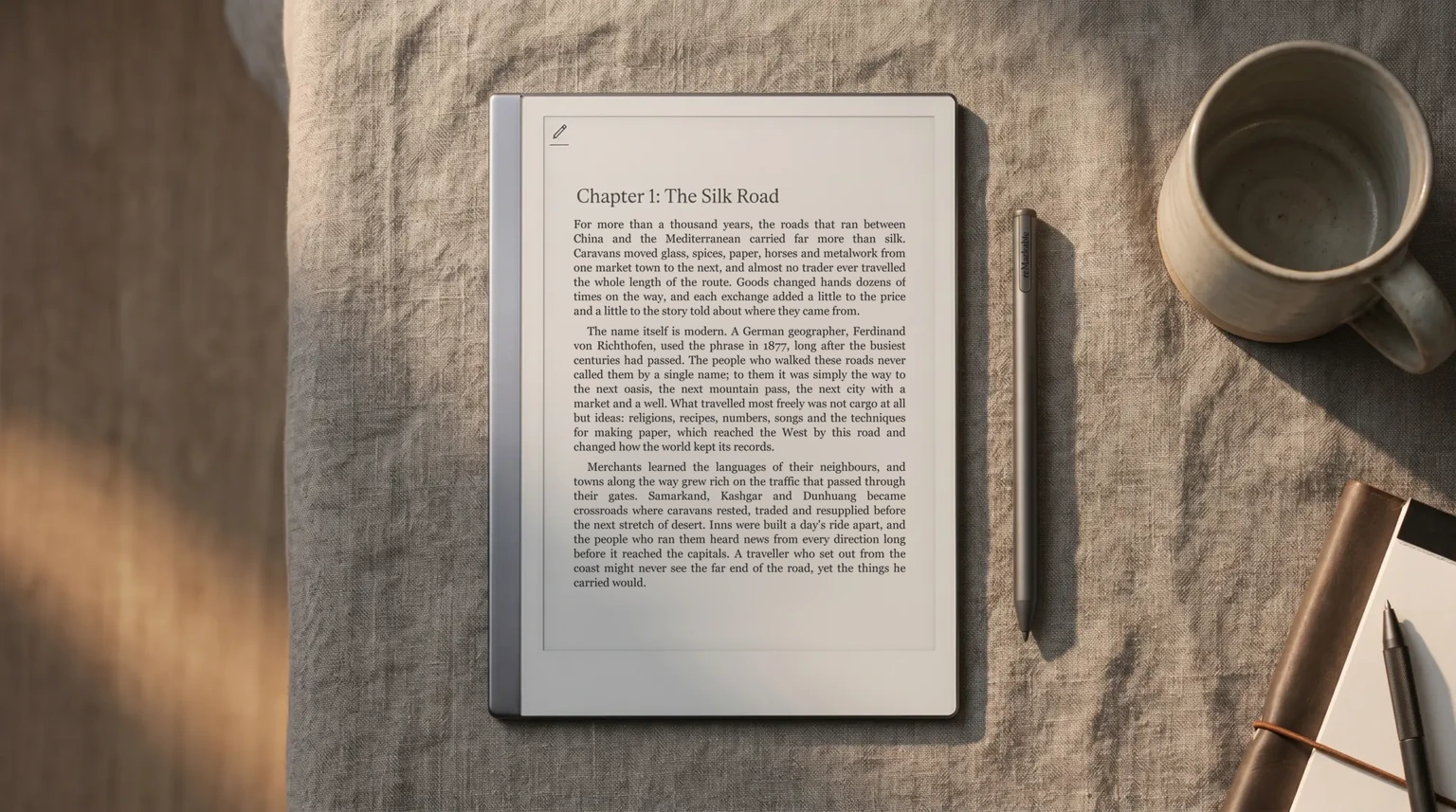
The reMarkable 2 reads two kinds of book file: EPUB, the reflowing ebook format most stores and free libraries use, and PDF, the fixed page you get from a publisher, a course or your own scanner. reMarkable’s Ebooks support page names EPUB as the supported ebook format, and its import page lists PDF and EPUB for every route into the tablet. There is no bookstore on the device and no reading app to install, so whatever you read has to arrive as one of those two files.
| File | Opens | Text settings | Typical source |
|---|---|---|---|
| EPUB, DRM-free | Yes | Yes | Gutenberg, Standard Ebooks |
| Yes | No, fixed page | Publishers, courses, scans | |
| Any ebook with DRM | No | n/a | Most store purchases, loans |
| Kindle book | No | n/a | Amazon Kindle Store |
The line that decides most libraries is the DRM one. reMarkable states it plainly: ebooks with Digital Rights Management cannot be opened. A file can be a perfectly good EPUB and still fail on the tablet because the shop wrapped it in copy protection. Before you plan a reading life around the device, look at where your books come from, not just what format they are in.
Kindle
Can reMarkable 2 read Kindle books?
No. reMarkable’s support page says Kindle books are not compatible and cannot be read directly on reMarkable, and the page covers reMarkable’s paper tablets in general, so the same answer holds for the Paper Pro, Paper Pro Move and Paper Pure. The reasons stack: a Kindle book is Amazon’s own format, it carries Amazon’s DRM, and the tablet has no app store, so there is no Kindle app to install either. Nothing on reMarkable’s pages suggests that is about to change.
You will find guides online that strip the DRM from Kindle files and convert them to EPUB. We do not walk through that here. Whether removing DRM is allowed depends on where you live and on the terms the book was sold under, and it is not something we will send you off to do on our say-so. The honest answer for a Kindle library is a Kindle, covered in the last section.
Import
How to get an EPUB onto the tablet
Five routes lead in, all listed on reMarkable’s importing and exporting page. They differ in what they accept and in one size limit that matters for big illustrated books.
| Route | Book formats | Size limit |
|---|---|---|
| Desktop app | PDF, EPUB | Over 100 MB |
| Mobile app | PDF, EPUB | Over 100 MB |
| Web app | PDF, EPUB (and JPG, PNG) | 100 MB |
| USB cable | PDF, EPUB | 100 MB |
| Cloud drive | PDF, EPUB | Not stated |
From a computer, drag it into the desktop app.
Open the reMarkable desktop app, click Import or drop the EPUB into the window, and it syncs to the tablet the next time both are on Wi-Fi. This is the route for anything over 100 MB.
From a phone, share it to reMarkable.
On an iPhone, open the file, tap Share and pick Import with reMarkable. On Android, tap Import inside the reMarkable app and choose the file, or share it from another app the same way.
With no app installed, use the browser or the cable.
Log in at app.remarkable.com and drag the file into the list. Or connect the cable, switch on Settings, General settings, Storage, USB web interface on the tablet, and open 10.11.99.1 in a browser. Both stop at 100 MB.
Pull from Google Drive, Dropbox or OneDrive.
Once a drive is linked, reMarkable’s integrations page lists PDF and EPUB among the files you can bring across, which suits a library you already keep in a cloud folder.
One route that does not exist: emailing a book to the tablet. The Send by email feature works the other way, sending a notebook, PDF or ebook from the tablet to an inbox as a PDF, PNG or SVG. There is no reMarkable address to forward an EPUB to. Web articles are the one exception to the file rule: the Read on reMarkable Chrome extension sends a page from your browser to the tablet.
Reading
What reading an ebook on it is like
An EPUB on the reMarkable 2 behaves like a book you can restyle. From the Ebook settings icon, Text and layout changes the text size, font style, justification, line spacing and page margins. reMarkable notes these settings apply to EPUB files only, so a PDF keeps the page it was printed with and you zoom instead. That single difference is the best reason to look for the EPUB edition of a novel and the PDF edition of a textbook with figures and fixed page numbers.
The reMarkable 2 is a good reader for books you hold as plain files and a poor one for books you rent from a store.
Moving around is by swipe for the next page, Page overview for thumbnails of the whole book, Go to page for a number, and Quick browse for scrolling fast, which arrived in software 2.9. Where the reMarkable earns its place over a plain e-reader is the pen: you can write on the pages and insert blank note pages between chapters from Document settings or Page overview. Only the note pages you added can be deleted; the book’s own pages cannot be removed or moved. Every ebook also shows under the Ebooks filter on the home screen, whichever folder you file it in.
Sources
Where to get books that open on a reMarkable
The safe pool is anything public domain. Project Gutenberg holds 79,646 free ebooks, mostly older works whose U.S. copyright has expired, with an EPUB download on each. Standard Ebooks takes public domain texts like those, proofreads and typesets them, and gives the results away free; for a novel, that is where we would start. Beyond that, the test is simple: if a seller hands you a plain EPUB or PDF with no account or app needed to open it, the reMarkable will read it. If the book only opens inside the seller’s own app, or a library lends it with copy protection, it will not.
Your own documents count too. Reports, papers, course packs and manuals are mostly PDF already, and they are where the reMarkable is strongest, because you read and mark up in the same place. Our what the reMarkable 2 can do guide covers the rest of the device beyond reading.
Kindle library
If your books already live on Kindle
Then the reMarkable is the wrong place to read them, and that is fine. Plenty of people read on a Kindle or the Kindle app and keep the reMarkable for notes, journaling and PDFs; each device does the job it was built for and neither has to fake the other. If you would rather own one device that reads a Kindle library and takes handwriting, that is the Kindle Scribe, and our Kindle Scribe for reading guide covers how it handles books. If neither brand fits, our reMarkable alternatives roundup covers e-ink tablets that run Android and install reading apps.
FAQ
Common questions, answered briefly
Can you read books on a reMarkable 2?
Can reMarkable 2 read Kindle books?
Can I read library ebooks on a reMarkable?
Can I email a book to my reMarkable?
Is there a file size limit for ebooks?
Found a DRM-free shop that sends files that open cleanly on the reMarkable, or a reading setup that works for you? Tell us in the comments, and we will fold the good ones into the next refresh.
People also ask