Why You Should Learn How to Use OneNote for Project Management

SHARE THIS POST

Table of Contents

Team Collaboration & Strategy

Task Tracking

Tag Summary Pane

Integrations

Microsoft 365 Core

Database Build

Wiki-Style Linking

Navigating the complex landscape of modern corporate deliverables requires a tool that balances rigid structural organization with free-form cognitive flexibility. When professionals ask how to use onenote for project management, they are often trying to escape the rigid constraints of expensive, specialized SaaS platforms. Microsoft’s flagship note-taking software offers an entirely different paradigm, providing an infinite canvas backed by enterprise-grade cloud synchronization.

In this comprehensive, 1,500-word technical blueprint, we will dissect the underlying architecture required to build a foolproof tracking system in 2026. We will explore how to establish a proper page hierarchy, master the Tag Summary index, and execute internal Wiki-style linking. Whether you are leading a massive engineering firm or managing a boutique design agency, mastering how to use onenote for project management is the ultimate operational upgrade for your team’s efficiency.

1. The Anatomy of Digital Architecture

Section Groups and Nested Hierarchy

Technical Deep Dive: Microsoft’s software organizes data through an XML-based file hierarchy mapped natively to SharePoint or OneDrive. This structure operates on a strict “Notebook > Section Group > Section > Page > Subpage” protocol. This deep nesting capability allows the local database cache to process thousands of pages without bogging down system RAM. Understanding how to use onenote for project management begins with exploiting this structural advantage to keep the user interface incredibly clean.

Workflow Application: To optimize your daily workflow, create a primary “Client Archive” Notebook. Inside, right-click the top tab bar to create a “Section Group” for each active client. Under those groups, specific Sections should be dedicated to individual deliverables (e.g., “Q3 Budget,” “Creative Assets”). This architecture ensures that when your team is searching for a specific proposal, the visual path is logically siloed and requires minimal clicking to navigate successfully.

The Infinite Canvas Coordinate Plane

Technical Deep Dive: Unlike traditional word processors that force linear typing, this software operates on an absolute X/Y coordinate plane. Text boxes, imported images, and tables are treated as individual, floating vector objects. This architectural choice means you can click anywhere on the screen and begin typing. You can place elements side-by-side without relying on complex table formatting, providing an exceptionally fluid interface for rapid data entry.

Workflow Application: During a fast-paced brainstorming session, this lack of borders is highly advantageous. You can import a PDF mockup on the left and place a dynamic checklist right next to it. For creative teams learning how to use onenote for project management, this flexibility is perfect. It allows you to visually connect abstract concepts with hard financial data on a single, continuously scrolling page.

Semantic Search and OCR Indexing

Technical Deep Dive: The search indexing protocol within the Microsoft ecosystem is remarkably powerful. It scans local cache files instantly and utilizes built-in Optical Character Recognition (OCR) to read text inside inserted images, PDFs, and even handwritten ink strokes. If you take a photo of a physical whiteboard, the software silently indexes the handwritten words, making them searchable via the universal search bar (Ctrl+E).

Workflow Application: Rather than hunting manually through tabs for a specific meeting date, leverage the universal search. If a colleague sketched a wireframe on a whiteboard and uploaded the photo, searching for “Login Screen” will instantly surface the image. When mastering how to use onenote for project management, relying on OCR search rather than perfect manual organization saves hundreds of hours annually.

“Structure without flexibility becomes a prison; flexibility without underlying structure quickly devolves into chaos.”
how to use onenote for project management
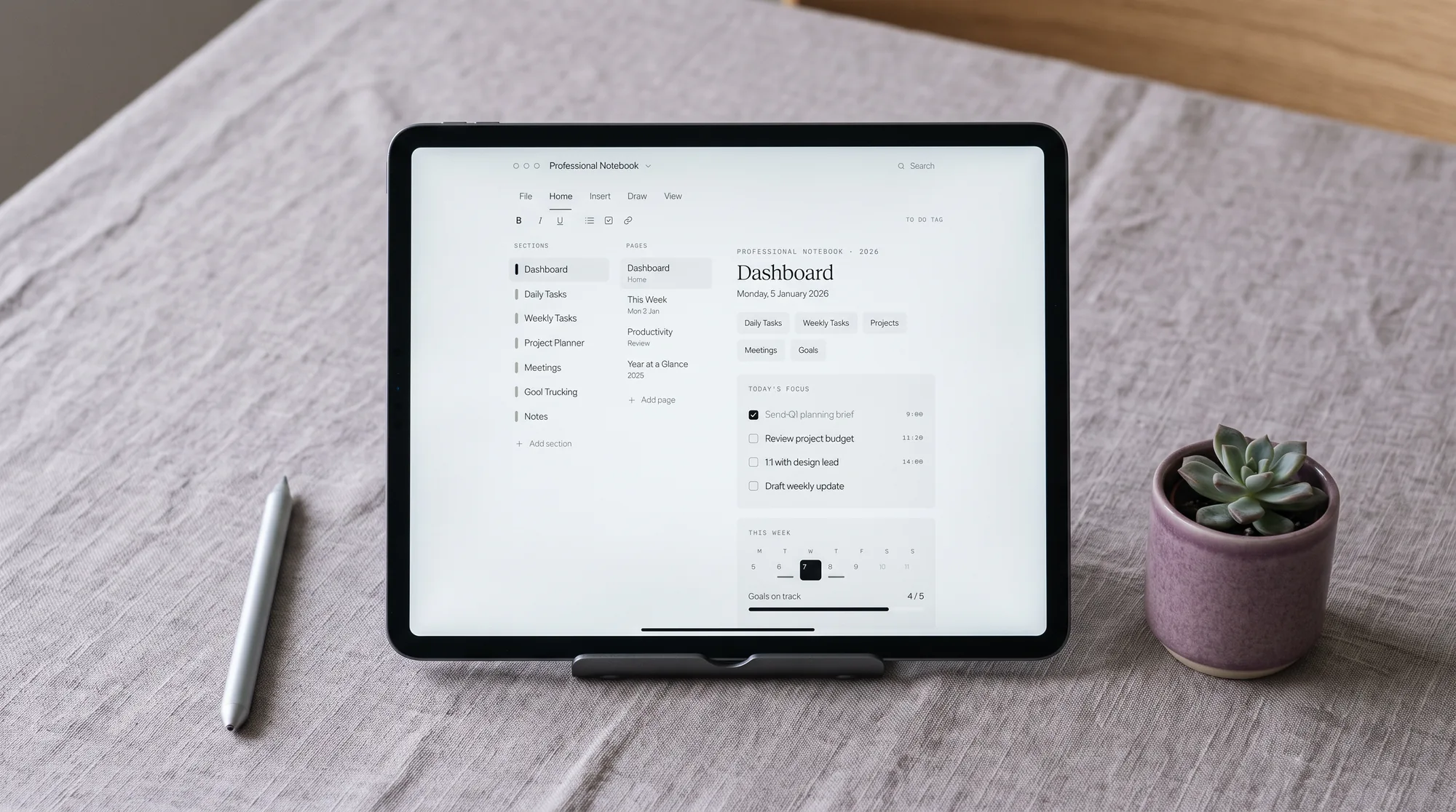
A structured digital notebook transforms scattered data into a cohesive, highly searchable project dashboard.

2. Advanced Task Tracking and Tagging

Customizing the Tag Ecosystem

Technical Deep Dive: Tags are not just visual stickers; they are metadata attributes attached to specific paragraphs or objects. The software comes with standard tags (To-Do, Important, Question), but you can create Custom Tags with unique icons and font highlights. When you apply a tag, the software logs that paragraph into a hidden registry, ready to be queried across the entire notebook or your entire Microsoft account.

Workflow Application: Create custom tags for specific team members (e.g., a blue checkbox for “Sarah,” a red checkbox for “David”). When evaluating how to use onenote for project management, this localized tagging system replaces the need for complex assignment software. During meetings, simply type the action item and hit the keyboard shortcut for Sarah’s tag, instantly assigning the task visually on the page.

The “Find Tags” Summary Pane

Technical Deep Dive: The true power of tagging is unleashed via the “Find Tags” feature on the Home ribbon. Clicking this generates a dynamic summary pane on the right side of your screen. This tool queries the metadata registry, pulling every tagged item from across your entire notebook—or all open notebooks—into a single, unified list. You can group these results by Tag Name, Section, or Date.

Workflow Application: This feature is the ultimate executive dashboard. At the end of the week, open the “Find Tags” pane and check the box to “Only show unchecked items.” You will instantly see every outstanding task assigned across every single client folder. Click “Create Summary Page” to output these results onto a fresh page, giving you a master checklist for Monday morning.

Outlook Task Integration

Technical Deep Dive: For users heavily embedded in the Microsoft 365 ecosystem, standard checkboxes can be upgraded to Outlook Tasks. When you highlight a line of text and click “Outlook Tasks,” the software uses a COM Add-in to inject that specific text directly into your Outlook To-Do list, complete with reminders and due dates. Any change made in OneNote syncs bidirectionally to Outlook.

Workflow Application: If a deadline is absolute, do not use a standard OneNote checkbox. Use the Outlook Task flag. This ensures the action item pops up as a hard reminder on your phone and desktop calendar. Mastering this specific bidirectional link is a core component of learning how to use onenote for project management for enterprise-level executives.

OneNote Gains

  • Total layout freedom and flexibility.
  • Zero monthly recurring subscription fees.
  • Robust offline capability and caching.
  • Native bidirectional Outlook syncing.

Rigid SaaS Gains

  • Automated timeline dependencies.
  • Forced data entry standardization.
  • Native API integrations with Slack.
  • Advanced resource allocation metrics.

3. Wiki-Style Internal Linking and Databases

The Double Bracket Syntax

Technical Deep Dive: OneNote secretly operates as a highly functional Wiki engine. It supports rapid internal hyperlinking using double square brackets `[[ ]]`. When you type a phrase enclosed in these brackets—for example, `[[Q3 Budget]]`—the software scans the notebook. If a page named “Q3 Budget” exists, it creates a hyperlink to it. If the page does not exist, the software automatically generates a new, blank page with that title and creates the link simultaneously.

Workflow Application: This syntax is transformative for rapid meeting minutes. If a new sub-project is mentioned during a call, simply type `[[New Sub-Project Name]]`. You instantly create a dedicated workspace without breaking your typing flow to navigate menus. This organic growth strategy is a foundational principle of how to use onenote for project management when building internal company knowledge bases.

Linking to Specific Paragraphs

Technical Deep Dive: Hyperlinking is not limited to page titles. The software assigns a unique hexadecimal GUID (Globally Unique Identifier) to every single paragraph block on the canvas. By right-clicking any line of text and selecting “Copy Link to Paragraph,” you capture this specific GUID URL to your clipboard.

Workflow Application: Use this feature to build a “Master Control Page.” If you have a massive notebook detailing marketing strategies, grab the paragraph links for the three most important mission statements across different sections. Paste them onto your homepage. When a team member clicks the link, they are teleported directly to that exact sentence, bypassing the need to scroll through hundreds of pages.

Forward Linking and Outlines

Technical Deep Dive: A little-known feature allows for massive architectural generation based on a simple outline. If you create a bulleted list of ten items, highlight the entire list, right-click, and select “Link to Pages,” the software executes a batch macro. It instantly generates ten new, blank pages matching the names of your bullets, and turns your original outline into a hyperlinked table of contents.

Workflow Application: When launching a new campaign, type out your ten required deliverables in a bulleted list. Use the “Link to Pages” command. In two seconds, you have built the entire folder structure for the campaign. Understanding how to use onenote for project management means utilizing these hidden macros to save hours of tedious manual setup.

Navigation Feature Execution Command Best Use Case
Wiki Syntax Creation Type `[[Page Name]]` Rapidly expanding topics during meetings.
Paragraph Anchors Right-Click > Copy Link Building a Master Control Dashboard.
Batch Page Generation Highlight List > Link to Pages Setting up a new project’s architecture instantly.

4. Cross-Platform Synchronization and Hardware Integration

The DeltaSync Protocol

Technical Deep Dive: The collaborative engine of the software is powered by the DeltaSync protocol. When multiple users type on the same page simultaneously, the system does not re-upload the entire file. Instead, it transmits only the changed data packets (deltas). This highly efficient network transfer results in near real-time co-authoring, complete with color-coded author initials appearing next to newly generated text blocks.

Workflow Application: During a remote daily stand-up, every participant should have the same page open. Team members can concurrently type their “Blockers” and “Wins.” This drastically reduces meeting time, as the documentation happens simultaneously alongside the verbal conversation. This collaborative real-time editing is why many teams learn how to use onenote for project management over static Excel sheets.

Offline Caching and Version Control

Technical Deep Dive: A major technical advantage over web-only tools (like Notion or Asana) is the robust local caching system. The desktop application downloads a complete, encrypted copy of your notebook to your hard drive. It utilizes a “Last Writer Wins” conflict resolution algorithm but safely stores previous versions in a hidden “Page Versions” tab, guaranteeing data is never accidentally overwritten by a colleague.

Workflow Application: If you frequently work on airplanes or in secure environments without Wi-Fi, this software is mandatory. You can execute massive organizational overhauls entirely offline. The moment your laptop reconnects to the network, the background sync engine seamlessly pushes your changes to the cloud, merging them effortlessly with your team’s live edits.

E-Ink Integration and Active Pen Support

Technical Deep Dive: The software features a robust inking engine that translates raw digitizer input (like Wacom EMR) into scalable vector graphics. This means handwritten notes do not lose resolution when zoomed in. The engine automatically applies smoothing algorithms to reduce “jitter,” producing clean, highly legible cursive script on compatible tablet hardware.

Workflow Application: For those utilizing modern digital paper, the synergy is flawless. As detailed in our Kindle Scribe Onenote Integration 2025 setup guide, utilizing this platform on an e-ink device bridges the tactile feel of an analog notebook with the permanence of digital cloud storage, perfect for executives who prefer handwriting their daily strategy on the go.

Expert Insight: Always use the full “Desktop 365” version of the application rather than the simplified “Windows 10” app. The Desktop version handles local cache files more securely and provides access to critical tools like the “Export as .onepkg” feature, which is necessary for proper system backups.

5. Workflow Step-Map: Avoiding Common Setup Pitfalls

Deploying a new organizational system requires deliberate technical execution to avoid syncing errors and file corruption. Follow this specific roadmap for a clean deployment.

1
Import the Master File: Download your premium templates and open the `.onepkg` archive file via the desktop application to unpack the structural framework onto your local drive safely.
2
Establish Cloud Residency: Use the “Share” menu (File > Share) to physically move the newly unpacked notebook from your local hard drive into a centralized corporate SharePoint or OneDrive folder.
3
Assign Access Credentials: Distribute “Edit” or “View Only” links to your team members, utilizing password protection on specific sensitive tabs if contractors require limited access.

The “Over-Structuring” Processing Trap

Technical Deep Dive: Because the software allows for infinite nesting, it is easy to create a labyrinth. Every time you create a new section, the software generates a separate `.one` file in the background cloud directory. Excessive file generation forces the synchronization engine to poll hundreds of endpoints simultaneously, resulting in a sluggish user interface and prolonged loading times on mobile devices.

Workflow Application: Keep your architecture as flat as possible. Rather than creating a new section for every single minor task, consolidate your workflow onto a few main pages. Understanding how to use onenote for project management means knowing when to use a scrolling page instead of a new tab, drastically reducing sync latency.

Bloated File Sizes and Sync Delays

Technical Deep Dive: Users frequently confuse the notebook with a file storage drive. When you “Insert File as Printout,” the software renders the PDF into dozens of high-resolution PNG images. Inserting a 50MB PDF printout can balloon the notebook’s cache size to over 200MB. This aggressively eats up local hard drive space and completely chokes the upload bandwidth.

Workflow Application: Never embed large files directly into the canvas. Instead, store your heavy PDFs or video files in a dedicated cloud folder (like Google Drive or OneDrive), and simply paste the hyperlink onto the page. This keeps your notebook lightweight, ensuring that your critical text and task updates synchronize to the rest of the team instantly without bandwidth bottlenecks.

Total Cost of Ownership vs. Monthly Subscriptions

Technical Deep Dive: Evaluating software overhead is critical for operational efficiency. Dedicated SaaS platforms charge per-user, per-month licensing fees, which scale aggressively as your team grows. Microsoft’s solution is deeply embedded into the standard Microsoft 365 enterprise license that most corporations already possess, making it an effectively “free” addition to your existing technological stack.

Workflow Application: By relying on a structured template instead of migrating to a dedicated platform like Asana, a 10-person agency can save thousands of dollars annually. If paired with proper hardware, like those reviewed in our Boox Note Air 4C vs reMarkable Paper Pro comparison, it becomes a world-class, financially prudent framework for elite productivity.

TL;DR: The Ultimate Organizational System

Learning exactly how to use onenote for project management allows you to bypass expensive monthly software subscriptions while maintaining total control over your workflow. By leveraging the infinite canvas, utilizing smart tag indexing via the Summary Pane, and building an interconnected database with Wiki-style linking, you can transform a simple digital notepad into an enterprise-grade command center capable of running massive, agile corporate teams.

Deploy Your Professional Framework Today

Stop wasting billable hours trying to build complex tables from scratch. Instantly upgrade your team’s tracking capabilities with our fully hyperlinked, expertly structured digital bundle designed exclusively for Microsoft users.

Download the Project Template

Disclaimer: This technical guide is for informational purposes. Features and cloud sync protocols are subject to change based on official Microsoft updates. Templacity is an independent template creator and is not affiliated with Microsoft Corporation.

SHARE THIS POST

Leave a Reply

Stay Organized with OneNote Pro Tips

💡 Transform the way projects run. Get access to exclusive OneNote templates, workflow tutorials, and setup guides — straight from our productivity lab.

Table of Contents