The one move
Make a OneNote checklist with one keystroke
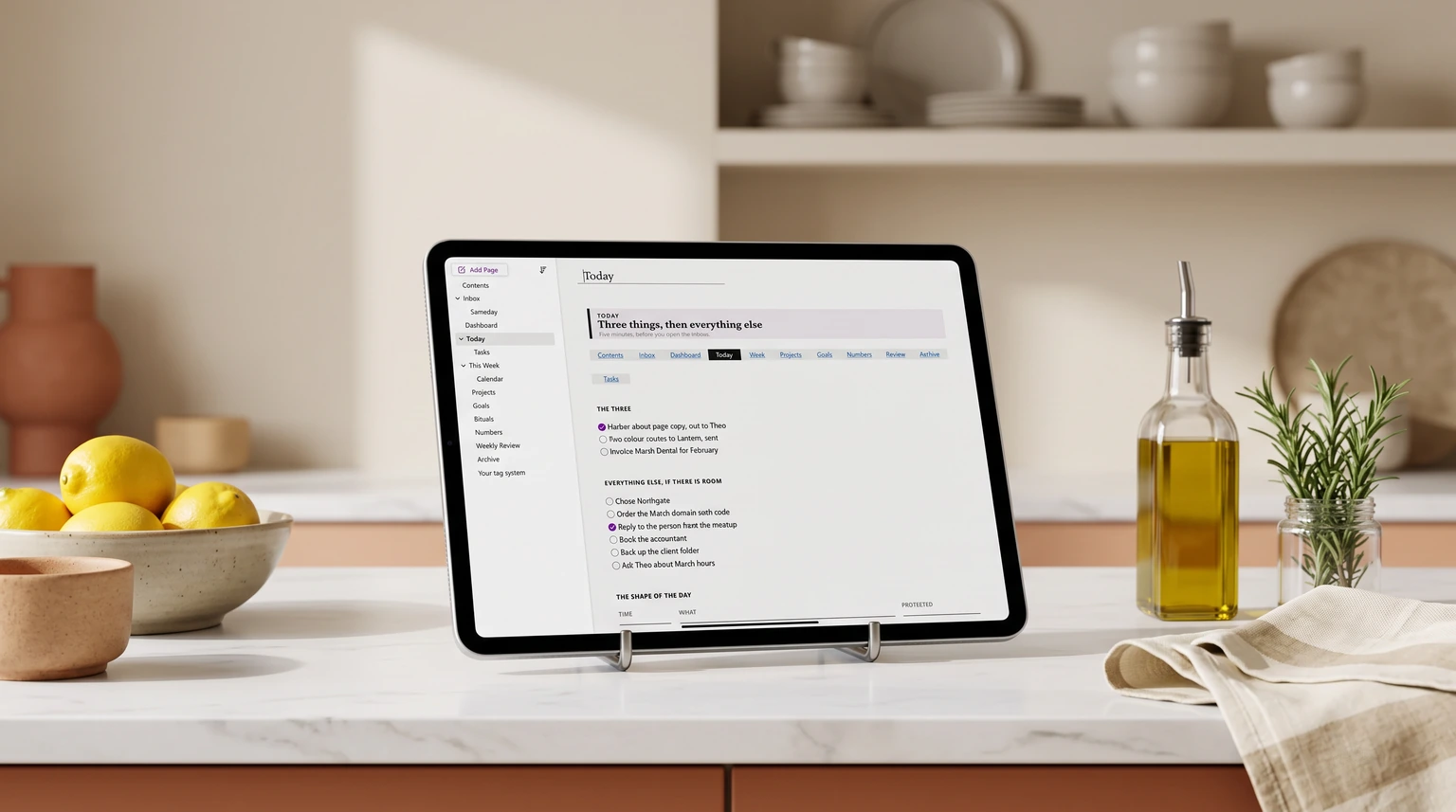
A OneNote checklist begins with a single shortcut. Put your cursor on any line in the OneNote desktop app on Windows and press Ctrl+1, and a checkbox appears in front of the text. Type your item, press Enter, and the next line is ready for its own box, so you can rattle off a whole list without ever reaching for the mouse. Clicking a box ticks it off, and pressing Ctrl+1 again on a line cycles the tag away if you added it by mistake. That is the entire mechanic, and it is worth learning as a reflex because it is the same checkbox you will use in meeting notes, project pages and daily plans alike. If you want the rest of the keystrokes that pair well with it, our guide to OneNote keyboard shortcuts covers the dozen worth memorizing.
On the web, the Mac app and the mobile apps, the same checkbox lives in the Tags or To Do menu on the ribbon rather than behind Ctrl+1, so you tap rather than type it. The box itself behaves the same everywhere; only the way you summon it changes. That cross-device consistency is exactly why a OneNote checklist is a safe habit to build, even if you bounce between a laptop and a phone.
Into a real list
Turn scattered checkboxes into one to-do list
The reason a OneNote checklist beats a plain list is that every checkbox is a tag, and tags can be gathered. In the desktop app, open the Home tab and choose Find Tags, and a pane opens on the right that pulls every tagged item, including all your checkboxes, into one grouped summary. You can scope it to the page, the section or the whole notebook, which means a dozen checkboxes scattered across a week of meeting notes collapse into a single to-do list you can actually work down. This is the step most people miss, and it is the one that turns OneNote from a place you write tasks into a place you track them.
If you want that summary to be more than a temporary view, you can create a dedicated summary page from the Find Tags pane, which writes the current results onto their own page. It does not stay live, so you refresh it when you need a clean snapshot, but it is a fast way to start a day with everything outstanding in one place. For a structure that holds this together across projects rather than a single page, our OneNote task management template lays out the sections and the review cadence around it.
Ctrl+1 makes the checkbox; Find Tags makes the list.The whole of a OneNote to-do system in one line
Keep it tidy
Keep your OneNote checklist from sprawling
Checkboxes are cheap to make, which is the trap: a notebook can fill with hundreds of half-finished lists nobody revisits. Two habits keep a OneNote checklist usable. First, keep one master list page that you actually open, and let Find Tags pull the stragglers into it rather than hunting page by page. Second, deal with ticked items on a schedule, either deleting them or moving them to an archive section, so your active list shows only what is still open. A checklist you trust is one where an unticked box genuinely means undone, and that trust only survives if completed items do not pile up beside the live ones. Treat the tidy-up as part of the weekly review, not a separate chore, and the system holds.
The ceiling
What a OneNote checklist cannot do
Be honest with yourself about the ceiling before you move your whole task life into OneNote. A OneNote checklist has no native due dates, no reminders and no recurring items; a checkbox is a checkbox, and it will not nudge you on Friday or reset every Monday. If you need those, the cleanest route is to flag the line as an Outlook task from the desktop app, which pushes it into Outlook and To Do where reminders and dates live, while the note stays in OneNote. The other honest route is to let a dedicated to-do app own the deadlines and keep OneNote for the thinking and the detail behind each task. Neither is a failure of OneNote; it is just the line between a notebook and a task manager. If you are still deciding whether OneNote is the right home for any of this, our look at the best note-taking app options weighs that up, and the wider OneNote templates guide shows where checklists fit among the other layouts. The OneNote hub indexes the rest of the setup work.
Set it up small and let it grow: one checkbox habit, one Find Tags summary, one tidy-up a week. If you have built a OneNote checklist that you actually stick to, tell us in the comments what kept it alive, because the systems that survive are never the most elaborate ones.
FAQ
Common questions, answered briefly
How do I make a checklist in OneNote?
How do I turn OneNote checkboxes into one to-do list?
Can a OneNote checklist have due dates or reminders?
What is the OneNote checkbox shortcut?
If yours isn’t above, drop the question in the comments and we’ll add it.
People also ask