The difference
A project plan template is not a schedule
Open most project plan template galleries and you get the same thing in different colours: a list of tasks, a start date, an end date and some bars. That is a schedule. It is useful, and it answers exactly one question, which is when things happen. It says nothing about why the project exists, what it will not do, or who gets to say yes when somebody asks for one more thing in week four.
Those unanswered questions are where projects actually come apart. A late task is visible, it turns red, somebody chases it. A disagreement about scope is invisible until two people discover they were building different things, and by then the schedule is accurate about the wrong project. A plan is the short written record of decisions that stops that from happening, and the schedule is one section of it rather than the whole of it.
So the test for any template, ours included, is simple. If you filled every box, would a new person know what the project is for, what it leaves out and how a change gets approved? If the answer is no, you are holding a timeline with a title.
The sections
The eight sections every project plan template needs
Eight sections is enough for a website rebuild, a product launch or an office move, and few enough that people fill them in. Each one exists to settle a specific question before somebody has to ask it under pressure.
| Section | What you write | The question it settles |
|---|---|---|
| Goal | One sentence naming the outcome, not the activity | Why are we doing this at all? |
| Scope: in and out | Two short lists, and the out list matters more | Is this request part of the project? |
| Deliverables and done | Each deliverable with the test that proves it is finished | Are we finished, or just tired? |
| Milestones | The few dates someone outside the team cares about | What do we tell people, and when? |
| Tasks and owners | Every task with one name against it, never a team | Whose job is this? |
| Budget and resources | The money, the people and the hours you are counting on | What can we spend before asking? |
| Risks | Three risks, each with an early sign and a response | What would we do if this happened? |
| Changes and updates | Who approves a change, where status lives, how often | Who can say yes to more? |
Three of these do the heavy lifting, and they are the three most templates leave out or bury. The out-of-scope list is the cheapest argument you will ever have, because it happens on day one when nobody is attached to anything yet. The done test turns “is it finished?” from an opinion into a check: “the new site is live, the old URLs redirect, and the contact form delivers to the shared inbox” can be verified, while “launch the website” cannot. And the change rule names the one person who can approve more work, which is the only reliable defence against a project that grows by polite requests.
An example
A filled example: moving a small office
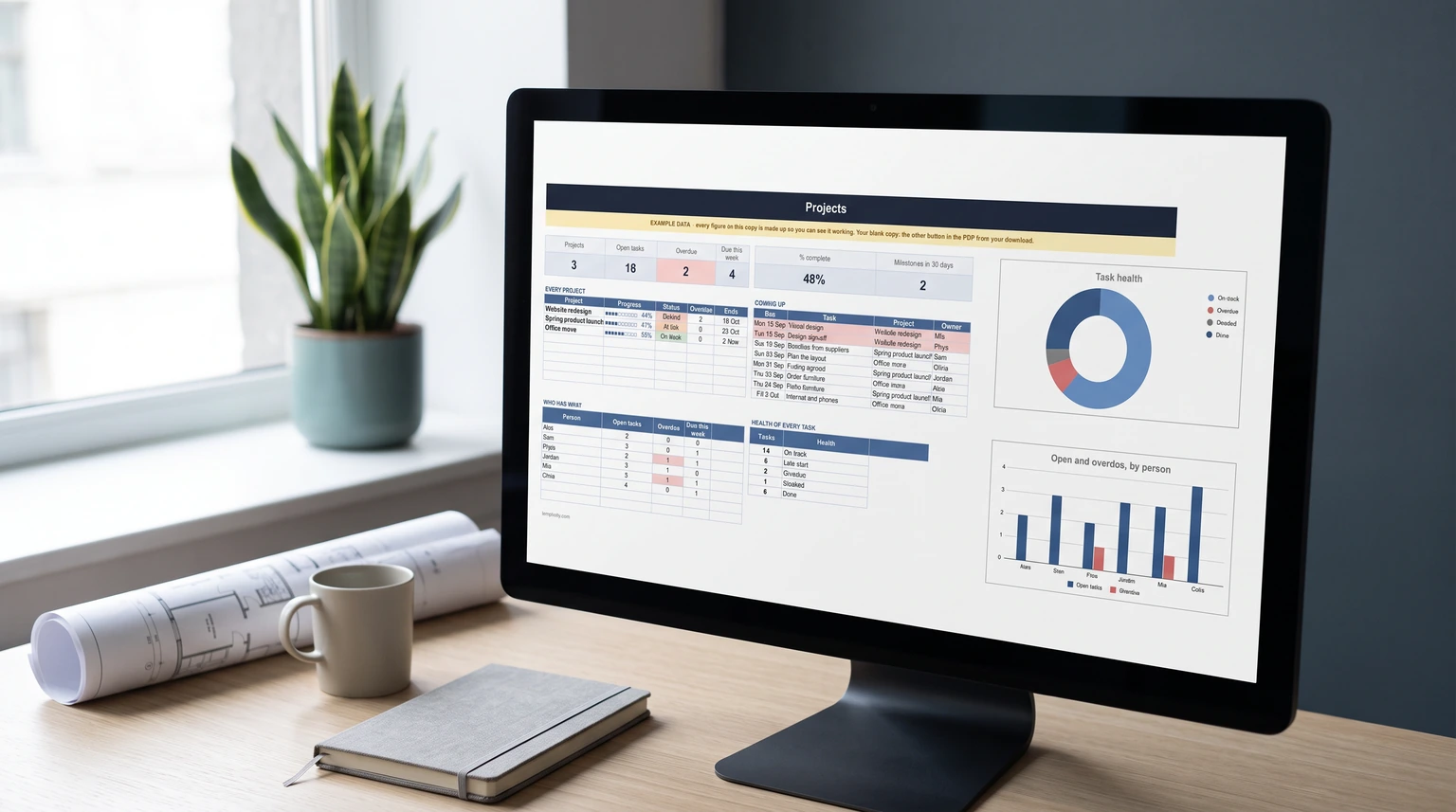
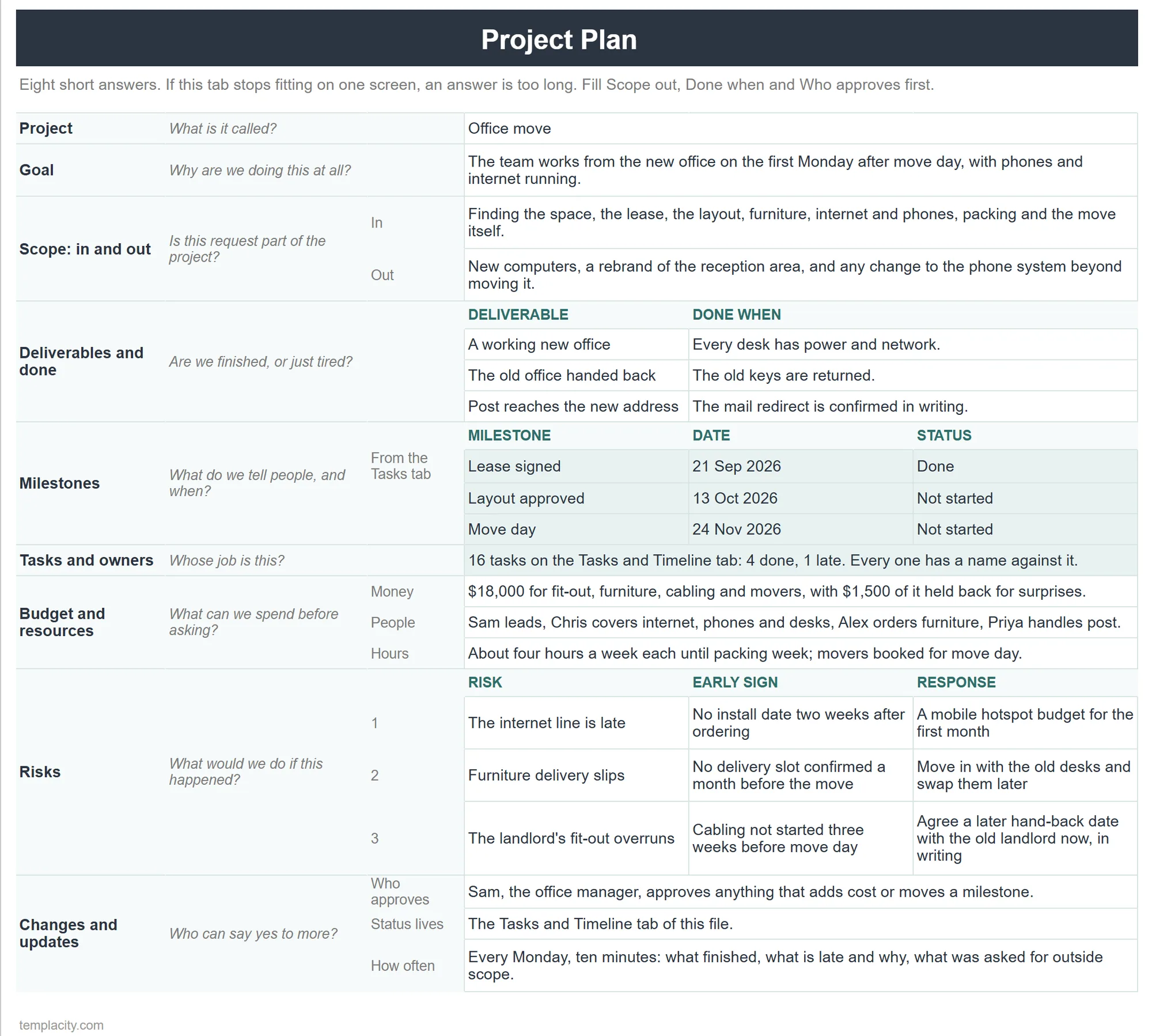
Blank boxes are hard to fill, so here is the plan side of a real-shaped project, an eight-person office moving to a new space in about three months. It is the same project that ships as example data in our paid tracker, which is why the task names below may look familiar if you have seen it.
- Goal: the team works from the new office on the first Monday after move day, with phones and internet running.
- In scope: finding the space, the lease, the layout, furniture, internet and phones, packing and the move itself.
- Out of scope: new computers, a rebrand of the reception area, and any change to the phone system beyond moving it.
- Done means: every desk has power and network, the old keys are returned, and the mail redirect is confirmed in writing.
- Milestones: lease signed, layout approved, move day.
- Risks: the internet line is late (early sign: no install date two weeks after ordering; response: a mobile hotspot budget), furniture delivery slips, the landlord’s fit-out overruns.
- Changes: the office manager approves anything that adds cost or moves a milestone; status lives in the Tasks tab and gets read every Monday.
Notice how short each answer is. The out-of-scope line about computers is there because somebody will suggest replacing them “while we are moving anyway”, and the plan has already answered. That one line saves a week of discussion.
The build
Building a project plan template in Google Sheets
A spreadsheet is a good home for a plan because the sections and the tasks can live in one file that everyone already knows how to open. The build is two tabs and one formatting rule, and it is worth doing in this order.
-
1
A Plan tab, two columns, one screen
Column A holds the eight section names, column B the answers. Wrap the text and keep it short enough that the whole tab fits without scrolling. If it does not fit, an answer is too long.
-
2
A Tasks tab with real dates
Task, owner, start, end, status. Start and end must be real dates the sheet can compare, never text. Make status a dropdown so every row uses the same four or five words.
-
3
A timeline drawn from the tasks
A row of dates to the right of the tasks and one conditional formatting rule,
=AND(F$1>=$C2, F$1<=$D2), colours each day a task is running. Move a date and the bar moves with it. -
4
Put a warning on the Plan tab
Once the plan is agreed, protect that tab with a warning, so an edit asks for confirmation instead of slipping in unnoticed.
Google makes the status column easy: its dropdown help page notes you can “insert preset dropdowns for use cases such as “Project status” or “Priority.”” Anything typed that is not on the list is rejected unless you switch the rule to show a warning instead, which is the behaviour you want for a status column.
The timeline rule has one constraint worth knowing before you lay out the file. Google’s conditional formatting documentation says custom formulas “can only reference the same sheet”, and reaching another tab needs the INDIRECT function. Keep the date grid on the Tasks tab, beside the rows it reads, and the problem never comes up. Our Gantt chart template for Google Sheets walks through that grid in detail, including the one way it fails silently.
For step four, Data, Protect sheets and ranges offers an option to “Show a warning when editing this range.” Google’s protection help page is clear that this does not block anyone and that protection “shouldn’t be used as a security measure”. It is a speed bump, which is exactly right for a plan: the point is that nobody rewrites the scope by accident.
After kickoff
Keeping the plan true once work starts
A plan is most accurate on the day it is approved and drifts from there. Three habits keep it honest, and none of them takes more than a few minutes a week.
Keep a copy of the approved version. The day the plan is signed off, make a copy of the file and name it with the date. If you forget, version history covers you: Google’s version history page shows that anyone with edit access can open Last edit, find an earlier version and choose Make a copy next to it. That copy is your baseline, and comparing today’s dates against it is how you notice that the project has slipped three weeks one day at a time.
Ask the cell who changed it. When a milestone date moves and nobody remembers why, right-click the cell and choose Show edit history. Google notes that some changes might not show up there, so treat it as a quick answer rather than an audit trail.
Comparing today’s dates against the approved copy is how you notice that the project has slipped three weeks one day at a time.
Share it with the right role. People who need to see the plan but should not change it belong in the commenter role, which per Google’s sharing roles table can view and comment but not edit. Stakeholders can still raise a question on the exact cell it concerns, and the change rule decides what happens next.
Then hold one short review a week against the Tasks tab with three questions: what finished, what is late and why, and has anything been asked for that sits outside scope. The third question is the one that protects the plan. If your own week needs the same rhythm, our productivity planner guide covers the personal side of it.
The limit
When a spreadsheet stops being the right tool
Here is the honest boundary. A spreadsheet plan works well up to a few dozen tasks with a handful of people. It struggles when tasks depend on each other in long chains, because moving one date does not move the ones after it unless you write those links as formulas, and a formula date that someone types over breaks the chain without any warning. It also struggles when several teams need their own views of the same work.
Past that point, dedicated project software earns its subscription. Below it, a spreadsheet is usually the better choice because everyone can open it, nothing needs a login you do not already have, and the plan stays one file rather than a workspace. If your team already lives in OneNote rather than Sheets, our guide to OneNote project management templates covers the same plan in a notebook, and for a single person’s list our Google Sheets to-do list template is the lighter shape.
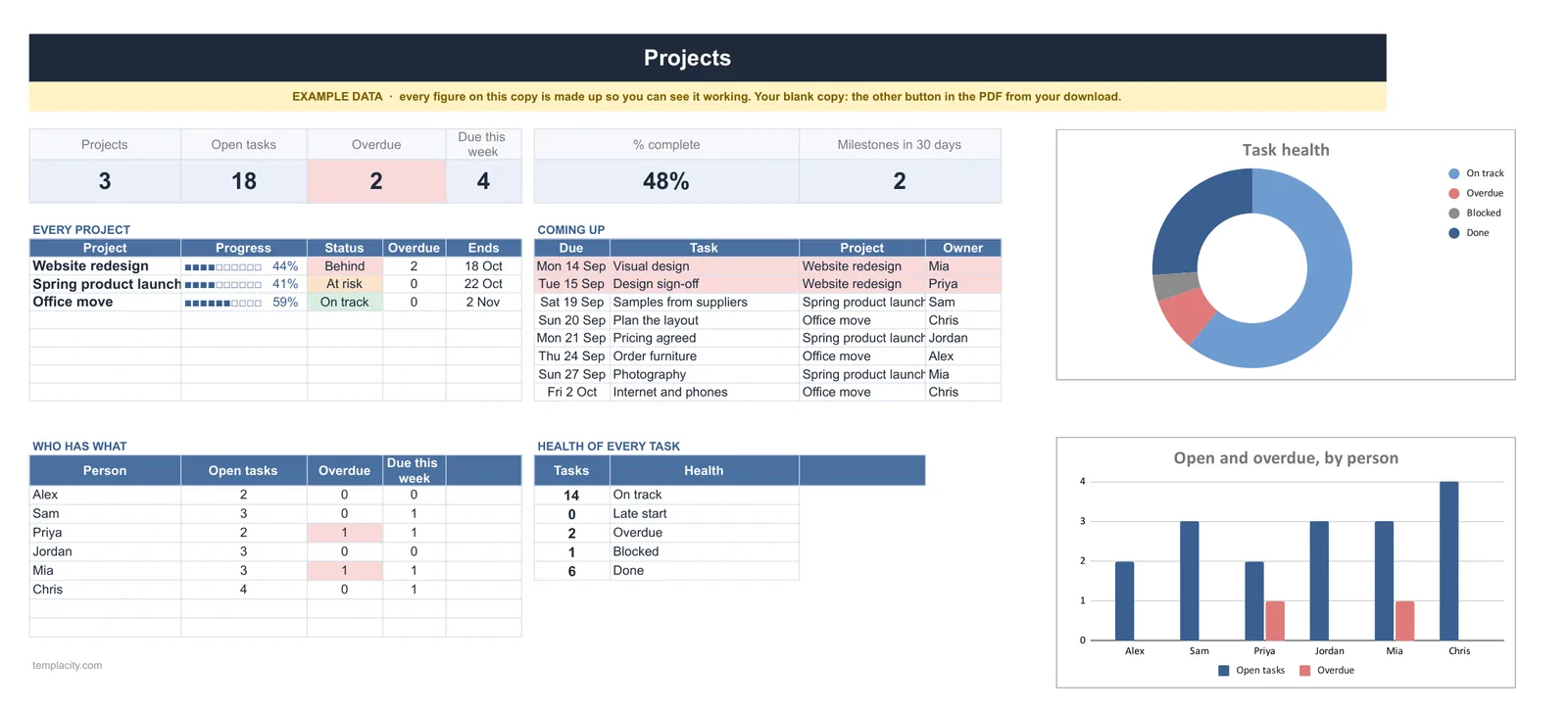
If you would rather start from a finished file than build the tabs yourself, our Project Tracker with Gantt Chart ($39, Google Sheets and Excel) is the tracking side done for you: you type tasks once, and the Gantt, the milestones list and a Projects dashboard with what is overdue, what is due this week and who has what all fill themselves, for one project or several.
Whatever you build, write the out-of-scope list first. It is the shortest section and the one you will be most glad of in week six. Tell us in the comments which section your last project was missing, because the answer is almost never the schedule.
FAQ
Common questions, answered briefly
What should a project plan template include?
What is the difference between a project plan and a project schedule?
Can I make a project plan template in Google Sheets for free?
How long should a project plan be?
People also ask