The problem
What a reMarkable meeting notes template has to hold
Most meeting notes on a reMarkable end up in one long notebook called Notes, and that notebook works fine until someone asks what was decided on the vendor call in March. A reMarkable meeting notes template is meant to stop that, but the page itself is rarely the weak point. Almost any layout with an agenda, room to write and a box for actions will get you through the hour. What breaks is everything after the hour: finding the meeting again, and finding the three things you promised to do.
So judge a template on two levels. On the page, it needs the date, who was there, the agenda, the discussion, the decisions kept apart from the discussion, and the action items with an owner. Across pages, it needs a way back: an index you log each meeting in, and somewhere the actions collect so they do not stay buried on page 40. A blank page with good headings covers the first level. Only a linked file covers the second.
Options
Three ways to get a meeting notes template on reMarkable
1. The built-in templates. Every reMarkable ships with page layouts you choose from the layers icon in a notebook, grouped as Creative, Grids, Life/organize and Lines. There is no page built for meetings, but the Cornell template comes close: a cue column on the left, notes on the right and a summary strip at the bottom, which works as discussion, follow-ups and decisions. It costs nothing and it sits in the Templates menu, so every new page in the notebook can use it. reMarkable’s own support page is clear that you cannot add to that menu: “Custom templates are not supported on reMarkable.”
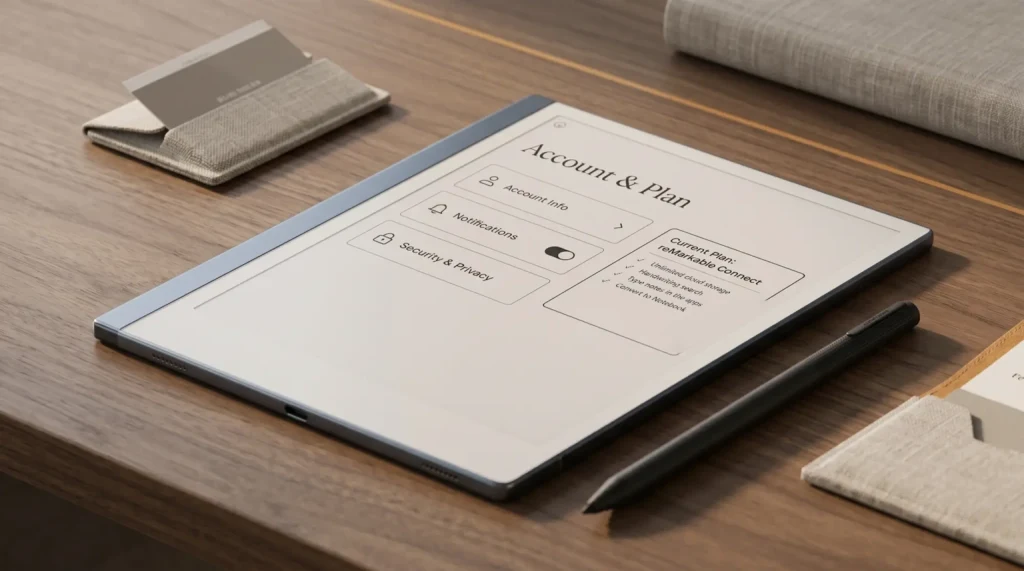
2. Meeting minutes on reMarkable Methods. reMarkable publishes its own Meeting minutes template on Methods, with sections for the agenda, attendees, notes, decisions and action items. Once imported it appears under Layers and templates, so it behaves like a built-in page, and it needs software 3.17 or newer. The catch is access: reMarkable’s support site lists Methods templates and workbooks among the extras for Connect subscribers. If you already pay for Connect, start here. Our reMarkable Connect guide covers what else the subscription includes.
3. A PDF you import. Anything you can design as a PDF can go on the tablet through the desktop or mobile app. reMarkable treats it as a separate document, not a template, so you duplicate it before writing if you want a clean copy, and it never shows up in the Templates menu. What a PDF gives you that the other two cannot is links: a page can carry an index, tabs and buttons that jump to other pages in the same file. Third-party installers that push PDFs into the Templates menu exist, and our template installer guide covers them, but reMarkable does not support them.
| Cost | In Templates menu | Index and links | |
|---|---|---|---|
| Built-in (Cornell, Lines) | Free | Yes | No |
| Methods Meeting minutes | Connect | Yes | No |
| Linked PDF | Free to paid | No | Yes |
There is one trade-off to know before you pick the PDF route. reMarkable’s Templates article warns that a PDF used as a template comes with the limits of the format, naming handwriting conversion as one of them, while its conversion guide lists PDFs among the documents you can convert. Try converting one page of your file before a meeting where you will need typed notes afterwards.
Our pick
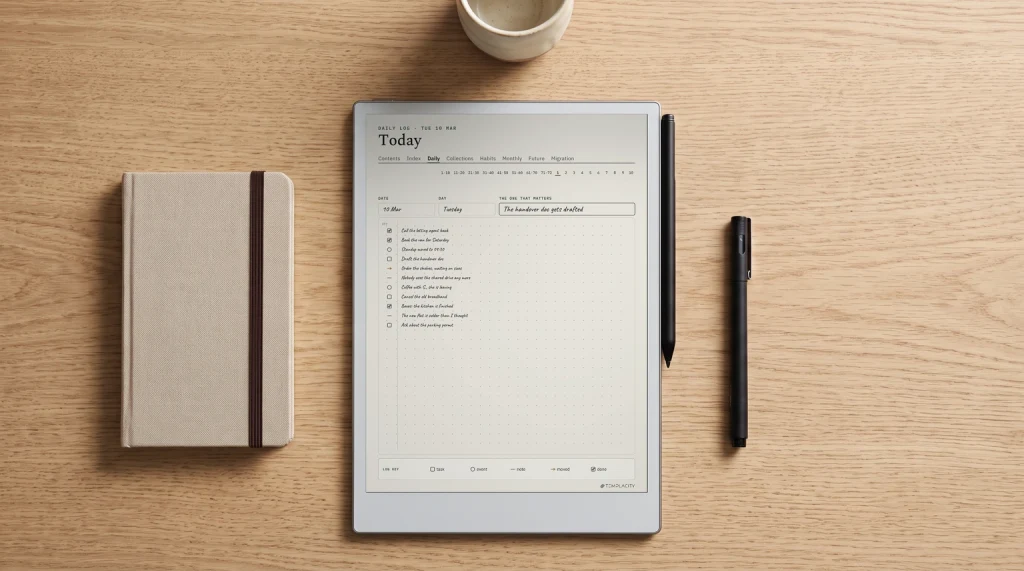
The meeting notes inside our Digital Work Planner
We built the meeting section of the Digital Work Planner around that way back. The 2026 file has 208 meeting notes behind a meetings index of 13 pages, 16 rows a page. Meetings stay undated, because they happen when they happen: you take the next free note, write the date, and log the date and topic on the next row of the index. From then on that row opens that note in one tap.
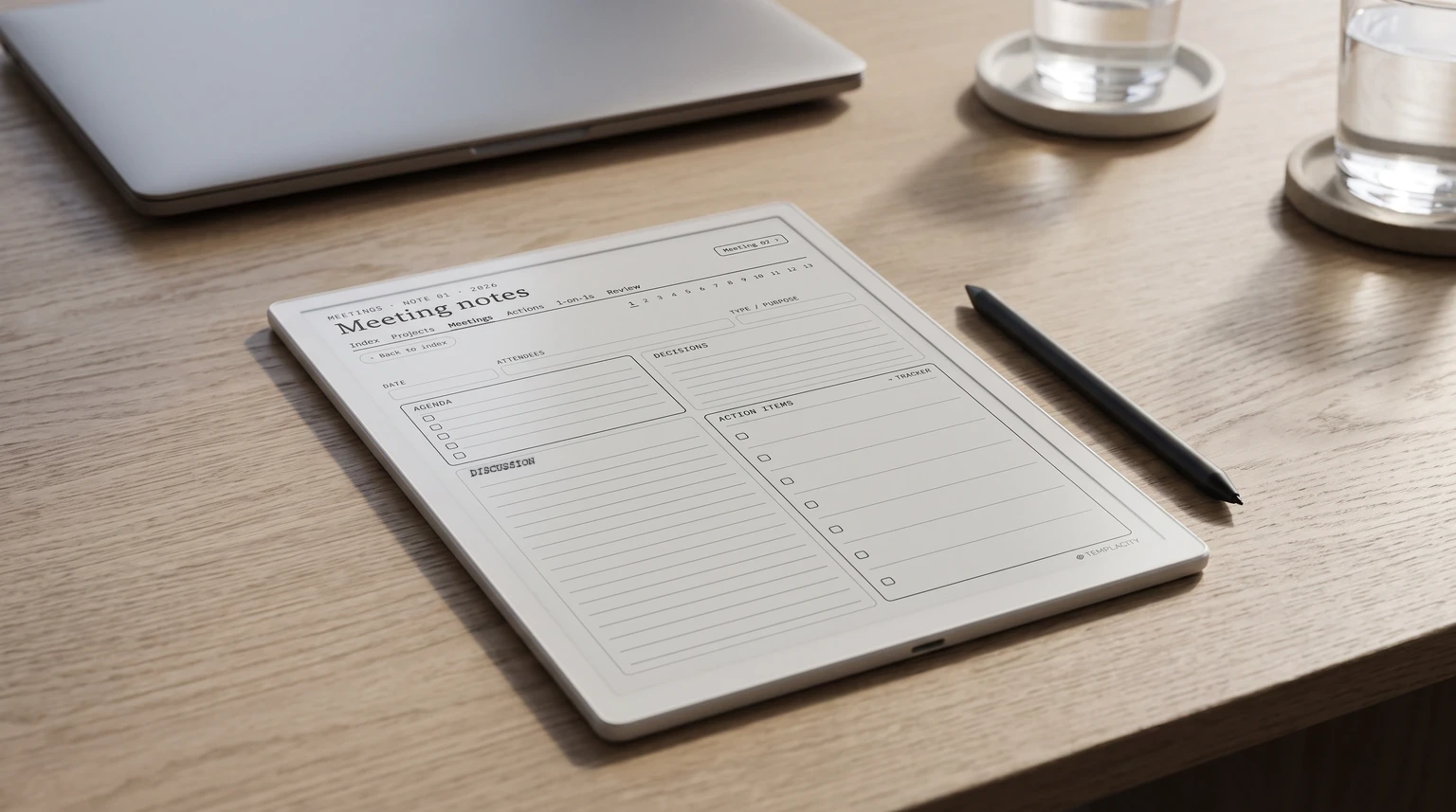
Each note carries the fields from the first section: date, attendees, type or purpose, an agenda with tick boxes, discussion, decisions in their own box, and action items with a link to the action tracker. The tracker runs over 12 sheets with four columns, done, action, owner and due, so the follow-ups from every meeting and every one-on-one land in one list instead of staying where they were written. The same planner holds project pages, a running one-on-one log per person and monthly and quarterly reviews, 297 pages in all, with 2026 and 2027 editions.
It is drawn for 19 devices across reMarkable, Kindle Scribe, Boox, Supernote and Goodnotes, so the page fits your screen rather than being scaled down from a letter sheet. If you run one particular meeting every week, the weekly leadership meeting for example, our Leadership Meeting System is narrower and deeper: 52 run-sheets in agenda order with an issues list, quarterly goals and a weekly scorecard, for the reMarkable Paper Pro and Paper Pro Move. The digital work planner guide compares the wider field if you are still choosing.
After the meeting
Getting reMarkable meeting notes to your team
Handwritten notes only help a team once they leave the tablet, and the routes for that do not need a subscription. reMarkable lists these among the features you keep without Connect:
- Send by email. Long-press the file, tap the three dots, then Send by email, and choose PDF, PNG or SVG. If a document holds only typed or converted text, you can send it as text in the body of the email.
- Google Drive, Dropbox and OneDrive. The tablet uploads notes and documents straight to a linked account, which is how meeting notes reach a shared team folder. Our Google Drive guide walks through the setup.
- Handwriting to text. Open the page, tap Document settings, then Convert to text, and a new page of typed text appears while your handwriting stays as it was. It needs Wi-Fi and your reMarkable account. Converting from the desktop app is the part that needs Connect.
- Screen Share. Present the page you are writing on through the desktop app during a video call.
The 50-day rule is the one to watch. Without Connect, only files used and synced in the last 50 days stay in reMarkable’s cloud and apps, so a meeting notebook you stop opening drops out of the desktop app while staying on the tablet. Uploading the notes to Drive or OneDrive after each meeting keeps a copy the team can reach. Our handwriting recognition guide has more on getting clean text out of a page.
Other tablets
Meeting notes on Boox, Kindle Scribe and Supernote
Boox. Boox is the most flexible of the four. In the Notes app, Page+ adds a new page from an image or from a file, and Boox states that the hyperlinks of a PDF added this way stay clickable, so a linked meeting file keeps its index. Convert to Text is in the same app. Our Boox templates guide covers the route step by step.
Supernote. Put the PDF in the MyStyle folder, then in a note open the template options, choose Customization, pick the file and its pages, and tap Apply as Template. Supernote does not allow a PDF as the default template for new notes, so you apply it per note. See our Supernote templates guide for the PNG route as well.
Kindle Scribe. The Scribe edition of the Digital Work Planner is a PDF you write on directly, and how you send it to the Scribe decides whether you can write on it at all. Our Kindle planner guide covers the transfer route that keeps the pages writable.
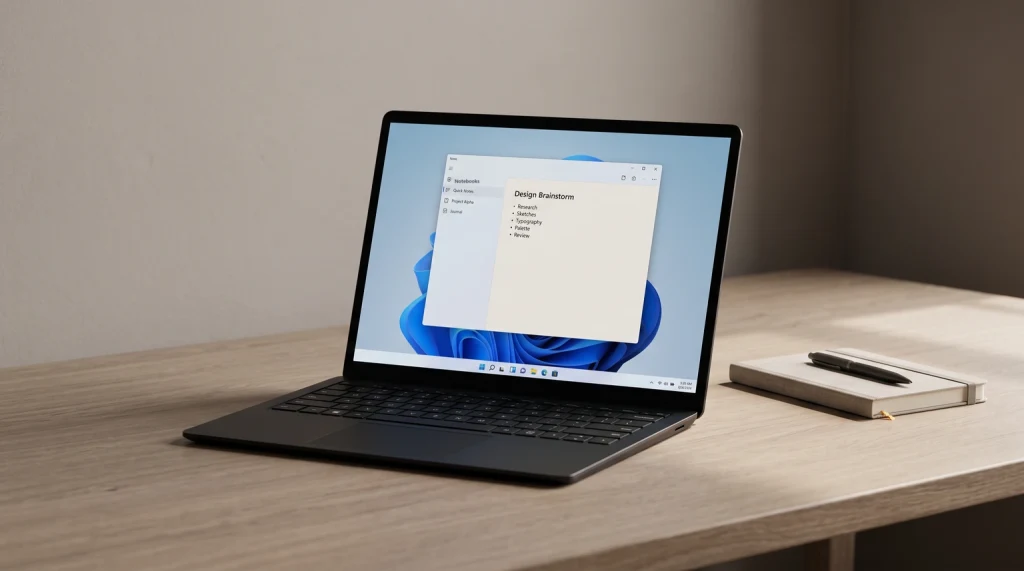
If your team keeps meeting notes typed rather than handwritten, the tablet is the wrong tool for the shared record. Our OneNote Meeting Notes Template does the same job on a laptop: 26 ready agendas in five groups, a decision log, and actions tagged so one search pulls every open one into a single pane. The OneNote meeting template guide shows how it runs.
Which meetings fill most of your week, and where do the notes go after? Tell us in the comments. The setups readers share are how we decide which meeting pages to draw next.
FAQ
Common questions, answered briefly
Does reMarkable have a meeting notes template?
Can I add a custom meeting template to reMarkable?
Can reMarkable sync meeting notes to Google Drive?
Does reMarkable convert handwritten meeting notes into text?
What is the best meeting notes template for an e-ink tablet?
If your question is not here, leave it in the comments and we will answer it in the next update.
People also ask