What it is
What “Kindle planner” actually means in 2026
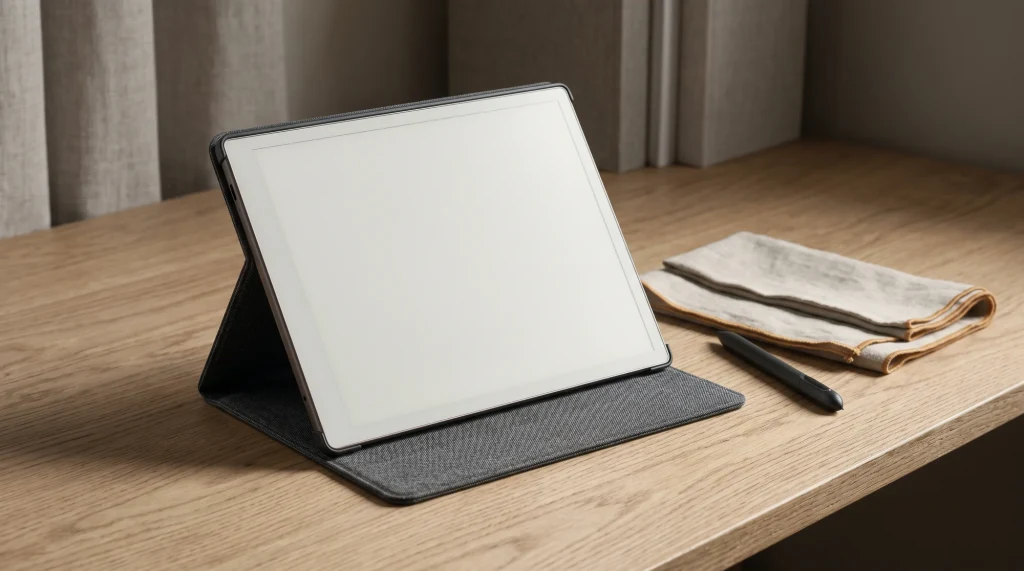
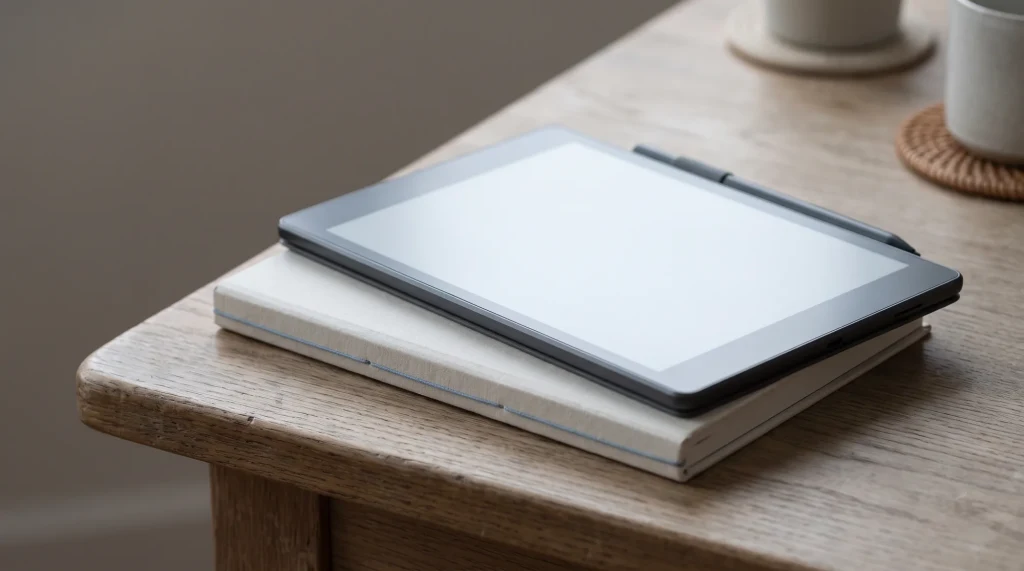
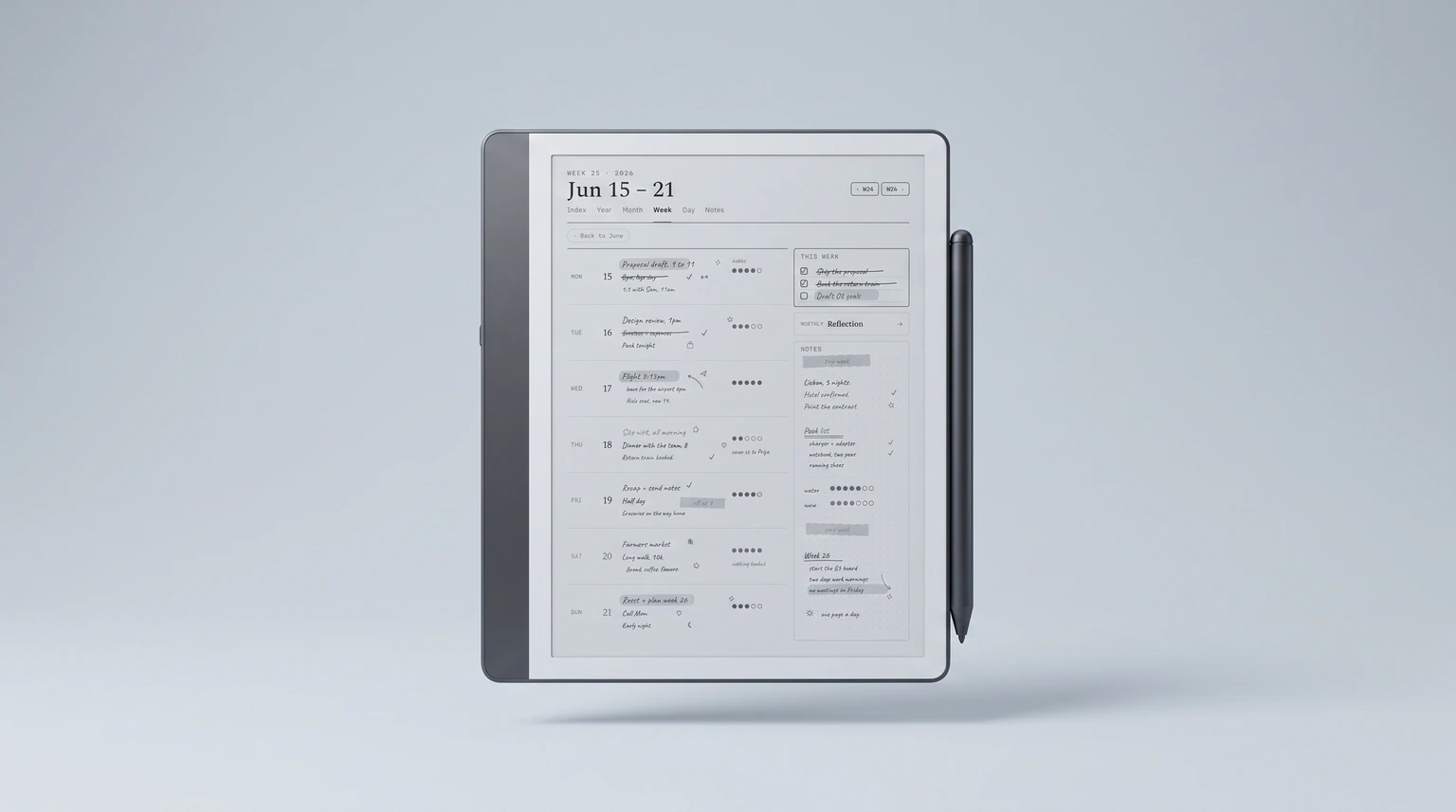
A Kindle planner is a PDF planner that lives on the Kindle Scribe and gets used like a paper planner: open the file, navigate via hyperlinks, write on the page with the stylus, save. That’s it. There is no Kindle planner app, no Kindle planner subscription, no in-store planner section. The entire ecosystem is people exchanging PDFs sized for the Scribe’s screen and trading notes on which ones people keep using past the first week.
The reason this confuses search results is that “Kindle” is a brand covering five distinct devices (basic Kindle, Kindle Paperwhite, Kindle Oasis, Kindle Scribe, Kindle Scribe Colorsoft), and only one of those devices can write. People search for “Kindle planner” expecting a download that runs on whatever Kindle they own, then discover that the Paperwhite they bought for reading novels cannot accept handwriting input. That confusion gets resolved in the next section; if you already own a Scribe, skip ahead to what a working planner has to do.
The other thing worth naming up front: there is no first-party Amazon planner product. Amazon ships the Scribe with a set of built-in notebook templates (lined, dotted, ruled, music, task list) and that is where Amazon’s commitment to planning ends. Every planner this guide covers is a third-party PDF, either free from the community or paid from a template studio like Templacity (us). The built-in Notebook Templates menu cannot accept user uploads; the PDF route is the only path.
Device check
Why a Paperwhite, Oasis, or basic Kindle cannot run a planner
The Kindle Paperwhite, Kindle Oasis, and basic Kindle are reading devices. They render text and accept page-turn taps. They have no stylus support, no handwriting layer, no annotation overlay beyond highlight-and-note on book text. A PDF planner technically opens on a Paperwhite, but every page renders as a static image you cannot mark up. The planner is decorative.
The Kindle Scribe is the only Kindle that ships with a stylus, accepts handwriting input on any imported PDF, and stores written notes inside the file. That makes it the only Kindle that can run a planner the way most people mean the word. Its sibling, the Kindle Scribe Colorsoft, adds color rendering to the same workflow.
If you already own a Paperwhite and you want a planner workflow on a Kindle, the answer is to buy the Scribe. Templacity is not in the business of upselling Amazon devices, but no software workaround changes the hardware constraint. The rest of this guide assumes you have or are about to buy a Scribe.
Anatomy
What a working Kindle planner has to do
A planner that survives daily use on the Scribe shares a small set of attributes. Most failures cluster around the same four mistakes, so this list reads as both a quality bar and a free-template filter.
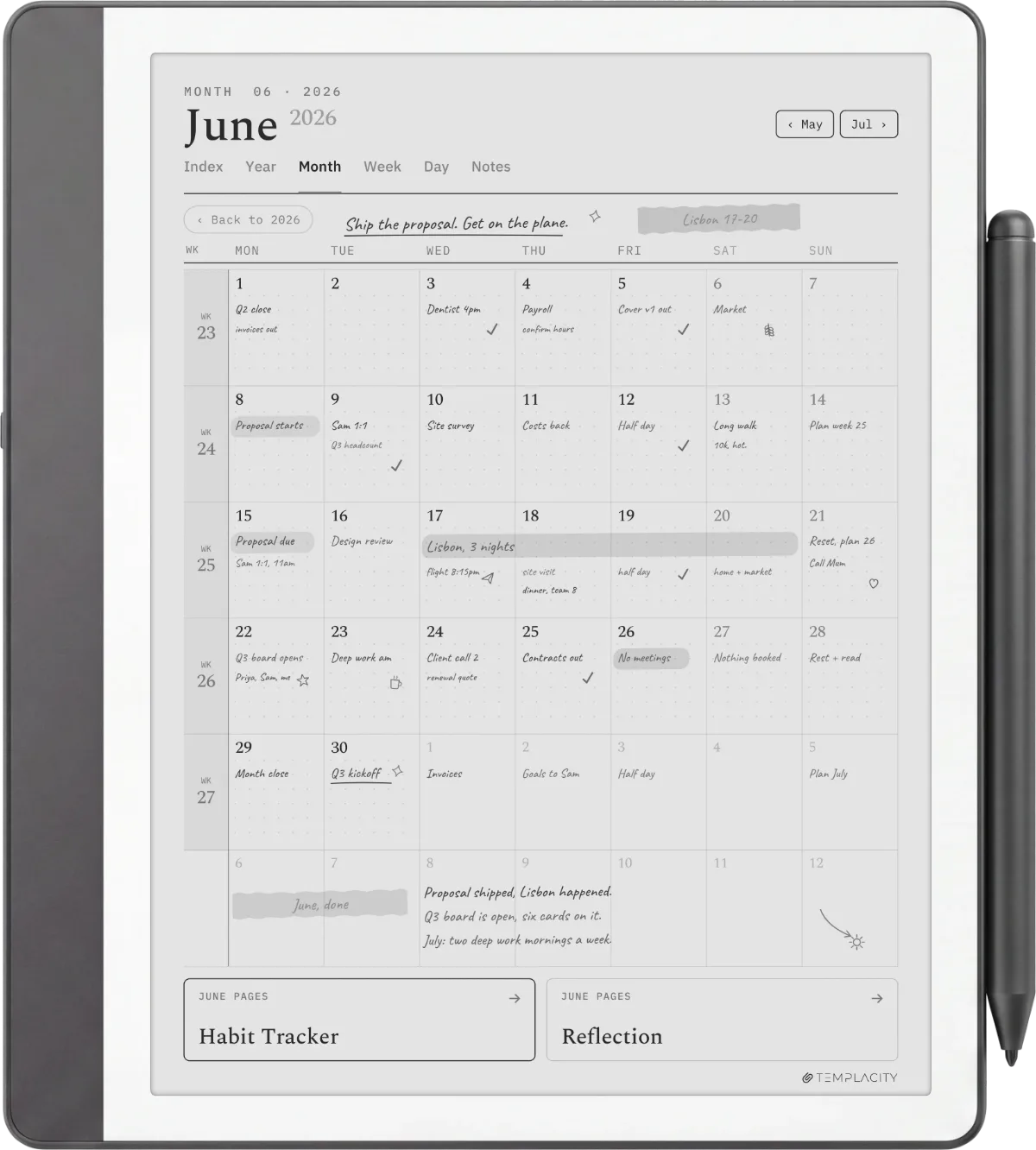
First, hyperlinked navigation between layers. Year jumps to month, month jumps to week, week jumps to day, every leaf links back to its parent. The Scribe’s flat page-by-page navigation is slow; without internal links you are tapping next-page 40 times to find Thursday. Most free planners cap navigation at the year-to-month layer and force you to scroll the rest.
Those back-links matter more on a Scribe than anywhere else. Links inside a PDF do work on the device, but since software 5.19.3.0.1 there is no “back to page” button after you follow one, as owners on r/kindlescribe have pointed out, so the only way back to where you were is a link the planner itself provides. Keep the tabs away from the very top and side edges too: a link placed there tends to trigger the Scribe’s own page-turn or menu tap instead.
Second, native pixel sizing. The original 10.2-inch Scribe’s panel is 1860 x 2480 pixels at 300 PPI, and the current 11-inch generation is 1980 x 2640 at the same 300 PPI. Both are exactly 3:4, so a planner cut for one scales cleanly to the other. Planners exported at US-letter (8.5 x 11 inches) render with letterboxing or stretched proportions and the line work softens visibly. The good planners get sized to the native panel from the design stage.
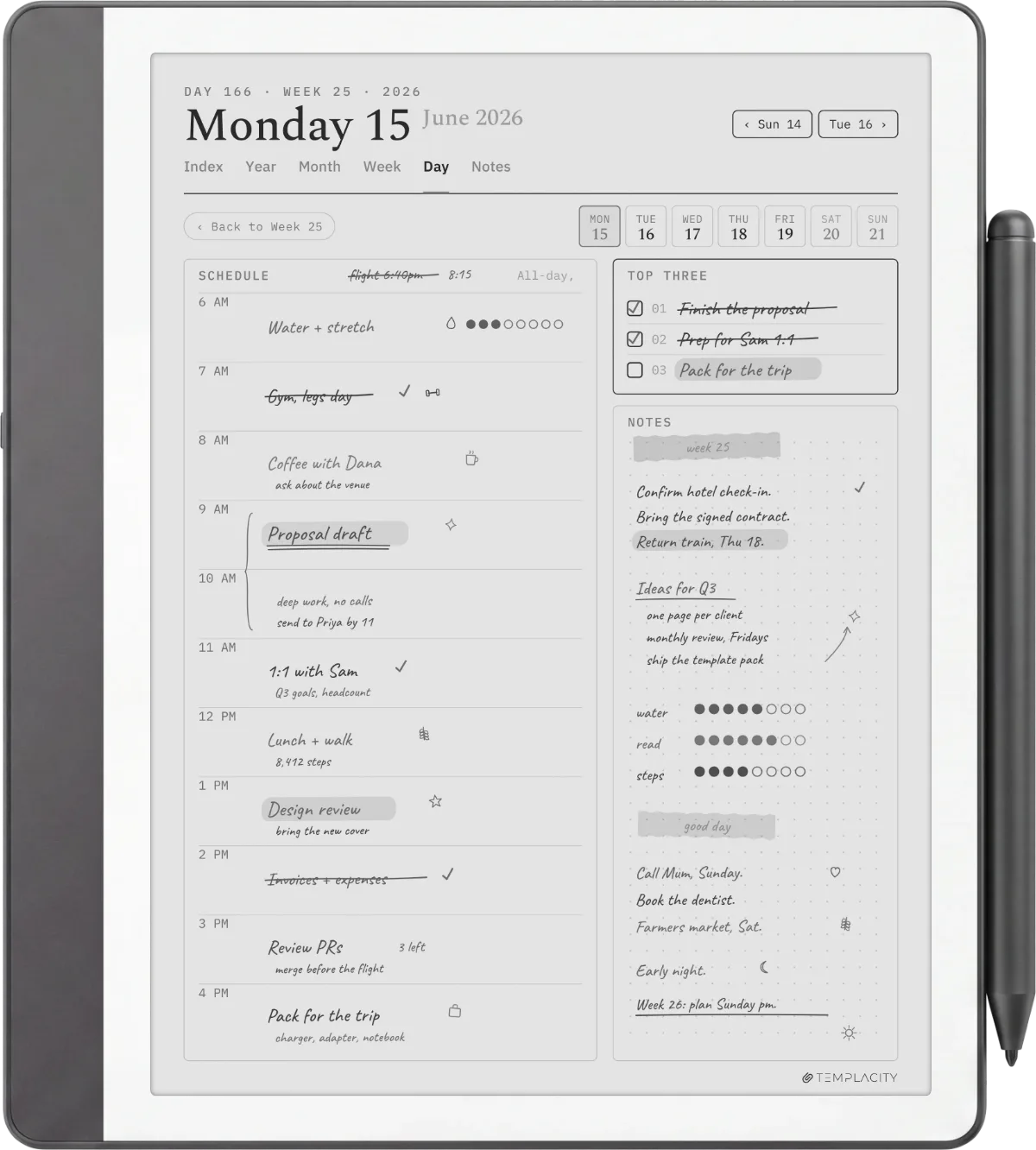
Third, light-grey form lines. Form lines drawn at pure black (100 percent) compete visually with handwriting strokes drawn at the same value, so the page looks busy at any fill level. The planners that hold up draw form lines at 30 to 40 percent black so written notes pop and the form recedes into the background.
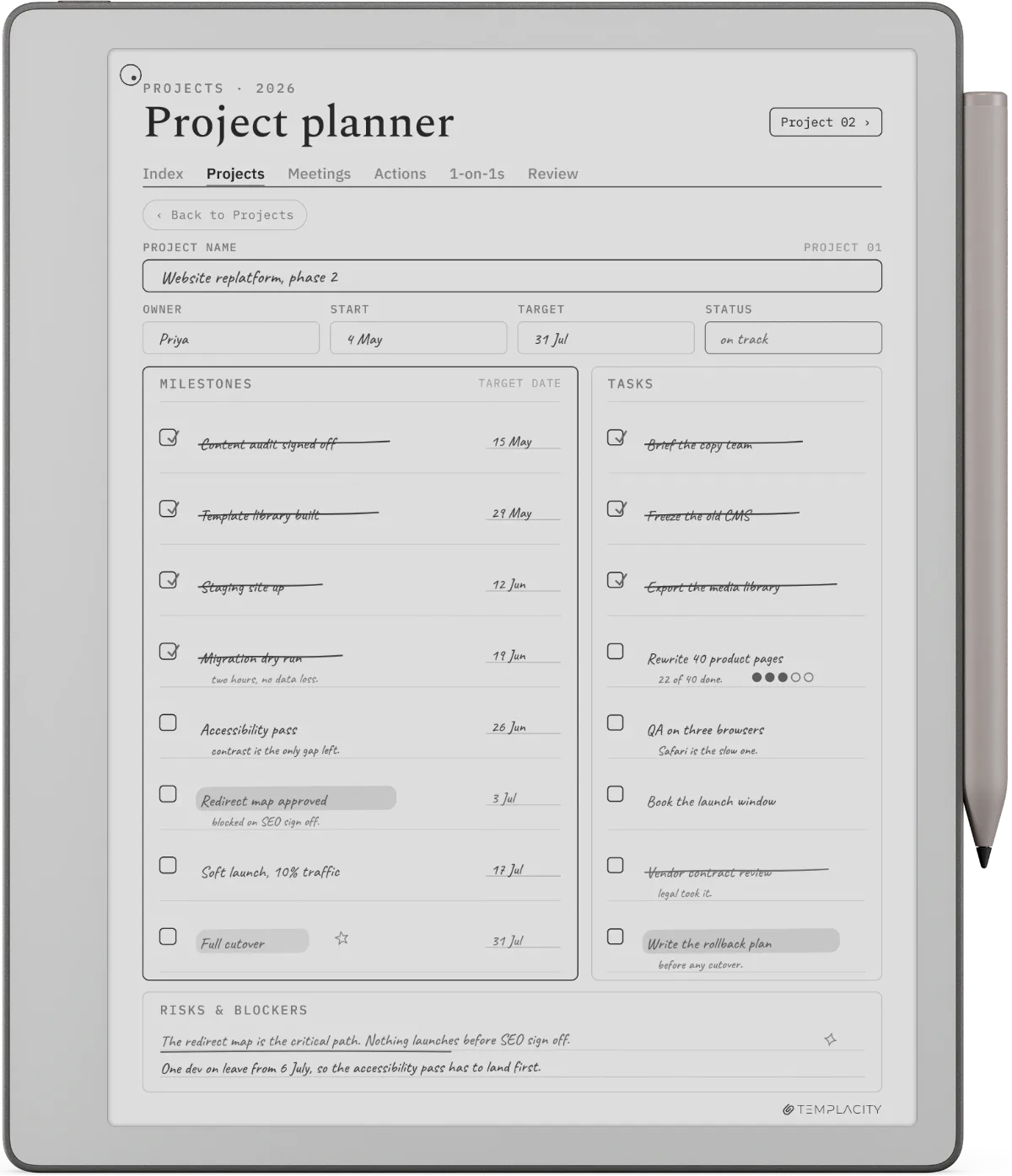
Fourth, single-format focus. A “planner library” that includes weekly spreads and daily logs and monthly calendars and habit trackers and meal plans does none of them well. The planners that earn daily use commit to one core layout (usually weekly or daily) and add the others as light supplements.
Setup
The Kindle Scribe planner setup, end-to-end
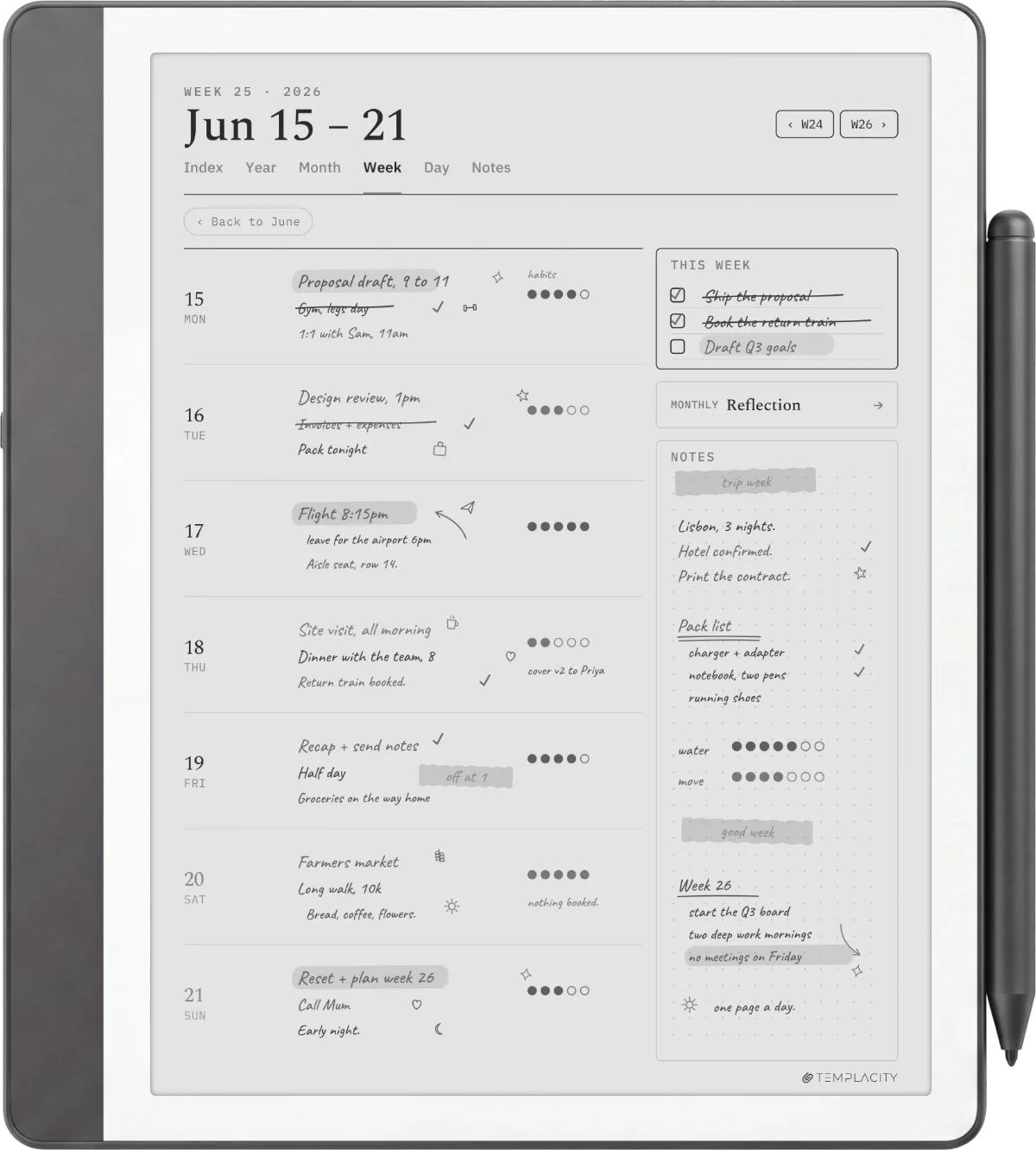
Setting up a Kindle planner takes about three minutes once you have the PDF in hand. There are three import paths; all three end up in the same library on the device.
The simplest is email. Email the PDF to your @kindle.com address (found in Amazon’s Your Content and Devices page under Personal Documents Settings). The Scribe pulls the file down on next sync, usually within a minute on Wi-Fi.
The second is the Send to Kindle desktop app or browser extension. Drag the PDF into the app, pick the Scribe, hit send. Same end result, no email step. This is the path the Scribe community defaults to.
USB-C is the path to avoid for a planner. The Scribe shows up as a drive and will take the file, but Amazon’s own help page says it does not support writing directly on PDFs loaded over USB-C, so the planner opens read-only for handwriting. Send it through Send to Kindle instead. We cover the full step-by-step plus screenshot of the file-tree layout in how to make Kindle Scribe templates. Our guide to how to send a PDF to Kindle Scribe has each route step by step.
After import, the planner appears under Library, sorted into the Documents tab (not Books). Open it, tap to enable writing mode, write on the page with the stylus. Notes save automatically. The hyperlinks built into the PDF work in Library view; tap them to jump.
Picks
Best Kindle planners by use case
| Use case | Format that fits | Where to start |
|---|---|---|
| Academic (semester / coursework) | Weekly two-page spread, monthly reference, undated | Templacity weekly or community free |
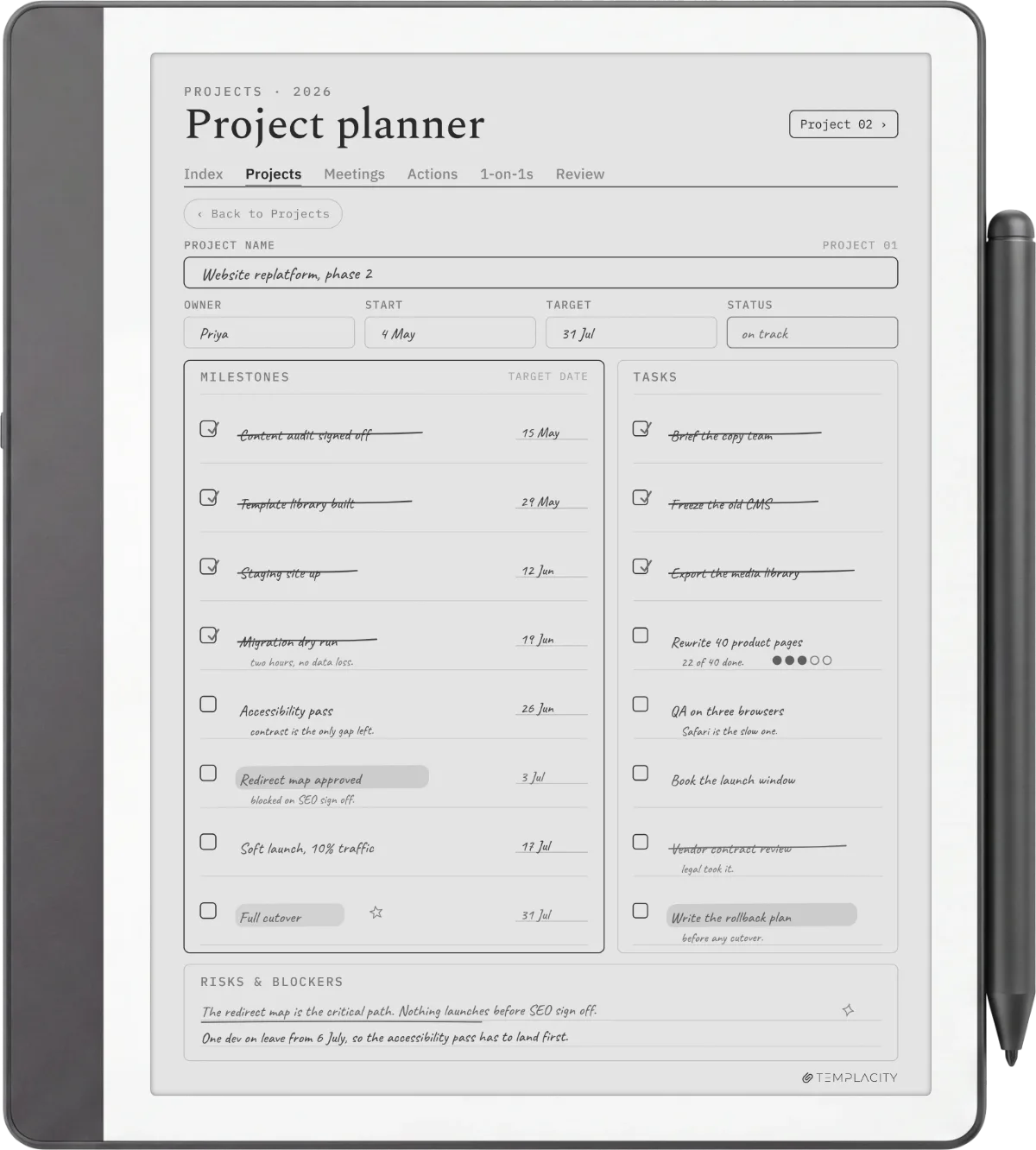
| Work / project management | Daily log with task-and-meeting columns, weekly review | daily-log pick |
| Personal / journaling | Daily journal page, single layout, dated 2026 | free daily journal or The Journal |
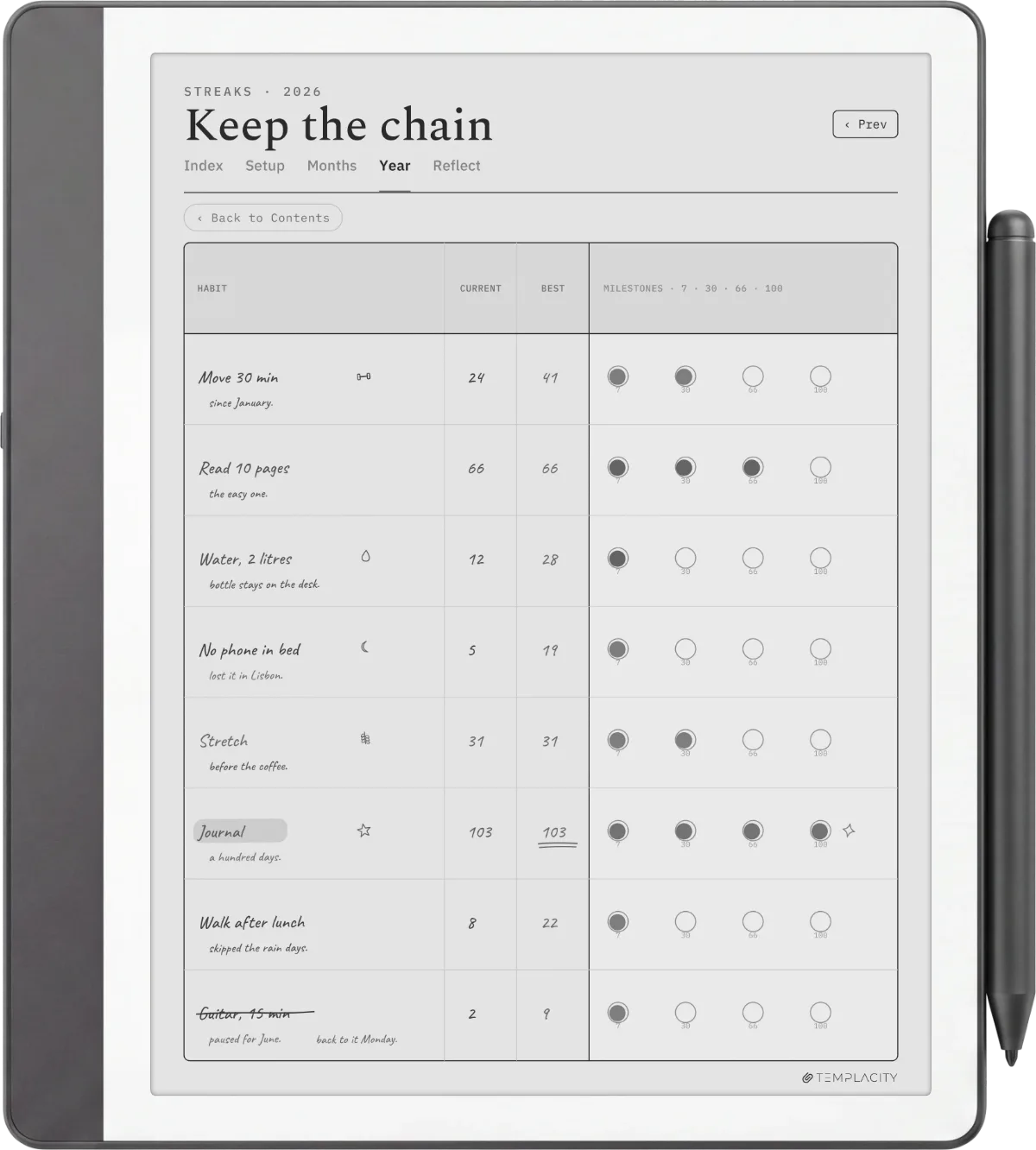
| Fitness / habit tracking | Habit grid, weekly check-in, monthly summary | habit template pack |
| Finance / monthly budget | Monthly two-column ledger, year-rollup tab | budget templates |
The honest filter cutting across all five use cases is whether you keep opening it. A planner that looks beautiful in a screenshot but gets abandoned by April returns less value than a plain layout you actually open every day. Our best Kindle Scribe planner roundup ranks every pick on day-to-day usability rather than visual polish.
If you are buying for the first time and undecided, start with a weekly two-page spread. It asks the least of you on a busy day, suits all five use cases, and is the easiest entry into a planning routine. Daily logs are higher commitment; monthly calendars are reference, not primary planning.
Free vs paid
Free Kindle planners vs paid: what you actually get
| Plan | Get you | Cost you |
|---|---|---|
| Free planners | A working layout for most personal use cases. Most are sized correctly, drawn in light grey, and hyperlinked at least at year-to-month. | Patchy week-to-day hyperlinks; year-locked dates (a 2025 planner does not auto-roll to 2026); no support if the file corrupts mid-year; occasional letter-size scaling drift. |
| Paid bundles ($20 to $60) | Full four-layer hyperlinking, multi-year date support, native pixel sizing verified on the device, replacement files when an install corrupts. | $20 to $60 once, plus the friction of paying for something you assumed should be free. |
The case for free is strong if you are sampling whether a Kindle planner workflow fits your life. Free Kindle Scribe planners cover most needs at zero cost, and our free-PDF roundup ranks the cleanest community options by hyperlink completeness. Start there, run it for a month, then decide whether the friction of the cheaper options is worth paying to fix.
The case for paid is straightforward once a planner becomes load-bearing for your week. The two failure modes that hurt are mid-year corruption (no support means the planner is gone) and date rollover (you get to January 1 and the planner stops working). Both are solved problems on paid bundles. Whether you pay us, a competitor, or build your own is secondary; the point is that still opening it after month six is what separates the two camps.
Colorsoft
Kindle Scribe Colorsoft and the planner question
The Kindle Scribe Colorsoft arrived with the 11-inch Scribe generation as its color variant: the same form factor and the same stylus workflow, plus paper-like color rendering. Every Kindle planner PDF designed for the mono Scribe runs on the Colorsoft without modification. What changes is that color planners (calendars with color-coded categories, habit grids with status colors, journaling pages with mood swatches) finally render correctly.
Two practical notes for Colorsoft owners. First, the color rendering is muted and paper-like, not RGB-saturated. Planners designed for an iPad with vibrant colors will look washed out, which is correct for the device but worth knowing if your reference is a tablet planner. Second, dedicated Colorsoft-specific planners use the color layer for week labels, day-of-week color coding, and habit-grid status; mono planners on the Colorsoft work fine but leave the color rendering unused.
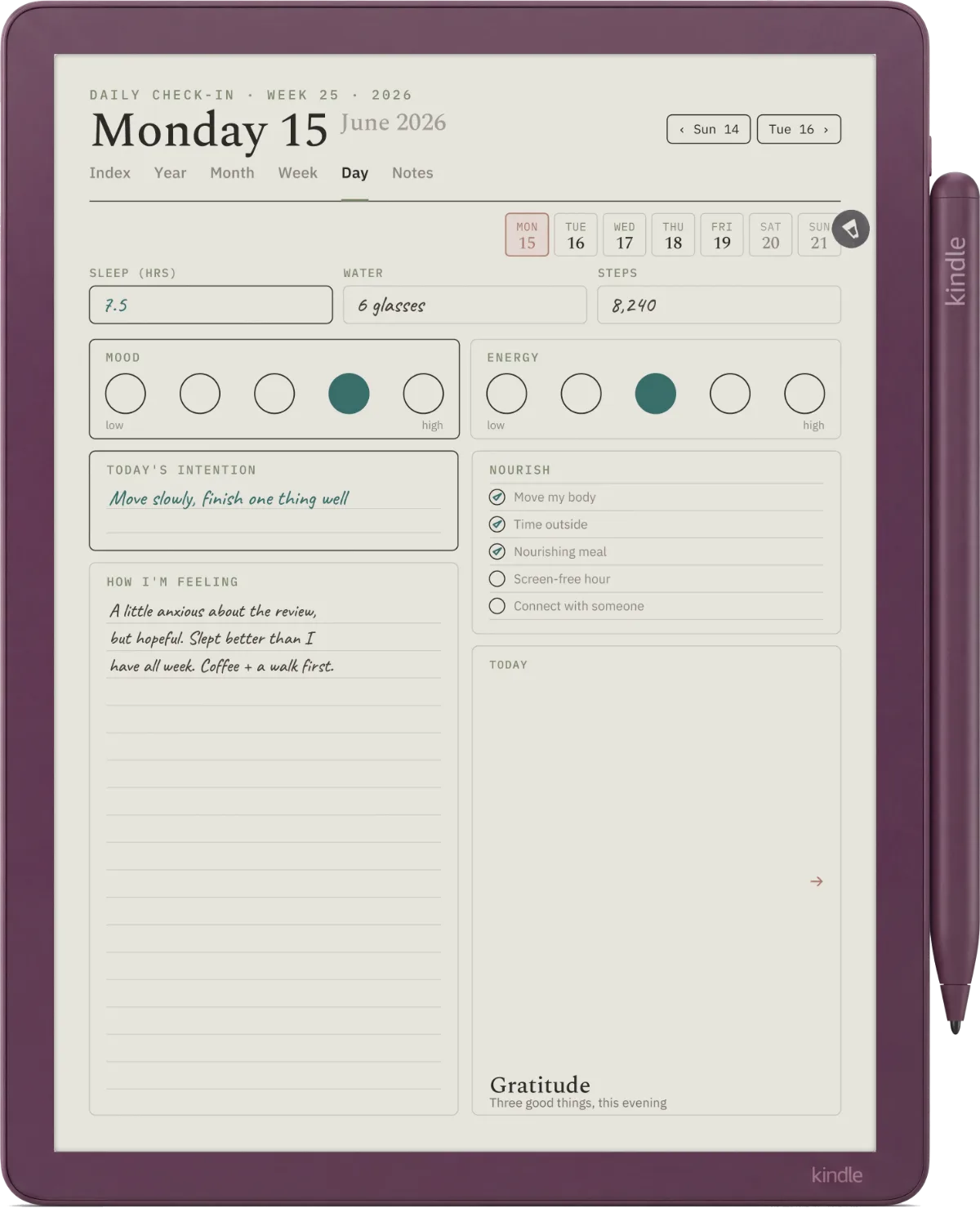
If you are deciding between mono Scribe and Colorsoft for planner use, color matters more than expected at the weekly-spread layer (color-coded categories are a meaningful organisation tool) and less than expected at the daily-log layer (most daily logs read fine in mono).
Vs reMarkable
Kindle planner vs reMarkable planner: who should pick what
Kindle Scribe vs reMarkable Paper Pure: planner workflow
Stylus included
Best when your planner workflow lives alongside reading. The Scribe is the only Kindle that takes notes, and the Amazon library integration matters if you read on Kindle already. Planner files import via Send to Kindle in under a minute.
$399 base, Marker included
Best when planning is the primary use and the device’s job is writing-first. The reMarkable side has the deeper third-party template ecosystem and simpler USB-C import.
The summary: if you already read on Kindle and want planning bolted to the existing workflow, get the Scribe. If you want a writing-first tablet and reading is secondary, the reMarkable Paper Pure is the cleaner fit. Our Paper Pure vs Kindle Scribe comparison goes deeper on the hardware tradeoffs, and the best reMarkable planner guide is the reMarkable-side counterpart to this pillar.
One thing worth saying because most comparison posts will not: both devices solve the planner problem well. The wrong decision here is not picking the wrong device, it is picking neither and continuing to plan on paper while wishing you had digital search and backup. Pick one within a month of reading this.
Verdict
What we’d buy if we were starting today
If we’re being honest about the case against our own bundle: free PDFs cover most casual needs, the bundle’s edge is the hyperlink completeness and the multi-year date support, both of which only start to matter after month three. The buyer who should pay us is the buyer who has tried a free planner, watched it break at the date rollover or the missing week-to-day link, and decided the friction is worth paying to remove. The buyer who has not hit that wall yet should start free.
Whatever you pick, the decision worth making this month is to pick at all. A Scribe with a Kindle planner and a Paper Pure with a reMarkable planner are both sound setups, and either beats the paper planner you keep meaning to start. Drop a question in the FAQ below if a specific use case is unclear, and bring the conversation into the community via the share row at the bottom.
FAQ
Common questions, answered briefly
Can you use a planner on a Kindle?
Which Kindle works with planners?
Is there a free Kindle planner?
How do you import a planner to the Kindle Scribe?
Does the Kindle Scribe come with a planner?
What is the best Kindle planner for 2026?
Have a use case the FAQ misses? The share row at the bottom carries an email link, or drop a comment under any cluster post and we’ll fold the answer into the next refresh.
People also ask