The short answer
What a reMarkable 2 PDF can and cannot do
The reMarkable 2 PDF question usually arrives in three parts: how do you get the file onto the tablet, what happens to it once it is there, and how does the version with your handwriting on it get back to a computer. reMarkable’s own product page lists PDF and EPUB as the two import formats and PDF, PNG and SVG as the three export formats, and that framing holds for everything below. A PDF is a document on the tablet, not a notebook, and that one distinction explains most of the surprises people post about.
Five routes put a PDF on the device. Two of them, the USB web interface and a linked cloud drive, need no companion app at all, which matters if the desktop app is blocked on a work machine. Nothing in the transfer-and-annotate loop needs a Connect subscription. The rest of this post walks each route, then the pen tools that work on a PDF, then the ways out, and ends on the page-size detail that decides whether a planner fills the screen or floats in a margin. For the device itself, start at how to use a reMarkable 2.
Getting it on
Five ways to import a PDF to a reMarkable 2
reMarkable’s importing and exporting page, revised in October 2026, is the source for every step here. The routes differ in which file types they accept and in whether a 100 MB cap applies, so the table after the steps is worth a glance before a scanned textbook goes nowhere.
Desktop app: drag the PDF into the window.
Open the reMarkable desktop app, click Import in the top menu and pick the file, or drag and drop it into the app window. It syncs to the tablet the next time both are online. The app runs on Windows 10 64-bit (version 1809 or newer) and macOS 13 or newer; reMarkable says it does not support Windows on ARM.
Phone: share the file to the reMarkable app.
On an iPhone, open the PDF, tap Share and choose Import with reMarkable. On Android, tap Import inside the app, or share the file to it from another app. The apps need iOS 17 or Android 11 and newer.
Browser: upload at app.remarkable.com.
Log in, then drag the file into the list or click to browse. This route also takes JPG and PNG, which reMarkable converts to PDF on import. It is the fallback when neither app can be installed.
Cloud drive: import on the tablet itself.
Link Google Drive, Dropbox or OneDrive once at my.remarkable.com under Integrations (up to five accounts). On the tablet, open the menu, tap Integrations, pick the service, long-press the PDF and tap Import. The file is copied to My files, so it stays readable offline.
USB cable: use the tablet’s own web page.
Connect the cable, go to Settings, General settings, Storage, and switch on USB web interface. Type 10.11.99.1 into a browser on the computer and drag the PDF onto the page. No account, no Wi-Fi, no app.
Office files and web pages have their own doors: reMarkable’s Read on reMarkable add-ins send Word and PowerPoint documents across as PDFs, and the Chrome extension of the same name sends articles. Neither is needed for a file that is already a PDF.
| Route | Accepts | Size cap | Needs |
|---|---|---|---|
| Desktop app | PDF, EPUB | None stated | Windows 10 64-bit or macOS 13, a reMarkable account |
| Mobile app | PDF, EPUB | None stated | iOS 17 or Android 11, a reMarkable account |
| Web app | PDF, EPUB, JPG, PNG | 100 MB | A browser and a reMarkable account |
| Cloud drive | PDF, EPUB and more | None stated | Drive, Dropbox or OneDrive linked at my.remarkable.com |
| USB web interface | PDF, EPUB, rmdoc | 100 MB | A cable and a browser; no account |
Writing on it
Annotating a PDF on the reMarkable 2
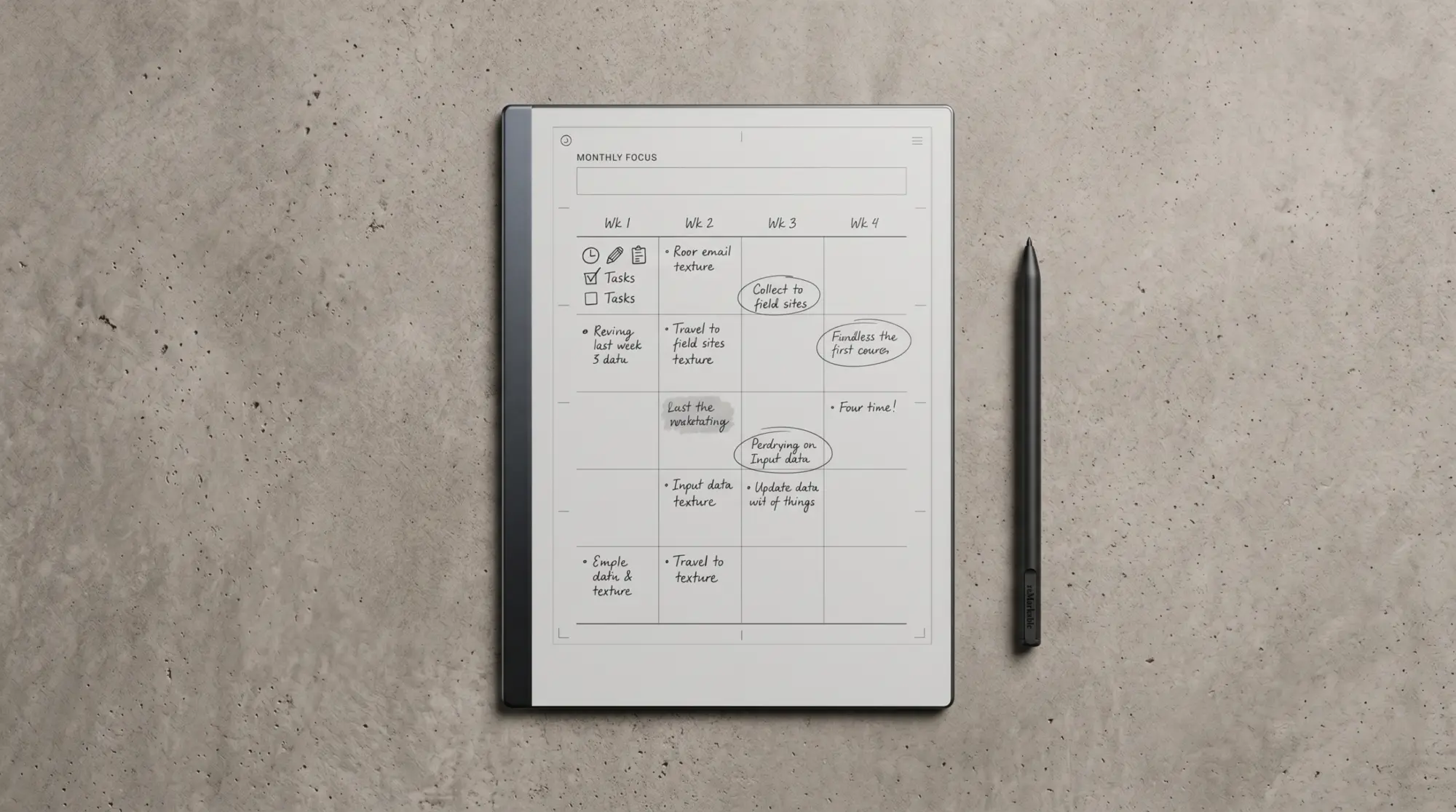
An imported PDF opens like any document and the toolbar is the notebook toolbar: two quick-switch writing tools, the eraser, undo and redo, and the selection tool that moves, scales, rotates and copies whatever you lasso. Since software 3.28 the selection tool’s foldout also holds Capture, which copies any area of the PDF page as an image you can paste into your notes, with no Connect subscription; a capture is a picture, so it cannot be converted to text. On a reMarkable 2 the ink is black, white or gray, and 3.28 added green, yellow, cyan and magenta as extra shades of gray; colour is a Paper Pro and Paper Pro Move feature, though reMarkable notes that colours chosen on a mono tablet appear when the file is exported to the apps. If you need a PDF’s own text rather than a picture of it, software 3.29 (October 2026) lets you select and copy it in the reMarkable mobile and desktop apps. Your handwriting sits on annotation layers above the PDF, up to five active layers, each of which can be hidden, merged or deleted without touching the underlying page.
Reading controls are the ones a PDF needs. Pinch to zoom, pan with two fingers, and switch the page between portrait and landscape with Set to portrait or landscape in the document menu. Search inside the document finds typed text within PDFs and ebooks, so a textbook index or a contract clause is reachable. Tags apply to a PDF the same way they apply to a notebook, and the Page overview shows every page as a thumbnail for jumping, deleting or sharing one.
Three things do not happen on a PDF, and all three come from reMarkable’s own pages rather than from forum guesswork. Handwriting written on a PDF’s annotation layers cannot be converted to typed text, which is a notebook feature. Handwriting search, the Connect feature that indexes your scrawl, only covers notebooks and note pages; reMarkable states you cannot search within PDFs or EPUBs. And the notebook template system never applies to a PDF, however much a planner PDF looks like a template. None of these stop you working on the file; they only decide where the typed-text and search features live.
Getting it off
Exporting a marked-up reMarkable 2 PDF
The way out mirrors the way in. From the tablet, long-press the file in My files (or open it and use the document menu) and tap Send by email: pick PDF, PNG or SVG, tick Grayscale pens if you want a mono export, and send to any address. The email arrives from [email protected], which is the string to search for when it lands in the wrong folder. Single pages go the same way from the Page overview. The same long-press menu offers Export to a linked Google Drive, Dropbox or OneDrive, where reMarkable saves the result as a PDF.
From a computer, the desktop app right-click menu gives Export as PDF, Export as PNG or Export as SVG, and that export works on the free tier: reMarkable’s own description of the app without Connect is that you can view and export individual pages, with typing and editing reserved for subscribers. The USB web interface has a Download button beside each file for the cable-only household. One caveat for free accounts applies to the cloud copy rather than the export: reMarkable keeps only files used and synced in the last 50 days in its cloud, so a PDF you have not opened since the summer may need re-importing before an app can export it.
A PDF is a document on the tablet, not a notebook, and that one distinction explains most of the surprises people post about.From the opening section
Sizing
Why some PDFs fill the screen and others shrink
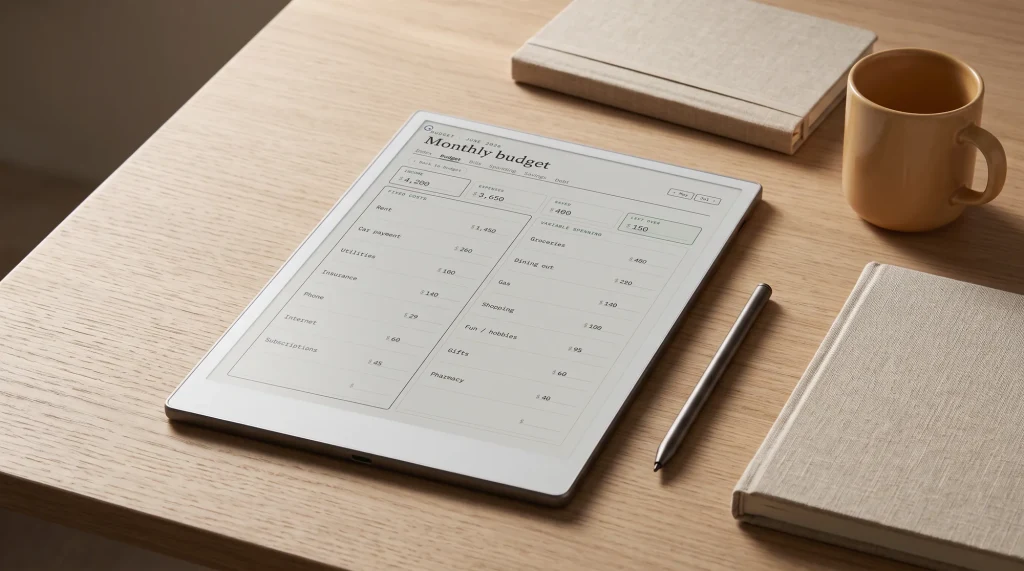
The reMarkable 2 screen is 10.3 inches at 1872 by 1404 pixels, 226 pixels per inch, which is a 3:4 page. A4 is narrower than that, so an A4 PDF fitted to the screen shows bands at the sides and its text comes out smaller than it would on paper; US Letter is close to 3:4 and loses very little. A PDF authored at the panel’s own proportions fills the screen edge to edge, and that is the whole reason device-specific planners exist. The exact page in points for every e-ink tablet, including the reMarkable 2 at 447 by 596, is on our e-ink PDF sizes page, and the step-by-step for setting a page up is in reMarkable 2 template size.
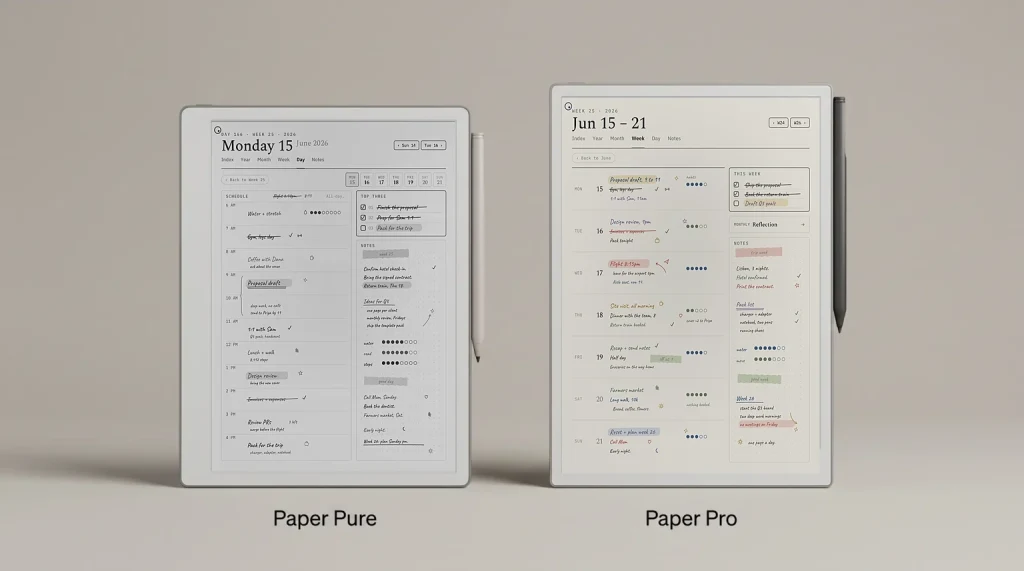
Two practical consequences. First, the Paper Pure and the Paper Pro use the same 3:4 shape as the reMarkable 2, so one PDF page serves all three tablets; only the 7.3 inch Paper Pro Move, at 9:16, wants its own file. Second, zoom is a per-session fix, not a file fix: the next time the PDF opens the view resets. If a free calendar or form page is the thing you want full-width, draw it at the device’s size from the start. Our free e-ink calendar does that for any month and lets you pick the reMarkable as the device before it writes the PDF.
Choosing a route
Which reMarkable 2 PDF route fits which job
For a planner or a form you will write on every day, the desktop app is the least friction: drag, wait for the sync, open. For a paper you were sent on your phone, the share sheet is faster than any computer. For a locked-down work laptop, the web app or the USB page needs no installation. For a library of reference PDFs that lives in Google Drive already, the on-tablet integration means never touching a computer at all, and the exported, annotated copies land back in the same drive. For a 300 MB scanned textbook, the desktop or mobile app is the only route reMarkable does not cap.
Owners who also carry a Kindle Scribe should know the two tablets disagree here. On the Scribe, Amazon says a PDF loaded over USB-C is read-only for the pen and only files sent through Send to Kindle can be written on; our send a PDF to Kindle Scribe post has the detail. The reMarkable 2 treats every import route the same, cable included, which is one of the quieter reasons people who annotate for a living stay with it. The wider device walkthroughs sit under the reMarkable guide, and the template side of the question, which PDFs are worth importing in the first place, is covered in best reMarkable templates.
If you have a transfer route we have not listed, or a PDF that behaves oddly on the reMarkable 2, tell us in the comments on the reMarkable hub; the odd cases are usually the ones that improve the next revision of this page.
FAQ
Common questions, answered briefly
How do I put a PDF on a reMarkable 2?
Can you write on a PDF on a reMarkable 2?
Can a PDF be used as a reMarkable 2 template?
What is the file size limit for a reMarkable 2 PDF?
How do I get an annotated PDF off a reMarkable 2?
People also ask