The short answer
How to send a PDF to Kindle Scribe so the pen works
You can send a PDF to Kindle Scribe four ways through Amazon’s Send to Kindle service, and one way that looks like it works but does not. The service is free and takes PDF along with Word files, EPUB, text and images. What matters for a planner or a template is the note at the top of Amazon’s file-types page: you can write directly on PDF pages sent through Send to Kindle, but not on PDFs loaded over USB-C, and not on anything sent to your library before 11 November 2022.
| Route | Size limit | Write on the page? | Best for |
|---|---|---|---|
| Web uploader, amazon.com/sendtokindle | 200 MB per file | Yes | One planner from any computer |
| Kindle app (iOS, Android) or Send to Kindle app (Mac, Windows) | Not stated by Amazon | Yes | Files already on your phone or desktop |
| Email to your Send to Kindle address | 50 MB per email, 25 attachments | Yes | Several small templates at once |
| USB-C cable | None stated | No | Books and documents you only read |
Scribes released in 2025 or later can also import files straight from Google Drive or Microsoft OneDrive. Amazon describes adding notes and highlights to those imports, and warns that the notes do not sync back to the drive, so for a planner you use every day, Send to Kindle is still the simpler path.
Step by step
Send to Kindle for web, in four steps
- Open amazon.com/sendtokindle on a computer and sign in with the Amazon account your Scribe is registered to.
- Drag the PDF into the uploader. Keep the file under 200 MB; a hyperlinked year planner is usually far smaller.
- Leave “Add to your library” switched on. Amazon’s help page asks for this so the file can download to any device on your account, which also means a reset Scribe gets it back.
- Open it on the Scribe. Once the Scribe syncs over Wi-Fi the PDF appears in your library. Open it, pick up the pen and write on the page.
The Kindle app on a phone and the Send to Kindle desktop app for Mac and Windows end in the same place: the file lands in your library and is writable on the Scribe. Use whichever is closest to where the PDF already is. If you downloaded a planner on your phone, sharing it to the Kindle app saves a trip to the computer.
By email
Emailing a PDF to your Kindle Scribe
Every Scribe has its own Send to Kindle email address, listed under Manage Your Content and Devices on Amazon. Attach the PDF and send it from an address on your approved list. Amazon’s email rules are specific: up to 25 attachments per email, up to 15 approved sender addresses, and 50 MB per email across all attachments. For more than that, zip the files; the service opens the ZIP for you. If your Scribe is offline, Amazon keeps trying to deliver for up to 60 days.
The trap
Why USB-C is the wrong way to load a planner
Plugging the Scribe into a computer feels like the direct route, and for reading it is. On Windows the Scribe shows up in File Explorer as “Kindle Scribe” with no extra software; on a Mac, Amazon says the Scribe needs its Send to Kindle app before USB transfers work. Either way the PDF copies across and opens.
Then the pen does nothing on the page. Amazon’s own wording is that the Scribe “doesn’t currently support writing directly on the page in PDF documents loaded via USB-C.” A planner loaded that way is a picture of a planner. The same goes for any PDF you sent to your library before 11 November 2022: send it again and the new copy is writable.
A planner loaded that way is a picture of a planner.
If you would rather keep personal planning files off Amazon’s servers, that is a fair reason to want USB, but on the Scribe it costs you the writing. Weigh that before you pick a device for a planner you want to keep local.
Notebooks vs PDFs
How to add templates to Kindle Scribe, and what you can write on
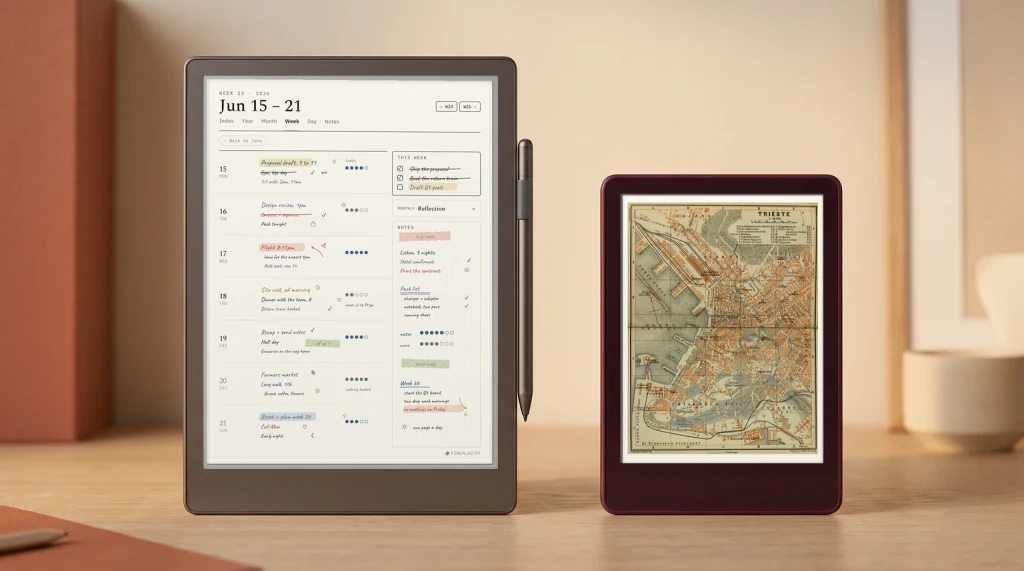
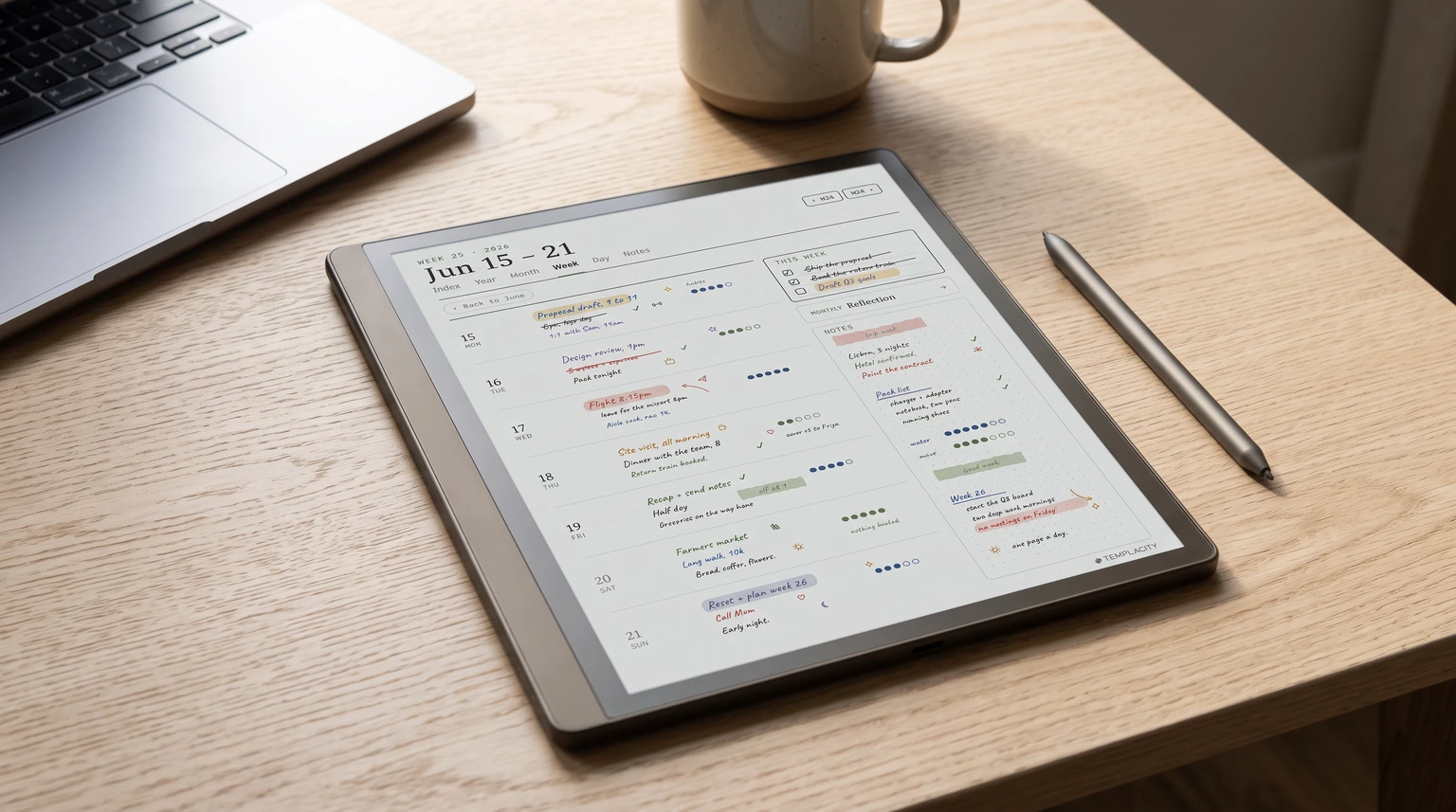
The Scribe has two places to write. Notebooks, made from the Notebook tab, use the page templates Amazon ships on the device; Amazon’s notebook help describes no way to add your own. So a custom template, a dotted page you designed or a full dated planner, goes in as a PDF document through Send to Kindle, and you write straight on its pages.
Other file types behave differently. Send a Word file, an EPUB or an image and the Scribe converts it to a Kindle format: you get handwritten sticky notes, text notes, Active Canvas and highlights. For a planner, that is the reason to keep it a PDF. To make one that fills the screen edge to edge, our e-ink PDF page sizes table lists the exact page size for each Scribe, and the full walkthrough is in how to make Kindle Scribe templates.
Not making your own? Our free Kindle Scribe templates are PDFs that go through the same four steps, and the Kindle planner guide covers what a dated planner should hold. Full disclosure: we make a dated 2026 and 2027 planner for the Kindle Scribe, with hyperlinked daily, weekly and monthly pages sized for the Scribe pen, and it installs exactly as above.
If a PDF still will not take your pen after a fresh Send to Kindle, tell us in the comments which route you used and which Scribe you have. Those reports are how we keep this page right as Amazon changes the rules.
FAQ
Common questions, answered briefly
How do I send a PDF to my Kindle Scribe?
Why can’t I write on a PDF on my Kindle Scribe?
Can I add custom templates to Kindle Scribe notebooks?
What is the file size limit for Send to Kindle?
People also ask