A digital bullet journal is the bullet journal method kept on a screen instead of in a notebook: the same short marked entries, the same index, future log, monthly log and daily log, written with a stylus on a tablet or typed into an app. Most of the method moves across without trouble. One part does not, and it is the part that makes the method work.
This guide covers which digital route keeps the method intact, what a linked index changes, how to keep migration honest when paste is one tap away, and how to set one up in an evening. If you are new to the method itself, start with our guide to the bullet journal method and come back. Bullet Journal is a registered trademark of its creator; Templacity is an independent guide and not affiliated.
Paper to screen
What changes when a bullet journal goes digital
Three things get easier. The index can hold real links, so a subject opens its page instead of sending you to page 47. Layouts are drawn once: a future log or a monthly spread lives in a template rather than being ruled out by hand every month. And the book never fills up, so a collection never has to continue in a second notebook.
One thing gets dangerously easy, and it is the reason so many digital setups quietly turn into long to-do lists. On a screen you can duplicate a page, paste a list or drag a task into next month in a second. The most common digital setup advice is to duplicate a spread once it feels right, and for a blank layout that is fine. For tasks it is not, because the method depends on the effort of rewriting them.
Keep that split in mind for everything below: let the screen take over the drawing and the finding, never the deciding.
The routes
Digital bullet journal app, iPad or e-ink tablet: which route fits
There are four ways people keep a digital bujo, and they differ less in features than in how much of the method survives. The test for each is simple: do you still write entries by hand, and does anything make you rewrite an open task?
| Route | You write with | Linked index | Migration |
|---|---|---|---|
| E-ink tablet + PDF template | Stylus | Yes, in the PDF | Rewrite by hand |
| iPad note app + PDF template | Stylus | Yes, in the PDF | Rewrite, or paste |
| Typed app (notes, tasks, databases) | Keyboard | Native links | Drag, rarely a rewrite |
| Paper + digital companion | Pen, plus keyboard | Paper index | Rewrite on paper |
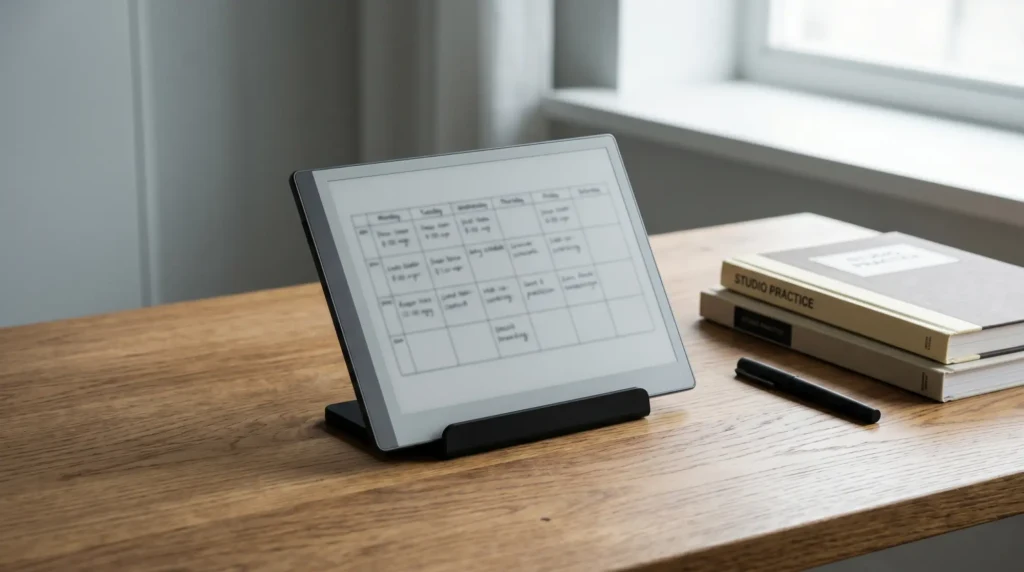
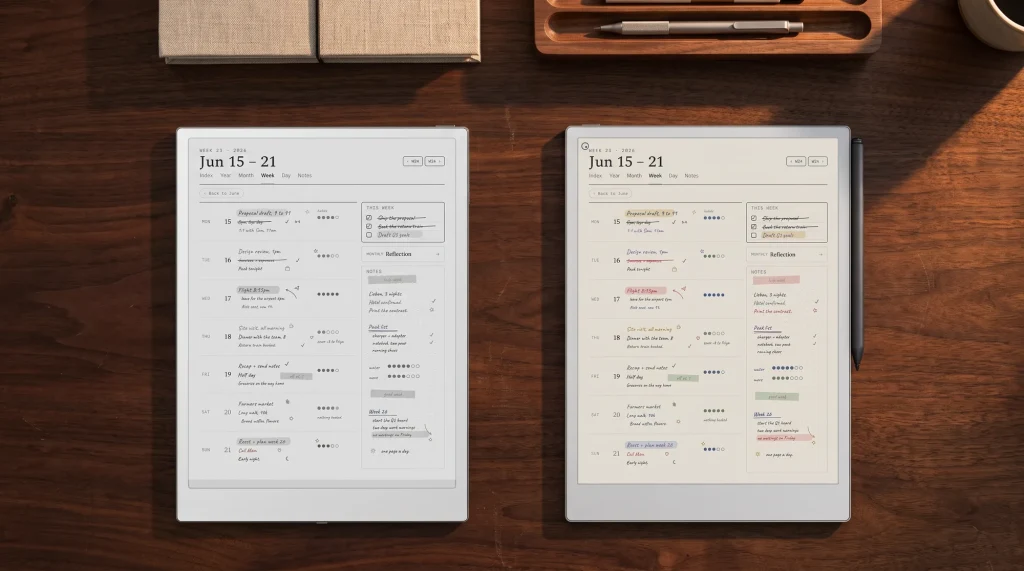
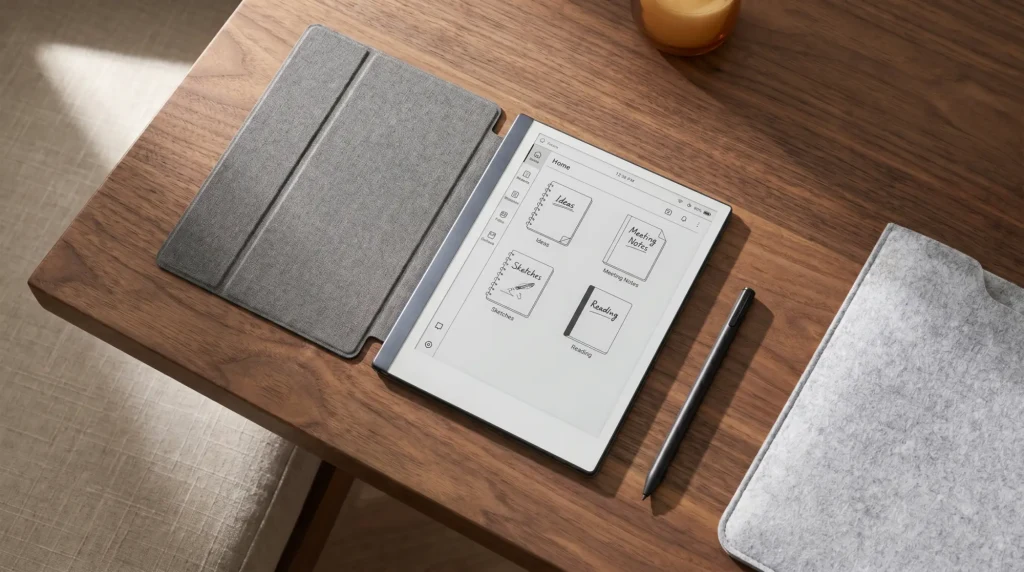
An e-ink tablet is the closest thing to paper: you write with a stylus, there are no notifications pulling you away, and a hyperlinked PDF gives you the linked index. It is the route we build for. A bullet journal on iPad, in a note app such as Goodnotes, gives you the same handwriting and links plus colour, at the cost of a device that also does everything else. Our Goodnotes journal template guide covers that app in detail.
A typed digital bullet journal app is fast to search and good for lists you share, but typing a line is so cheap that rapid logging stops being a filter, and recurring tasks and drag-to-reschedule replace migration entirely. That can still be a fine task system. It is just a different one. The hybrid route keeps the daily log on paper and moves long-lived lists, the reading list or the gift ideas, into an app, which is a reasonable answer if your collections are what outgrow the notebook.
The index
The linked index: what a digital bullet journal template does better
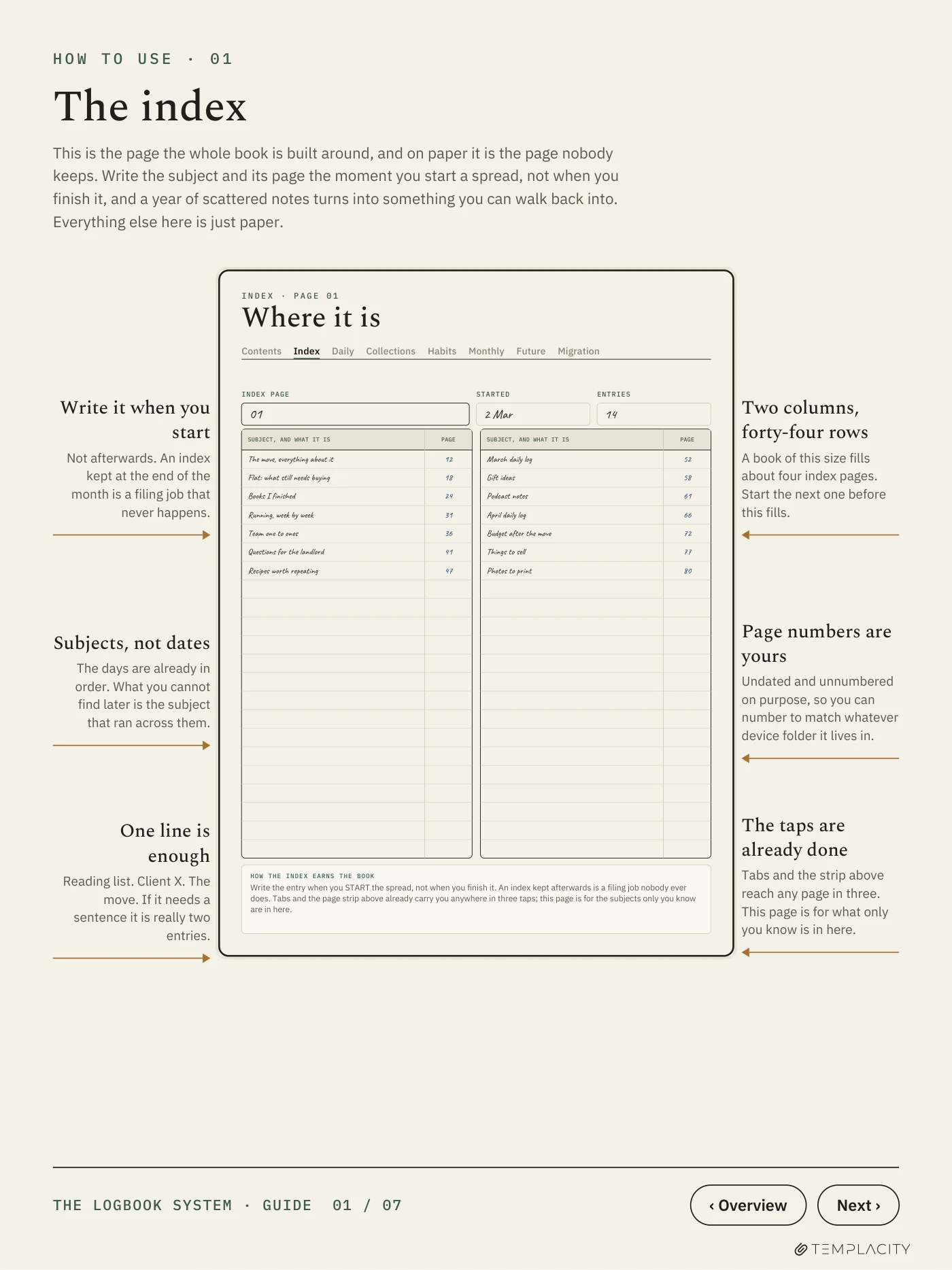
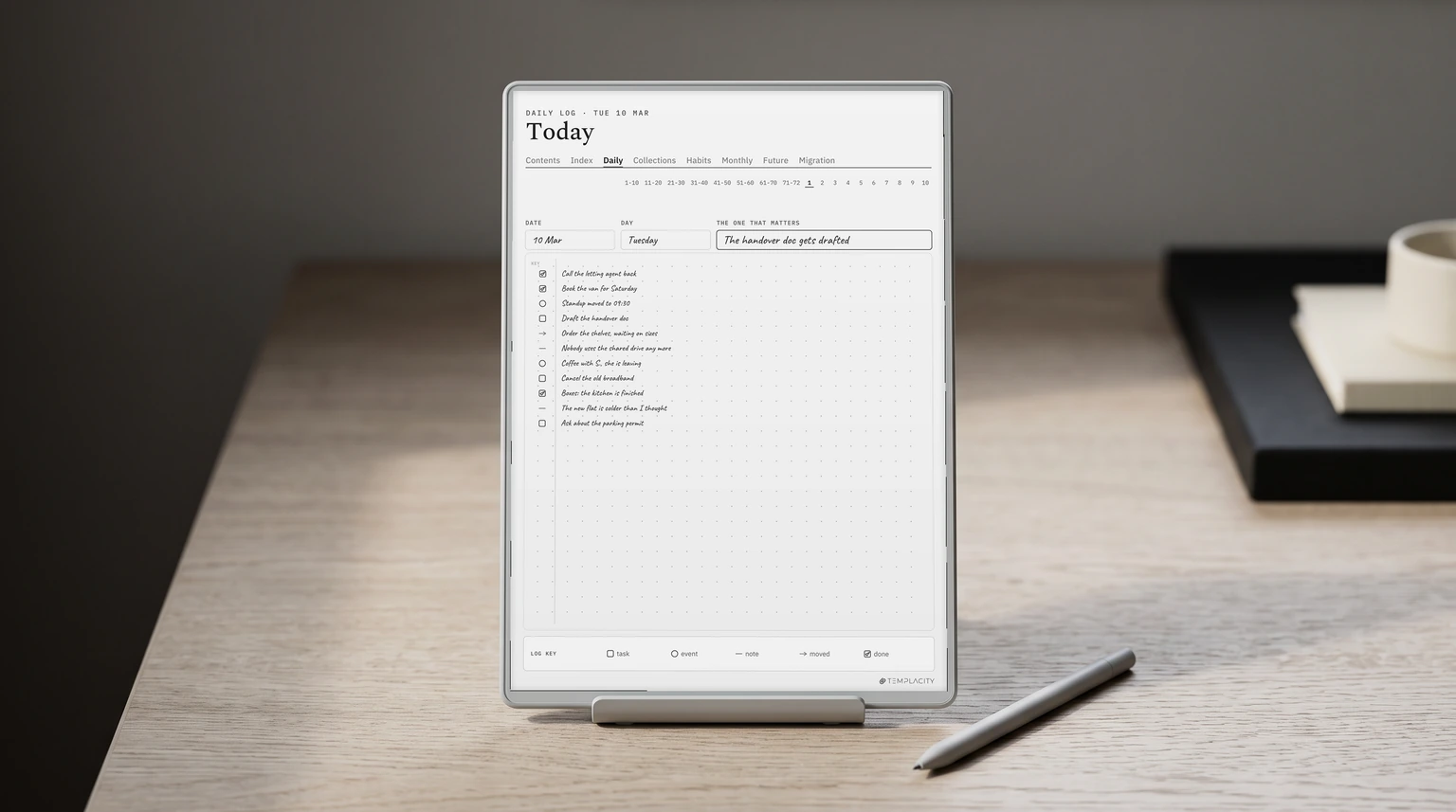
On paper, the index is the page most people stop keeping, because every entry needs a page number and a flip back to the front. In a digital bullet journal template the index can be a set of links: tap the subject, land on the page. That is the single biggest reason to use a template rather than a blank notebook on a tablet.
The links have to be built into the PDF. Goodnotes’ own help page says it plainly: hyperlinks in an imported PDF can open another page in the document, and the link must already exist in the file. On iPad and iPhone you tap the linked element; on Android, Windows and the web you switch to Read Only Mode first, or press and hold the link and choose Open Link. A blank notebook you draw an index into by hand will not have working links, however neat it looks.
Our own file is built around this page. The index in The Logbook System has two columns of forty-four rows, one line per subject with its page, and tabs along the top that reach any page in three taps. The advice on the page is the same as on paper: write the subject in the index the moment you start a spread, not when you finish it.
Migration
Migration in a digital bullet journal: rewrite, never paste
Migration is the monthly pass through last month’s open tasks: each one moves forward, goes to a collection or the future log, or gets struck out. The method’s own rule for deciding is one line long: “If an entry isn’t worth the effort to rewrite, then it’s probably not that important. Get rid of it.” The effort is the filter. Remove the effort and the filter goes with it.
That is exactly what a screen removes. Paste ten open tasks into next month and all ten survive, including the four you would have dropped rather than write out again. Do that for three months and the task page is a list of everything you once meant to do, which is the failure the method was designed to prevent.
Paste ten open tasks into next month and all ten survive, including the four you would have dropped rather than write out again.Digital migration
So on a tablet, migrate the way you would on paper. Open last month’s task page beside the new one, read each open line, and write the survivors out again with the stylus. Mark the old line with a right arrow so you can see it moved. In a typed app, the nearest equivalent is to retype rather than drag, and to delete anything you hesitate over. It takes ten minutes once a month, and it is the ten minutes that keeps the rest of the journal honest.
Setup
How to set up a digital bullet journal in one evening
Choose a linked template or a blank notebook.
A template with a linked index saves the one page you would otherwise stop keeping. A blank notebook works if you are happy to number pages and flip.
Write your key once.
Dot for a task, circle for an event, dash for a note, X for done, arrows for moved. Six marks are enough to start.
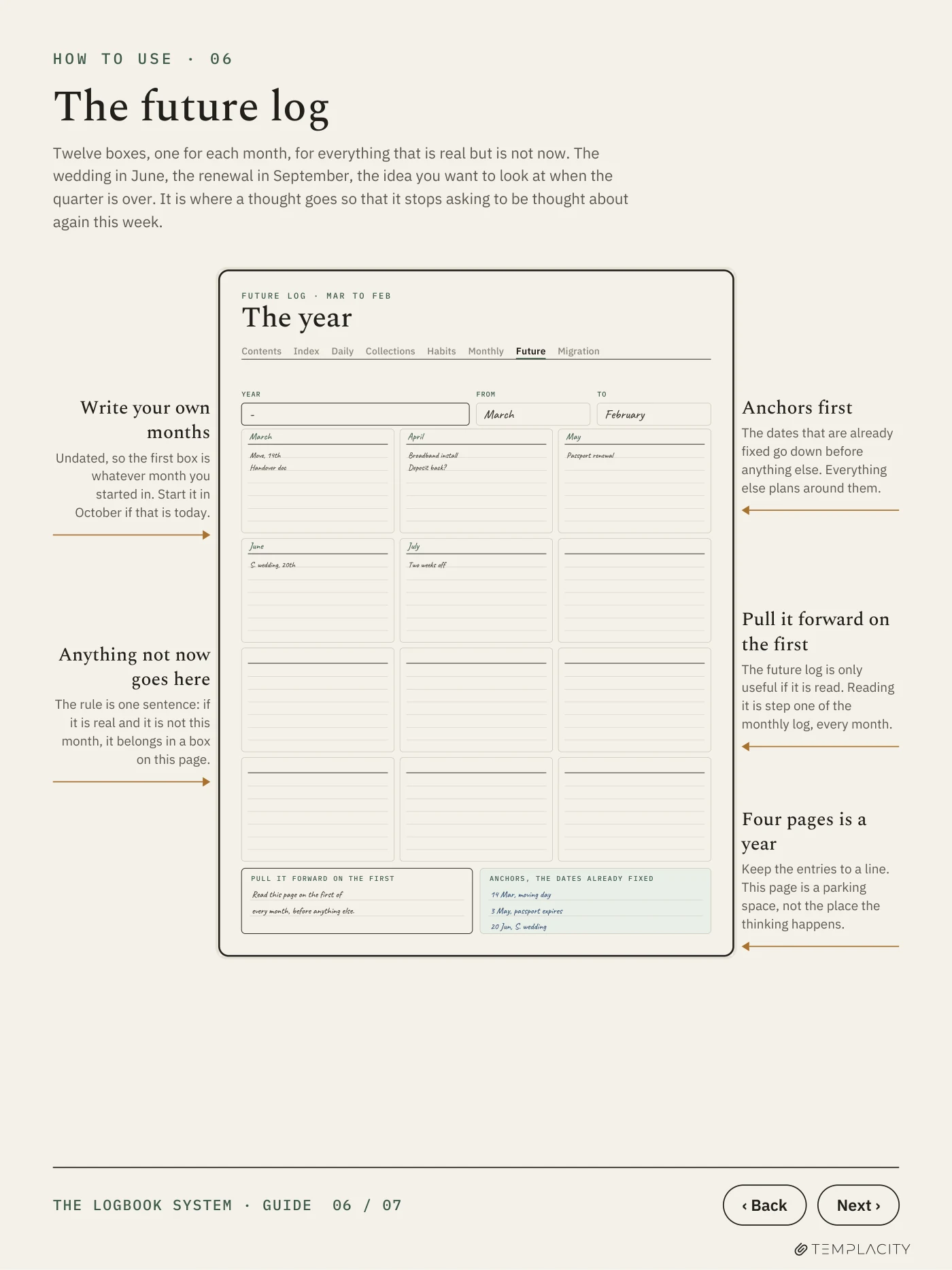
Fill the future log with what is already fixed.
Birthdays, renewals, trips, anything dated that is not this month. Leave the rest of the boxes empty.
Set up this month’s monthly log.
Dates down one side, the month’s tasks on the other, including anything carried in from your old list, rewritten, not pasted.
Open today’s daily log and log three things.
Short lines, as they happen. Then put a first-of-the-month task in the future log that just says: migrate.
Use it plainly for a month before adding anything. After a month you will know which collections you actually need, a reading list, a project, a habit tracker, and each one gets an index line the day you start it. If your daily pages drift toward longer reflective writing, that is a journal rather than a log, and our digital journal template guide covers that format.
Mistakes
Three ways a digital bujo quietly stops working
Decorating instead of logging. Digital stickers, washi strips and colour themes are free and endless, which makes them a bigger trap on a screen than on paper. If the setup takes longer than the logging, the journal has become the project.
Splitting it across apps. Tasks in one app, events in a calendar, notes in a third: each is fine alone, but the method’s point is one place where the day is logged and reviewed. If you need a calendar for shared events, copy only the ones that matter to you into the daily log.
Pasting forward. Covered above, and it is the one that kills a digital bullet journal most often, because nothing feels wrong while it happens. The list just grows until nobody wants to open it.
More note-taking methods set up for e-ink tablets, from the commonplace book to dated planners, live on our reMarkable hub, and if you want a planner alongside the journal, the reMarkable template bundle is where ours are collected.
FAQ
Common questions, answered briefly
Can you bullet journal digitally?
What is the best app for a digital bullet journal?
Do hyperlinks work in a digital bullet journal template?
Is a digital bullet journal better than paper?
If yours isn’t above, drop the question in the comments and we’ll add it.
People also ask
Other questions, briefly answered
Tell us in the comments where you keep your digital bullet journal, and how you handle migration on a screen. The setups readers actually stick with are the ones worth adding to this page.