Frame
What “remarkable move pages between notebooks” actually means
The reMarkable file system organizes handwritten content as notebooks (the file unit) made of pages (the layout unit). Moving pages between notebooks is what you do when notes started in one place belong with notes in another: meeting pages that should live in a project notebook, journal entries that grew into a separate journal, or planner pages from an old year that you want archived in a new notebook. The feature exists on every current reMarkable device but is not in the most obvious menu, which is why this is one of the most-searched reMarkable how-to questions.
One important framing note: moving a page between notebooks is different from moving a notebook between folders. If the goal is to reorganize whole notebooks, our move notebook to folder guide covers that workflow. This page covers page-level moves inside the notebook structure.
Method 1
Method 1: Remarkable move pages between notebooks on the device
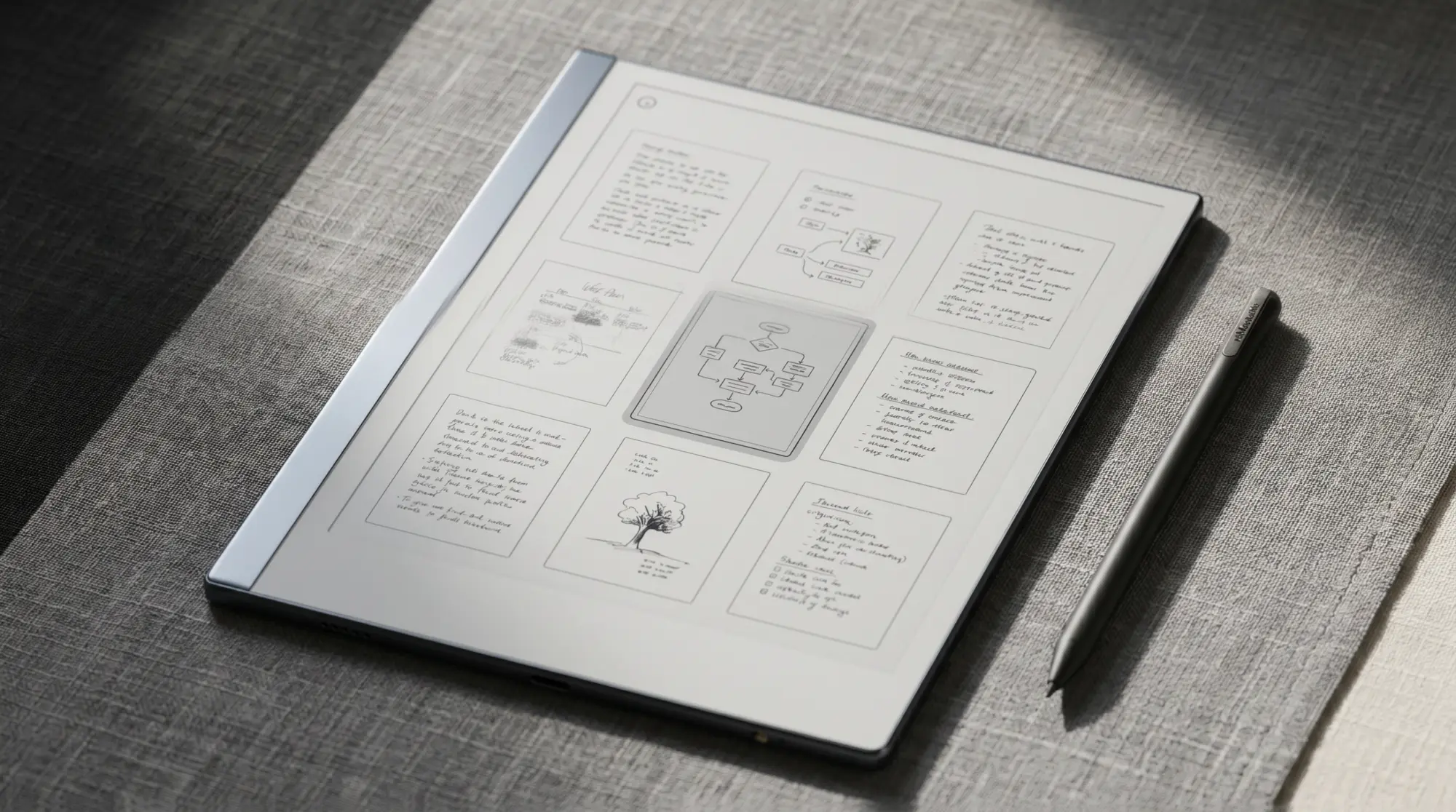
The native on-device path is the canonical way to remarkable move pages between notebooks. Open the source notebook, switch to the page overview (the icon that shows all pages in a grid). Long-press the page you want to move; it lifts into a selection mode with handles. Choose Move from the action bar that appears. The device then prompts you to pick a target notebook from your library. Tap the destination, confirm, and the page transfers. The source notebook loses the page, the destination notebook gains it at the end.
To move multiple pages, long-press the first page to enter selection mode, then tap additional pages to add them to the selection. The Move action then applies to the whole batch. This works reliably for up to about ten pages at a time; for larger batches, the web app (Method 2) is faster.
Method 2
Method 2: Move pages in the reMarkable web app
For batch moves or reorganizations across many notebooks, the reMarkable web app is faster than the device. Open the web app, navigate to the source notebook, and switch to the page-grid view. Select multiple pages with click-and-shift or click-and-control (standard multi-select), then drag them to the target notebook in the sidebar. The change syncs to the device on the next connect.
The web-app approach has two advantages for big reorganizations. First, multi-select is faster on a desktop than on the device. Second, you can see notebook contents side-by-side, which makes the destination decision faster. The trade-off is sync latency: changes made in the web app take a few seconds to a minute to propagate to the device, depending on connection speed and device sleep state.
Method 3
Method 3: Copy instead of move (the safer pattern)
For reorganizations where you are not sure whether the page should leave the source notebook, copying is safer than moving. The on-device long-press menu offers Copy alongside Move; the action behaves identically except the source page stays in place. This is the right pattern for moving pages out of an active project notebook into an archive without losing the working context.
The trade-off: copies create duplicate content that can drift if you continue editing one and not the other. For final-state pages (completed meetings, finished journal entries), Move is cleaner. For pages that may continue to evolve, Copy keeps both versions in sync at the moment of the copy and lets you reconcile later.
Pre-flight
Before you reorganize: the safety checklist
| Step | Why it matters |
|---|---|
| Sync the device first | Mid-sync moves can duplicate or lose edits |
| Confirm the destination notebook exists | Cannot create new notebook from inside the move dialog |
| Check Connect storage if you are near the limit | Moves do not free storage; only deletions do |
| Decide Move vs Copy in advance | Easier to plan than to undo a Move that should have been Copy |
| Avoid moving while the device is mid-update | Firmware updates pause sync; reorganization can fail mid-way |
One pattern saves the most regret on big reorganizations: do the work in the web app, on a normal browser session, with the device synced and turned off. Then turn the device on and let it sync the changes. This is slower than doing it on-device, but it gives you the desktop-grade visibility for the decisions and removes the risk of mid-sync interruption that on-device moves carry. Our broader reMarkable workflow guide covers the surrounding practices that make these reorganizations land cleanly.
Bundle
FAQ
Common questions, answered briefly
How do you move pages between notebooks on reMarkable?
Can you move multiple pages at once on reMarkable?
What is the difference between Move and Copy on reMarkable?
Does moving pages between notebooks lose handwriting?
Can you move pages between notebooks in the reMarkable web app?
What if the move action does not appear on reMarkable?
If you have a notebook reorganization workflow that has held up over weeks of regular use, drop it in the comments. Page-move habits are a small thing that compounds over a year of reMarkable use, and the comments are where the lived-in version of these workflows shows up.