Steps
The reMarkable move notebook to folder workflow, step by step
- Open My Files from the home screen. The list of notebooks, folders, and PDFs appears.
- Tap and hold the notebook you want to move. After about half a second, a checkbox appears and the action toolbar shows up at the top of the screen.
- (Optional) Tap additional notebooks to add them to the selection if a bulk move is the goal. The selection counter updates.
- Tap Move in the action toolbar (folder icon with an arrow).
- Navigate to the destination folder in the folder browser that appears. Folders nest, so deep paths are reachable through tap-through navigation. Tap Move Here when the right folder is open.
- Confirm the move. The notebook moves to the destination folder and disappears from its previous location.
Organization
Folder organization patterns that hold up
The reMarkable’s folder system is unsorted by default, which means a casual user ends up with a flat list of dozens of notebooks named “Notebook 1” through “Notebook 17”. The fix is upfront folder structure, not after-the-fact reorganization. Three patterns work well in practice.
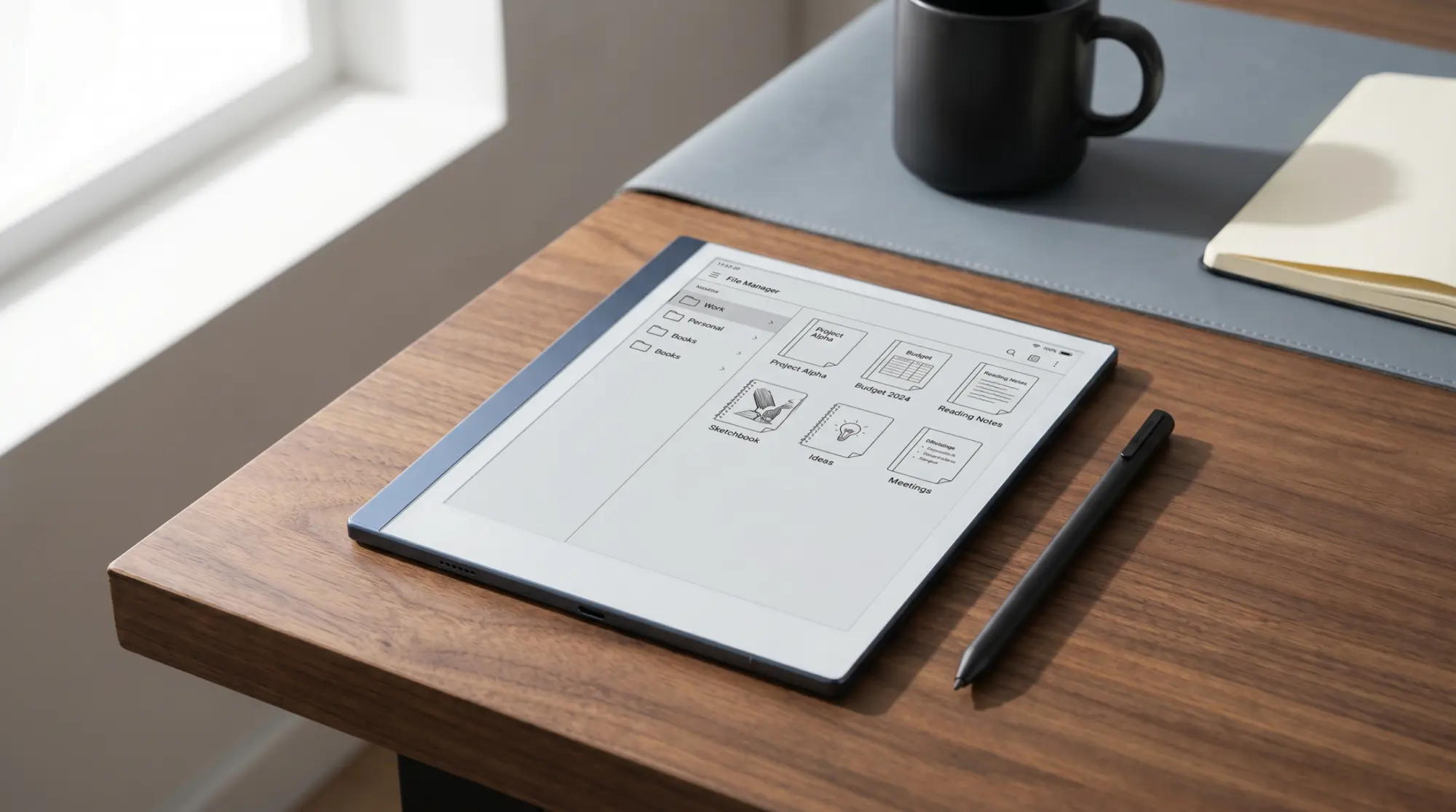
- By role. Top-level folders for Work, Personal, Books, Reference. Notebooks live in the role they belong to. Easy to navigate, scales to dozens of notebooks before any single folder feels crowded.
- By project or topic. Top-level folders per project (Client A, Client B, Side Project, Q3 Planning). Useful for project-heavy workflows where a notebook belongs to a single initiative for its life. Less useful for general note-taking.
- By status. Top-level folders for Active, Reference, Archive. Notebooks move between folders as their lifecycle changes. The status pattern pairs well with role-based subfolders for a hybrid setup.
For work
A folder structure for work
If the tablet runs your working week, five top-level folders cover almost everything: Inbox for anything not yet filed, Meetings, Projects with a subfolder per project, Reference for PDFs and manuals you read but do not write in, and Archive for finished work. Five is the point. My files shows them on one screen, so filing a notebook is always one Move away, and the Inbox gets emptied on Friday.
Tags do the job folders cannot, which is cutting across them. Tag a meeting notebook and a project notebook with the same client or person, and the Tags view in the sidebar shows both together, whichever folder they live in. Star the two or three files you open every day so they sit in Favorites, which both the sidebar and the two-finger swipe-down drawer reach. And Search finds folder and file names plus the text inside PDFs, ebooks and typed text (Navigating on your reMarkable, reMarkable support).
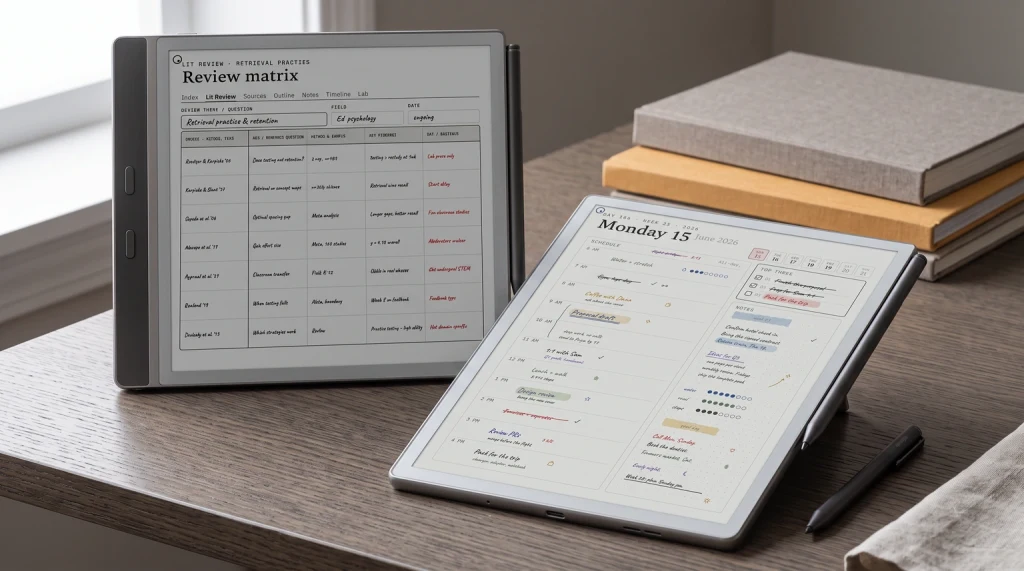
A planner changes the shape. Our Digital Work Planner is one hyperlinked PDF of 297 pages dated 2026 and 2027: a project dashboard, an action tracker, meeting notes, one-on-ones and reviews, with any page three taps or fewer from any other. Put it at the top of My files and star it, and the Meetings and Projects folders shrink to what the planner does not hold: long project notebooks, client PDFs, reference. The planner keeps the week; the folders keep the files around it.
Trouble
Common reasons a reMarkable notebook won’t move to a folder
- The folder doesn’t exist yet. Create the folder first by tapping the new-folder icon in My Files (top toolbar). Folders can be nested by creating new subfolders inside an existing folder.
- The notebook is sync-pending. If a notebook is mid-sync with reMarkable Connect, the Move action is unavailable until sync finishes. Wait for the sync indicator to clear, then try again.
- The notebook is open or recently active. Close the notebook from the main view, return to My Files, and try the move from there. The selection state requires the notebook to be inactive.
- The destination folder is in a different cloud-sync state. If the destination folder was created on the desktop or mobile app and hasn’t synced to the device, it won’t appear in the folder browser. Sync the device first.
For more on the broader reMarkable file system and sync workflow, our connect reMarkable to Google Drive piece covers cross-platform sync, and reMarkable app for Windows covers desktop-app file management. For installing templates into a specific folder, reMarkable template installer walks through that path. The reMarkable hub indexes the rest.
FAQ
Common questions, answered briefly
How do you move a reMarkable notebook to a folder?
Can you move multiple reMarkable notebooks at once?
How do you create a folder on the reMarkable?
What’s the difference between a reMarkable folder and a notebook?
Why won’t a reMarkable notebook move to a folder?
Two related organization reads: reMarkable notebooks vs Quick Sheets explains when each container fits, and our digital notebook tabs guide covers sectioning inside one notebook.
If a different reMarkable folder workflow has worked better for organization (a tagging strategy, a naming convention, a sync-pattern approach), drop the notes in the comments. Folder organization is one of the quiet productivity wins on the device, and a current page beats a tidy one.