Problem
Why digital notebook tabs matter at all
The digital notebook tabs problem shows up around page 50. A paper notebook never needs an index because you can flip through it in seconds; a 200-page digital notebook on a reMarkable, Kindle Scribe, or Boox cannot be flipped through, so finding a specific page becomes the central friction. Tabs solve this by giving every page a position in a known structure: meetings on the left, projects in the middle, ideas on the right, or however you organise. The device knows where to jump to, and you know where to look.
Two failure modes appear without tabs. First, the search-everything pattern where you scroll through hundreds of pages to find the one you want; this works for 50 pages and breaks at 200. Second, the abandon-the-notebook pattern where you start a new notebook every month because the old one became too dense to navigate; this loses the long-term continuity that’s the whole point of a digital notebook. Tabs of any kind, native or template-based, prevent both.
Native
Native digital notebook tabs by device
| Device | Native tab feature | Limit |
|---|---|---|
| reMarkable 2 / Paper Pro | Tags + table of contents (recent firmware) | Tag list lives at notebook level, not embedded in page |
| Kindle Scribe / Colorsoft | Bookmarks + sticky notes | Bookmark titles, not full tab system |
| Boox (Note Air, Tab Ultra, Go) | Section dividers in Notes app | Varies by Boox model + Notes version |
The native tab features handle the navigation problem cleanly on every modern e-ink notebook device. reMarkable’s tag system (recent firmware on rM2 and Paper Pro) lets you assign tags to notebooks and pages, then filter by tag from the home screen. Kindle Scribe’s bookmark feature gives every notebook page a named anchor you can jump to. Boox’s Note app supports section dividers that group pages by colour-coded markers. All three are sufficient for most users; templates only earn their place when you want visual tab strips that show up on every page or when the native tools don’t reach the structure you need.
Template
Template-based digital notebook tabs
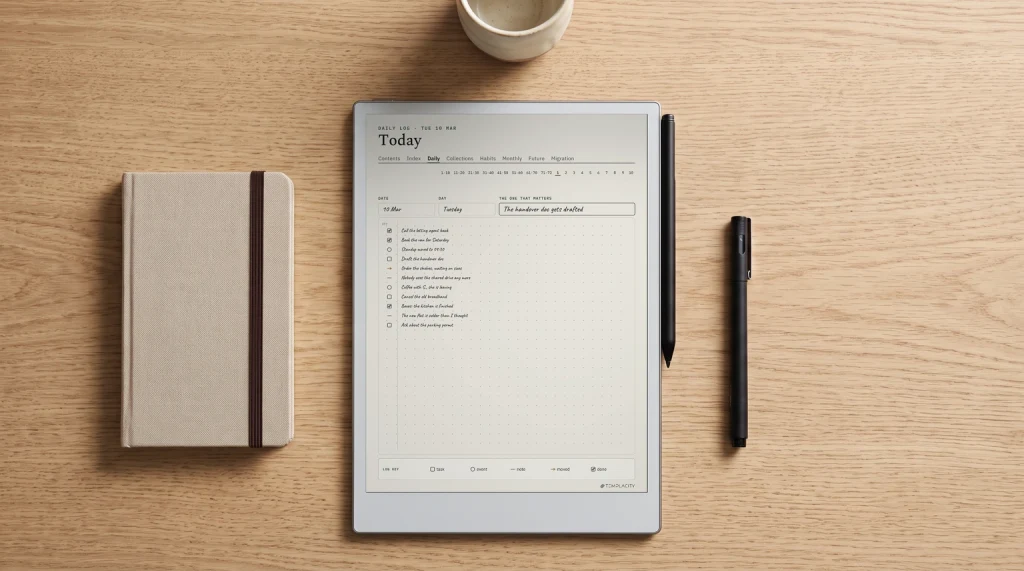
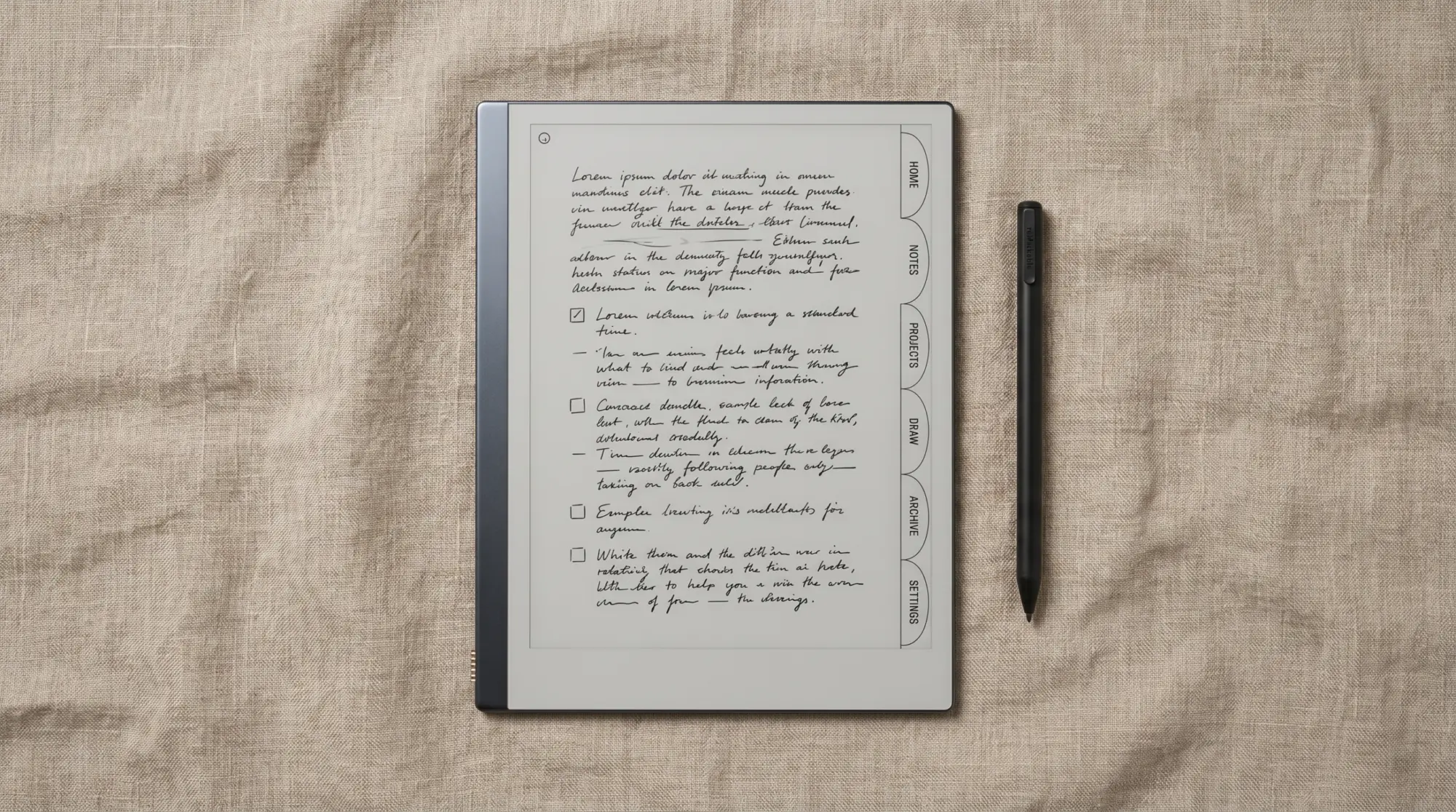
The template path puts the tab visualisation on every page of the notebook itself, so navigation is built into the layout rather than the device UI. Two shapes work. First, a table-of-contents page with linked PDF anchors: tap a section name on the contents page, jump to that section’s first page. Second, a recurring tab strip across the top or side of every template page, where each tab is a linked anchor back to that section’s contents page. Both are PDF features and work on every e-ink platform that handles PDF templates.
The trade-off is real estate. A tab strip on every page consumes 5-10% of the page area; on the smaller screens (rM2 at 10.3 inches, Paper Pro Move at 7.3 inches, Kindle Scribe at 10.2 or 11 inches) the cost matters. For notebooks with many sections (10+), template tabs are usually worth the space. For notebooks with 2-3 sections, the native features handle it without the page cost. Match the path to how many tabs you actually need.
Digital notebook tabs are the difference between a notebook you can navigate at page 200 and one you abandon at page 200. The native features cover most cases; templates add structure when consistency matters.Problem section
Picking
Picking the right digital notebook tabs path
The decision shape: how many sections, how often you navigate, how much page real estate you can spare. For 2-3 sections that you jump to once a day, the native tag or bookmark feature is the right tool. For 5-10 sections you navigate through constantly (a planner suite, a project tracker, a multi-client work notebook), template-based tabs earn the page cost. For mixed cases, hybrid: use native tags for top-level structure (work vs personal vs research) and template tabs inside specific notebook types (project notebooks, meeting notebooks).
If you’ve built a digital notebook tabs system that works for you, drop the pattern in the comments. The native-vs-template choice depends heavily on workflow, and the patterns that work for consultants, researchers, and creatives often differ from each other. Owner perspectives across roles help calibrate the recommendations above.
FAQ
Common questions, answered briefly
What are digital notebook tabs?
Do reMarkable notebooks have tabs natively?
Can Kindle Scribe notebooks have tabs?
How do I add tabs to a digital notebook template?
Are template tabs worth the page space?
If yours isn’t above, drop the question in the comments and we’ll fold it in next refresh.
People also ask