The basics
Is OneNote for Android free?
Yes. OneNote for Android is free in Microsoft’s own list of the OneNote versions, with no licence, trial clock or paywalled feature set. You install it, sign in with a Microsoft account, which is also free, and the notebooks you already have appear. Microsoft’s version page lists the app as needing Android 5.0 or later, which is old enough that the requirement is unlikely to be your problem; the store listing has moved on since that page was written, so treat it as a floor rather than a current spec.
The only ceiling worth knowing is storage rather than money. OneNote syncs through OneDrive, and a free Microsoft account includes 5GB. Typed notes and ink are tiny, so most people never approach it, but a habit of pasting in photos and PDFs will get there eventually. Nothing about the note-taking itself is metered.
Setup
Setting up OneNote for Android
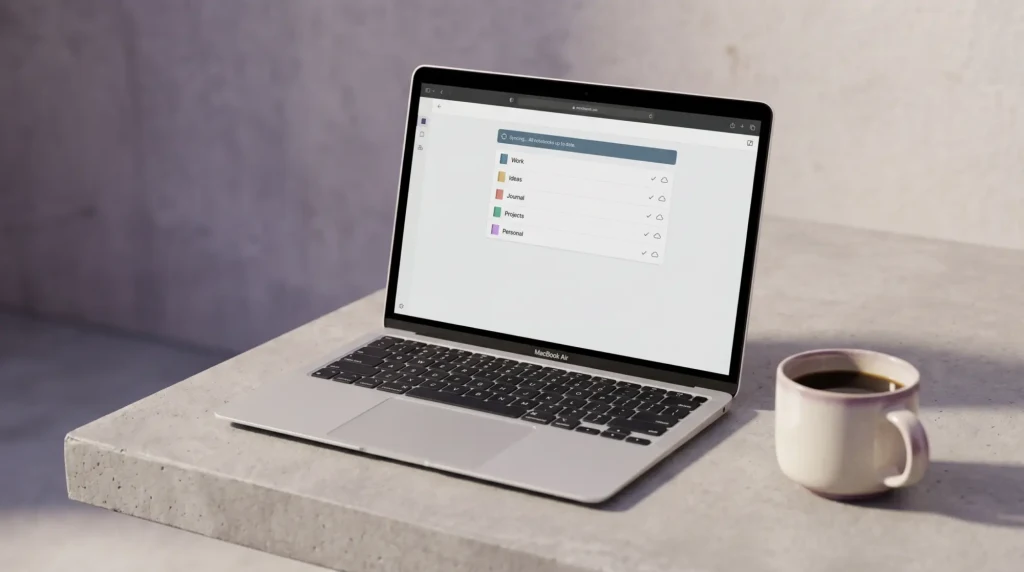
Install, sign in, done, and that is genuinely the whole setup, because sync is not something you configure in OneNote. It requires OneDrive and a Microsoft account, so the moment you are signed in your notebooks are already on their way down. If you have used OneNote anywhere else, you will not create anything on the phone; you will just find what is already there.
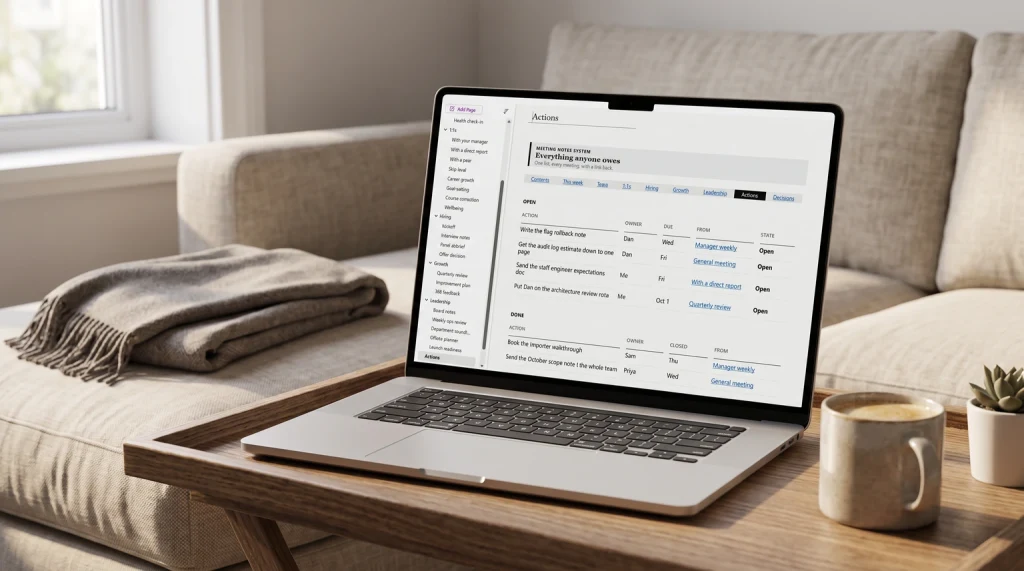
Spend the saved time on structure instead. OneNote organises into notebooks, then sections that behave like binder dividers, then pages. On a small screen that hierarchy is what stops the app becoming an unnavigable scroll, because you can reach a page in three taps instead of hunting a list. Two notebooks, four or five sections each, and a habit of putting things in the right one is the difference between an app you open daily and one you abandon in March.
Ink
Handwriting with a stylus in OneNote for Android
Ink is built in and it is not hidden. Microsoft’s own instructions are to tap the pen icon on the canvas to enter ink mode, choose a pen or a highlighter from the tools bar, and write on the screen, with an eraser button to take it back off again. It is also the fastest way to annotate a screenshot or mark up a diagram you have pasted into a page, which is a use most people find by accident and then keep.
That capability is what makes the difference between OneNote for Android on a phone and on a tablet. On a phone, ink is for quick marks. On a tablet with a stylus, it is a notebook you can actually take meeting notes in, and it is the reason to bother with the larger device at all. If handwriting is your main input method, our guide to OneNote for iPad covers the conversion and search features in more depth, and most of what it says about working by hand carries across.
Tablets
OneNote on an Android tablet
The tablet case is stronger than the phone case, and it is worth being clear about why. The extra screen changes what the notebook hierarchy costs you: sections along the top and a page list down the side can both stay visible, so you navigate by looking rather than by tapping back. Pair that with a stylus and you get the arrangement most people actually want from a note app, which is handwriting for capture and typing for anything that has to be readable later, in the same page, without switching tools.
It also changes where the tablet sits in your week. A phone gets OneNote for the two-line thought you would otherwise lose. A tablet gets it for the hour-long meeting. Those are different jobs, and the second one is where a structured notebook earns its keep, because an hour of unstructured capture is an hour you will never re-read.
E-ink
Running OneNote for Android on an e-ink tablet
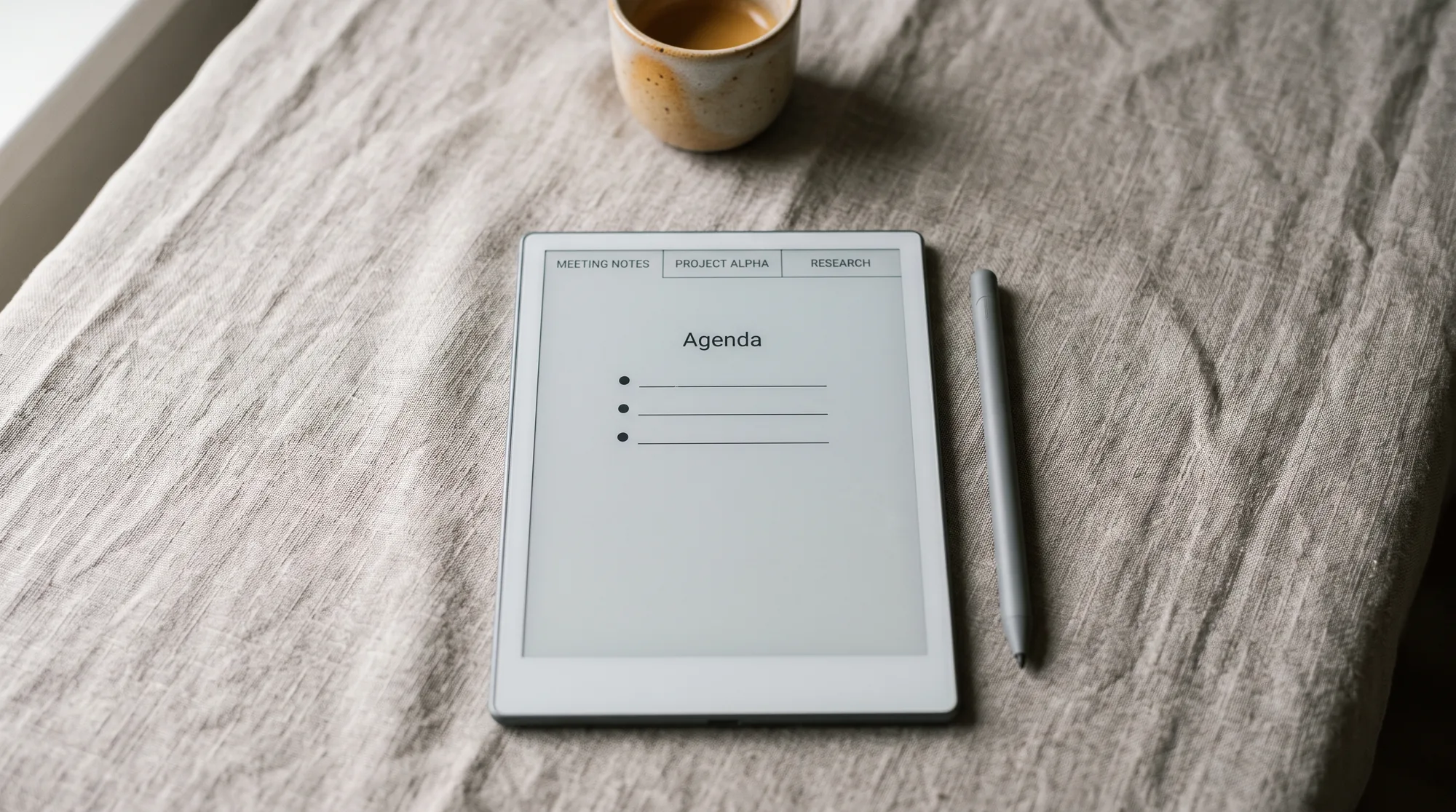
Here is the part almost nobody covers. Boox e-ink tablets are not closed reading devices; they run full Android. Boox’s own product page for the Note Air4 C lists Android 13, states that the device has a built-in Google Play Store, and says it supports third-party apps. Which means OneNote for Android installs on it exactly the way it installs on any other Android tablet, and the notebooks you keep on a work PC open on a paper-like 10.3in colour screen. That device is listed at $469.99 on Boox’s store.
The consideration, and it is a consideration rather than a verdict, is that an e-ink panel redraws differently from an LCD. That is a property of the display technology, not a fault in the app, and it is the thing to weigh if fast continuous handwriting is the main reason you are buying. What you get in return is a screen you can read for hours in daylight and a device that does not invite you to check anything else. If you are looking at that route, our Boox templates cover the page layouts that suit these screens, and Note Air4 C templates go device-specific.
Boox e-ink tablets are not closed reading devices; they run full Android, so OneNote installs the way it does anywhere else.On e-ink and OneNote
Limits
OneNote for Android compared with the desktop app
The gap between Android and a Windows desktop is smaller than most people expect, but it is not zero, and one line in the table below is a genuine constraint rather than an inconvenience.
| Feature | OneNote for Android | OneNote on Windows |
|---|---|---|
| Price | Free | Free |
| Ink and handwriting | Yes | Yes |
| OneDrive sync | Yes, required | Yes, optional |
| Local notebooks on your own drive | No | Yes |
| Stated OS requirement | Android 5.0 or later | Windows 10 or 11 |
The local-notebook row is the one that matters. Microsoft states that the Windows desktop app is the only version of OneNote supporting local notebook storage on your own hard drive, which means no Android device can hold a notebook that stays off the cloud. If a workplace policy forbids consumer cloud storage for notes, OneNote on Android is ruled out rather than restricted, and no setting changes that. We cover the same limit from the other side in OneNote for Mac, and the Windows exception in OneNote for Windows 11.
Templates
Using templates in OneNote for Android
Templates matter more on a tablet than on a desktop, not less, because a stylus in your hand and a blank page in front of you is how notebooks fill up with things nobody re-reads. A page that already has attendees, decisions and actions marked out turns an hour of scribbling into a record you can search. A weekly page with the days blocked out gets filled in; an empty one gets skipped. Our OneNote templates load into the app and sync down to the tablet with everything else.
Set them up on a desktop and use them on Android. That is the practical division of labour: building a template on a small screen is fiddly, and there is no reason to do it there when the same notebook is open on a laptop. Do the construction once where it is comfortable, then let sync put it in your hand.
Who it suits
Who OneNote for Android suits
OneNote for Android suits anyone whose devices do not all come from the same company, which is most people. An Android phone, a Windows PC at work and a browser somewhere else is exactly the situation OneNote was built for, and very few free note apps cover that spread. It suits Android tablet owners with a stylus especially well, and it is one of the few serious note apps that will run on an e-ink tablet at all. It does not suit anyone who needs notes stored off the cloud, and it is a weaker choice than the desktop app if you spend your day at a keyboard anyway. If you are still deciding, our comparison of the best note-taking app puts it against the alternatives, and the OneNote hub has the setup and template guides worth reading next.
If you run OneNote on an Android tablet, and particularly if you run it on an e-ink one, tell us in the comments how it has held up and which device you are on. That combination is barely written about anywhere, and first-hand reports from people actually using it are worth more than any spec sheet.
FAQ
Common questions, answered briefly
Is OneNote free on Android?
Can you handwrite in OneNote for Android?
Does OneNote work on an e-ink tablet?
Can OneNote for Android store notebooks offline?
What Android version does OneNote need?
If yours isn’t above, drop the question in the comments and we’ll add it.
People also ask