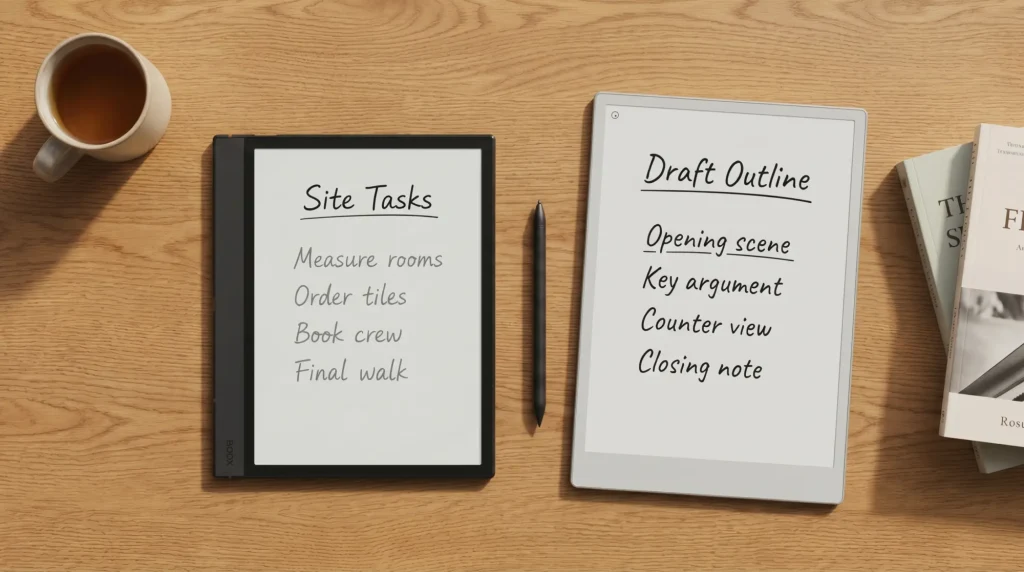
Stock check, 21 October 2026: every US variant of the Boox Note Air4 C is sold out on the Boox store. Its in-stock successors are the Note Air5 C at $529.99 and the Note Air6 C at $579.99, both on the same 10.3-inch Kaleido 3 screen size with a newer Android, so the case for the 4C below now applies to buying one of those two.
Install
How Boox Note Air 4C templates install
The Boox Note Air 4C templates install path is the same as on every current Boox, and it runs through the Notes app rather than a folder. First get the file onto the tablet. BOOX’s own guide recommends BOOXDrop: put the tablet and your computer on the same network, open BOOXDrop on the tablet, type the address it shows into your computer’s browser and send the file. The send2boox website does the same over your ONYX account, and a Google Drive, Dropbox or OneDrive account bound under Library and the cloud icon downloads files straight to the Library. Then open a note and use Page+ in the side toolbar: From Files builds pages on a PDF, with its hyperlinks still clickable, and From Images turns a PNG into a page template. Both arrived with firmware V4.0 in January 2025. For plain lined, grid and dotted pages you need nothing at all: tap the template icon in Notes to browse BOOX’s built-in Template Hub. The general Boox templates rundown lives at Boox templates install guide.
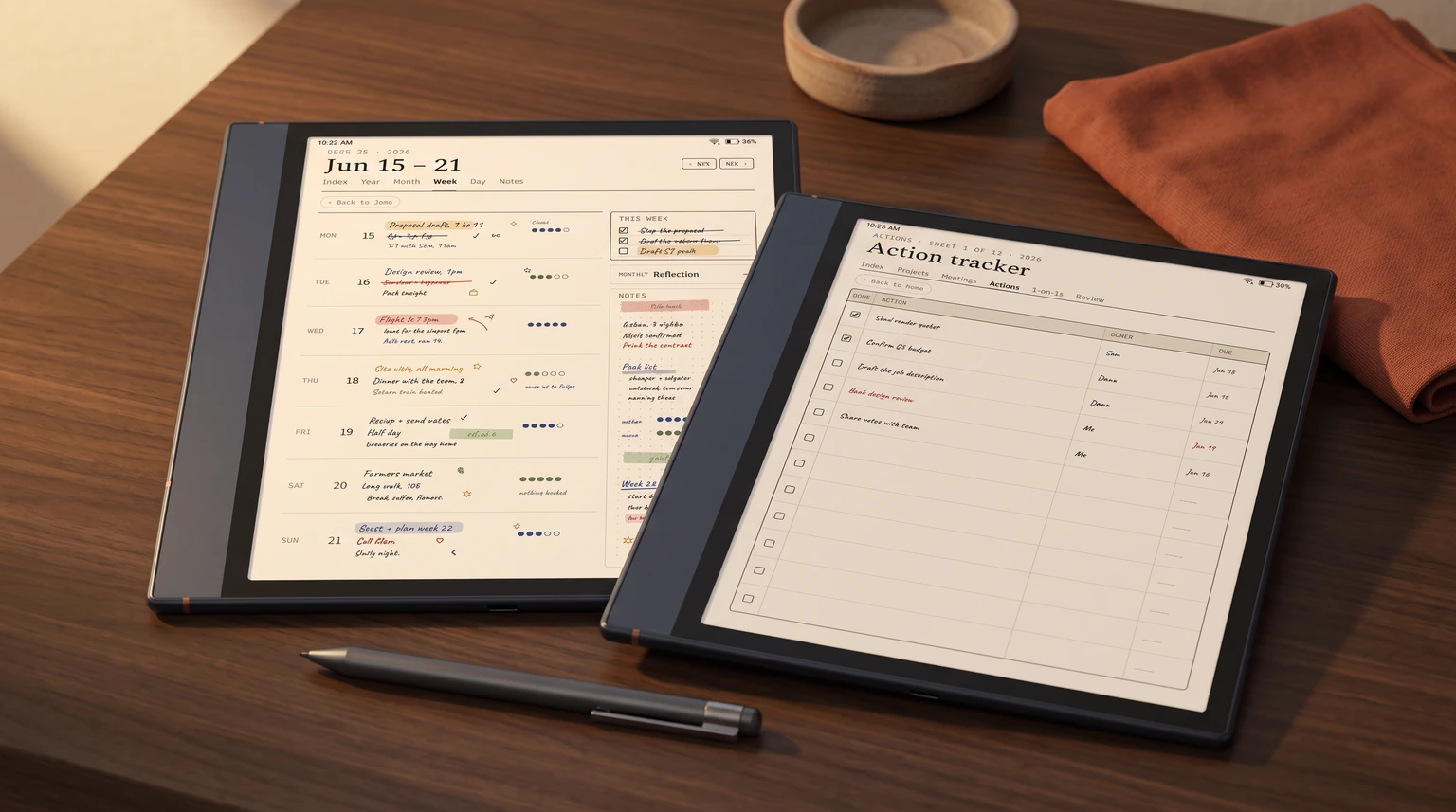
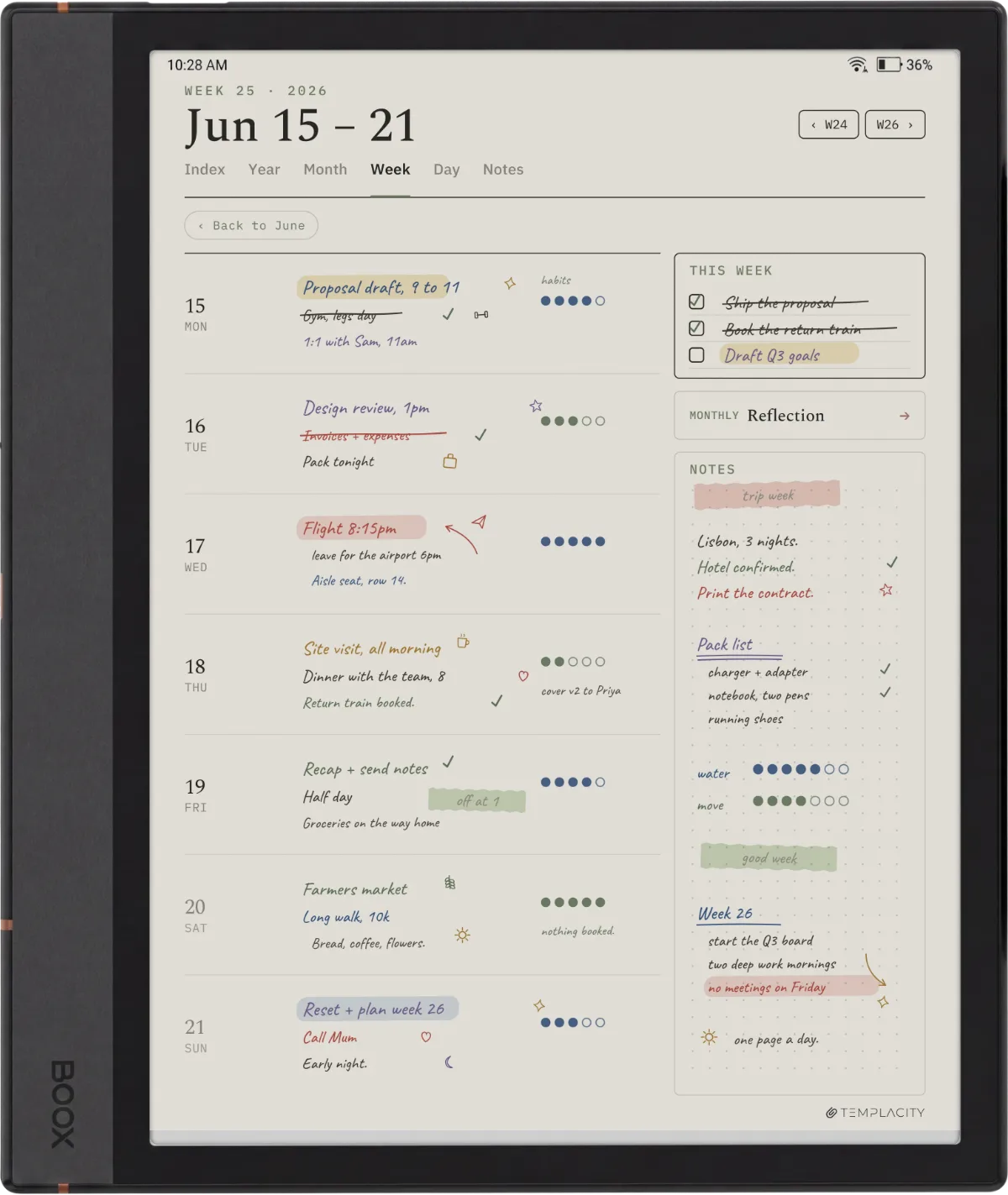
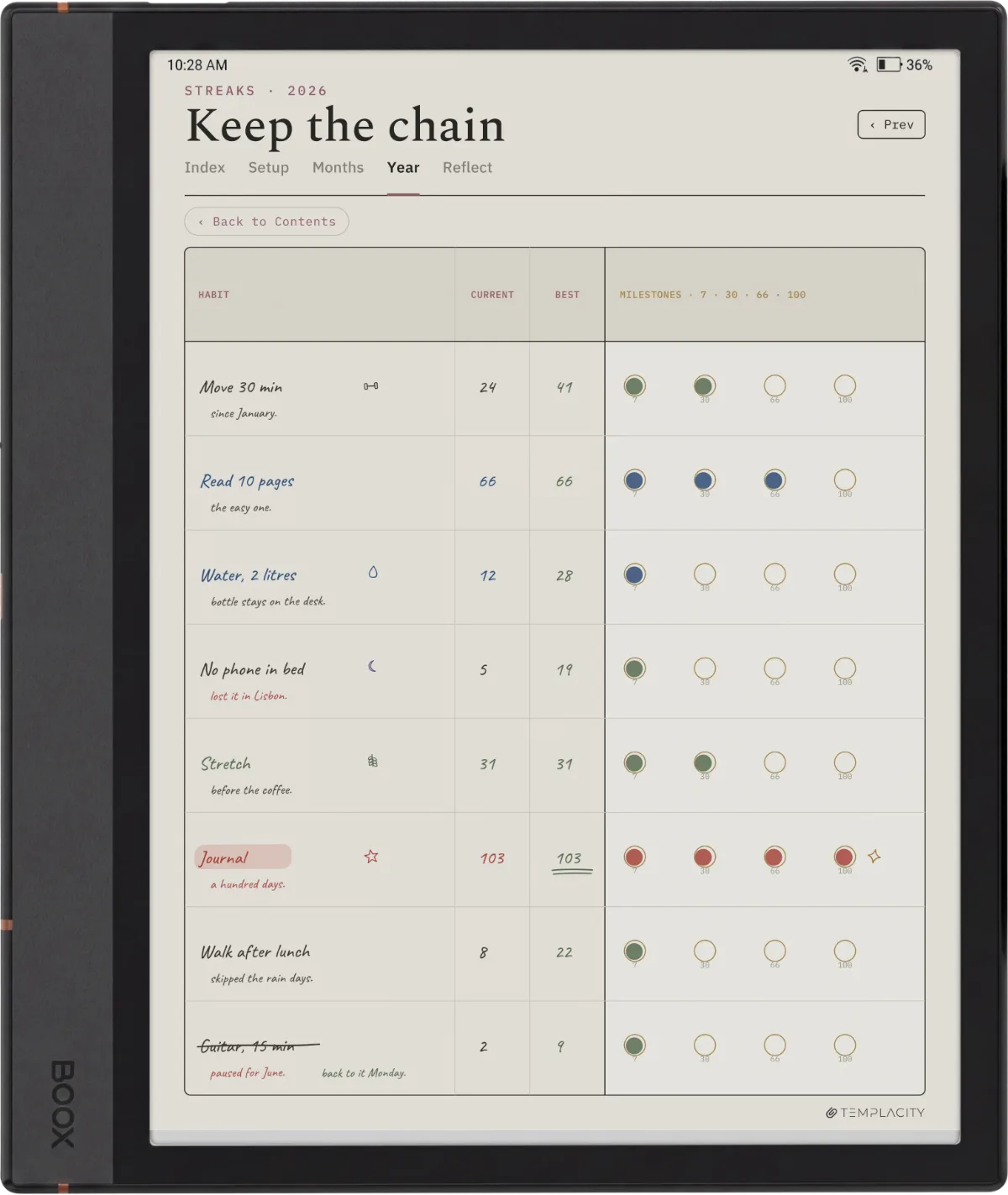
What is specific to the Note Air 4C is the color rendering pass on imported templates. The 4C ships with the Kaleido 3 color panel, which means PDFs containing color (color-coded weekly columns, highlighted habit grids, blue-and-red mood pages) render the color tones rather than mapping them to grayscale. The panel is not iPad-class color, but it is meaningfully more visual than a mono panel for templates that use color as a navigation cue.
The numbers that govern which templates look right on the device, in one place:
- Panel
- 10.3″ Kaleido 3 (color e-ink)
- Mono resolution
- 1860 x 2480, 300 ppi
- Color resolution
- 930 x 1240 (about half mono)
- Where templates load
- In a note: Page+ > From Files (PDF) or From Images (PNG)
- Best format
- PDF primary; PNG works as a page background
- Transfer
- BOOXDrop (same network), send2boox website, bound Google Drive, Dropbox or OneDrive
Color vs mono
Color vs mono Boox Note Air 4C templates
The 4C’s color panel does not change the math for every Boox Note Air 4C templates user. Mono templates still render cleaner for dense writing (reading-tracker spreadsheets, project sheets, daily journaling) because the Kaleido 3 panel renders mono content at the full 1860 x 2480 resolution while color content drops to roughly 930 x 1240. For text-heavy templates, the mono resolution is the readable spec.
Color templates earn their place on layouts where color is a navigation tool, not a decoration. Monthly overviews with color-tagged event types, weekly habit grids with completion-state colors, or mood-board pages all benefit from the 4C’s color rendering. For these use cases, the lower color resolution does not matter because the eye is reading position-and-color, not text density.
| Template type | Mono pick | Color pick |
|---|---|---|
| Daily writing pages | Mono, 1860 x 2480 | Mono renders cleaner for text-heavy use |
| Weekly planner | Mono with shaded columns | Color-coded day columns |
| Monthly overview | Mono grid | Color-tagged event types |
| Habit grid | Mono with X/check | Color completion-state |
| Project sheet | Mono, dense text | Color tags less load-bearing |
| Mood / journal pages | Mono workable | Color is the point |
The pattern: prose-and-data pages stay mono, visual-and-tag pages go color. Mixing is fine in a single notebook because the template format is per-page, not per-notebook.
Load first
Which Boox Note Air 4C templates to load first
If you are setting up a new Note Air 4C, four templates cover most of what the device is good at before you start collecting more. Load these, use each for a week, and add only what a real gap asks for. Template hoarding is the failure mode that ends with thirty layouts installed and four actually opened.
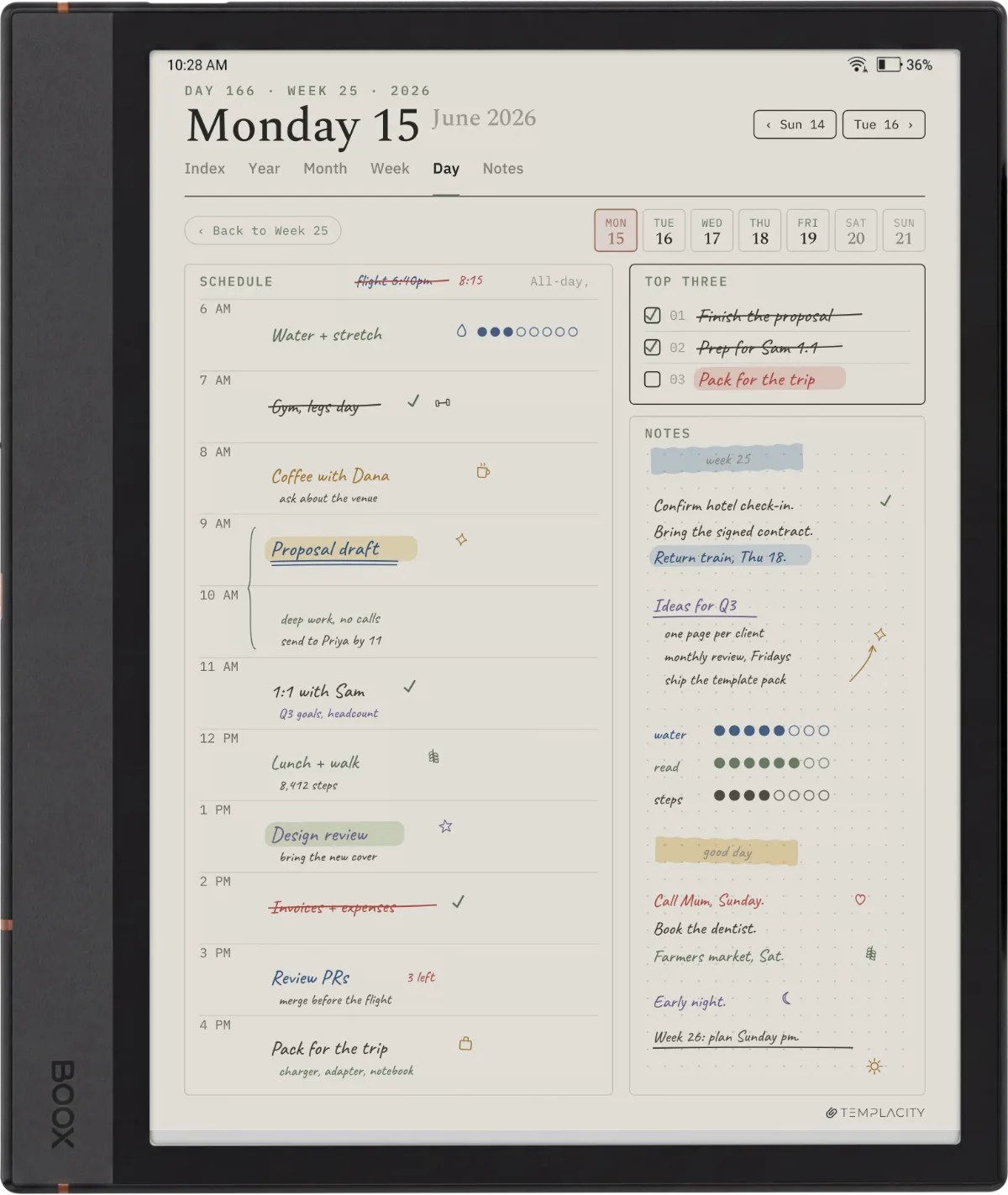
- Daily page (mono)
- A single-column daily with a generous notes area; the everyday workhorse
- Weekly planner (color)
- Color-coded day columns use the Kaleido panel where it actually helps
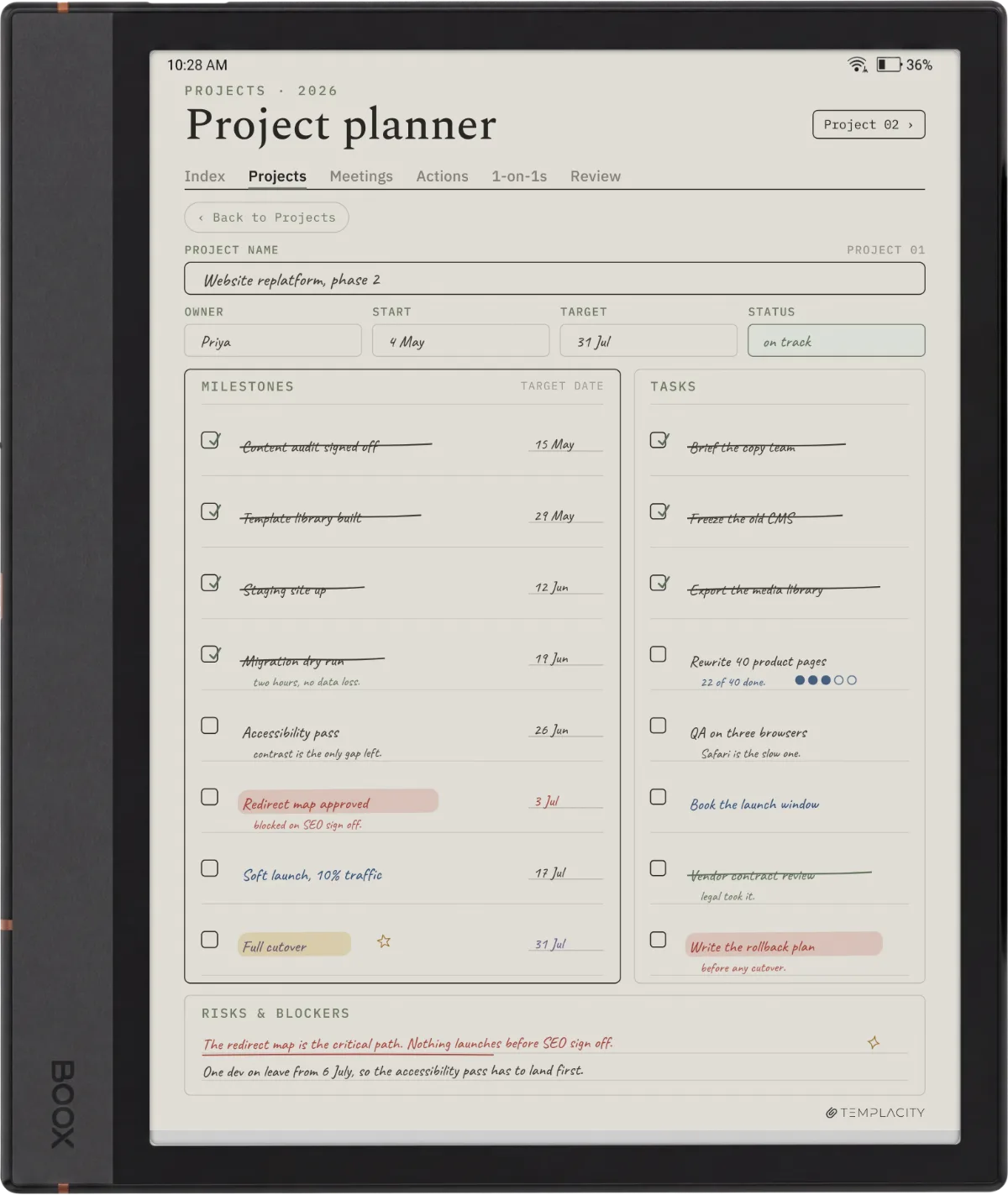
- Project sheet (mono)
- Dense text and checkboxes, sharper at full mono resolution
- Monthly overview (color)
- Event-type color tags for at-a-glance scanning
Templacity pick
Templacity Boox Note Air 4C templates
The Templacity Boox Template Bundle ($39) ships six dated planner templates, weekly, daily and daybook, plus three infinite notebooks (grid, lines and dots), dated 2026 and 2027 in one hyperlinked PDF drawn for the Note Air, Go and Note Max. The Planner for Boox ($49) is the single linked planner if you want the planning side without the notebooks. Both install the same way as any Boox file: send the PDF over with BOOXDrop, then build note pages on it with Page+ > From Files, so you write straight onto the planner and its links keep working.
Where the Templacity bundle differs from the free templates community: every page is hyperlinked, so a tap moves between week, day and notes, and the same file carries both 2026 and 2027 rather than expiring in January. The free community templates (Reddit, Boox forum, GitHub repos) are workable and cover the basic shapes; the paid bundle is the call for users who want layouts that consider the panel quirks. For the full Boox lineup compatibility check, the best Boox templates 2026 rundown covers what works across the Note Air, Tab, and Go families.
For the broader device review (panel quality, writing latency, whether it is worth the money), the Note Air 4 and 4C review covers the buyer decision separately from the templates question.
FAQ
Common questions, answered briefly
What size should a Boox Note Air 4C template PDF be?
Do Boox Note Air 4C templates need to be in color?
Where do Boox Note Air 4C templates install?
Can you use reMarkable templates on the Boox Note Air 4C?
Why isn’t my template showing up on the Note Air 4C?
If your question is not above, drop it in the comments. The 4C’s behavior with color templates evolves with Boox firmware updates; the FAQ is the first place we fold in new patterns readers report.
People also ask