For the broader buyer’s guide on running a Kindle planner on the Scribe (device check, file-format anatomy, setup paths, free vs paid tradeoffs, and the reMarkable comparison), see the pillar.
Layout
What a Kindle Scribe daily planner should actually look like
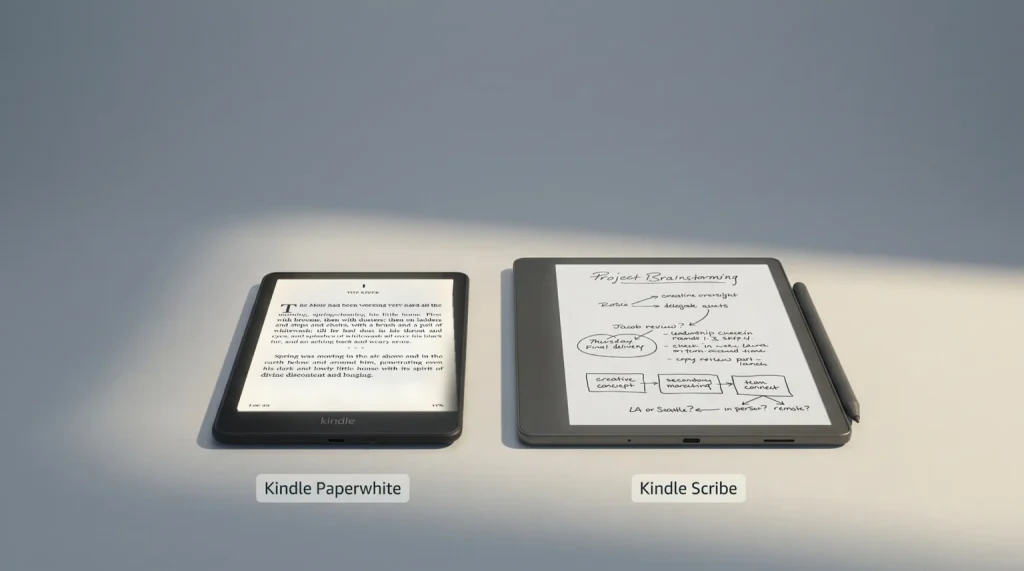
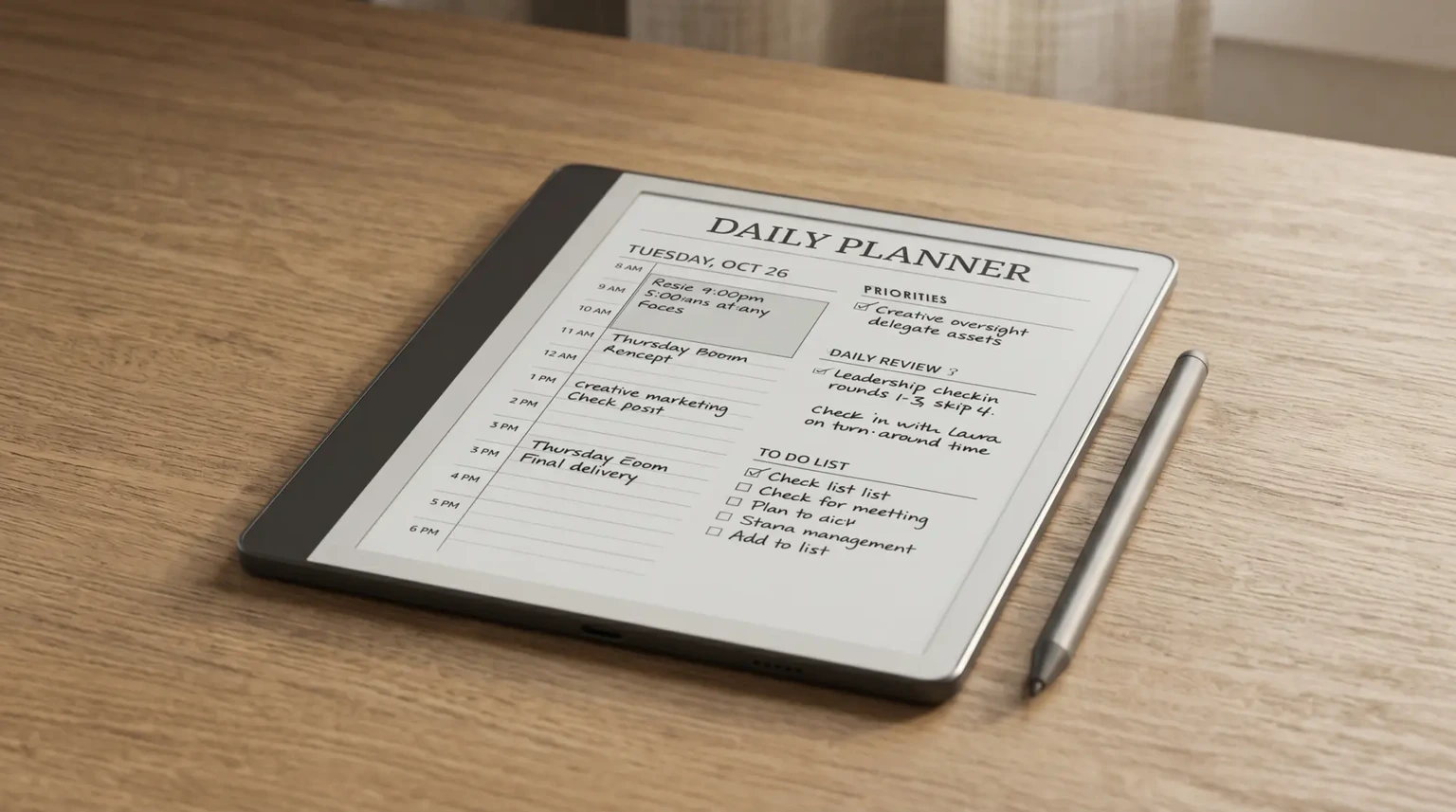
A Kindle Scribe daily planner has to fit a day’s worth of work on one page without turning the page into visual clutter. The layout that survives long-term use is single-column: time blocks rendered light along one edge, a small priorities band at the top (three items at most), and the rest of the page given over to a notes area you actually write in. That shape works on the original 10.2-inch Scribe and on the 11-inch Scribe and Colorsoft; the wider Colorsoft panel just lets you breathe a little more on the same structure.
The Kindle Scribe daily planner mistake most users make is buying the dashboard daily: priority panel, gratitude panel, mood tracker, water intake row, weather note, big goal banner. These planners look comprehensive on a product page screenshot and become unmaintainable by week three because filling in eight micro-fields per day adds friction the brain quietly avoids. Pick a daily where the notes area is the centre and the structural elements are quiet around it. The Scribe is a writing device; the daily planner should respect that.
Sizing
Kindle Scribe daily planner sizing and install
The current Kindle Scribe and Scribe Colorsoft both use an 11-inch panel at 300 PPI for mono content, native 1980 x 2640; the original 10.2-inch Scribe is 1860 x 2480. Both are exactly 3:4, so a daily planner designed at either size renders edge-to-edge cleanly on both. A4-proportional PDFs (US Letter sized) render with a small margin, which most users prefer because the breathing room is easier on the eye for a page you look at every day. Avoid planners designed at iPad or Letter sizes scaled up; the type renders fine but the layout feels off.
Install path: drop the PDF onto Send to Kindle from a laptop or phone (or use the desktop app), the planner appears under Notebooks on the Scribe, write directly on the page with the Basic Pen. There is no PNG-template path on the Scribe equivalent to what reMarkable offers; every Kindle Scribe daily planner ships as a PDF. The simplicity is a feature: install once, the planner is on every page you create from it, and the device handles sync to the Kindle app for export. Our guide to how to send a PDF to Kindle Scribe walks through each route step by step.
Picks
Three Kindle Scribe daily planner shapes that work
| Shape | Best for | Key element |
|---|---|---|
| Single-column work log | Knowledge workers, meeting-heavy days | Notes area takes 70% of page |
| Time-block daily | Structured schedules, calendar-shaped days | Hourly grid down one edge, notes column beside it |
| Bullet-journal daily | Free-form planners, journal-mixed work | Date header, small task list, large free space |
| Dashboard daily | Looks good in screenshots | Eight micro-panels; abandoned by week three |
The three shapes that work share one property: the notes area dominates the page. The dashboard daily is the cautionary case; it sells on screenshots and quietly dies in real use. Pick by what your day actually looks like (mostly meetings, mostly time-blocked, or mostly free-form) and the shape follows.
Pick a Kindle Scribe daily planner you’d want to write on three months from now, not one that wins the first photo. Day-one impressions don’t last; day-ninety patterns do.Layout section
Habit
Keeping a Kindle Scribe daily planner past week three
The biggest risk with any digital daily planner is the third-week dropout. The novelty wears off and the question becomes whether opening the Scribe each morning is actually faster than reaching for a paper notebook. Two patterns help. First, keep the daily as the home-screen notebook so it’s one tap away from device unlock; the lower the friction to open, the more likely the habit sticks. Second, write something on the planner every day even if it’s two lines; the blank-day pattern is what kills daily planners, not the over-full-day pattern. It is not a screen problem either: the same failure is what sends paper users looking for hobonichi alternatives every August.
If you’ve built a Kindle Scribe daily planner habit that has stuck for a year or more, drop the layout pattern in the comments. The three shapes above cover the common case; the variations that work for specific roles (consulting, academic, creative) are the parts where owner perspectives add the most.
FAQ
Common questions, answered briefly
What is the best Kindle Scribe daily planner?
How do I install a daily planner on Kindle Scribe?
What size should a Kindle Scribe daily planner be?
Does the Kindle Scribe have a calendar?
Can I use a Kindle Scribe daily planner without Send to Kindle?
If yours isn’t above, drop the question in the comments and we’ll fold it in next refresh.
People also ask