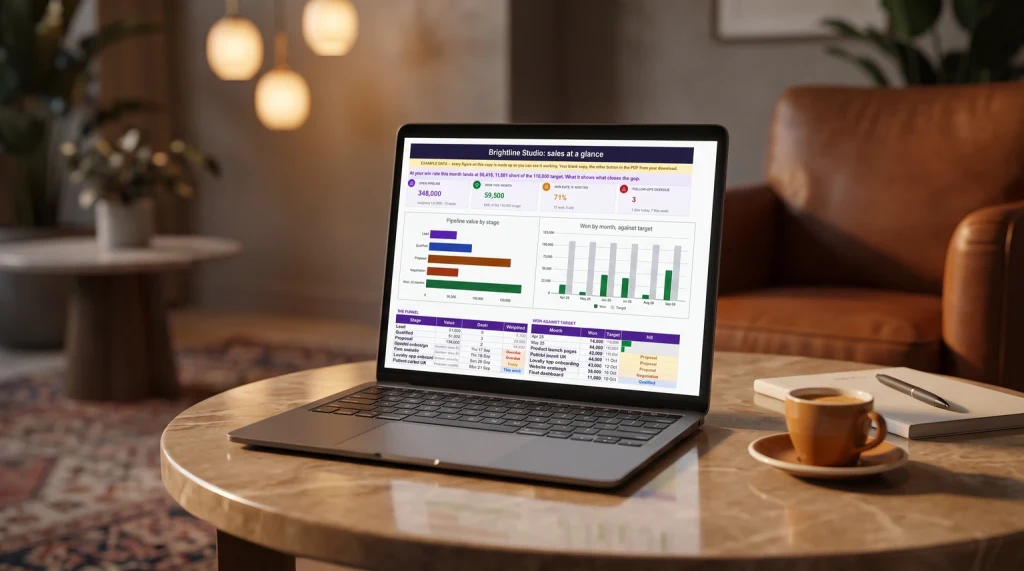
The shape
An itinerary is three documents, not one
Almost every travel itinerary template Google Sheets offers is a single grid: days across or down, times, activities, notes, cost. It is a reasonable thing to build and it is trying to be three documents at once, which is why it never quite works when you are standing in an airport.
The plan is the part that changes daily while you are still at home: maybe the museum, maybe the coast, definitely dinner somewhere. The bookings are the opposite, fixed the moment they are made, and their only requirement is being findable instantly. The day-of reference is a third thing again: the address, the time, the confirmation code, on a phone, possibly with no signal.
Those three want different layouts, different amounts of detail, and different devices. Building them as one grid means the version you are reading on a train is a spreadsheet designed for a laptop screen, scrolled sideways with one thumb.
The plan
The plan, which is the part a grid does well
Keep this tab loose. A row per idea rather than per hour, with a day, a rough time of day, a place, and a status. Status is the column that earns its place: idea, shortlisted, booked. It turns the tab into a decision list rather than a schedule you have to keep rewriting.
Make status a dropdown rather than free text. Google puts these under Data, then Data validation, built from a range or a typed list, and by default entries that do not match are rejected, with a softer “Show a warning” option under Advanced options. Three values are enough, and consistency here is what lets you filter the tab down to what is actually settled.
Resist adding hour-by-hour timings here. A plan that specifies 10:15 has committed to a fiction, and the first delay makes the rest of the document wrong in a way that discourages anyone from reading it again.
Bookings
The bookings tab, judged on one thing
This tab has a single job: when somebody at a desk asks for a reference, you find it in ten seconds without scrolling sideways. Everything about its design should serve that and nothing else.
Which means the reference goes in an early column, not the last one. It means one row per booking rather than per person, with names in a single cell. It means the date is the sort order, so what is next is at the top. And it means the reference column is formatted as plain text before anything is typed, because booking codes frequently begin with zeros and a number-formatted cell drops them without a word. Google’s path for that is Format, then Number.
Nothing on this tab should be a formula. It is a record of things other people have already decided, and a formula here is a way for a reference to change when you least want it to.
Time zones
The time-zone trap that produces confident wrong answers
Here is the one genuine correctness bug in travel spreadsheets, and it is invisible. A flight leaves at 09:40 and lands at 14:20. Put both into time-formatted cells, subtract, and the sheet returns four hours forty, with no complaint at all. If those two times are in different zones, that number is simply wrong, and it can be wrong by many hours.
The sheet will return four hours forty without complaint, because it has no idea the two times belong to different clocks.
Every published departure and arrival time is local to its own airport, so this applies to essentially every long flight in your document. The failure is quiet, it looks like a calculation, and people plan connections on it.
Two fixes, and the first is usually enough. Do not compute durations at all: airlines publish them, so type the published figure as text and let it be a fact rather than a derivation. If you genuinely need the arithmetic, label the zone in its own column and convert both times to one reference zone before subtracting, keeping the local times separate for reading. What you must not do is leave two local times adjacent in time-formatted cells with a subtraction between them, because that is a trap laid for whoever opens the file next.
The day
The day-of sheet: offline, on a phone, one-handed
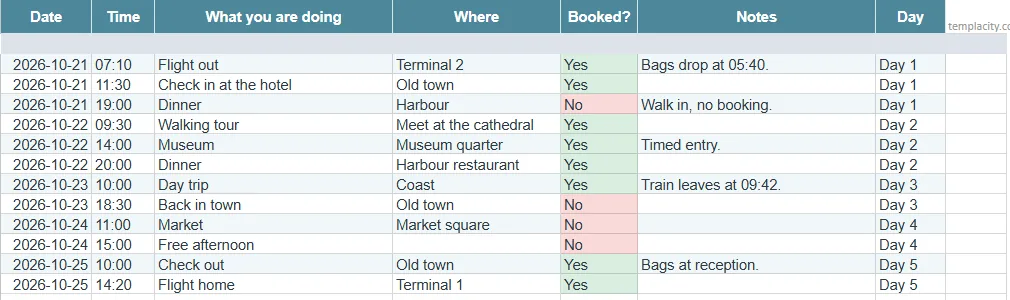
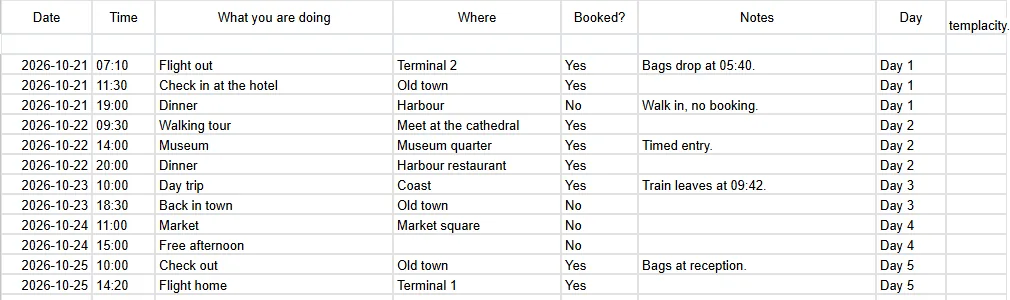
This is the document that actually gets used, and it is the one nearly every template omits. Its constraints are physical rather than informational: a small screen, one hand, bright light, and possibly no data connection at all.
-
1
One tab, four columns, no more
Date, time, what, where. Anything else pushes the useful part off the right of a phone screen, and sideways scrolling is what makes people give up and ask somebody instead.
-
2
Put the address in the cell, not a link
A link needs a connection and a browser. A written address can be read aloud to a taxi driver and shown to a stranger, which is what it is actually for.
-
3
Copy the references across, do not link to them
The two or three codes you will genuinely be asked for belong on this tab as text. A cross-tab formula is one more thing that can be blank at the wrong moment.
-
4
Make it available offline before you leave
Google lists offline editing as available for Sheets. Switch it on and open the file once on the device you are taking, at home, on a connection you trust.
That last step is the one people skip and regret. Google states that anyone with a Google Account can create in Sheets, with offline editing among its features, but a file you have never opened on the phone is not a file the phone has.
Sharing
Sharing it with people who will not maintain it
Group trips create a predictable problem: everyone can edit, so someone reorders the rows, someone else deletes a line they thought was theirs, and the document loses authority. The fix is not a rule about behaviour, it is access.
Share the day-of tab as view-only to everyone and keep edit access to whoever is maintaining it. If people want to propose things, give them the plan tab to edit and leave the bookings and the day-of reference read-only. That split maps exactly onto the three documents, which is another argument for separating them in the first place.
A wedding raises the same sharing problem with a bigger cast, and our wedding guest list template for Google Sheets handles it the same way: one person maintains the list, everyone else reads the counts.
The same instinct applies to a shared schedule at home, and our Google Sheets weekly schedule template guide covers the recurring version of that shape.
Before you go
What to strip out the night before
An itinerary accumulates. By departure it holds rejected ideas, price comparisons, three restaurants you decided against and a currency conversion you did in March. None of it helps on the day and all of it is between you and the address you need.
So do one pass the night before: hide the planning tabs, sort the day-of tab by date and time, delete anything that is no longer happening, and open the file once on your phone. Five minutes, and it converts a research document into a usable one. If the trip has a budget attached, keep that on its own tab as well, and our Google Sheets budget template guide covers what makes those hold up. For multi-week trips with fixed stages, the gantt grid is a better view of the shape than a day list.
Split it into three, never subtract across time zones, and make sure the phone has actually opened the file. Tell us in the comments which tab you end up living in on the road, because it is almost never the one people spend the planning time building.
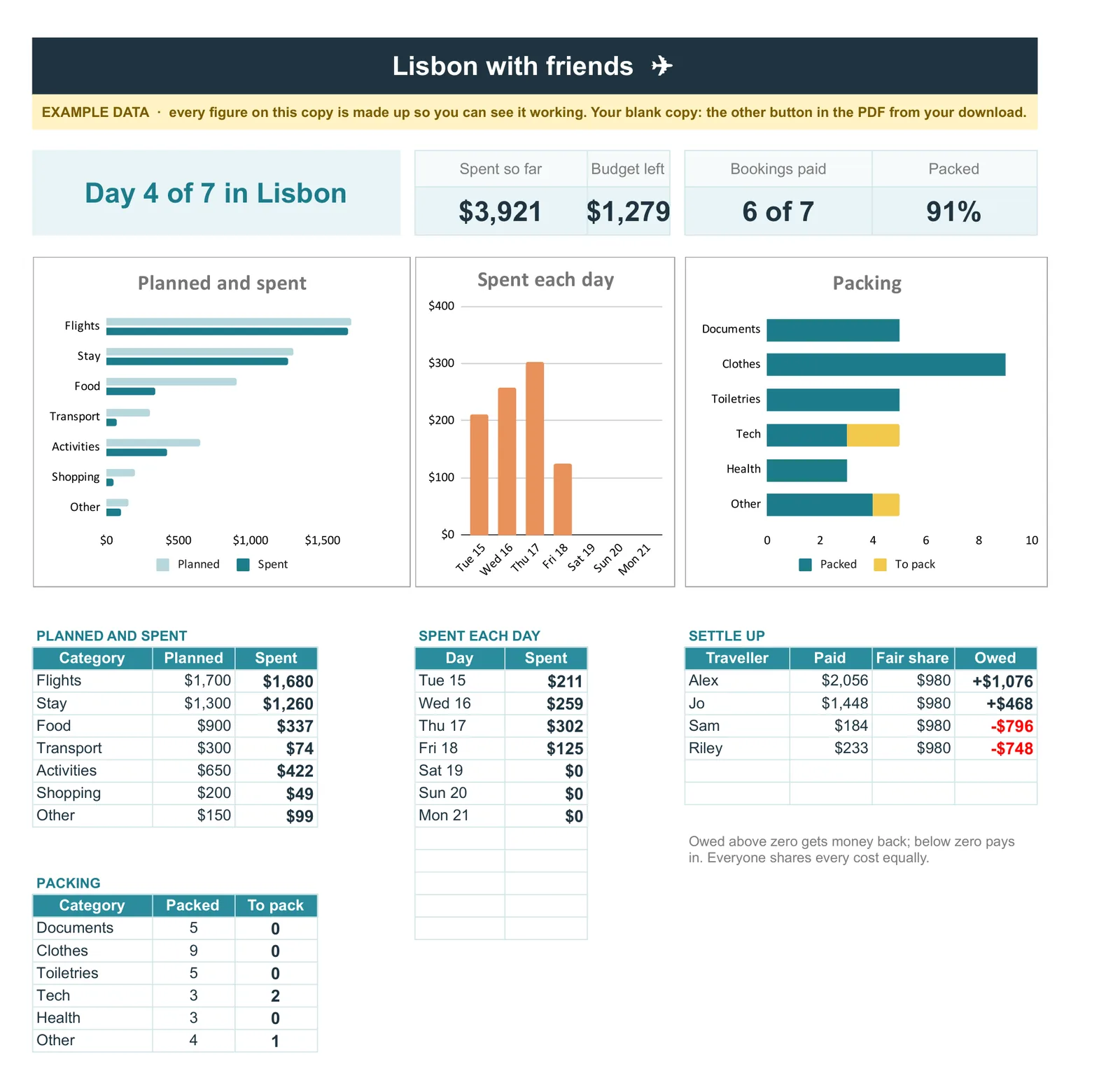
If you would rather start from a finished file, our Travel Planner Spreadsheet ($29, Google Sheets and Excel) holds the itinerary, bookings, spending in any currency and a packing list, with a trip page that counts down, tracks planned against spent and settles up who owes whom.
FAQ
Common questions, answered briefly
Why should an itinerary be split into three tabs?
Can I calculate flight duration in a spreadsheet?
Why did my booking reference lose its first digits?
How do I make the itinerary work without a signal?
People also ask