The page
What a Google Sheets invoice template has to put on the page
An invoice needs a unique number, the date, who it is from and who it is to, what was supplied with a price for each line, any tax, and the amount due. Add a due date and your payment terms, and say how to pay you. That is the whole job of the page, and any Google Sheets invoice template that covers it is doing the legal minimum.
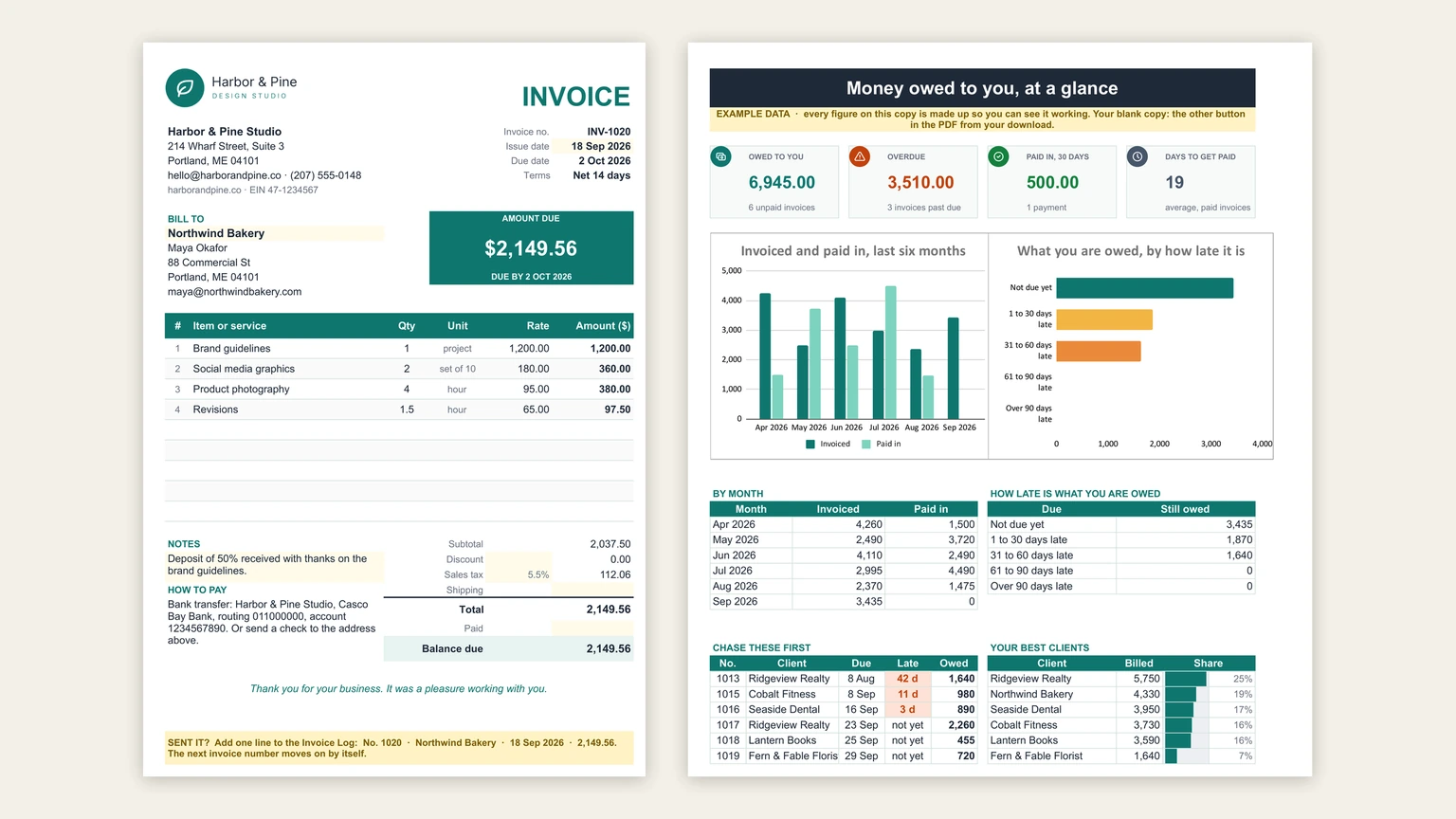
What separates a good one is how little you type. In ours you pick a client from a list and their address fills in; you pick an item and its usual rate fills in. The subtotal, discount, tax, shipping and balance due are formulas, and the amount-due box at the top repeats the balance with the due date under it, because that is the one number your client is looking for. The example invoice in the picture above bills a fictional bakery $2,149.56: four lines coming to $2,037.50, plus 5.5% sales tax, due in 14 days.
Tax rules differ by country. If you are registered for VAT or GST, your invoice may need your registration number and the tax shown per line; put the number in your details and check the rest with your accountant.
The number
The invoice number should count itself
Every invoice needs its own number, and the way most people break that rule is by duplicating last month’s tab and forgetting to change it. Two invoices called 1014 are two invoices your client’s accounts team cannot match to a payment, and the confusion lands on you.
=MAX(Log!A:A)+1
The next invoice number: the highest number already on the Log tab, plus one.
The fix is to keep every invoice you send on one log tab and let the next number come from it. In Google Sheets, =MAX(Log!A:A)+1 reads the highest number already used and adds one, so the number cannot repeat and cannot skip. Our Sheet works the same way: after invoice 1019 goes on the log, the invoice tab offers 1020. A prefix such as INV- is set once on the Your Business tab and added in front.
The log
After you send it: the invoice log
Here is where the free templates on the first page of Google tend to stop. FreshBooks publishes a free Google Sheets invoice template, and its own comparison table puts payment reminders and late fees on the side of its paid platform. Wave does the same: its template page lists automated late payment reminders as something its invoicing software does and the template does not. That is a fair business model, and it means the template you download is the invoice and nothing that happens to it afterwards.
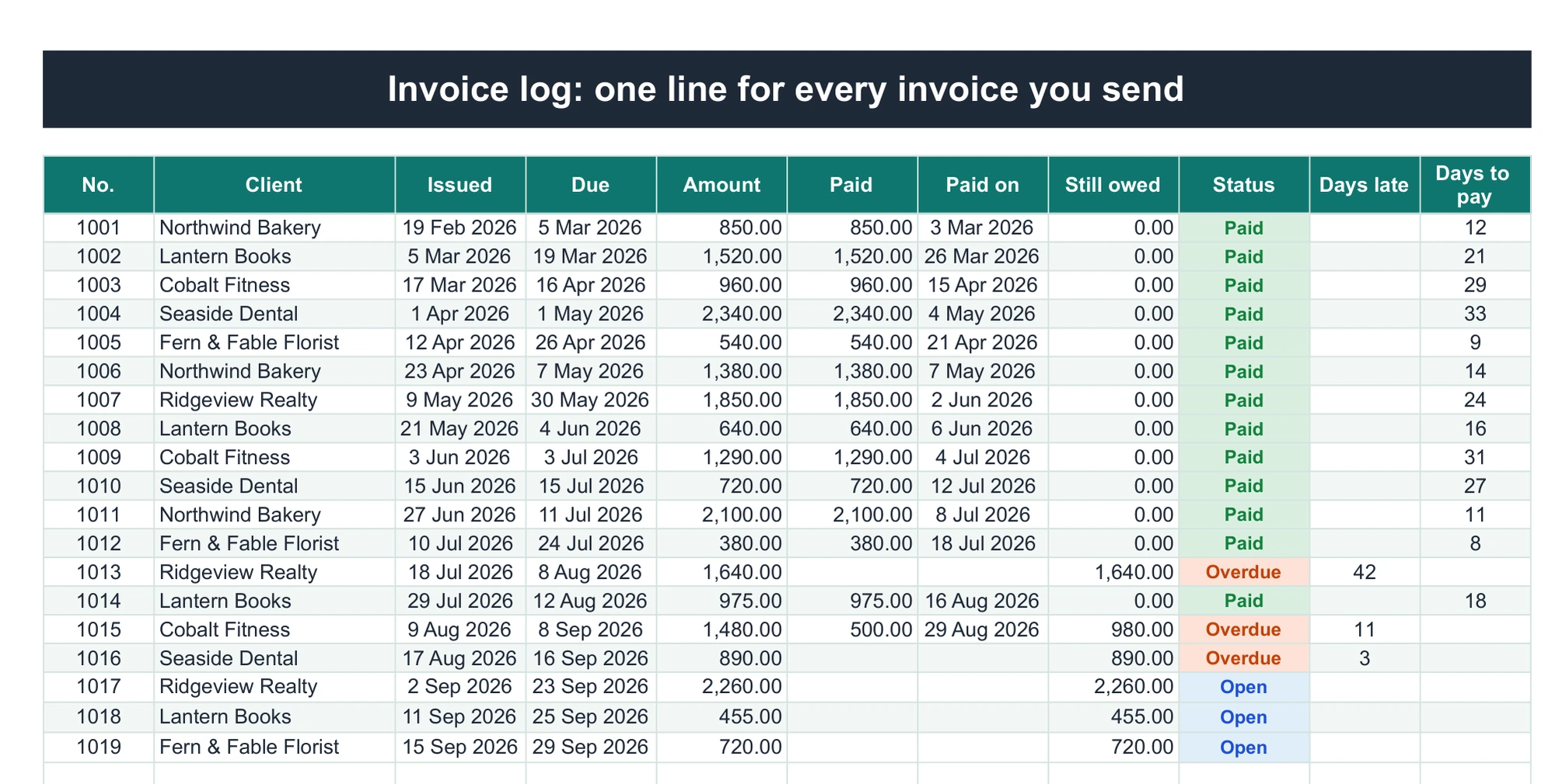
Ours keeps the afterwards in the same file. The Invoice Log takes one line per invoice: number, client, issue date, due date and amount. When money arrives you type what was paid and the date, and the sheet works out the rest: what is still owed, a status of Paid, Open or Overdue, how many days late an unpaid invoice is, and how many days a paid one took. A part payment stays on the list with its remainder, the way invoice 1015 in the example shows $500 in against $1,480 and $980 still owed.
The template you download is the invoice and nothing that happens to it afterwards.
Who owes you
What you are owed, and who to chase first
A log answers questions one row at a time. The Money Owed tab answers them all at once. In the example, nineteen invoices have gone out since February: six are unpaid and owe 6,945, three of those are past due and owe 3,510, and the thirteen paid invoices took 19 days on average to settle. A chart splits what is owed by how late it is, from not due yet to over 90 days.
The part we would look at first is the short list headed “Chase these first”. It sorts the overdue invoices by how late they are, so the top line of the example reads invoice 1013, a realty client, 42 days late, 1,640 owed. That is the one email to send today. Beside it, a best-clients table shows who you bill the most and what share of your invoicing each one is, which is worth knowing before you agree to longer terms with anyone.
If you invoice for hours, the numbers start upstream. Our timesheet template in Google Sheets gives you the billable hours that become invoice lines, and once the payments are in, an Excel profit and loss template shows what the year actually made. If you sell goods rather than time, the Google Sheets inventory template keeps the item list your rates come from.
The file
Our free Google Sheets invoice template, and the generator
The Sheet is free, and it is a straight copy link: make your own copy of the blank invoice Sheet. No email, no account with us. If you would rather see it working first, copy the filled example, the one in the pictures on this page, and delete the fictional clients when you are done.
It has six tabs. Your Business holds your name, address, how to pay you, tax label and rate, terms and invoice prefix, typed once. Clients holds everyone you bill, with their own payment terms if they have them. Items & Rates holds what you sell. Invoice, Invoice Log and Money Owed are the three described above.
For a one-off invoice, the Sheet is more than you need. Our free invoice generator runs in the browser: fill it in, watch the invoice take shape beside it, and download a PDF or an .xlsx. Nothing you type leaves your device, and it remembers your details on that device so the next invoice starts filled in. It also carries a button to the same Google Sheet, for the day one-off invoices turn into a client list.
The limit
When an invoice spreadsheet stops being enough
A spreadsheet will not take a card payment, send a reminder on its own, or bill a retainer automatically on the first of the month. If you need any of those, invoicing software earns its fee, and the log in this Sheet is still a useful record of the clients and rates you would move across. For a freelancer or a small studio sending a handful of invoices a month, though, a Google Sheets invoice template with a log does the job, and you keep the numbers in a file you own.
More free spreadsheets are on our Google Sheets hub. Tell us in the comments how long your clients really take to pay, and whether a days-to-pay column would change who you work with; we read every reply.
FAQ
Common questions, answered briefly
Is there a free invoice template in Google Sheets?
How do I number invoices automatically in Google Sheets?
=MAX(Log!A:A)+1. It reads the highest number used and adds one, so numbers never repeat. Add a prefix such as INV- in front if you want one.How do I track unpaid invoices in Google Sheets?
Can I send a Google Sheets invoice as a PDF?
People also ask