The problem
Why a timesheet breaks at exactly the wrong moment
A timesheet template Google Sheets built in ten minutes works beautifully for a while. Start time, end time, subtract one from the other, sum the column. Then a week arrives where somebody worked 41 hours and the week reads 17, or a night shift produces a row of hash marks, and the whole thing loses its credibility in one glance.
Both failures come from the same place, and it is not a mistake in the formula. It is what a time is, underneath.
The mechanism
A time is a fraction of a day
Spreadsheets store a time of day as a fraction between zero and one. Midday is 0.5. Six in the evening is 0.75. Subtracting two of them gives you another fraction, which is correct and which is why the arithmetic looks fine at first.
The trouble starts when you add a column of them together. Add up a week of shifts and you might get 1.71, which is a day and seventeen hours. Displayed as a time of day, that reads as 17:00, because the whole-number part is a day and the display is only showing the remainder. Nothing is wrong with the value. The presentation is throwing away the part you care about most, which is the part beyond twenty-four hours.
Most guides answer this with a number format. That works and it leaves you one wrong cell away from the problem again, because the format lives on the cell rather than on the data, and formats do not survive copying, exporting or somebody rebuilding the sheet next January.
Midnight
The overnight shift that goes negative
The second failure is louder and easier to diagnose. A shift starting at 22:00 and ending at 07:00 subtracts to a negative fraction, because 0.29 minus 0.92 is less than zero. Spreadsheets refuse to display a negative time and show hash marks instead, which at least has the virtue of being obvious.
The fix is one function. =MOD(end-start,1) wraps the result back into the zero-to-one range, so a negative difference becomes the correct positive fraction of a day. It costs nothing on shifts that do not cross midnight, since a positive value is returned unchanged, which means you can apply it to every row rather than deciding case by case.
Apply MOD to every row rather than to the night shifts, because a rule that has exceptions is a rule somebody will apply wrongly.
The fix
Store decimal hours, not clock times
Here is the change that makes all of it go away, and it is a data decision rather than a formatting one. Multiply by 24. Write the worked column as =MOD(end-start,1)*24 and format it as a plain number with two decimals.
=MOD(C2-B2,1)*24
Decimal hours for one row, start time in B2 and end time in C2. A shift that crosses midnight still comes out positive.
What you get is 8.5 rather than 08:30. It cannot wrap, because it is not a time of day and has no twenty-four-hour boundary to cross. It survives midnight, because MOD handled that. It adds up to 41.25 rather than to something that needs interpreting. And it multiplies straight by an hourly rate, which is the actual purpose of nearly every timesheet and the step that clock-time storage always fumbles.
-
1
Keep start and end as times
They are what a person types and what a person checks. Do not make anyone enter decimals by hand; that is the machine’s job.
-
2
Add one worked-hours column
=MOD(end-start,1)*24, plain number format. This column is now the real data and everything downstream reads it rather than the clock times. -
3
Subtract breaks in the same units
A break column in minutes divided by 60, taken off the worked hours. Mixing a minutes column into a time column is where a working sheet usually goes wrong at the second attempt.
-
4
Sum against whole columns
=SUM(F:F)rather than a fixed range, so it keeps counting when somebody adds rows at the bottom of a long month.
That last habit is the same one that decides whether any growing spreadsheet stays honest, and our Google Sheets expense tracker guide covers why a fixed range fails without announcing itself.
Breaks
Rounding, and the policy you have to decide first
Rounding is where timesheets stop being an arithmetic problem and become a policy one, and the mistake is letting the spreadsheet decide by accident. If you round to the nearest quarter hour, that is a choice with money attached, and it should be written down and applied identically to everyone rather than emerging from how many decimal places a column happens to show.
Two practical notes. Round once, at the end, rather than at each row, because rounding twice compounds in a direction nobody intended. And keep the unrounded worked-hours column in the sheet even if you never show it, so a disputed week can be reconstructed rather than argued about.
Whether any of this satisfies your local rules on breaks, overtime or record keeping is a question for somebody who knows your jurisdiction. A spreadsheet post is not the place to guess at employment law, and a good deal of what is written about timesheets does exactly that.
The layout
Building it so somebody else can fill it in
A timesheet is filled in by tired people at the end of a shift, which is the design constraint. Fewer columns beats more. Put the entry columns on the left and everything computed on the right, so the person typing never has to skip over a formula. And use a dropdown for anything categorical, such as the job or the site, rather than free text.
Google documents that dropdowns live under Data, then Data validation, built either from a range of cells or from a typed list, and that data which does not match “is rejected” by default. There is a softer setting: under Advanced options you can choose “Show a warning” instead, which flags the entry but allows it. For a timesheet, rejection is usually right, because a typo that creates a new job code silently splits a report in two.
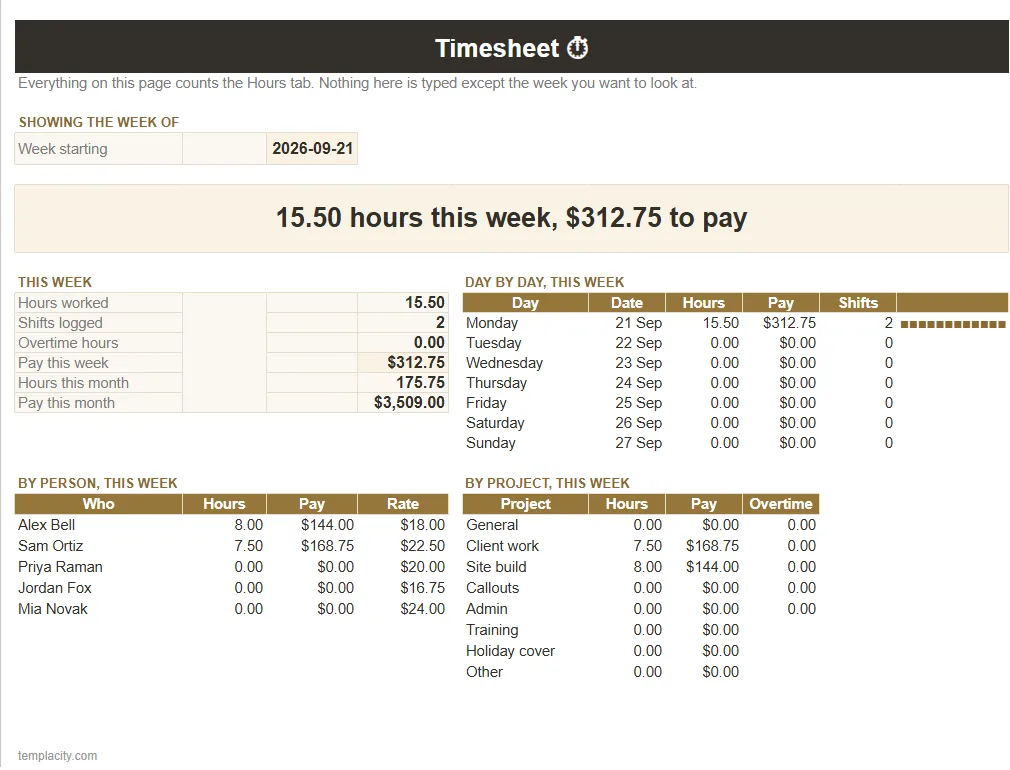
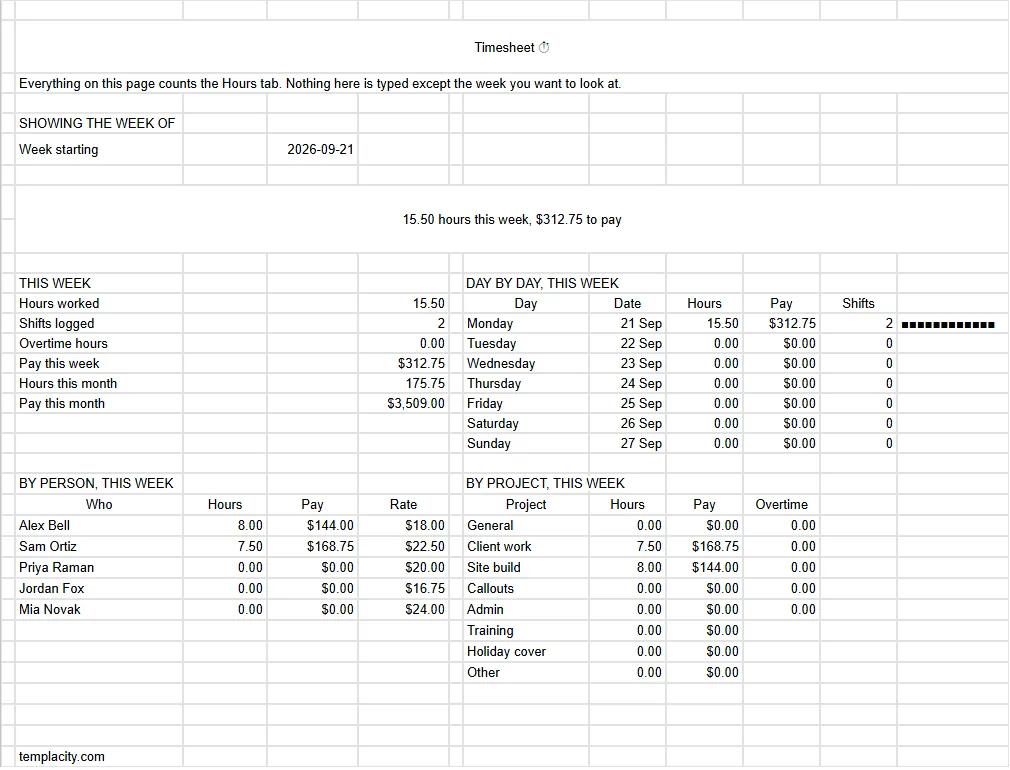
Number formatting is worth doing once and leaving alone. Google’s guidance is simply to select the range and use Format, then Number. Since the worked-hours column is a plain decimal rather than a time, there is nothing exotic to get wrong, which is most of the point of storing it that way.
The limit
What a spreadsheet timesheet will not do
Two things, and being honest about them is more useful than pretending otherwise. It cannot verify that somebody was where they said they were, because it records what was typed. And it does not scale gracefully past a handful of people, since a shared sheet with fifteen editors becomes a coordination problem rather than a records problem.
What it does have is ownership and reach. Google states that anyone with a Google Account can create in Sheets, and offline editing is available, which matters when the person filling in a timesheet is on a site with no signal. For one person, a small team or a contractor billing by the hour, that combination is hard to beat and costs nothing.
If the hours are billed, the next sheet is the invoice. Our Google Sheets invoice template turns those hours into invoice lines and keeps a log of what has been paid and what is late.
If the sheet is really about who is working when rather than how long they worked, a schedule is the better instrument, and our Google Sheets weekly schedule template guide covers that shape. For project work with a finish line, the gantt chart guide is the neighbour.
Store hours rather than times, wrap every row in MOD, and add up whole columns. Three decisions, made once, and the sheet stops surprising you in the week you can least afford it. Tell us in the comments whether your weekly figure has ever wrapped past twenty-four hours without anyone noticing, because that one is far more common than the hash marks.
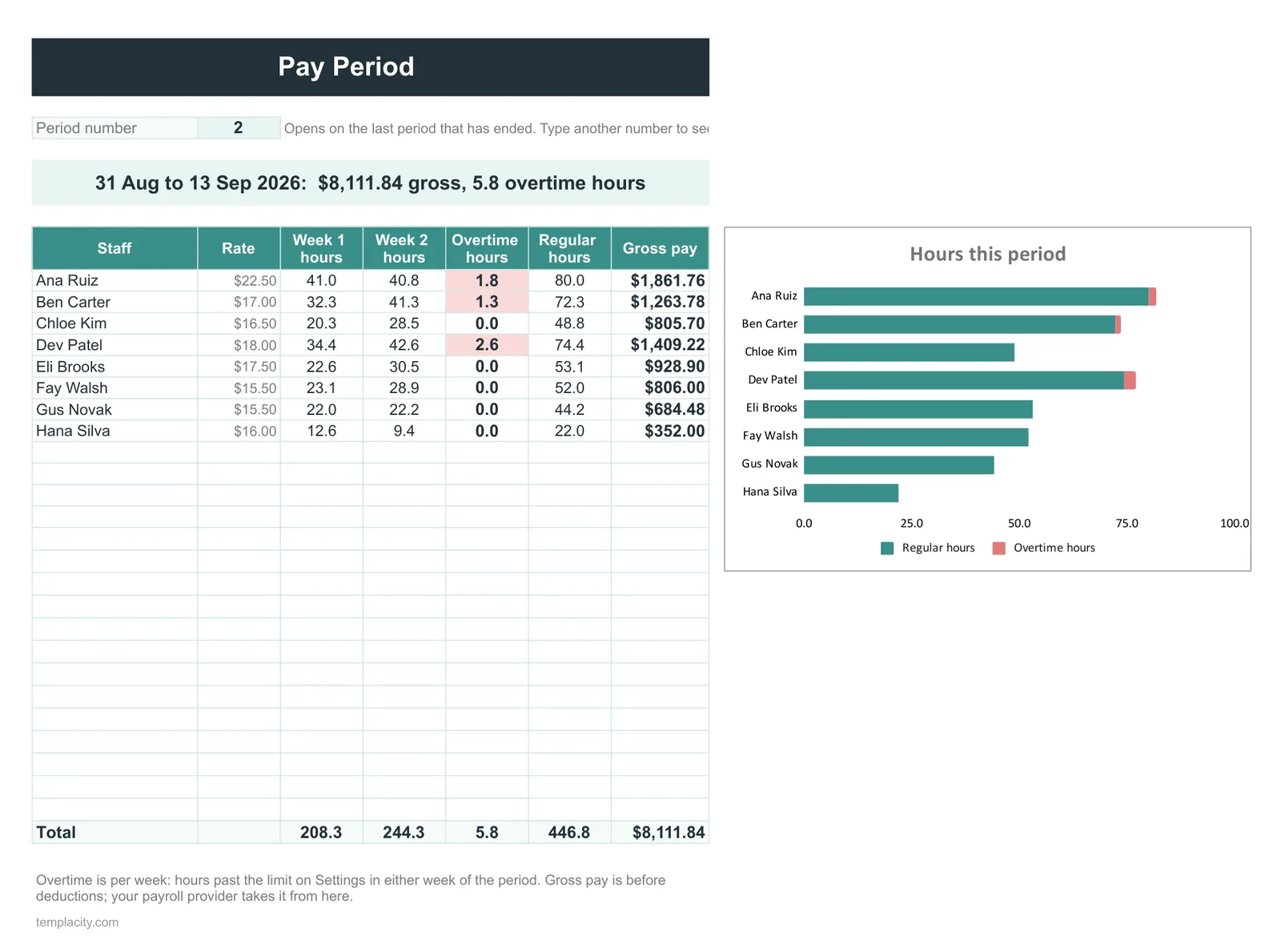
When the timesheet is for a team, our Staff Schedule & Timesheet ($39, Google Sheets and Excel) joins it to the schedule: build the rota, record the hours actually worked and see pay for any pay period, with overtime flagged, open shifts shown and timesheets approved with a tick.
FAQ
Common questions, answered briefly
Why does my weekly sum show fewer hours than were worked?
=MOD(end-start,1)*24 removes the boundary entirely.How do I handle a shift that runs past midnight?
=MOD(end-start,1). A 22:00 to 07:00 shift subtracts to a negative fraction, which spreadsheets refuse to display as a time. MOD brings it back into range and leaves ordinary daytime shifts unchanged, so apply it to every row rather than only the night ones.How do I subtract unpaid breaks?
Should the job or site column be a dropdown?
People also ask