
The format
Why an Excel timesheet template wraps at 24 hours
Build the obvious thing, subtract start from end and add up the week, and sooner or later a 41-hour week displays as 17. The value is not wrong. Excel stores a time of day as a fraction of a day, so 41 hours is one whole day plus a remainder, and a cell formatted as a time of day shows you the remainder.
Excel has a documented answer, which is a custom number format with square brackets around the hour code. Microsoft’s page on adding and subtracting time gives the code as [h]:mm;@, and is specific about the punctuation: note the colon after the bracketed h and the semicolon after mm.
-
1
Select the cell holding the result
The one showing the wrong figure. The format goes on the output, not on the individual start and end times.
-
2
Home, then Format, then Format Cells
On the Number tab, choose Custom from the Category list. This is where every non-standard display in Excel is set.
-
3
Type the code into the Type box
[h]:mm;@exactly, then OK. Microsoft notes the format then stays in the Type list the next time you need it.
The format lives on the cell, which is its weakness. Copy the figure somewhere else, export it, or let somebody rebuild the sheet, and the wrap comes back. That is why the payroll column below should be a decimal rather than a time.
Midnight
The overnight shift that shows hash marks
A shift from 22:00 to 07:00 subtracts to a negative fraction, and Excel will not display a negative time, so the cell fills with hash marks. This one at least announces itself.
The fix is one function around the subtraction: =MOD(end-start,1). It brings a negative result back into the zero-to-one range and leaves a positive one untouched, which means you apply it to every row rather than deciding case by case. A rule with exceptions is a rule somebody will apply wrongly on a Friday.
Payroll
Decimal hours, because that is what gets paid
The bracket format solves the display. It does not solve the arithmetic that comes next, because a pay rate multiplies against a number of hours rather than against a fraction of a day. Multiplying a rate by a time value gives you a figure that is out by a factor of 24, and it looks like money, which is the problem.
=MOD(C2-B2,1)*24
Decimal hours for one row, start time in B2 and end time in C2. A shift that crosses midnight still comes out positive.
So add one column: =MOD(end-start,1)*24, formatted as a plain number with two decimals. That column is the one everything downstream should read. It cannot wrap, it survives being copied out of the workbook, and it multiplies straight by a rate.
A pay rate multiplies against hours, not against a fraction of a day, and the result of getting that wrong still looks like money.
Keep unpaid breaks in minutes in their own column and divide by 60 before subtracting, rather than trying to mix a minutes figure into a time-formatted cell. Mixing units is where a working timesheet usually breaks on its second revision.
Overtime
Splitting regular hours from overtime
This is the reason to keep a timesheet in a spreadsheet at all rather than on paper, and it only works once the hours are a decimal. The split is two formulas against a threshold you hold in a labelled cell.
Regular hours are the smaller of the hours worked and the threshold, so =MIN(hours, threshold). Overtime is whatever is left above it, which is =MAX(0, hours - threshold). The MAX is doing real work: without it, a short week produces a negative overtime figure that quietly reduces the pay calculation.
=MAX(0, D2-$F$1)
Overtime above the weekly threshold in F1, with the week’s hours in D2. The MAX stops a short week going negative.
Put the threshold in one labelled cell and point every row at it rather than typing a number into each formula. Whatever your threshold is, and whatever rules apply where you are, they will change at some point, and a threshold typed into two hundred formulas is a rewrite while a threshold in one cell is an edit. What that threshold should be, and what multiplier applies above it, is a question about your jurisdiction and your contracts rather than about Excel, and this post does not answer it.
Note also that the split is weekly for most purposes, not daily, so it belongs on a weekly summary row rather than on each day. Applying a daily threshold to a week’s rows is a common and expensive error.
The table
Building it so a new week does not break it
A timesheet grows every week, which makes it the wrong place for a fixed range. A weekly figure summing rows 2 to 40 keeps working right up until row 41 arrives, and then it silently stops including the newest days.
Keep the entries in an Excel Table. Microsoft documents that “by entering a formula in one cell in a table column, you can create a calculated column in which that formula is instantly applied to all other cells in that table column”, which means the MOD and decimal-hours formulas propagate to new rows without anybody dragging anything. It also documents structured references, which “reference table names in a formula” instead of cell references such as A1, so a summary keeps describing the same data as the table grows.
Microsoft also notes that a table offers a summary row at its foot with an AutoSum drop-down listing functions such as SUM and AVERAGE. Useful, though the calculated columns are the part that actually protects you. The same argument applies to any growing workbook, and our Excel budget template guide makes it at the point where a household budget outgrows its ranges.
The limit
What an Excel timesheet will not do
Two things, and being straight about them saves an argument later. It records what was typed rather than what happened, so it cannot verify attendance. And it does not handle several people editing at once, which is the point at which a shared workbook becomes a coordination problem rather than a record.
For one person, a contractor billing by the hour, or a small team where one person collates, it is genuinely the right tool: it is offline, it is yours, and the overtime rules can be exactly the ones in your contracts rather than the ones a product decided to support. Contractors who also price jobs can start from our Contractor Estimate & Job Costing Spreadsheet, or the full Contractor & Trades Spreadsheet Kit.
Hours worked have a mirror image in hours not worked. Our PTO tracker for Excel guide builds the leave side: accrual per pay period, time already booked, and the hours each person stands to lose at year end.
If your timesheet lives in Google Sheets instead, the underlying arithmetic is the same but the formatting answer is not, and our timesheet template for Google Sheets guide covers that version. For the wider set of free files, the Excel templates hub holds them, and our amortization schedule guide covers the other Excel calculation people most often get wrong on units.
Apply the bracket format, wrap every row in MOD, keep a decimal column for pay, and hold the overtime threshold in one cell. Four decisions and the sheet stops producing plausible wrong numbers. Tell us in the comments whether a week has ever wrapped past twenty-four hours on you without anyone noticing, because it is far more common than the hash marks that everybody talks about.
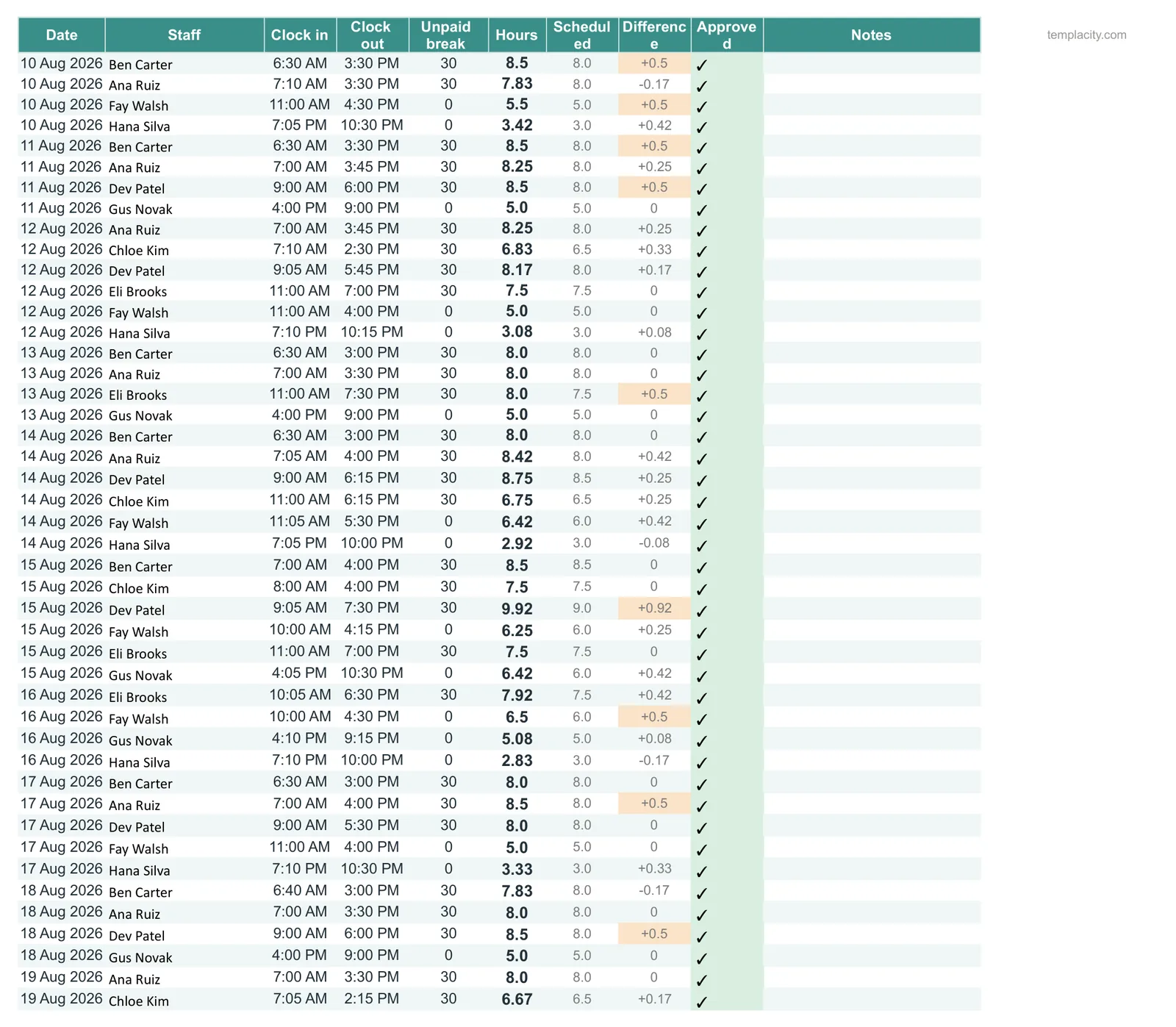
For a team rather than one person, our Staff Schedule & Timesheet ($39, Google Sheets and Excel) builds the rota, records the hours actually worked and shows pay for any pay period, with overtime flagged, open shifts shown and timesheets approved with a tick.
FAQ
Common questions, answered briefly
How do I show more than 24 hours in Excel?
[h]:mm;@, noting the colon after the bracketed h and the semicolon after mm. Select the result cell, go to Home then Format then Format Cells, choose Custom on the Number tab, type the code into the Type box and select OK. It then stays in the Type list for next time.Why does my overnight shift show hash marks?
=MOD(end-start,1). That brings a negative result back into range and leaves ordinary daytime shifts unchanged, so apply it to every row rather than only the night ones.How do I split regular hours from overtime?
=MOD(end-start,1)*24, then use two formulas against a threshold held in one labelled cell: regular is =MIN(hours, threshold) and overtime is =MAX(0, hours - threshold). The MAX matters, because without it a short week produces negative overtime. What the threshold and multiplier should be depends on your jurisdiction and contracts.Why is my pay calculation out by a factor of 24?
=MOD(end-start,1)*24 and have every downstream calculation read that instead of the time-formatted cell.People also ask