| Job | Our pick | Price | Free alternative |
|---|---|---|---|
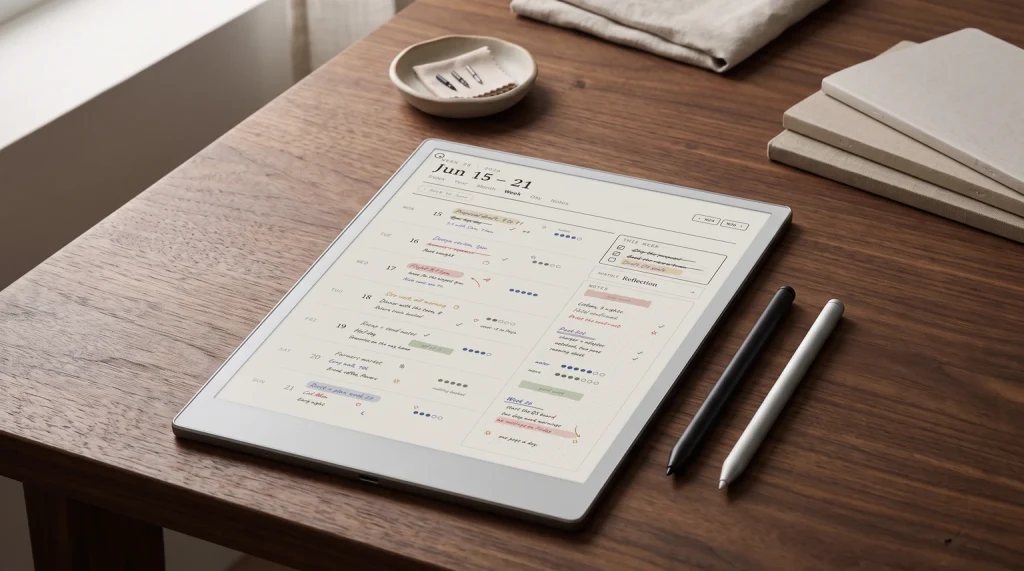
| Planning | The Planner for reMarkable | $49 | Built-in weekly page |
| Everything in one file set | reMarkable Templates Bundle | $39 to $49 | None that covers it all |
| Journaling | The Journal | $49 | Methods journaling workbooks (Connect) |
| Notebook | The Notebook System | $29 | Built-in lined and dot grid |
| Habits | Habit Tracker Template | $29 | A plain grid page |
| Paper Pro Move | Paper Pro Move Daily Planner | $29 | Built-in Move templates |
| Study | Built-in Cornell template | Free | It is the free option |
For the broader buyer’s guide on running a remarkable planner across the lineup (which device fits, native templates vs PDF imports vs paid apps, free vs paid tradeoffs, and the Kindle Scribe comparison), see the pillar.
The field
Why the “best reMarkable templates” question keeps changing
Two years ago this was a short list. The reMarkable 2 was the only modern device, the built-in templates covered the obvious shapes (lined, dot grid, weekly), and a handful of independent sellers covered the rest. Three things changed. The Paper Pro arrived with a larger screen and color, splitting templates into mono-aware and color-aware. The Paper Pro Move arrived with a 7.3-inch screen that needs sized files. And reMarkable’s Methods library, a Connect benefit, added templates and workbooks from named creators. So when someone asks for the best reMarkable templates in 2026, the honest answer depends on which device they own and which job they want the template to do.
The shape of this guide reflects that. Six categories, eight specific picks, and a section on what to skip. If you came here for a planner, our dedicated best reMarkable planner guide goes deeper on planning specifically. This piece is the umbrella.
The categories
Six template categories that cover real reMarkable use
| Category | Best for | Where to start |
|---|---|---|
| Planners | Recurring weekly use, calendar-shaped lives | Templacity, Digital Planner Boutique, onPlanners (free) |
| Journals | Daily reflection, gratitude, freeform prose | Methods library (with Connect); Templacity Notebook System for a bound book |
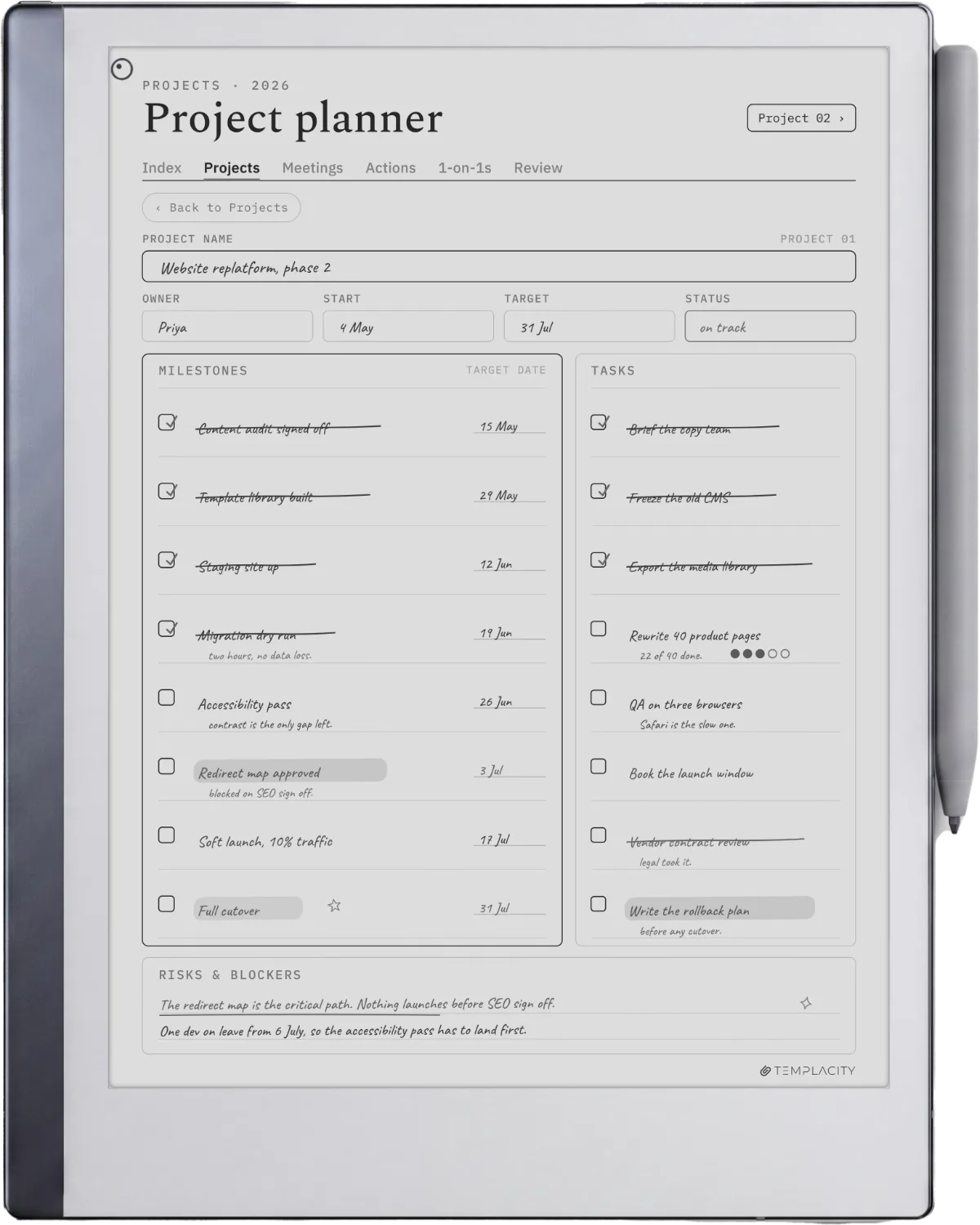
| Meeting / project | Decisions, owners, follow-throughs | TabletTemplates Productivity Bundle |
| Study / research | Cornell notes, lit reviews, course readers | Built-in Cornell template |
| Habit / tracker | Light daily logging, sleep, reading, mood | Templacity tracker pages; Methods Focus tracker (with Connect) |
| Notebooks | Generic capture, dot grid, lined, blank | Built-in templates plus a small custom set |
The category split matters because templates that win in one category lose in another. A great planner template makes a poor lit-review template, because lit reviews need wider margins, citation columns, and free-form note space rather than time blocks. A great Cornell template makes a poor planner because Cornell pages don’t carry hyperlinks between dates. Pick the category first, then pick within the category.
Picks
Eight templates that earn their place across the field
Planners: Templacity Daily Planner
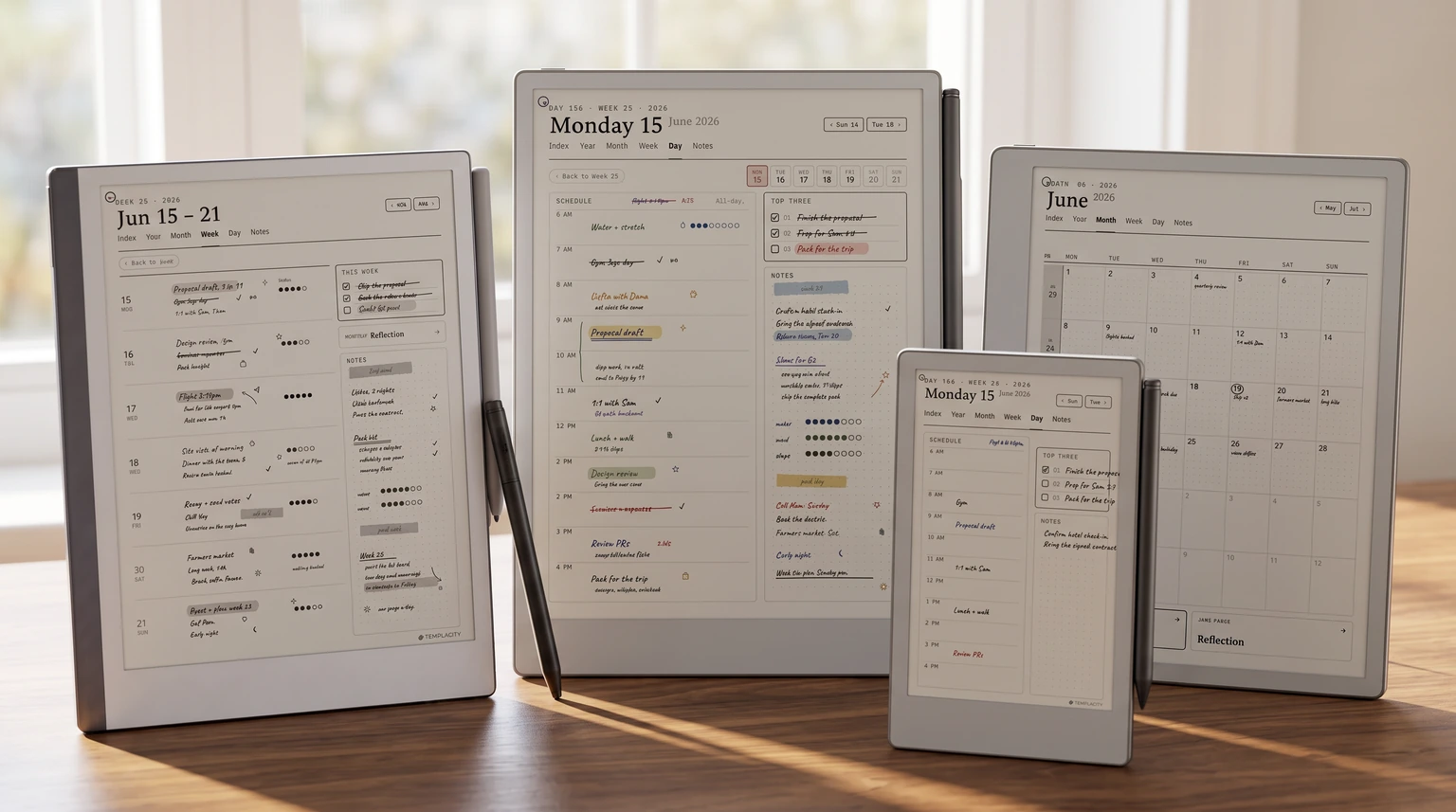
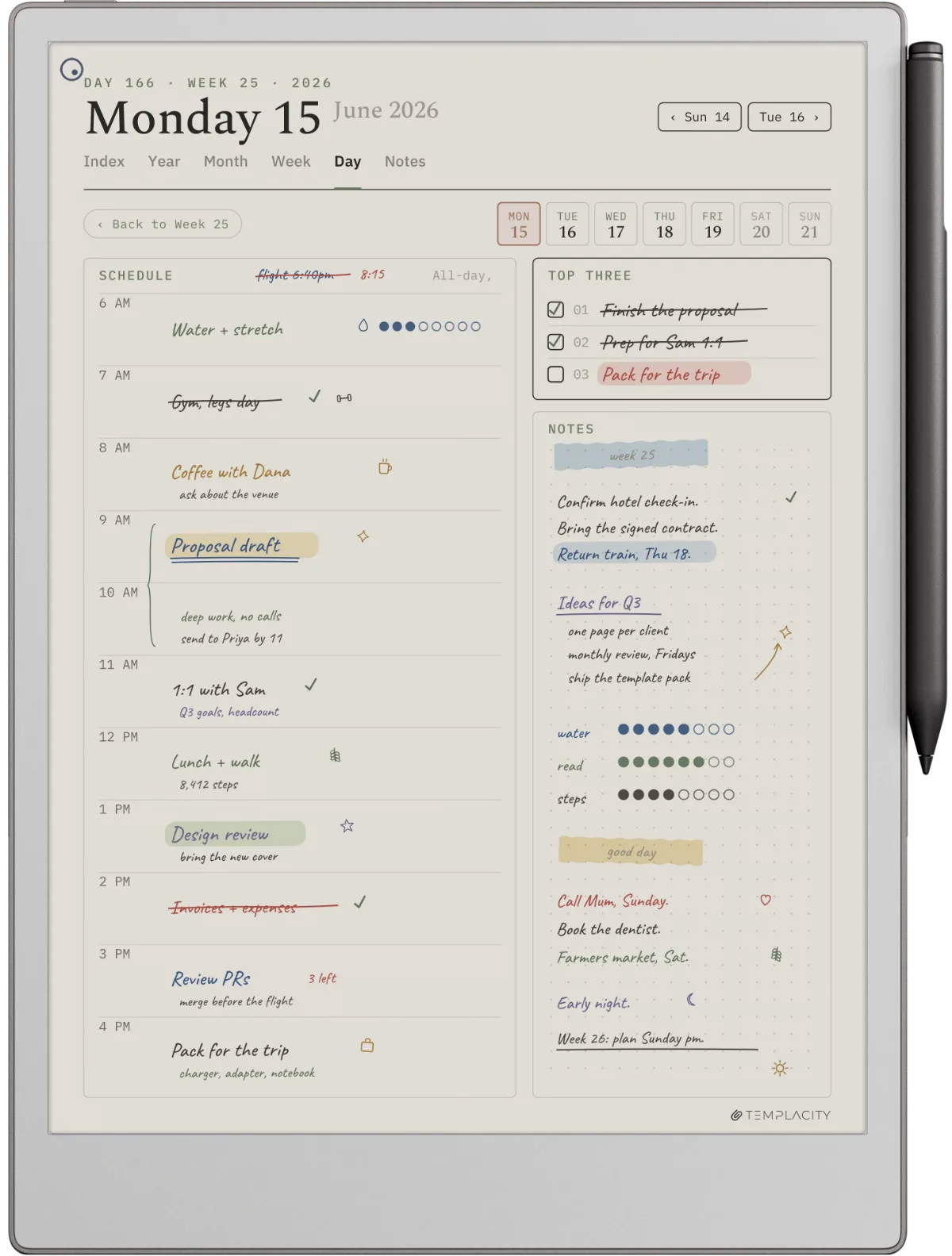
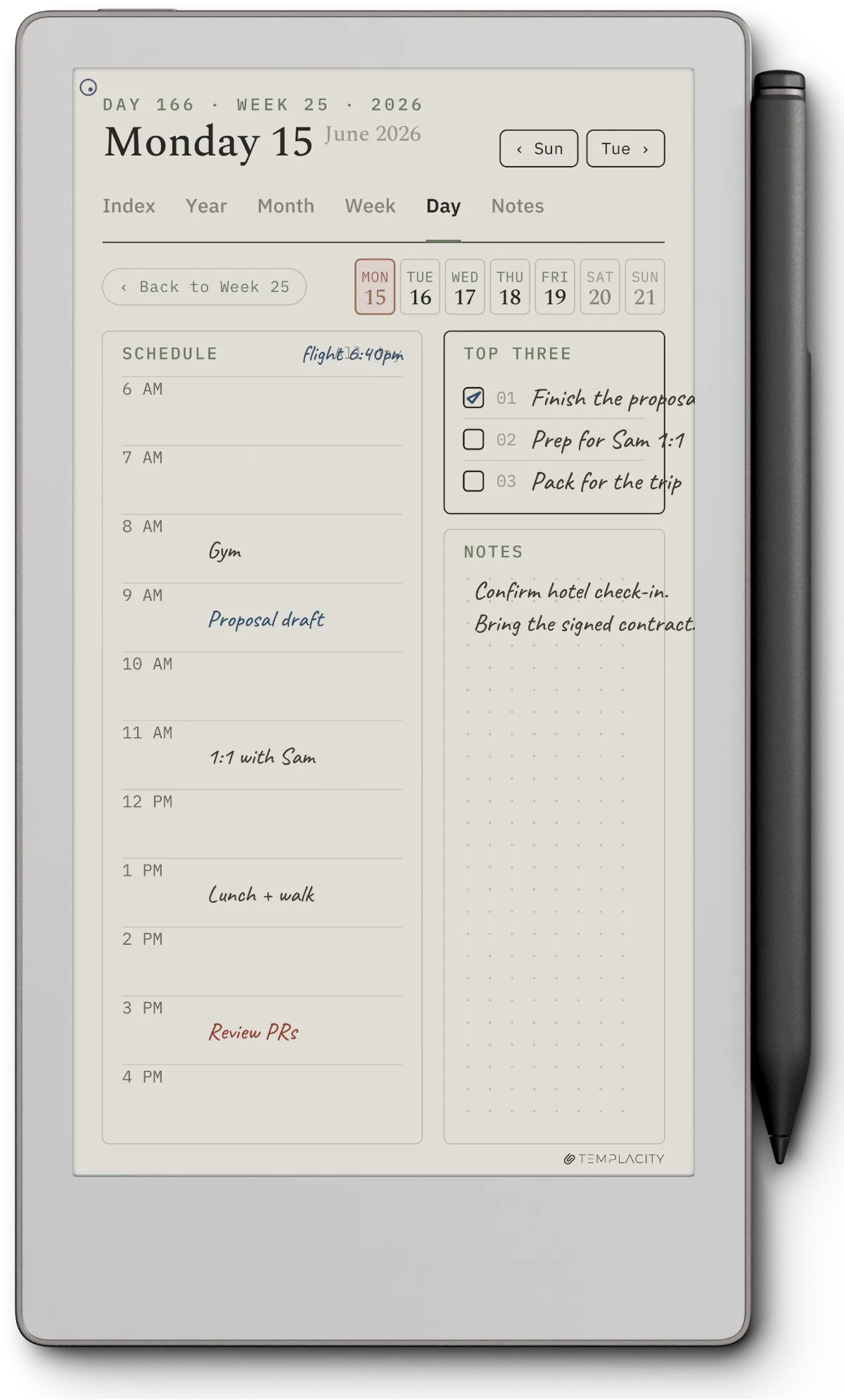
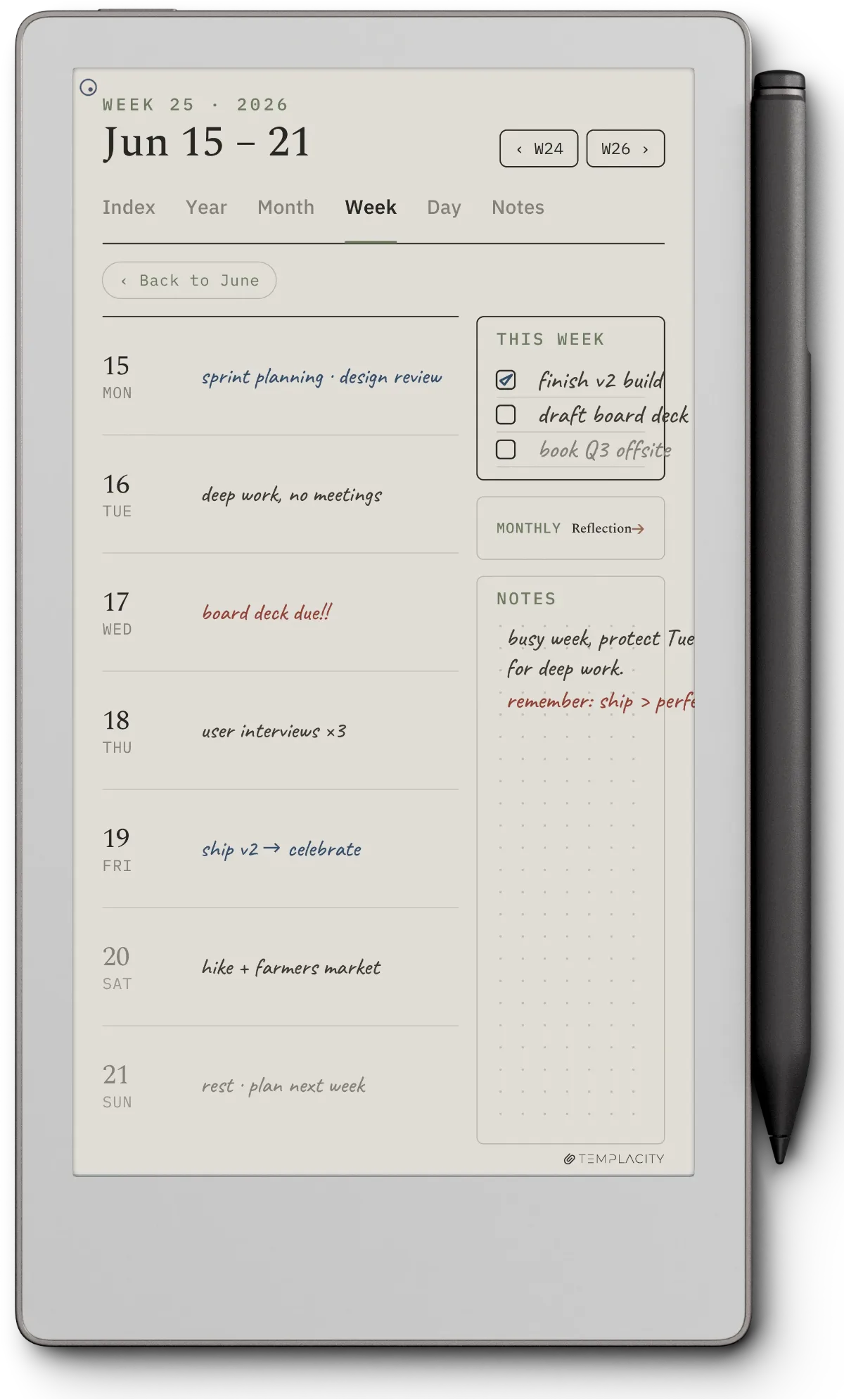
Disclosure: ours. Five-level hyperlinks (year, quarter, month, week, day), Mon/Sun start, 12/24h, separate files for reMarkable 2, Paper Pro, and Paper Pro Move. The day page leaves more handwriting room than most by trimming the hourly grid. Suits writers, researchers, and project workers. Goes deeper in our planner pillar.
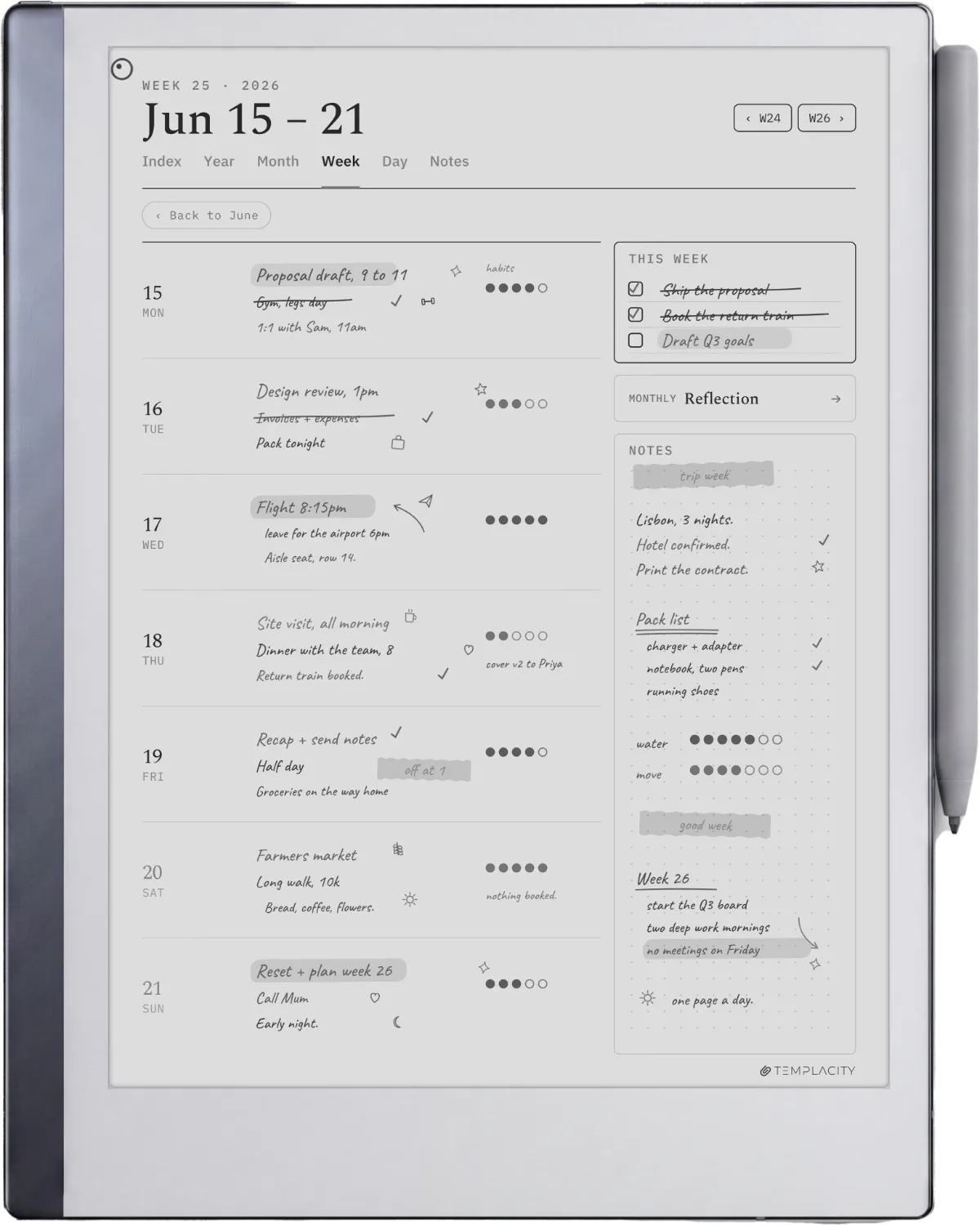
Planners: onPlanners 2026 planners
onPlanners lists free and paid hyperlinked planners for reMarkable, so check which files are marked free. A free one is a no-cost test before you decide whether digital planning suits you at all.
Journals: Methods Gratitude journal (with Connect)
The official reMarkable Methods library lists a Gratitude journal workbook from DesignersKitCo. reMarkable’s support page says you need a Connect subscription and a login to download from Methods. The bar a journal template has to clear is whether you will open it daily.
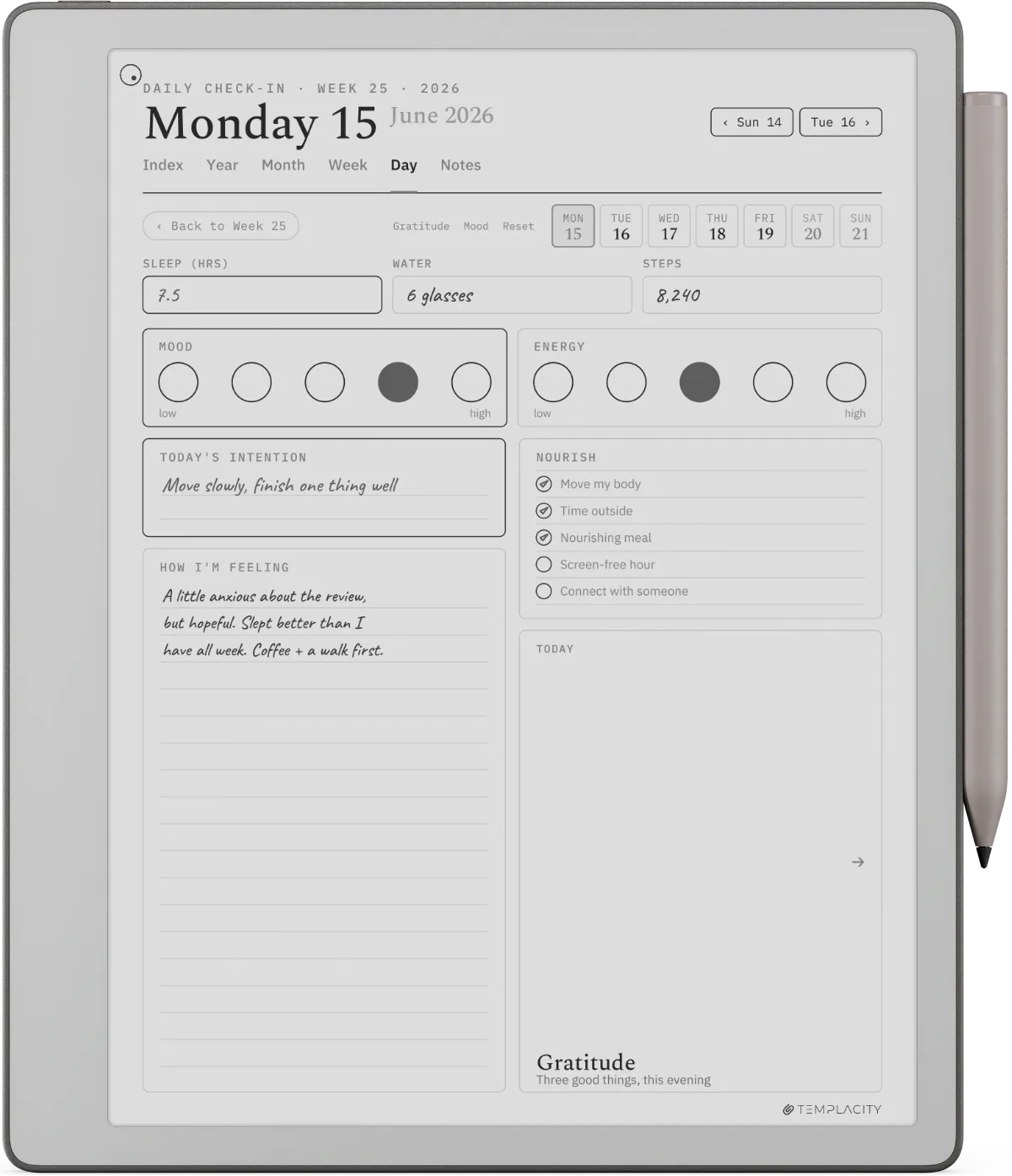
What a template is not is a book. reMarkable describes templates as single-page designs, one loose page you stamp onto a notebook, so there is no dated spine, no month structure, and no way to jump back to what you wrote in March. Most people searching for a reMarkable journal template want the second thing and are handed the first. For a bound book to write into, our Notebook System ($29) ships a lines edition alongside dots and squares, with a page-number strip along the footer so any page is two taps away, in six languages and in both Paper Pro and Paper Pro Move geometries. It is a notebook rather than a prompted journal, which is the honest description: no gratitude prompts, no mood dial, just a book that opens where you left it. If the prompts and the mood dial are what you are after, that is a different file: The Journal ($49) gives every date of the year its own page, with a mood month, a line-a-day spread and a month review, 464 hyperlinked pages in all.
Meeting and project: TabletTemplates Meeting Notes
The strongest layout in the TabletTemplates Productivity Bundle. Forces decisions and owners by giving them dedicated rows rather than letting you fill the page with bullet points that lose meaning by Friday. Pairs with a project page that cross-links so the Tuesday meeting carries through to the project tracker.
Study and research: Cornell notes (built in)
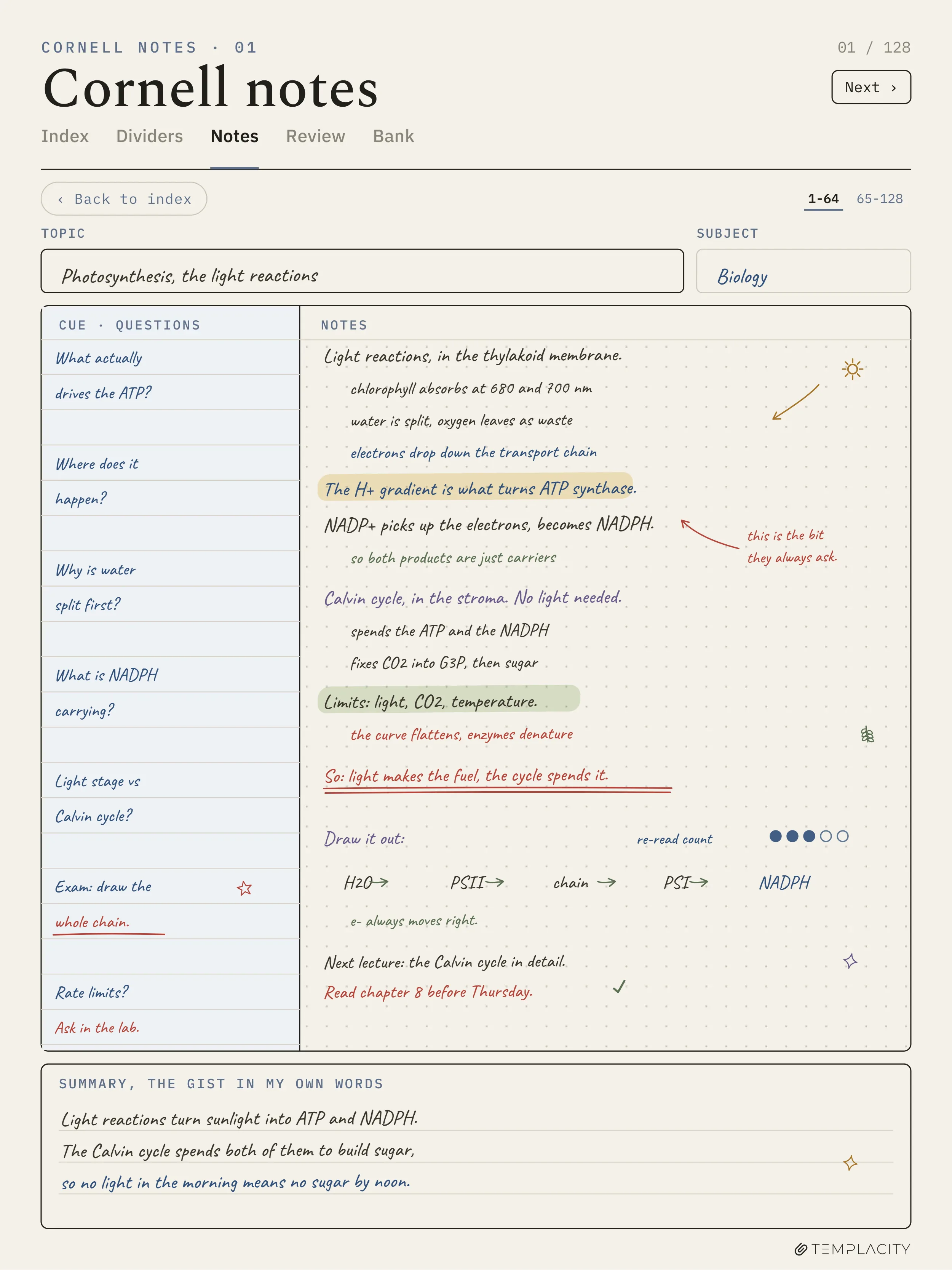
The built-in Cornell template is the free version: a left column for cues, a right column for notes and a bottom section to summarize. If you’re studying for the LSAT, working through a graduate seminar reading, or annotating a course reader, this is where to start. Our piece on the reMarkable Cornell template covers the variant trade-offs.
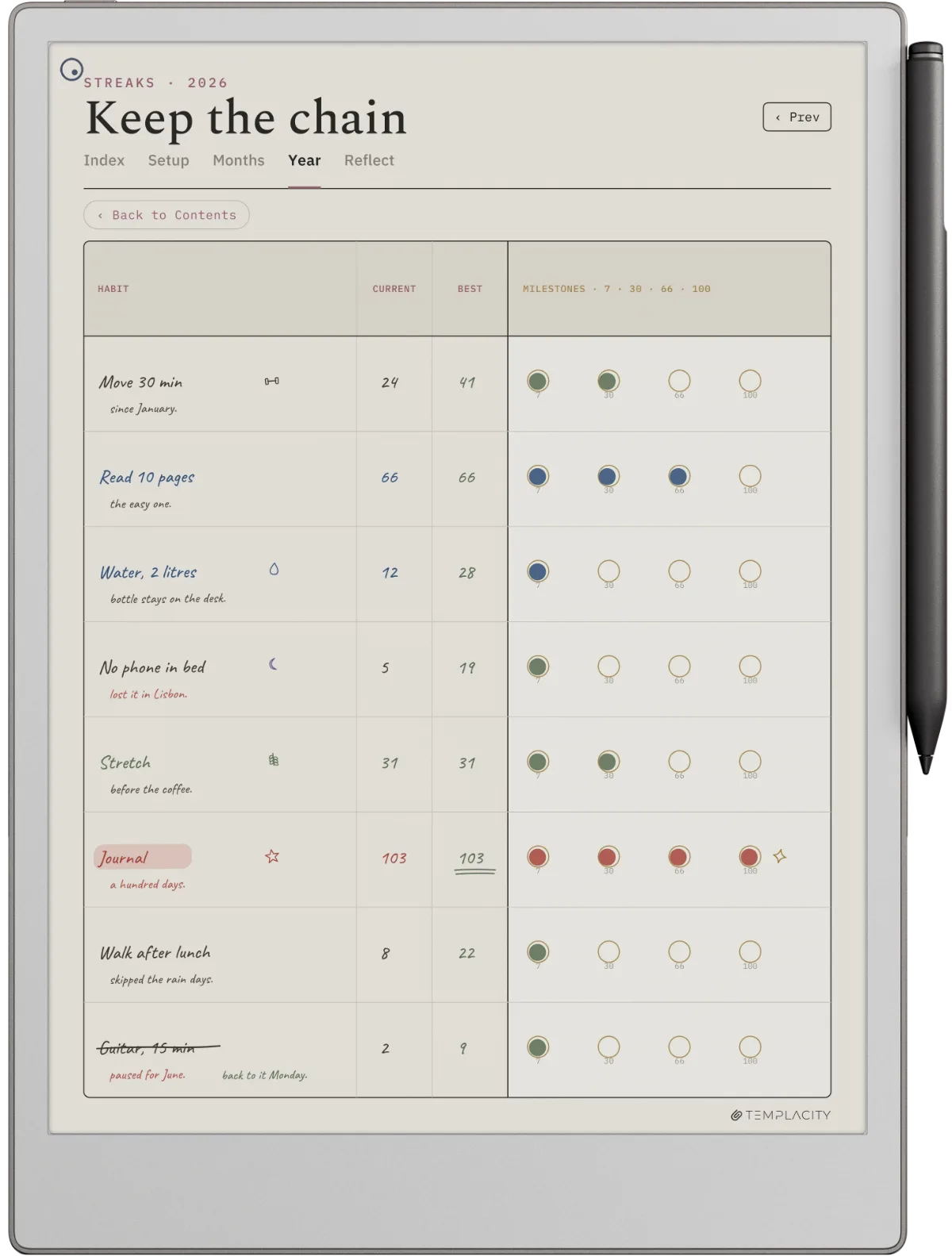
Habit / tracker: Templacity tracker pages
Single-page habit grid, separate from any planner, importable as a notebook background. The reason for keeping it separate from a planner is that habit grids embedded in daily layouts force you to keep up; a separate page lets you use it on the days it earns its place and skip the days it doesn’t. Skip-friendly is a feature, not a bug.
Notebooks: Built-in plus three customs
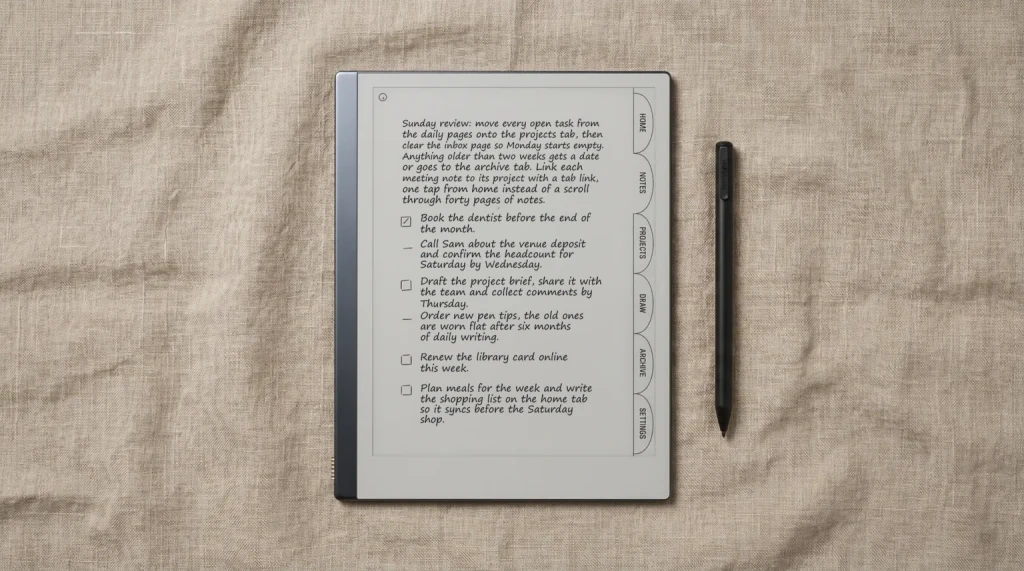
The built-in templates (lined, dot grid, blank, checklist) cover most generic capture. Add three customs: a light dot grid for sketching, a margin-heavy lined page for marginalia-style annotation, and a blank with a date header. That’s the minimum viable custom set; anything beyond it and you’re collecting templates instead of using them.
Paper Pro Move-specific: dedicated 7.3-inch templates
The Move’s smaller screen needs templates sized for it. Its 1696 x 954 panel is a narrower shape than the 4:3 rM2 and Pro, so files drawn for those do not fit its proportions. Our Paper Pro Move templates piece covers the device-specific options. Don’t try to retrofit a Pro template to a Move file via PDF resize; the spacing always breaks.
Device split
How template needs change across reMarkable 2, Paper Pro, and Paper Pro Move
Four reMarkable tablets are in play: the Paper Pure, Paper Pro and Paper Pro Move on sale new, and the reMarkable 2 sold refurbished. The same PDF doesn’t behave the same way on all of them. Picking the best reMarkable templates means picking templates that match the device you actually carry. The wrong sizing turns a well-designed layout into clipped margins or wasted edge space, and the wrong colour assumptions turn a Paper Pro template into a muddy grey wash on an rM2. Here’s how the device picks differ in practice.
reMarkable 2: the default sizing, mono-first design
The reMarkable 2 is the easiest target for template makers. Page size is 1404 by 1872 pixels at the device level, but most sellers ship A4 or letter PDFs that render correctly. Mono e-ink means hairlines, fine grids, and 20-percent tints all flatten; the best rM2 templates use bolder strokes and avoid shaded backgrounds. Hyperlinked planners work, navigation between pages is fast on the rM2, and the marker-on-glass surface forgives heavier ink than the Pro’s textured surface does. If you’re shopping templates and the seller doesn’t list rM2 explicitly, default to assuming the file is sized for it.
Paper Pro: more surface, colour to use sparingly
The Paper Pro adds an 11.8-inch screen and Canvas colour to the equation. Templates sized for rM2 import fine, since both screens are 4:3, but the Pro’s larger panel has room to spare. The better Pro-aware templates use that extra surface for a sidebar (date stamp, daily intent, one-line agenda) rather than scaling up the main area. Colour is the more delicate change. Canvas does muted colour well, but saturated tints look wrong; the templates that earn their place on Pro use colour for one or two accents (a header bar, a status dot) rather than coloured backgrounds. If a Pro template uses bright blocks of colour, that’s a flag the maker hasn’t actually tested on the device.
Paper Pro Move: the only device where sizing breaks templates
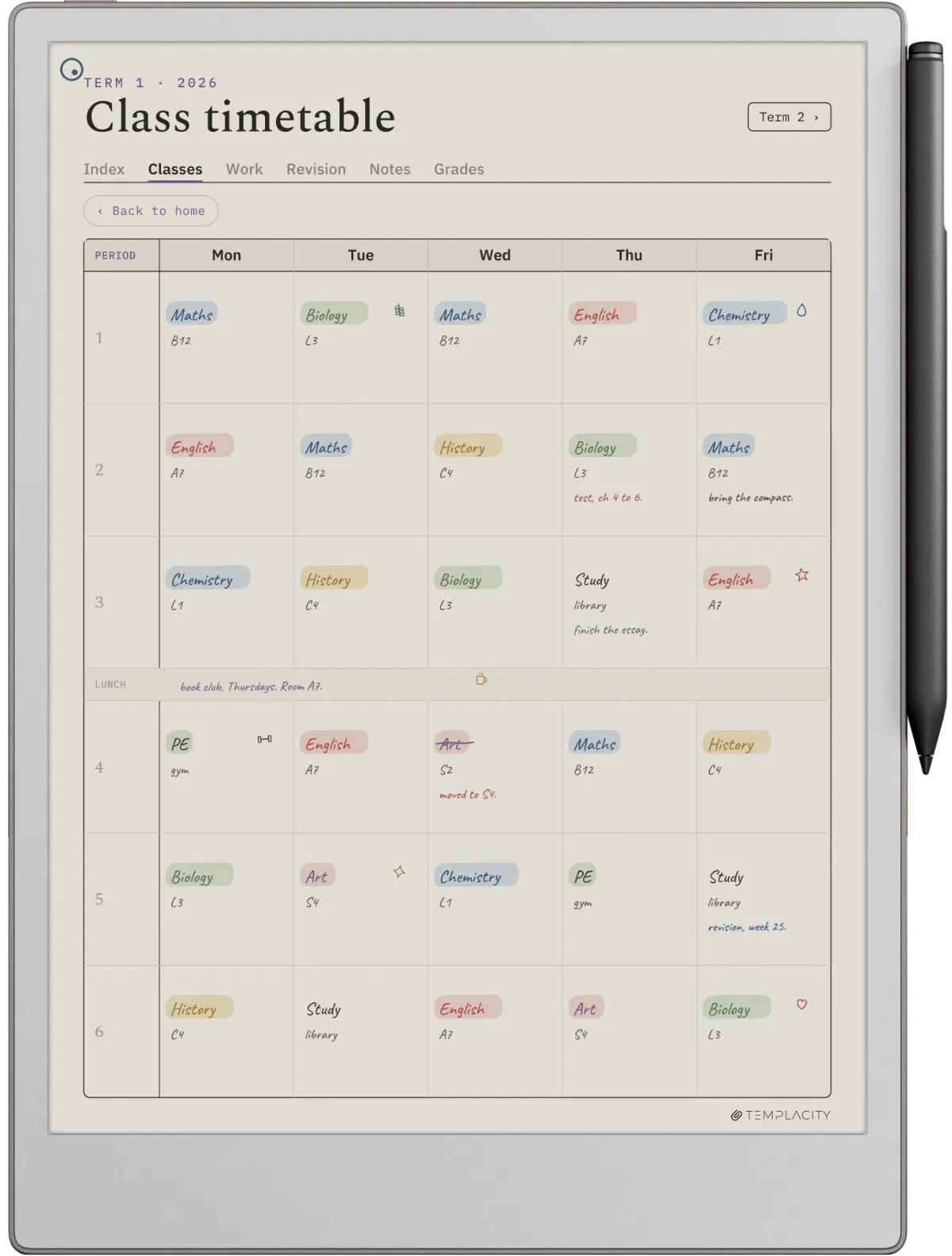
The Move’s 7.3-inch screen is where template carelessness gets exposed. Files drawn for the 4:3 rM2 or Pro do not match its much narrower shape, so the layout ends up misaligned. The Move needs files drawn for the device, not resized after the fact. PDFs scaled in Acrobat or Preview almost always break the spacing because most planner layouts depend on specific column widths for the hyperlink anchors to line up. The good news: a Move-specific file from a seller who tested it on the device fixes the problem entirely. Our Paper Pro Move templates piece lists the sellers who actually ship sized variants, and which ones to skip.
One pattern worth noticing: the templates that hold up across all three devices are the ones the seller maintains separately, not the ones a “compatible with all reMarkable devices” badge claims. The badge is marketing; separate exports are the real test. When in doubt, ask the seller which device the file was actually drawn for. The honest sellers will tell you.
If you are putting a bundle seller such as RMKLY to that test, our RMKLY review reads its own store: which devices it lists, what the bundles hold, and what the refund terms say.
Free vs paid
When free templates are enough, and when they aren’t
Free templates are enough for at least three jobs: basic notebook patterns (lined, dot, blank), Cornell-style study pages, and simple daily or weekly planning pages. The built-in template set covers all three. If your reMarkable life is mostly notebooks and study, you may never need to pay for a template.
Free templates start failing when you need three things together: hyperlink depth across hundreds of pages, multi-year coverage, and device-specific sizing. A 1,000-page hyperlinked planner with separate Pro and Move files takes work to build and maintain. The free libraries don’t carry it; the paid sellers do. The right time to pay is when you’ve used a free planner for a month and the lack of week-to-day hyperlinks has become friction.
Job first, template second. The marketplaces invert that and the regret follows.What we found
What to avoid
Four template traps worth dodging
Looks like a feature
- “Mega bundle” with 50+ templates.
- “AI-powered” templates.
- Year-tagged slugs (templates-2025, planner-2024).
- Templates with no Move-specific variant.
Why it isn’t
- Most of the 50 are noise; pick categories instead.
- PDFs don’t run code; the marketing word is just decoration.
- Year tags rot; pay for templates that update under one slug.
- You’ll spend hours fighting misaligned layouts if you have a Move.
Mega bundles are the loudest trap. A 50-template bundle for $30 sounds like a deal until you realise that 35 of the templates are themed variations of the same five layouts (lined-pink, lined-blue, lined-green) and you’ll only ever use one variant. Pay for category coverage, not template count.
How to import
Importing templates without breaking your existing flow
PDF templates land on a reMarkable through the desktop or mobile app, the web app, or the USB web interface. None of them needs Connect, though without it the cloud keeps only files used in the last 50 days. Our pieces on the template installer and making your own templates cover the mechanics.
If you want a template to behave like a notebook background, reMarkable says you cannot do it: custom templates are not supported, and an imported PDF “will not appear in the Templates menu”. It stays a separate document, so duplicate it before writing on it. Third-party tools can push files into that menu, but reMarkable does not support them.
The verdict
Which combination of templates we’d actually buy
If we were starting today on a reMarkable 2 or Paper Pro: Templacity bundle for the planner-meeting-project-tracker spine, the built-in Cornell page for any reading-heavy work, and the built-in lined and dot grid for generic notebooks. That’s six layouts in all, three from one paid source and the rest free. Anything more is collecting; anything less is constraining.
On a Paper Pro or Move with more than a handful of live projects, our Project Portfolio System adds a quarter timeline for up to 12 projects, each with a canvas and a board.
If we were on a Paper Pro Move, the same shape applies but with Move-specific files. The Move’s smaller screen punishes overpacked layouts more than the bigger devices, so pick templates that respect the surface area. The Move templates piece goes into the device-specific picks.
One last thing on stack composition. A working set is small: a planner, a meeting page, a Cornell-style reading template, a habit tracker, and a generic notebook. Our filled Cornell examples show what that reading template looks like in use, for a lecture and for a chapter. Buy or download one or two and give them a full month before adding more, rather than the reverse. The best reMarkable templates are the ones that survive that first month; the rest are decoration.
The reMarkable template field will keep moving in 2026 as the Paper Pure ships and the marketplaces realise their existing files don’t all work on the new mono entry-level device. We’ll update this guide as that happens. If you’ve found a template that earns its place and isn’t on this list, tell us in the comments. We want to hear which templates have actually survived your week, not which ones the screenshots promised. And if the question underneath this one is how the device itself works rather than which pages to put on it, the reMarkable guide is the place to start.
FAQ
Common questions, answered briefly
What are the best free templates for reMarkable 2?
How do you add templates to a reMarkable?
Do reMarkable templates work on Paper Pro Move?
Can you make your own reMarkable templates?
Are paid reMarkable templates worth it over free?
Where do the best reMarkable templates live in 2026?
If you would rather skip the browsing, the free template chooser on our tools page narrows the catalog to a fit in a few clicks.
If yours isn’t above, drop the question in the comments and we’ll add it.
People also ask