For the broader buyer’s guide on running a remarkable planner across the lineup (which device fits, native templates vs PDF imports vs paid apps, free vs paid tradeoffs, and the Kindle Scribe comparison), see the pillar.
Frame
What reMarkable Paper Pro Move templates need to be
The reMarkable Paper Pro Move shipped late in 2025 with a 7.3-inch screen and a working area of 954 pixels across by 1696 down, at 264 ppi. It is a portrait device, like every other reMarkable, but a far narrower one. reMarkable’s own spec page prints the resolution long-side-first as “1696 x 954”, which reads like a widescreen panel and is where the persistent idea of a landscape Move comes from. The body settles it: 195.6 mm tall by 107.8 mm wide. The long number is the height.
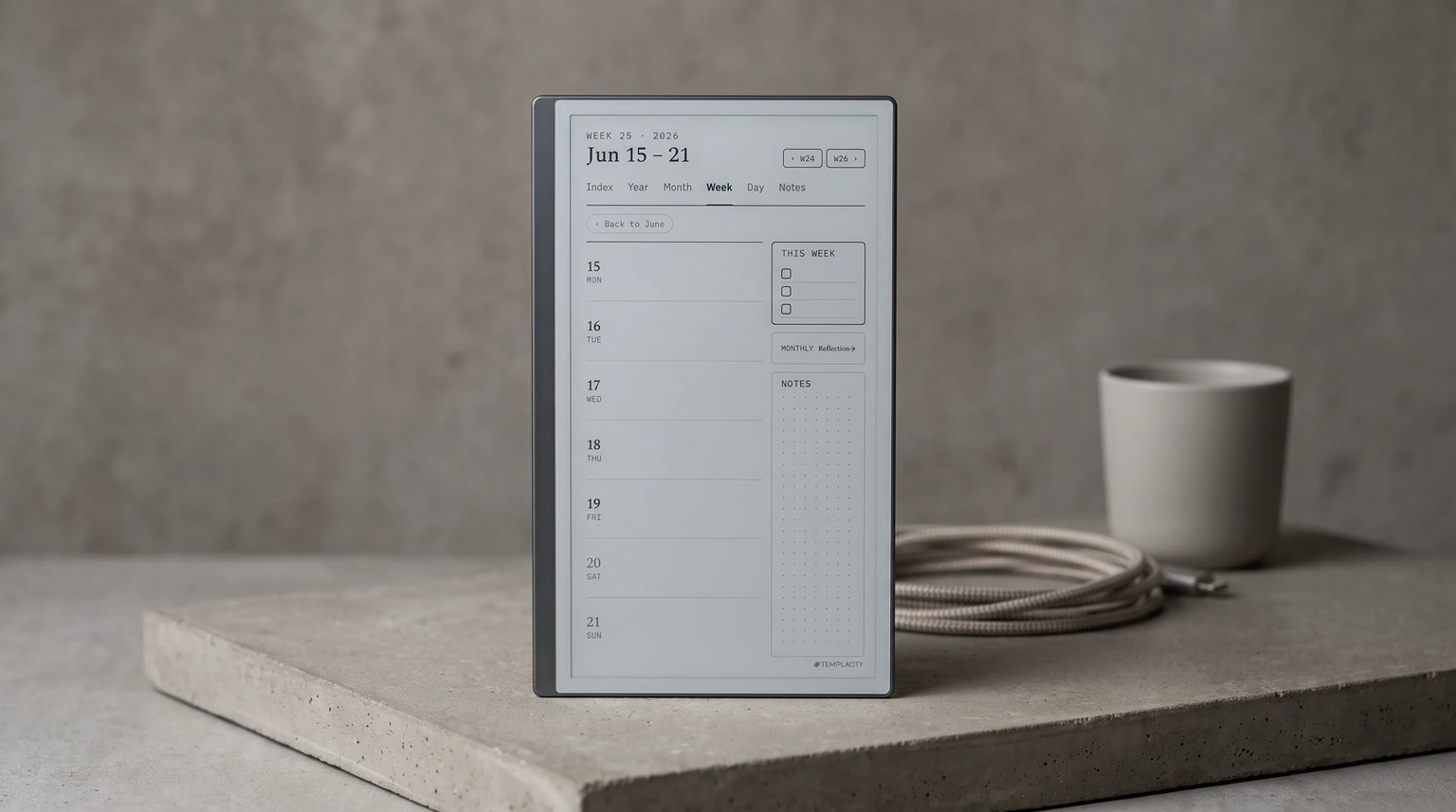
What actually matters for templates is the ratio, not the label. The Move’s page is 9:16, roughly 0.56 wide for every 1 tall. Every other reMarkable is 3:4, or 0.75. Templates designed for the 11.8-inch Paper Pro will scale to fit the Move, but they cannot keep both dimensions: fit them to the Move’s width and about a quarter of the page height goes empty, fit them to the height and the margins run off the sides. Planner pages that breathe at full size end up as a squeezed column.
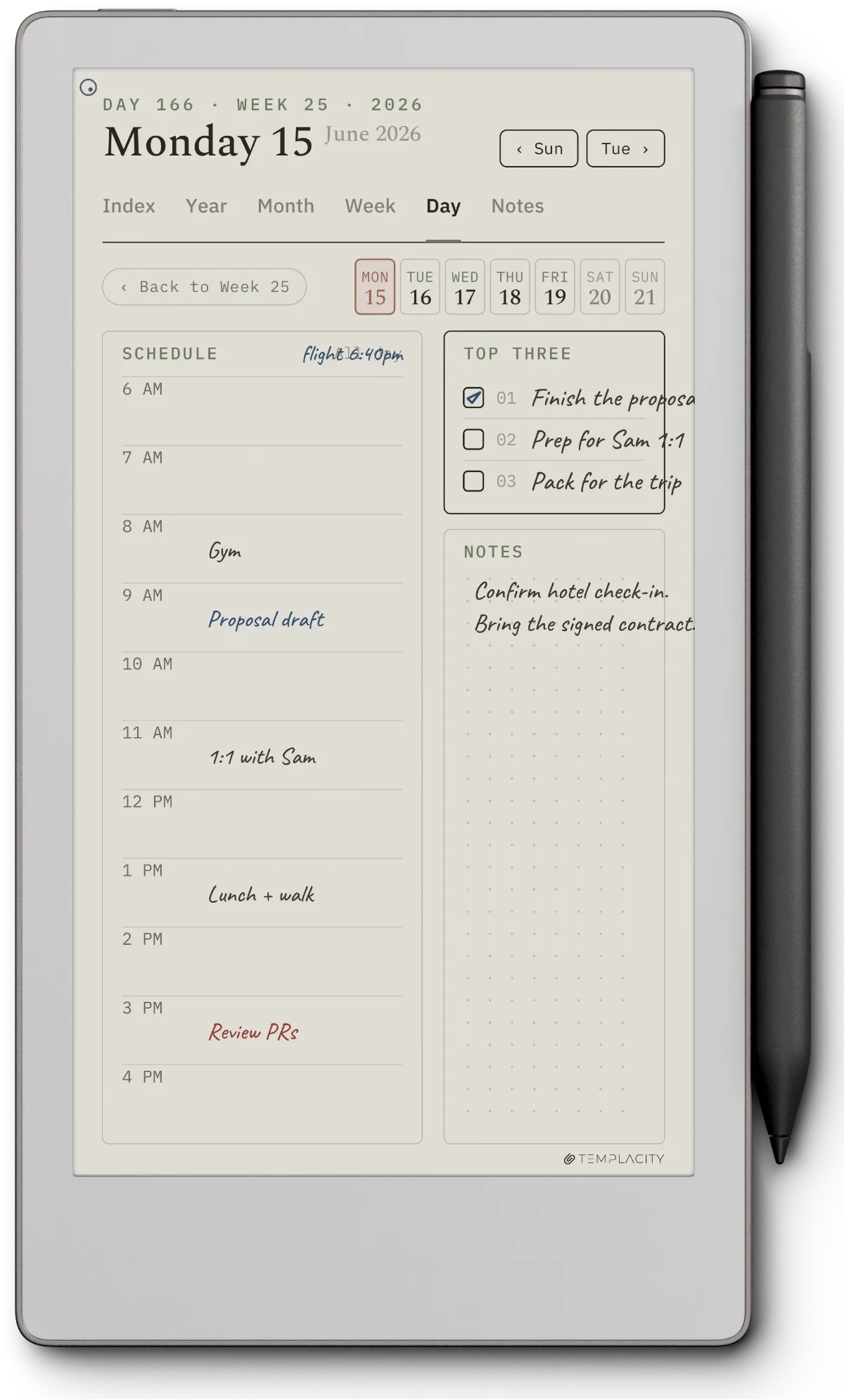
Move-native templates are drawn at 954 x 1696 with that narrow column in mind. Layouts stack rather than spread: taller-than-wide content blocks, fewer columns, more vertical rhythm. A monthly grid that sits comfortably seven columns wide on a Paper Pro has to give up cell width on the Move, so Move-native monthlies either shrink the date cells and lean on hyperlinks, or drop to a stacked list of weeks. A weekly planner that’s a single-page seven-day spread on a Paper Pro becomes either a two-page spread or a single page with the seven days running down it instead of across. Both shapes work; the trade is what fits.
| Device | Screen | Template size | Page shape |
|---|---|---|---|
| Paper Pro Move | 7.3″ | 954 x 1696 | Portrait 9:16 (narrow) |
| Paper Pro | 11.8″ | 1620 x 2160 | Portrait 3:4 |
| reMarkable 2 | 10.3″ | 1404 x 1872 | Portrait 3:4 |
All three are portrait; the Move is simply the narrow one, which is why a template built for either of the other two never sits quite right. When a listing does not state the size, the proportions of the preview are the giveaway: a Move-native page is visibly taller and thinner than a sheet of paper, closer to a phone screen than to A4. If the preview looks like an ordinary 3:4 page, it was drawn for the bigger devices and will letterbox on the Move.
Category map
The three categories at a glance
| Category | Best for | Free options? |
|---|---|---|
| Hyperlinked planners | Daily-driver planning, multi-month navigation, calendar work | Rare; mostly paid sets at $20-40 |
| Single-page trackers | Weekly reviews, habits, expenses, gratitude, project status | Plenty free on Reddit and GitHub |
| Notebook layouts | Generic writing, sketching, lined/dotted/grid capture | Built-in templates cover most needs |
Each category has its own free-versus-paid math. Hyperlinked planners are the only category where paid almost always wins; the year-long linking is genuinely harder than it looks. Trackers and notebooks are well-covered by free options for most use cases.
Category 1
Hyperlinked planners (the workhorse category)
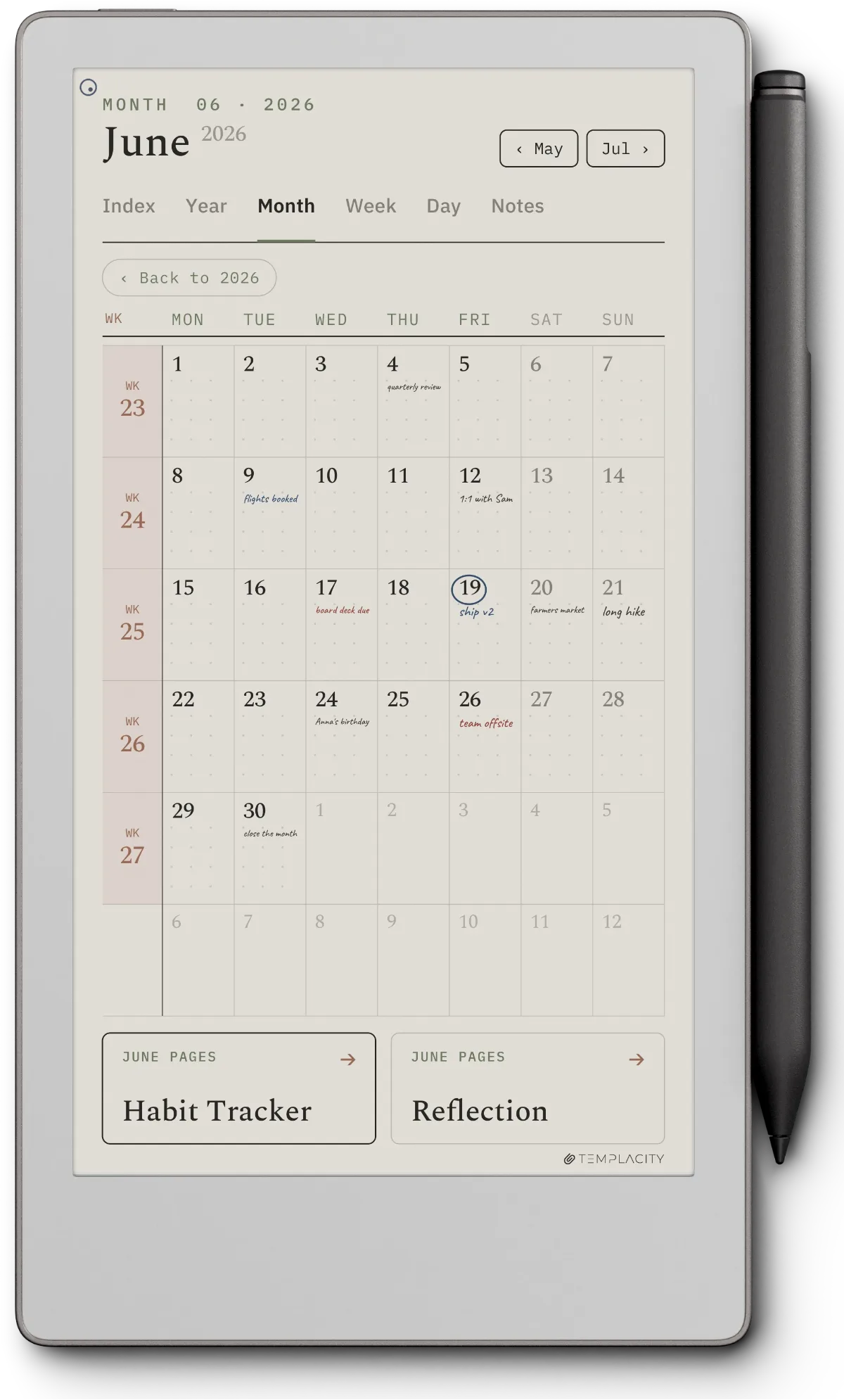
The most-used reMarkable Paper Pro Move templates are hyperlinked planners. Year, month, week, and day pages all linked together so navigating the time hierarchy is two taps from anywhere in the planner. The Move’s smaller screen makes the links matter more than they do on the Paper Pro: scrolling through a flat library to find last Tuesday’s notes is more friction at 7.3 inches than at 11.8. If you want the day page to hold your notes as well as your plan, our reMarkable Paper Pro Move Daybook Planner gives each day one flexible page with hyperlinked navigation between days, dated for 2026 and 2027.
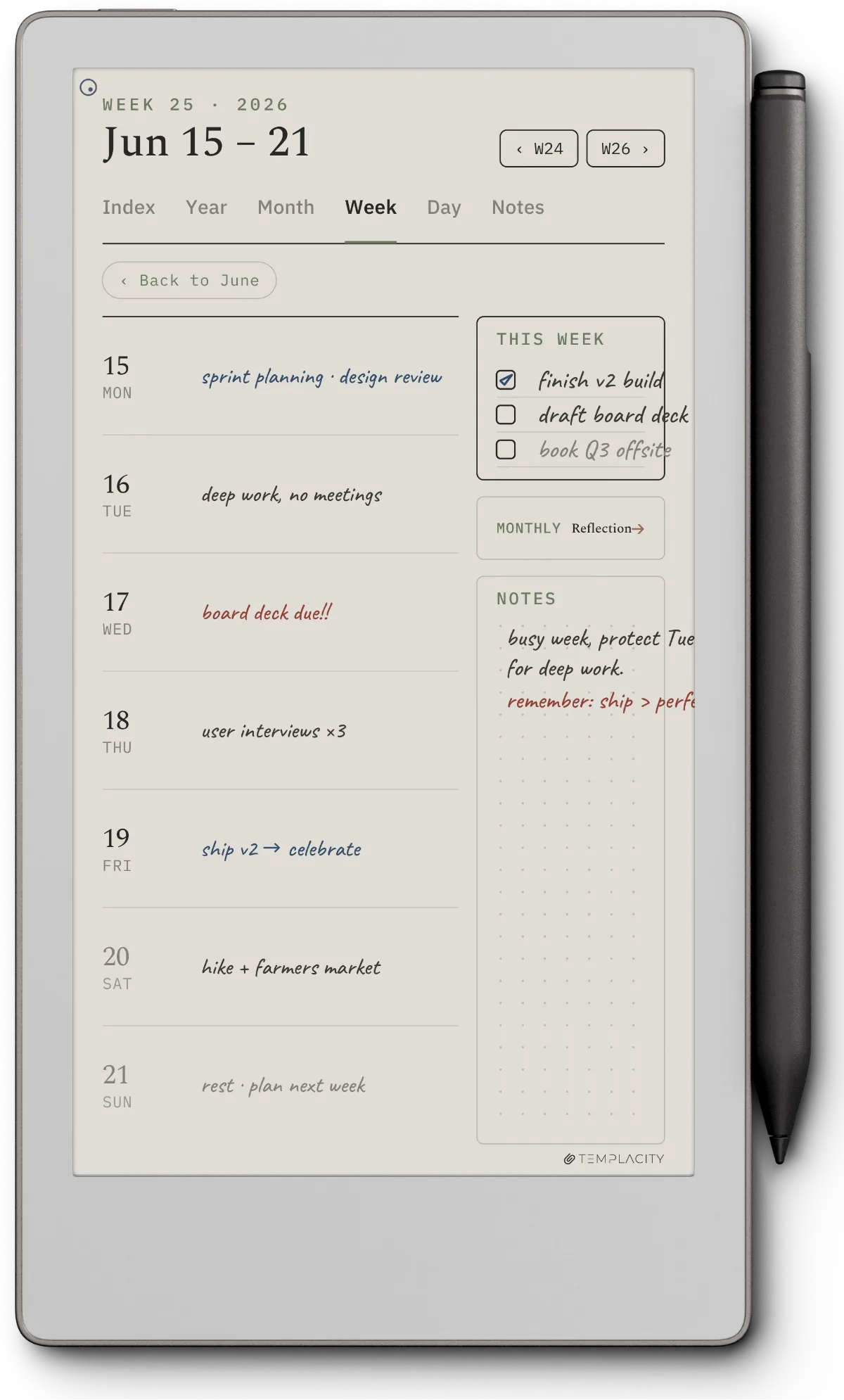
What to look for in a Move-native planner: explicit Move sizing in the description (954 x 1696 or “7.3-inch” or “Paper Pro Move”), tested hyperlinks (some PDFs preserve links in desktop preview but lose them on the device), and minimal grid lines. Heavy lines wash out under handwriting and look worse over time. Most paid Move planners cost $20-40 for a full year; free options exist as single-page printables but rarely as full hyperlinked systems.
Category 2
Single-page trackers and reviews
The Move’s tall narrow page actually suits single-page trackers, as long as the layout runs down rather than across. A weekly review fits naturally as seven stacked day blocks with a summary band at the foot; a habit tracker works as days down the left edge and three to five habits as columns, which is the transpose of how the same tracker is usually drawn on a wider screen. Trackers that try to cram more than 5-6 columns onto a Move page get visually noisy quickly; the constraint forces the template to respect the screen.
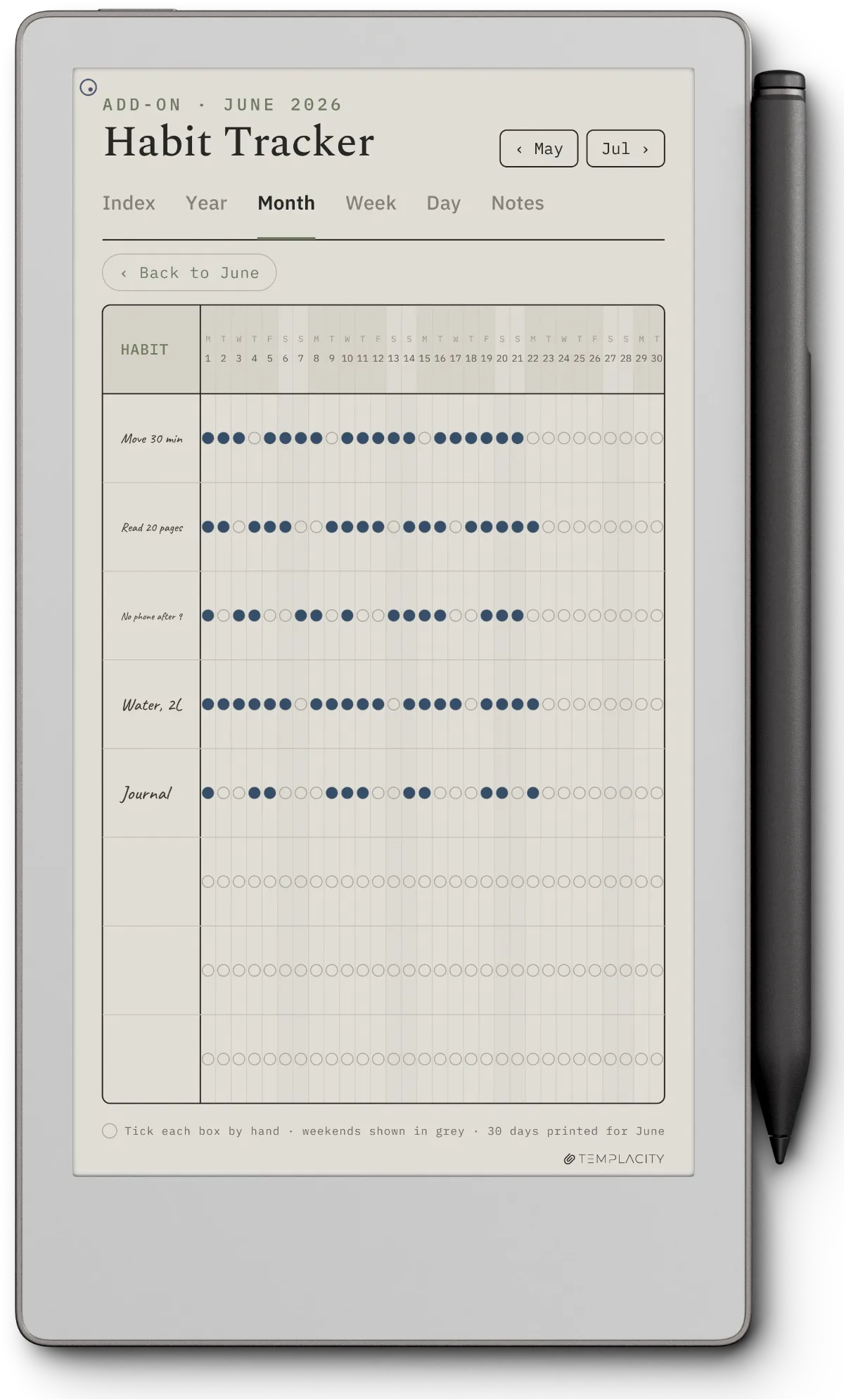
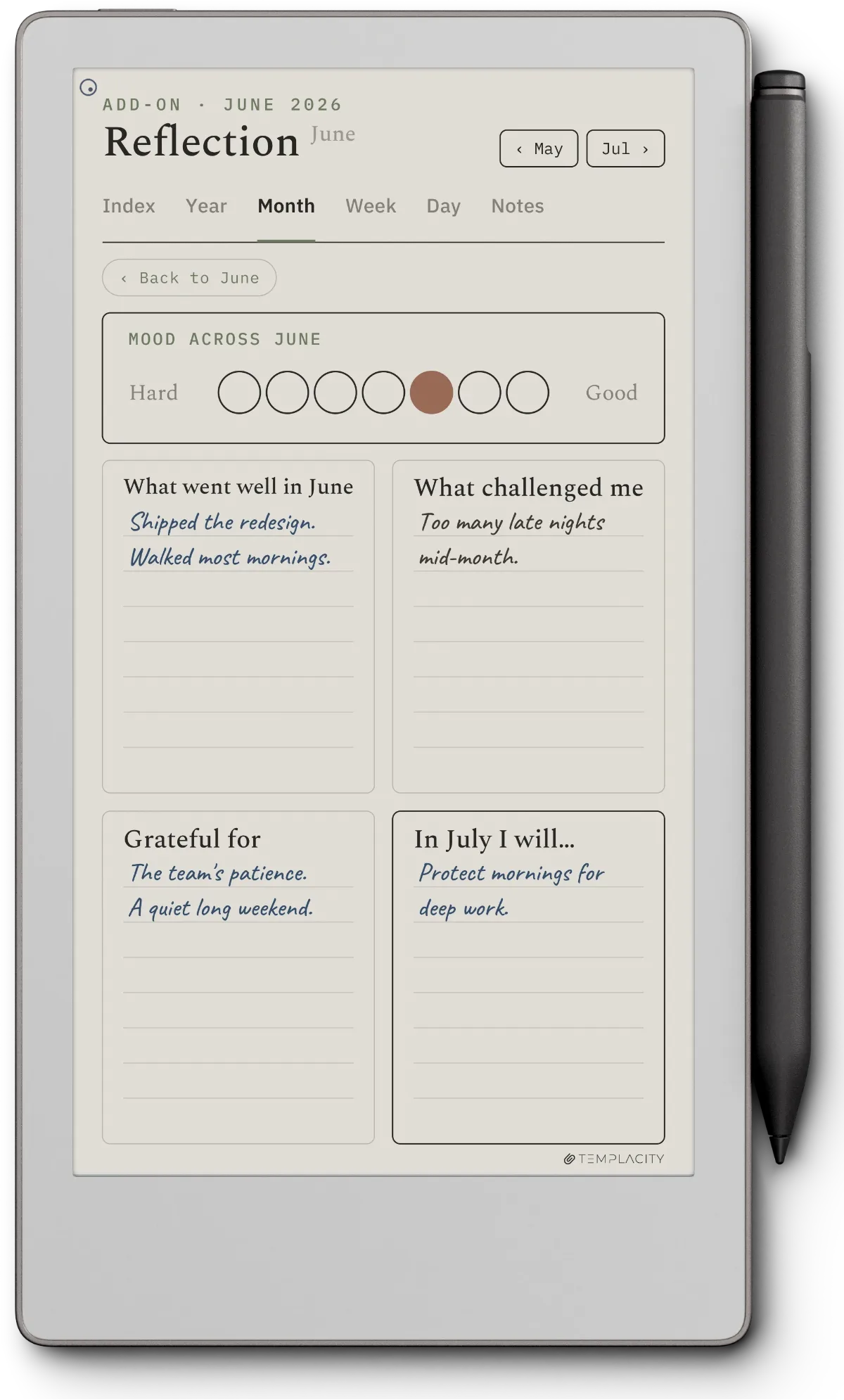
Useful single-page templates for the Move: weekly review, monthly review, habit tracker (3-5 habits max), expense tracker, gratitude journal, daily reflection, project status one-pager, meeting notes with action-item sidebar. Each fits one Move page comfortably; multi-page versions exist but rarely earn the second page.
Category 3
Notebook layouts: lined, dotted, grid, blank
The third category is notebook layouts: lined pages for writing, dotted pages for bullet journaling, grid pages for sketching, and blank-with-margin pages for general notes. The Move’s built-in Templates menu (the native one inside the Notebook tab) ships with most of these. PDF versions add multi-page repetition (so you have a 100-page lined notebook rather than a single repeating template) and consistent margins across the whole document. If you would rather not assemble them yourself, our reMarkable Paper Pro Move Notes set has dots, grid and lines at spacings drawn for the Move’s 7.3-inch page, undated.
For Cornell notes specifically (the academic note-taking format with key-points sidebar and summary footer), Move-native templates are scarce because Cornell spends width the Move does not have. On a 954-pixel page the cue column takes roughly 285 pixels and the summary band another 200 down the bottom, which leaves a note area narrower than most handwriting is comfortable in. It fits, but it is tight. The cleanest workaround is a two-page spread: notes on the first page, key points and summary on the second.
Best by job
The best reMarkable Paper Pro Move templates by job
The short version, if you want to skip the comparison and just start with the right Move-native template for what you are actually trying to do:
- Daily planning
- A hyperlinked monthly-weekly-daily set; the one category where paid clearly earns it
- Habit + review
- A single Move-width page, days down the edge and three to five habits as columns; free options are fine here
- Writing + sketching
- Built-in lined, dotted, or grid, or a multi-page PDF notebook for consistent margins
- Study notes
- A two-page Cornell spread, since a cue column plus a summary band leaves too little width on one Move page
Free vs paid
Where to find free reMarkable Paper Pro Move templates
- Reddit r/RemarkableTablet. Community-curated free templates, mostly single-page printables. The Move-specific sizing isn’t always called out; check the dimensions before downloading.
- GitHub. Open-source template repositories include some Move-sized PDFs. Quality varies wildly; a working template usually has multi-page hyperlinks and consistent typography.
- Free-template aggregator sites. Sites like OnPlanners and PrintablePlanner host reMarkable-friendly PDFs. Most still default to Paper Pro or reMarkable 2 sizing; filter for “7.3-inch” or “Paper Pro Move” specifically.
- Templacity blog freebies. We ship a free single-page Move planner as a starter on most of our Move-related posts. It’s not a full hyperlinked system, but it’s a working baseline at the right page size.
For the broader Move ecosystem (alternative devices, accessory recommendations, the import workflow), our Paper Pro Move alternatives piece covers the device-side question, the Move template import guide covers installing PDFs, and the Paper Pro Move review covers the device itself. For broader productivity templates across the reMarkable lineup, our best reMarkable templates for productivity piece is the parent. The reMarkable templates hub indexes the rest.
FAQ
Common questions, answered briefly
What page size are reMarkable Paper Pro Move templates?
Can you use Paper Pro templates on the Paper Pro Move?
Are there free reMarkable Paper Pro Move templates?
How do you install templates on the reMarkable Paper Pro Move?
What’s the best Paper Pro Move planner template?
If you’ve found a Move-native template that’s earned a permanent place in your daily setup, drop the source in the comments. The Move’s narrow 9:16 page is unusual enough that the template ecosystem is still building out, and we’d rather have a current page than a tidy one.