The app
Is Goodnotes available on Windows? Yes, as a free app
You write in Goodnotes on an iPad, and the computer you sit at all day runs Windows. Goodnotes for Windows exists, it is free to install from the Microsoft Store, and Goodnotes Limited publishes it there itself. What it does not do is behave like the iPad app, and the gaps fall where iPad owners look first: the library they already have, and the planner they already bought.
The Store lists it for PCs on Windows 10 version 17763.0 or later, on x86, x64 and Arm64 processors, with in-app purchases. Goodnotes’ own system requirements ask for at least 4 GB of RAM and Microsoft Edge 91 or later, and the Store’s recommended spec is 8 GB of RAM with pen and touch support. You sign in with a Microsoft, Apple or Google account, and that account is what carries your plan from device to device.
The Windows app is tied to Microsoft Edge more closely than most apps. Goodnotes’ help says it follows the Edge theme for light and dark mode, its fixes for an app that will not launch include turning on cookies and JavaScript in Edge, and if the Store download fails you can open web.goodnotes.com in Edge and choose Apps, then Install this site as an app. Our Goodnotes dark mode guide has the Edge steps.
A touchscreen is not required. Goodnotes says a mouse or trackpad works on Windows for writing, highlighting and editing, but without pressure sensitivity, and for handwriting that responds to pressure it points you to an active stylus. On a laptop with no pen, the app still marks up PDFs, organizes notebooks and takes typed notes in its Text Documents.
Against the iPad
Goodnotes on Windows vs iPad: what the Windows app leaves out
Goodnotes says it plainly on its Windows page: the Android, Windows and web version “does not offer the full range of features in Goodnotes 6 on iPad”. Its help center fills in what that means. Here are the two side by side, for the jobs a planner or a note-taker actually does.
| Windows | iPad | |
|---|---|---|
| One-time app licence | No, subscriptions only | Special Edition |
| Opening a planner link | Read Only Mode, or press and hold | One tap |
| Files you can import | PDF, JPG, PNG, .goodnotes | Those, plus Word, PowerPoint, CSV |
| Export | Goodnotes file, PDF, image | |
| Flashcards and Study Sets | No | Yes |
| Full library backup | No, export PDFs instead | Yes |
| Photo from the camera | No | Yes |
The Windows app is not thin, though. Goodnotes’ feature list for Android, Windows and the web marks search, multiple tabs, the Trash Bin, page reordering, offline use and hyperlinks in planners as available. One row we left out on purpose is converting handwriting to typed text. That feature list says yes, while Goodnotes’ how-to for converting handwriting says the option is not available on Windows. Try it on the free plan before you count on it.
Sync
What syncs between Goodnotes for Windows and your iPad
Notebooks you make on Windows live in Goodnotes Cloud, and Goodnotes’ FAQ says they follow your account to Goodnotes on Android and the web. The iPad is the hard part. An iPad library reaches Windows only through Goodnotes Cloud, and Goodnotes’ sync guide, updated in October 2026, says Goodnotes Cloud comes with Goodnotes Pro and not with Goodnotes Essential or the one-time Special Edition.
On Pro you switch it on from the iPad: open the Goodnotes menu, then Cloud & Backup, and select Get started. Goodnotes’ plan guide says cross-platform library sync is rolling out gradually, and if the invitation does not appear, the sync guide says to turn off iCloud sync on the iPad or let it finish syncing first. Pro has a 7-day free trial, so check that screen on your iPad before the trial ends rather than paying on the strength of the feature list.
If you also read Goodnotes’ Windows page, you will find an older answer. Its FAQ still says “Not yet but it’s coming soon!” to syncing iPad documents to the Windows app, and the same FAQ still names plans Goodnotes renamed or retired in September 2025. We read both on 17 November 2026; the help center is the one that matches the current plans.
Without Pro, the bridge on a paid plan is a share link. On the iPad, open the notebook, tap Share and turn on the shareable link, then open that link on the PC and the notebook appears under Shared in Goodnotes for Windows. Goodnotes warns that anyone with the link can open and edit it, so keep it to notebooks you would not mind others seeing.
One purchase does not carry over at all. If you bought Goodnotes once on an iPad (the Special Edition), Goodnotes’ help says Windows opens the free version. Essential and Pro are subscriptions that cover Apple devices, Android, Windows and the web on one account.
The Windows app works offline, within limits. Goodnotes’ offline FAQ says it downloads for offline use mainly the notebooks you opened or changed in the last 30 days, exporting needs a connection, and signing out (or 30 days without using the app) removes the copies on the PC. Open a planner while online and let it load fully before you travel, or some pages can show greyed out until you reconnect. There is no full library backup on Windows either, so Goodnotes’ advice is to export important notebooks: Share, then Export as PDF, flattened or editable.
Plans
Goodnotes for Windows price: free, Essential or Pro
The app costs nothing, and neither does Goodnotes Free, which Goodnotes calls free forever rather than a trial. Its limits are the ones a planner user meets on day one: three files across notebooks, whiteboards and text documents, imports up to 5 MB each, and a watermark on exports. Goodnotes’ pricing page lists the paid plans in US dollars, and here is what each one changes on a Windows PC.
On a Windows PC
Goodnotes for Windows, plan by plan
The app is the same download. The plan decides how much of it you can use.
Included Limited, see the note Not included
US prices, billed yearly; Goodnotes says prices vary by region. Paid plans import PDFs up to 1 GB on Windows. The one-time Special Edition is sold on Apple devices only and unlocks nothing on Windows.
Verified 17 November 2026 against Goodnotes pricing and its plan guide How planner links work
Essential and Pro each come with a 7-day free trial, and the Microsoft Store and the web are among the places Goodnotes sells them. Cancel where you subscribed: Goodnotes says the cancel option may not show if you open the app from a different store. The old Android & Windows Yearly plan has not been sold since September 23, 2025, and the AI Pass add-on (+$9.99 a month) only goes on top of a paid plan. For someone who plans in a PDF on Windows alone, Essential is the plan that matters; Pro earns its price only if the same notebooks must open on your iPad too.
Planners
Which digital planners work in Goodnotes for Windows
Any hyperlinked PDF planner, including the ones sold for the iPad. Goodnotes for Windows imports PDF, JPG, PNG and .goodnotes files, and Goodnotes lists hyperlinks in planners as working there. The difference from the iPad is how you tap them, which Goodnotes’ page on PDF links spells out.
Install and sign in.
Get Goodnotes from the Microsoft Store and sign in with a Microsoft, Apple or Google account. Use the same sign-in provider and email as on your iPad, so a subscription you already pay for applies.
Import the planner PDF.
In Documents, select New, then Import, and pick the planner from your PC. On the free plan the file has to be 5 MB or smaller.
Move around in Read Only Mode.
Select the Read Only Mode icon in the nav bar. The bar turns white, the writing toolbar hides, and a tab or date opens with one selection. In Edit Mode, press and hold a link and choose Open Link instead.
Switch back to write.
Select the mode icon again. The nav bar turns blue, the toolbar returns, and the pen writes on the page you landed on.
Two things are worth checking before you buy a planner for Windows. File size decides whether the free plan is enough. Orientation decides how much of a laptop screen the page fills: a landscape page uses the width a laptop has, while a portrait page sits in the middle with space either side. Our guide to Goodnotes digital planners covers the other checks, from link depth to week start.
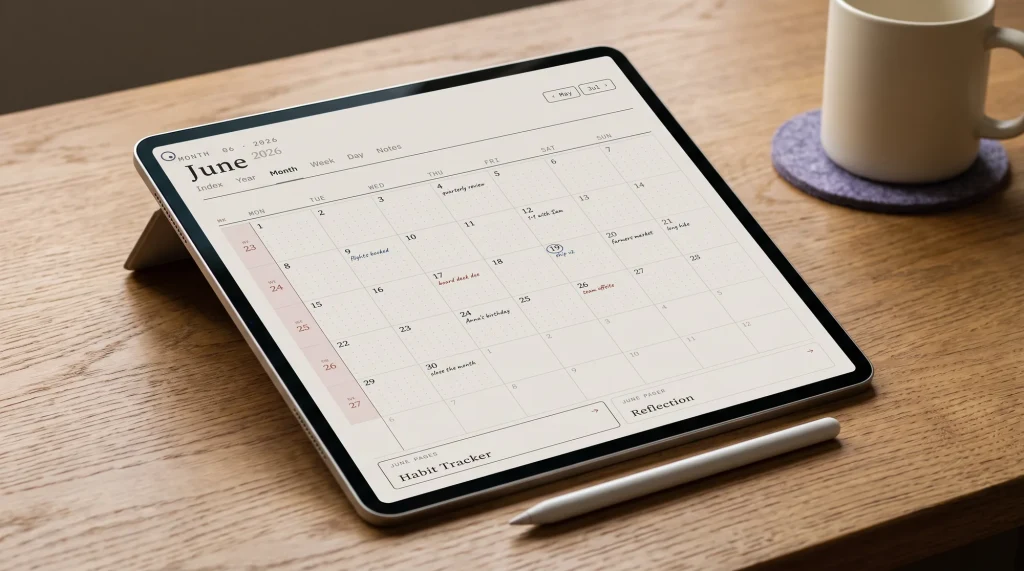
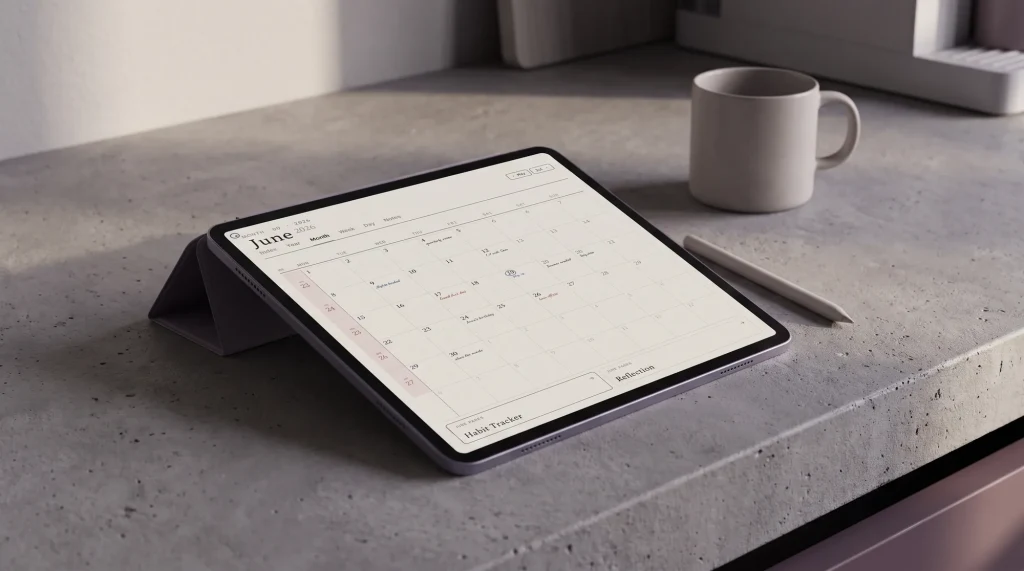
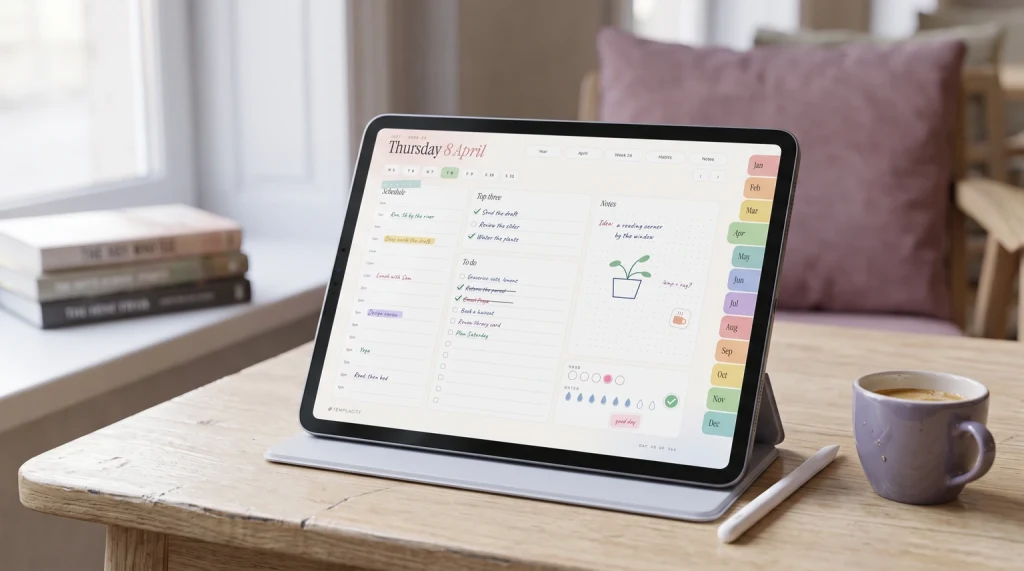
We make Goodnotes planners, so read this as a maker talking about its own files. We have not run them on a Windows PC ourselves; what follows is what the files are, set against what Goodnotes documents for Windows. The Planner for Goodnotes ($49) is built for the iPad, and its colour iPad Planner 2027 is one linked PDF of 487 landscape pages at about 4.2 MB, under the free plan’s 5 MB limit.
Our Goodnotes Digital Planner Set ($29) is separate PDFs for daily, daybook and weekly planning plus notes pages, so on Windows it suits Essential, where the three-file limit is gone. The Goodnotes Sticker Pack ($7) is transparent PNGs, an image type Goodnotes on Windows imports; unzip the download first, then place them with the Image tool.
Pages you add yourself have no links pointing at them, because a planner’s tabs only know the pages it shipped with. Add extra pages at the end of the file rather than between dated ones, and they stay in one place you can always reach. Our hyperlinked digital planner explainer goes through how those links are built.
Other routes
When Goodnotes on Windows is the wrong fit
If what you use most is on the iPad side of the table (flashcards, a one-time licence, export as a Goodnotes file), the honest answer is the iPad, and our best note-taking app for iPad roundup and Goodnotes vs Notability comparison weigh the apps there. If your notes are mostly typed and live in Microsoft 365, OneNote is Microsoft’s own note app for Windows, and our OneNote for Windows 11 guide sorts out which version to use. Everything else we have for Goodnotes sits on our Goodnotes hub.
Are you running Goodnotes on a Surface, a 2-in-1 or a plain laptop with a mouse? Tell us in the comments what works for you and what does not; we check each report against Goodnotes’ own pages and update this guide when the Windows app changes.
FAQ
Common questions, answered briefly
Is Goodnotes free on Windows?
Does Goodnotes for Windows sync with my iPad?
Can I use my iPad Goodnotes purchase on Windows?
Can I use Goodnotes on a Windows laptop without a touchscreen?
Do digital planners work in Goodnotes for Windows?
Something on Windows behaving differently from what we describe? Ask in the comments and we will check it against Goodnotes’ own pages.
People also ask