What it actually is
What an iPad digital planner is, and what it is not
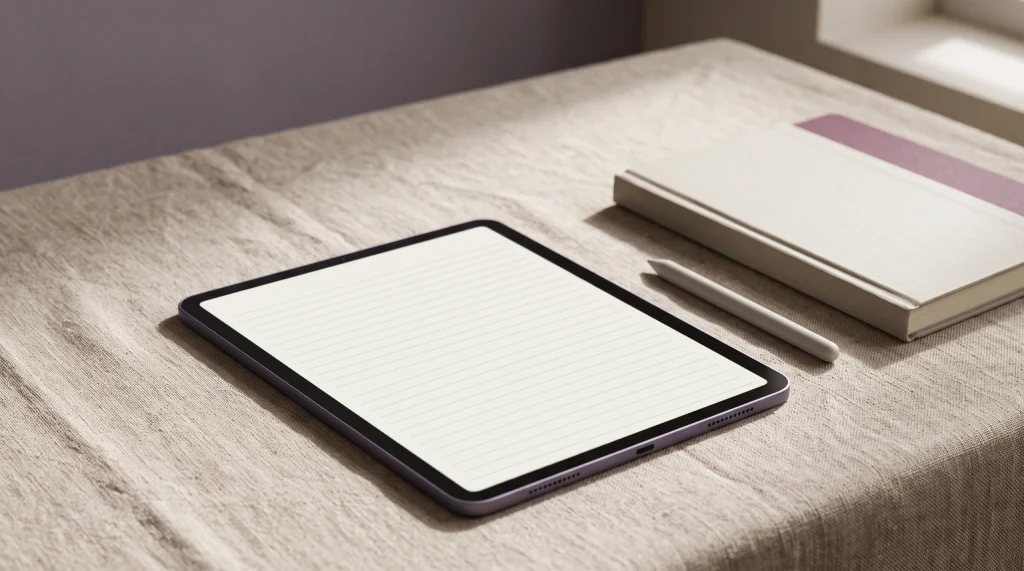
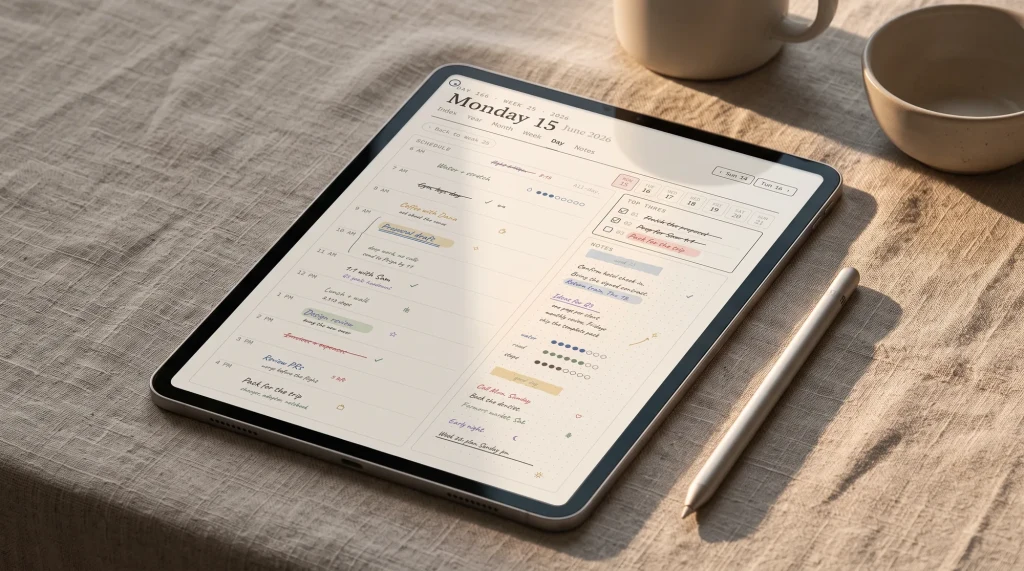
You searched for a planner for your iPad and found a thousand of them, each with a nicer cover than the last, and almost none of them telling you what you would actually be buying. So here is the plain version. An iPad digital planner is a PDF file, built with internal links, that you open in a note-taking app and write on by hand. Tap a month on the index and the file jumps to that month. Tap a day and you land on that day’s page. Everything else, the colours, the tabs, the sticker corners, sits on top of that one idea.
That makes it different from a planning app. A planning app keeps your data in its own account, sends reminders, and syncs to a calendar. A digital planner does none of that. It is a document, and once you have it, it is yours: no monthly fee to open your own pages, no login that can lock you out, no feature that disappears in an update. The trade is that the planner only does what its pages and links were built to do. For a lot of people that is the point. It feels like a paper planner that never runs out of pages, without the alerts that make a phone feel busy.
It also means the iPad digital planner you choose is really two choices. The first is the app that opens the file, which decides how the links behave and what you can do for free. The second is the file itself, which decides the layouts, the dates and how far the links go. Most guides skip straight to the second. We think the first one does more to decide whether you are still using the planner in March, so that is where we start.
The app first
The app decides more than the planner does
Two apps carry most iPad planning: Goodnotes and Notability. Both open a PDF planner, both let you write on it with a stylus, and both have a free way in. Where they differ is the part a planner depends on, which is what happens when you tap a link.
Goodnotes is the clearer of the two here. Its own help center has a page on opening hyperlinks in imported PDFs, and it uses a digital planner as its example: the index linking to monthly, weekly and daily pages. On iPad you select the linked element and it opens. Goodnotes also notes that the link has to exist in the PDF already, which is a polite way of saying a planner with no real links will not grow them in the app. If tapping a link draws a stroke instead, Goodnotes’ Read Only Mode lets you tap links without writing on the page.
Notability works differently. Ginger Labs documents how to import an external planner, and it documents PDF outlines: when a PDF carries a table of contents, Notability lists its headings in the Content Manager and you tap one to jump there. What its help center does not document is tapping a hyperlink printed on an imported planner page. We have not found a Ginger Labs page that promises it, so we do not promise it either. In practice that means a Notability planner lives or dies on its outline, and you should check that a planner ships one before you buy it for Notability.
Price is the other half of the app decision, and both apps let you try a planner before paying for anything. Goodnotes’ free plan allows up to 3 files with a 5 MB import size; its paid plans are Essential at $11.99 a year and Pro at $35.99 a year, with unlimited files. Notability’s free Starter plan gives you 5 notes and lets you add PDFs; its paid tiers come as a yearly plan or a one-time purchase, with Lite at $11.99 a year or $14.99 once and Plus at $15.99 a year or $19.99 once. If you already pay for one of them, that settles it. If you pay for neither, the planner is the cheaper decision to get wrong. Our longer Goodnotes vs Notability comparison covers the rest of the two apps, from audio to handwriting search.
The options
iPad digital planner options compared
Once the app is settled, there are four honest kinds of file to put in it. A free planner PDF, given away by a maker or shared in a community. A marketplace template from Etsy or a planner site, bought once. A boutique creator’s planner, where the art and the sticker sets are the product. Or a structured planner like ours, which sells linking and layouts rather than decoration. The table puts them side by side on what decides the choice.
| Option | Cost | Links | Best for |
|---|---|---|---|
| Free planner PDF | Free | Often year and month only | Trying the format |
| Marketplace template | One-off | Varies by seller | Structure without building it |
| Boutique creator | One-off, higher | Usually full | Decorating as part of planning |
| Templacity iPad planners | $29 or $49, one-off | Every page | Clean navigation, no clutter |
Read the table by why you plan, not by which row looks fullest. The free row looks thin because it usually covers one layout, but a single well linked weekly page is all a light planner needs, and it is the cheapest way to learn whether you will use an iPad digital planner at all. The marketplace row is the widest range and the widest spread of quality: some files link every day, some link the index and leave the rest decorative, and the preview images rarely tell you which. The boutique row wins when the stickers and themed spreads are the part you enjoy. Our row is built for the reader who wants to tap and land, every time, and to leave the decorating to themselves.
If you want something today and do not want to pay yet, a free file in Goodnotes’ free plan is a genuine start, not a trial in disguise. Spend a fortnight with it. You will find out whether you write daily or weekly, whether you skip the monthly page, and whether you open the planner on the train or only at your desk. That is the knowledge that makes a paid planner worth buying, and you cannot get it from a feature list.
Before you buy
What to check in any iPad planner before you buy
Five checks separate an iPad digital planner you keep using from one you abandon by February, and none of them is the cover.
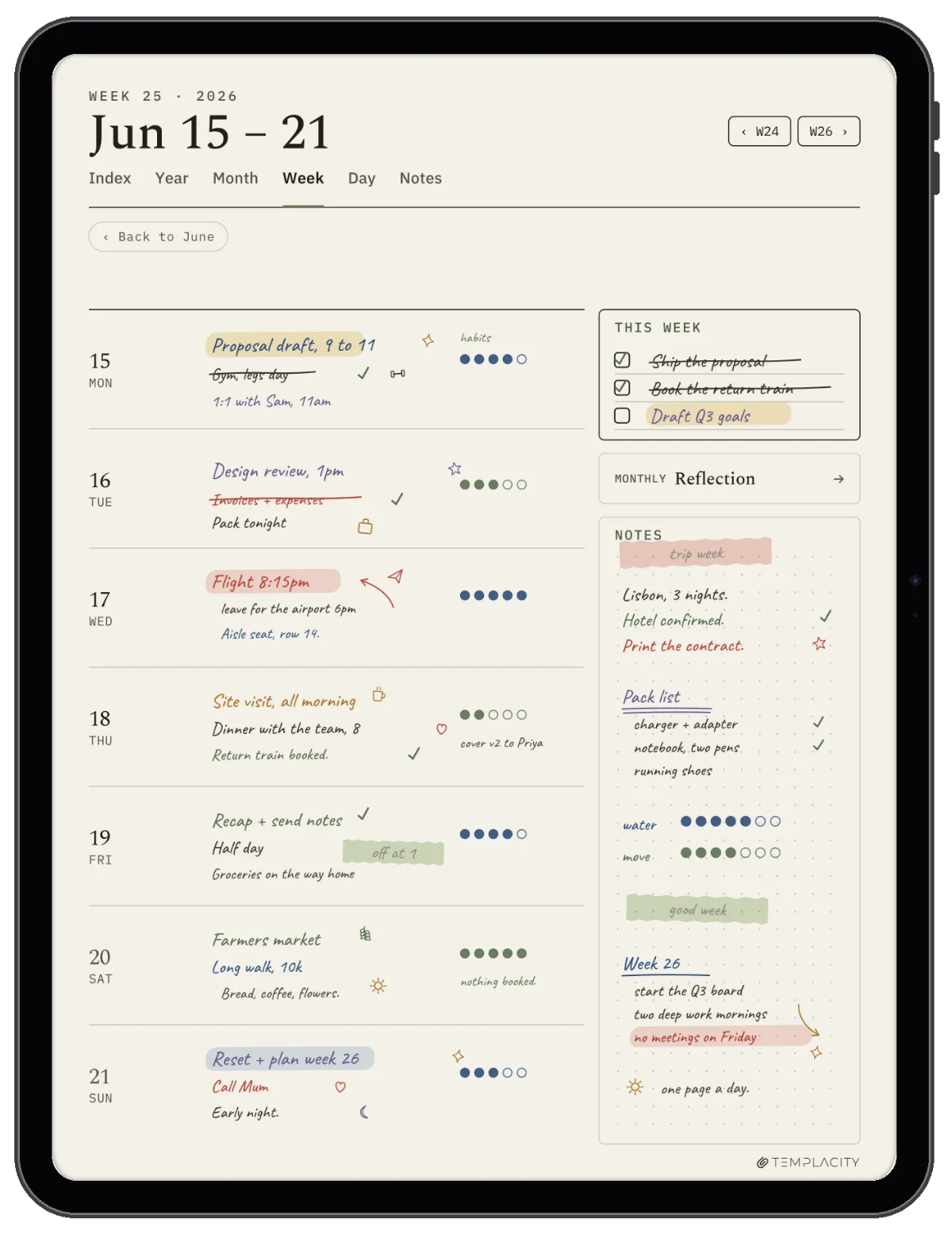
Links that go all the way down. The year should link to months, months to weeks, weeks to days, and a tab or home link should bring you back from anywhere. A planner that links the index but not the day pages makes you scroll, and scrolling is the friction the format was supposed to remove. Look for a free sample or a video of someone tapping through it, and if you can, tap through it yourself.
An outline, if you use Notability. Because Notability documents navigation through PDF outlines, a planner for Notability should say it carries one. A file with no outline still opens and still takes your handwriting, but you will be scrolling a few hundred pages to find next Thursday.
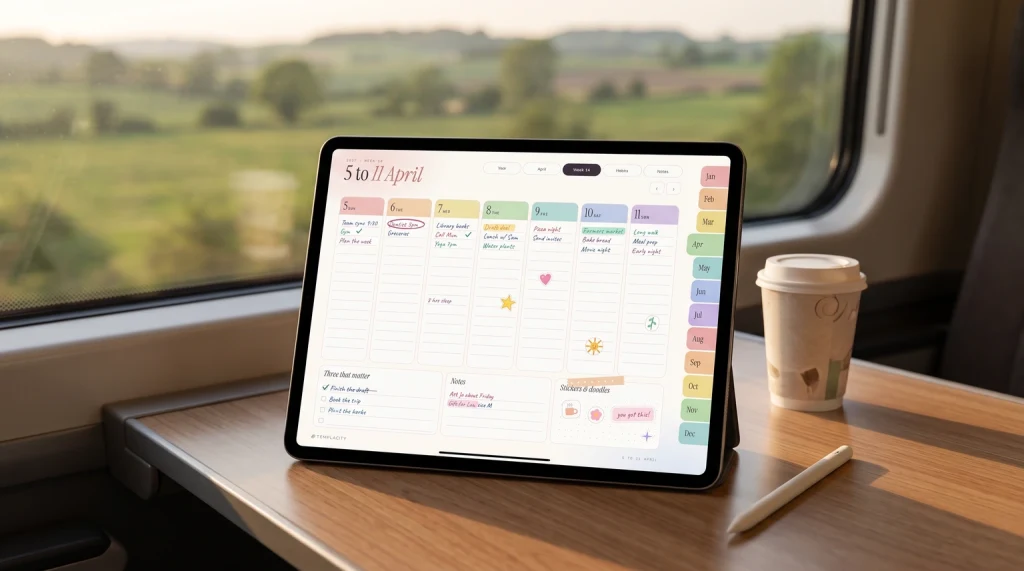
Landscape or portrait, and sized for the screen. Planners are drawn for one orientation. Landscape gives a week room to breathe on a full-size iPad; portrait reads more like a paper diary. Either way the page should fill the screen without pinching and the tabs should be big enough to hit with a stylus tip.
File size against the free plan. If you mean to stay on Goodnotes’ free plan, the 5 MB import limit matters more than it sounds. A planner with heavy art can pass it easily. Check the file size before you buy, or split the year into smaller files if the maker offers them.
Dated or undated. A dated planner is tidy and seasonal but expires at the end of its year. An undated one starts whenever you like and repeats, at the cost of writing the dates in yourself. Our Goodnotes calendar template guide goes through that trade in detail, and our Goodnotes planner template guide covers which weekly, daily and monthly layouts to pick, so you do not pay for fifty layouts and use three.
None of these checks needs a spec sheet. Each takes a minute with a sample file or a product page that is honest about what it ships. A maker who will not tell you the orientation, the page count or whether the days link is telling you something by leaving it out.
Setting it up
How to set up an iPad digital planner
In Goodnotes
Setting a planner up in Goodnotes takes about a minute, and the order matters more than the steps.
- Save the planner PDF to Files on your iPad, or to a cloud drive Goodnotes can see.
- In Goodnotes, tap + New in the Documents tab of the library, then Import, pick the file and tap Open. The whole PDF comes in as one notebook.
- Tap a tab or a date on the index to test the links. If a tap draws a line instead of jumping, switch on Read Only Mode from the bar at the top and tap again.
- Add any extra pages at the very end of the notebook, where they are easy to find again.
- Bookmark the page you open most, usually this week, so the planner opens where you left it.
Those import steps are the ones in Goodnotes’ own import guide. The one we add is step four. A planner’s tabs only point at the pages it shipped with, so a page you add has no link to it, and one tucked between March’s pages is easy to lose. Added at the end, every extra page sits in one place you can always reach. If you want stickers on top, how they import matters more than how many there are, and our Goodnotes stickers guide explains why transparent PNGs beat a sticker sheet.
In Notability
In Notability the planner comes in as a note, and you move around it with the outline.
- Tap + New in the library, or tap and hold it and choose Import, then pick the planner PDF. You can also share the file into Notability from another app.
- Open the Content Manager and choose Outlines from the menu at the top. If the PDF carries an outline, its months and weeks are listed there.
- Tap a heading to jump to it, and use the arrow beside a section to show or hide what sits under it.
- Keep the whole planner as its own note. Make a custom template only from a single page you reuse, such as a blank day sheet.
Step four is the trap most new Notability planners fall into. It is tempting to turn the whole planner into a template, but a template is for one page you repeat, and the planner works best as a note you keep writing in. Our guide to importing a planner into Notability goes through it with the screens, and our Notability planner templates roundup covers which layouts are worth the import.
The planner is the file; the app is the notebook it lives in.Tl;dr
Our planners
Our iPad planners, and an honest bias note
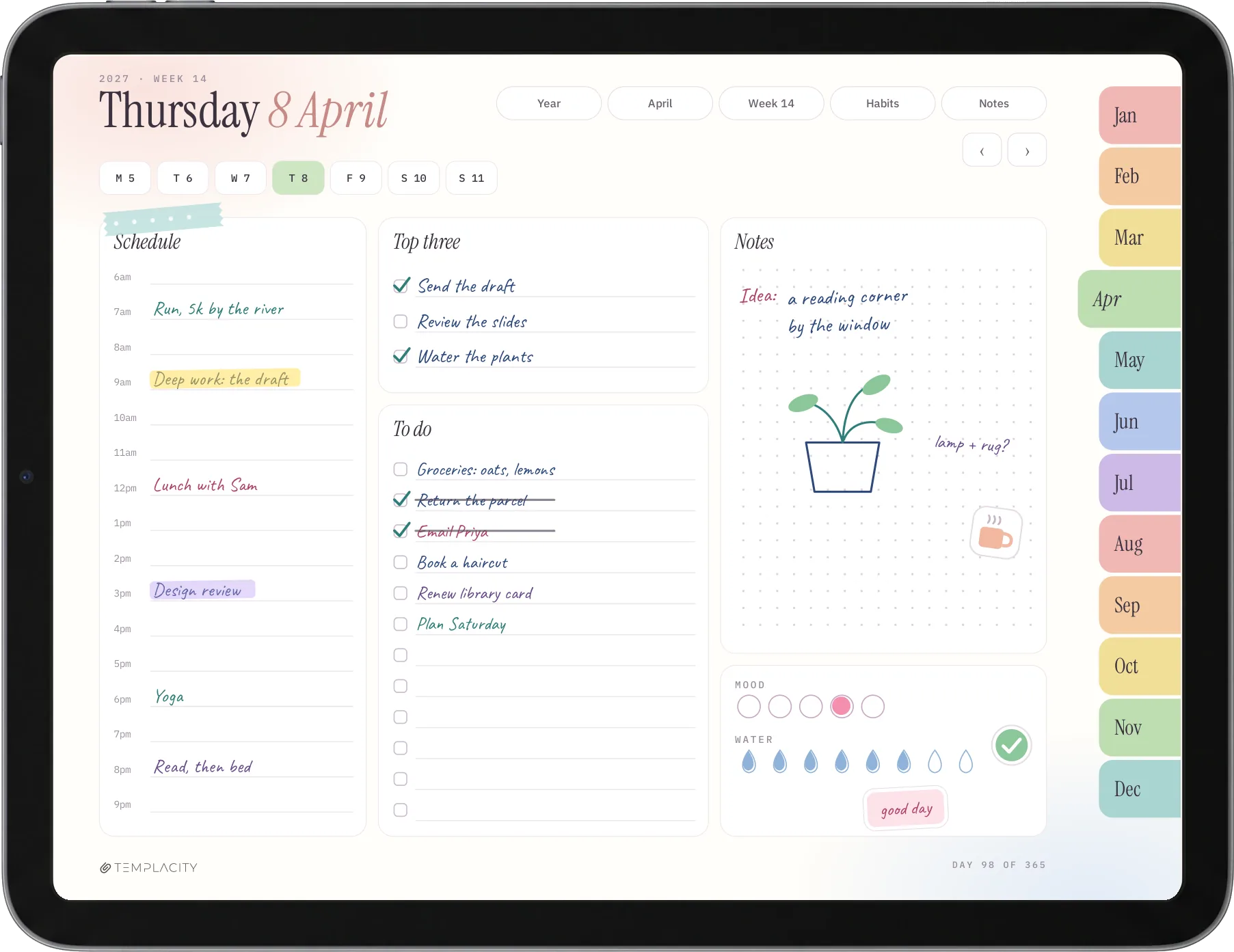
We make and sell these, so read this section as a maker describing their own files, not a neutral review. There are three, and they are built for different readers.
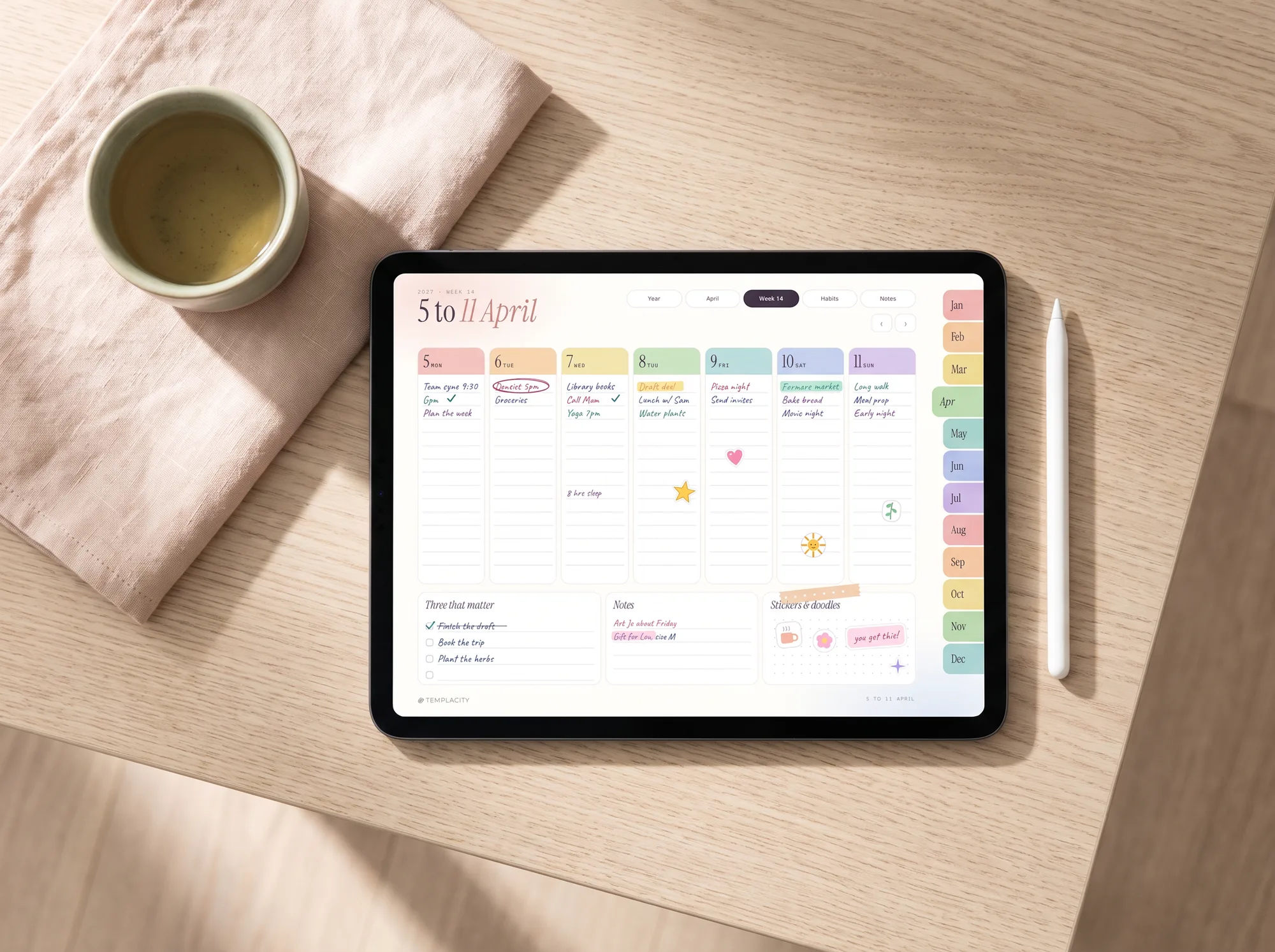
The Planner for Goodnotes ($49) is the one we would put on most iPads. It comes as two editions in one purchase. The iPad Planner 2027 is drawn in colour for the iPad in landscape: 487 pages with a month tab on every page, the year, goals, twelve months, 53 weeks, 365 day pages with a schedule, a top three, a to do list, notes, mood and water, a monthly habit tracker and reflection, and notes pages, in Monday-start and Sunday-start versions. Beside it sits the original planner, the quieter monochrome layout, dated 2026 and 2027. Each iPad file is about 4.2 MB, under Goodnotes’ 5 MB free import limit, so you can run it on the free plan before deciding whether Goodnotes itself is worth paying for.
The Goodnotes Digital Planner Set ($29) is the lighter way in: our shared planner set, the everyday layouts as separate linked files, for the reader who wants structure and not a full year system. Notability Templates ($29) is the same set of files for Notability readers, and we would rather say that plainly than dress it up as something different. Its dated books carry a real PDF outline, which is how you move through them in Notability’s Content Manager; the undated notebooks carry none, because there are no dates to jump to.
What none of them is: a sticker kit. The pages stay lined and open so a busy week still reads at a glance. If decorating is what you love about planning, a boutique creator will make you happier than we will. Everything we make for the iPad sits together on our iPad planners page, and the Goodnotes-specific buyer’s guide is our Goodnotes digital planner pillar.
Is the iPad right
Is an iPad the right place to plan?
It is worth asking once, because the answer changes what you buy. An iPad is a bright, colourful screen that also runs your email, your messages and everything else that wants your attention. For a lot of planners that is fine, even a strength: the planner sits one swipe from the calendar and the shopping list, colour makes a busy week readable, and there is no second device to buy or carry.
For others, the reason to plan by hand is to get away from exactly that screen. If that is you, an e-ink writing tablet does one job and does not ping. Our reMarkable vs iPad comparison weighs the two honestly, and we make planners for both, so we have no reason to push you either way. Most readers who already own an iPad should start there, with a free file, and only look at a second device if the iPad keeps pulling them out of the planner.
The verdict
Decision shortcut
Three branches. If you are new to the format, put a free planner into Goodnotes’ free plan and use it for two weeks before you spend anything. If you already live in Notability, buy a planner whose PDF carries an outline and navigate it from the Content Manager. If you want every tab to land with one tap from a one-off file, a structured iPad digital planner in Goodnotes is the setup we would choose, and the one ours is built for.
The planner is the small part; the habit of opening it is the hard bit. If a layout, an app setting or a small trick has kept you planning on your iPad past February, tell us in the comments. Notes from people who plan every day help the next reader more than any table we can draw.
FAQ
Common questions, answered briefly
What app do I need for an iPad digital planner?
Is there a free iPad planner?
Do digital planner links work in Notability?
Should an iPad planner be landscape or portrait?
Can I add pages to an iPad digital planner?
Do I need to pay for Goodnotes to use a planner?
If yours isn’t above, drop the question in the comments and we’ll add it.
People also ask