The job
What work asks of an e-ink tablet
If you are switching from a paper notebook at work, the question is not which tablet writes best. They all write well. The question is what happens to the page after the meeting: whether the notes reach the team, whether you can find them in three months, and whether the 60-page PDF your client sent can be read and marked up without zooming every paragraph. Most “best e-ink tablet” lists rank on reading and drawing. For work, three jobs decide it.
Meetings reward a tablet that is easy to carry, quiet to write on and quick to share from. Documents reward screen size, because a full page of a PDF at readable size needs room. Apps matter only if your work lives in software that has to run on the tablet itself; for most people a laptop handles that, and the tablet is better for having no notifications. We judged every pick below on those three jobs, with prices read on each maker’s own store on 2 November 2026. For the wider field, including reading-first devices, our best e-ink tablet of 2026 roundup covers eight.
At a glance
The best e ink tablet for work, by job
| Screen | Price, 2 Nov 2026 | Best for | |
|---|---|---|---|
| reMarkable Paper Pro | 11.8″ colour | $629 | Most work |
| reMarkable Paper Pro Move | 7.3″ colour | $449 | Meetings |
| Boox Note Max | 13.3″ mono | $629.99 | Contracts, PDFs |
| Boox Note Air6 C | 10.3″ colour | $579.99 | Android apps |
| Kindle Scribe | 11″ mono | $499.99 | Reading at work |
| Supernote Manta | 10.7″ mono | $505 | Long notes, repairable |
| reMarkable Paper Pure | 10.3″ mono | $399 | Lowest price |
Prices are the base bundle on the maker’s US store; the two Kindle prices are Amazon’s on the day we read them, and Amazon’s move often. Boox and Supernote list in US dollars on their own stores.
The picks
Seven tablets, judged on meetings, documents and apps
1. reMarkable Paper Pro, $629: the best for most work. The 11.8-inch colour screen is big enough for a full meeting page and a readable PDF, and the adjustable reading light covers the dim conference room. What makes it the work pick is everything around the page. Notes upload to a linked Google Drive, Dropbox or OneDrive account, and reMarkable lists that among the features you keep without Connect, along with sending a notebook by email as a PDF, converting handwriting to typed text on the tablet, Screen Share to present what you write in a video call, and Read on reMarkable add-ins that send Word and PowerPoint files to the tablet as PDFs. If you type as much as you write, reMarkable sells it with the Type Folio keyboard cover for $829. The limit is the closed system: no app store, and no custom templates in the Templates menu.
2. reMarkable Paper Pro Move, $449: the best for meetings. reMarkable describes the Move as “a better way to meet face to face”, and the 7.3-inch colour screen is the reason: it sits flat on a table without becoming a barrier between you and the person across from you. It is a reMarkable paper tablet like the Paper Pro, so the same sharing routes apply. The trade is documents: a full PDF page at 7.3 inches is small. Our Paper Pro vs Paper Pro Move comparison walks the size question in detail.
3. Boox Note Max, $629.99: the best for contracts and long PDFs. At 13.3 inches the Note Max has the largest screen here, which is what a reader of contracts, filings or engineering drawings actually needs: the whole page at a size you can read and annotate without pinching. That is the case for it in a law office. It is monochrome, it has no front light, so you need a lit room, and it runs Android 13, so Android apps install on it.
4. Boox Note Air6 C, $579.99: the best if your work needs apps. Boox lists Android 16 and a built-in Google Play Store, so the tablet can run Android apps your work depends on, alongside a 10.3-inch colour screen and an adjustable front light. Boox’s own Notes app also handles linked planners well: a PDF added as pages keeps its hyperlinks clickable. The cost of an open tablet is the same as on any Android device: notifications and apps come with it, and it takes more setup to keep quiet. Our reMarkable vs Boox comparison goes through that trade.
5. Kindle Scribe, $499.99: the best if your work is mostly reading. The Scribe’s 11-inch screen with front light is at its best on long documents and books, and Amazon’s library and Send to Kindle make getting reading onto it easy. We rank it below the reMarkable and Boox picks for meetings because its strength is the library, not the notebook. The Kindle Scribe Colorsoft adds a colour 11-inch screen at $629.99; our Scribe vs Colorsoft comparison covers whether colour is worth it.
6. Supernote Manta, $505: the best for long-form notes. The Manta’s 10.7-inch screen and pen are built around writing, and Supernote designs it for user self-repair with a two-year warranty, which matters for a tool you expect to carry daily for years. Like the Note Max it has no front light. Supernote lets you apply PDF pages as templates inside a note, so meeting pages work well on it. Our Paper Pro vs Supernote comparison sets the two writing-first tablets side by side.
7. reMarkable Paper Pure, $399: the lowest price. The Paper Pure brings the reMarkable software and sharing routes to a 10.3-inch monochrome screen for $230 less than the Paper Pro. For someone whose work notes are text and lists, colour adds little, and the Pure is the cheapest way into the system on this list.
Business use
reMarkable for business: what changes with a team
One person with a reMarkable needs nothing beyond the tablet. A team buying several runs into the cloud question: without a Connect subscription, reMarkable keeps a file in its cloud and apps only if it was used and synced in the last 50 days, though everything stays on the tablet itself. For a team that wants every notebook reachable from a laptop, or handwriting search across notebooks, Connect is the subscription that adds it. Our reMarkable Connect for business guide covers how that works for a team, so we do not repeat it here.
The cheaper habit, and one that works on every tablet here, is to send meeting notes to the shared drive the day they are written. Then the tablet is a notebook, and the team’s record lives where the team already looks. Our reMarkable meeting notes template guide covers the page and the routes off the tablet.
What goes on it
The planner that makes a tablet a work tool
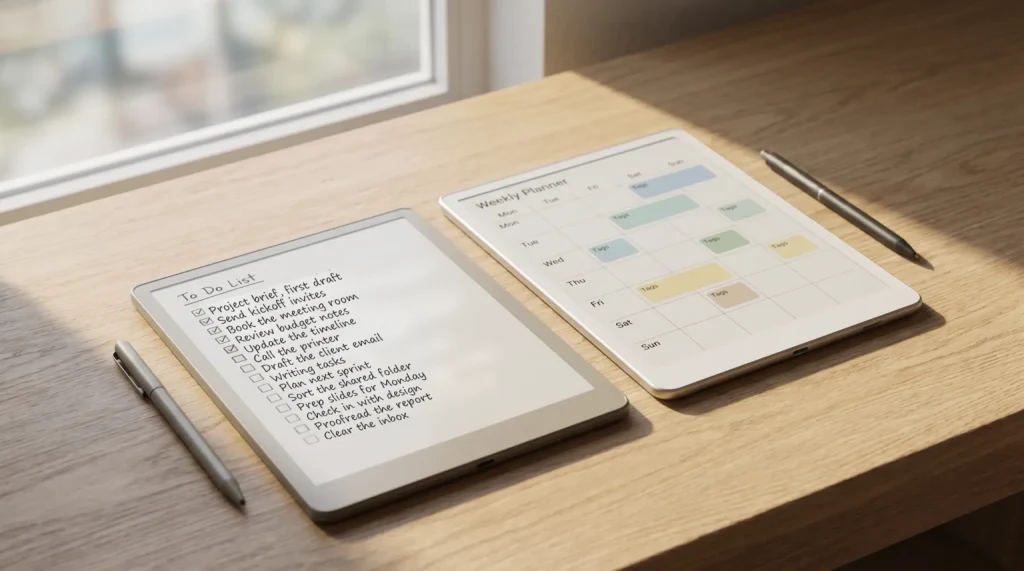
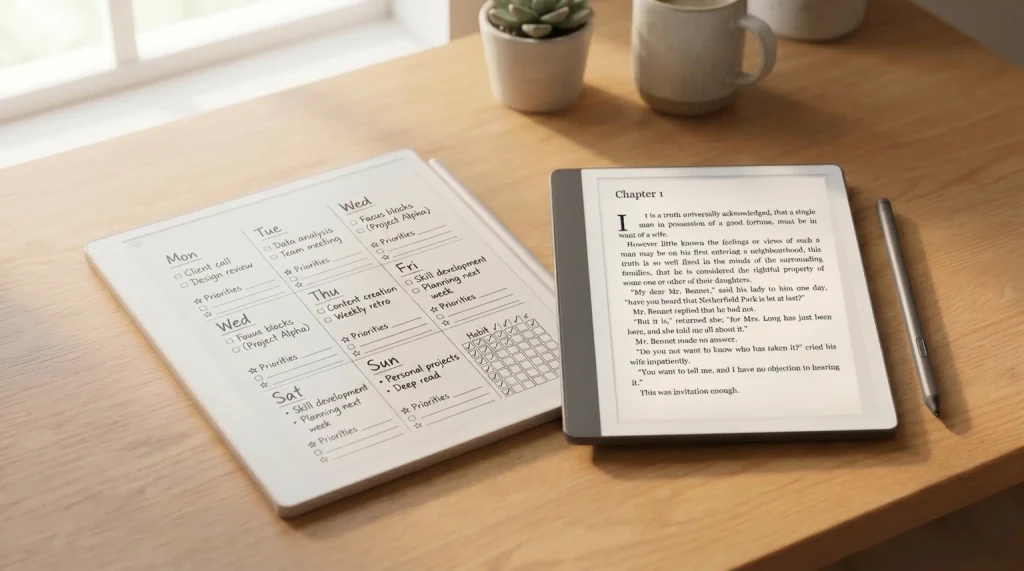
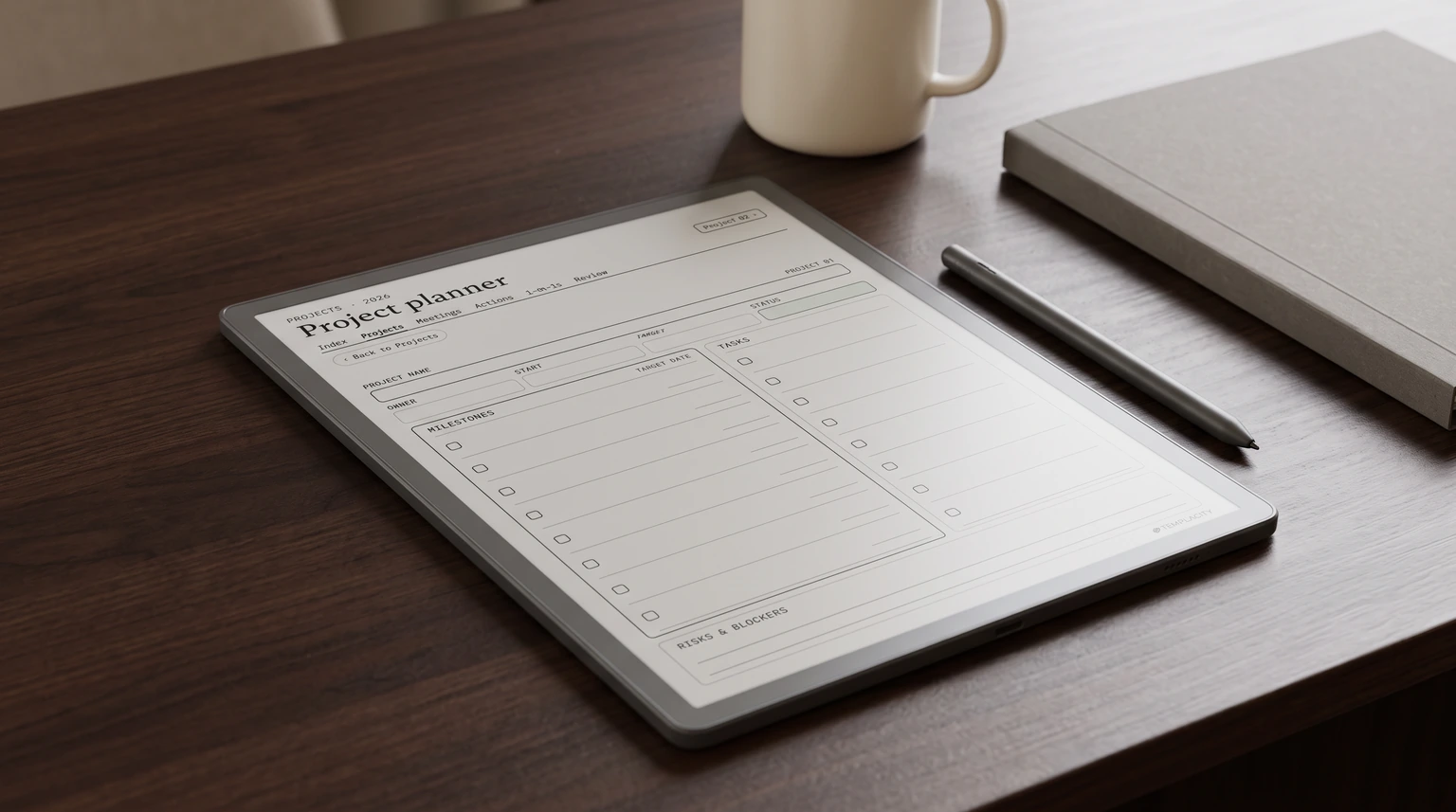
A blank notebook on a new tablet works for a week. Then you have forty meetings in one file and no way back to any of them. The fix is a linked PDF: an index for meetings, a single list where actions collect, and a page per project, all a tap or two from each other. That is what we built the Digital Work Planner to be: 297 pages in the 2026 edition, with 208 meeting notes behind a 13-page index, an action tracker over 12 sheets, project pages, a running one-on-one log per person, and monthly and quarterly reviews. It is drawn for 19 devices across reMarkable, Kindle Scribe, Boox, Supernote and Goodnotes, and it is $29.
On a reMarkable Paper Pro or Paper Pro Move, two narrower books go deeper on one job each. The Project Portfolio System keeps up to twelve projects on one thirteen-week timeline with a canvas, a board and a close-out page each, for the projects themselves. The Leadership Meeting System runs the weekly leadership meeting on 52 run-sheets with an issues list and a scorecard.
If your team keeps its work typed on a laptop rather than handwritten, an e-ink tablet is the wrong place for the shared record. Our OneNote Templates for Work stack puts a project system, a client CRM, meeting notes, a dashboard and a calendar in OneNote for $89. The digital work planner guide compares the handwritten options in more depth.
How to choose
Pick by the meeting you run most
If most of your week is meetings across a table, take the Paper Pro Move. If it is meetings plus reading, the Paper Pro. If your day is documents, the Note Max for its page size or the Kindle Scribe for reading comfort. If you need an app on the tablet, the Note Air6 C, and nothing else on this list will do. If budget leads, the Paper Pure. And whichever you choose, put a linked planner on it in the first week, before the notebook called Notes takes over.
Which tablet do you take to work, and what made you choose it? Tell us in the comments. Readers’ setups are how we decide what to test against next and which pages to draw for each screen.
FAQ
Common questions, answered briefly
What is the best e-ink tablet for work?
Is a reMarkable good for business?
Is the Kindle Scribe good for work?
Which e-ink tablet is best for lawyers?
Can an e-ink tablet run work apps like a normal tablet?
If your question is not here, leave it in the comments and we will answer it in the next update.
People also ask