What it does
What a OneNote widget actually does
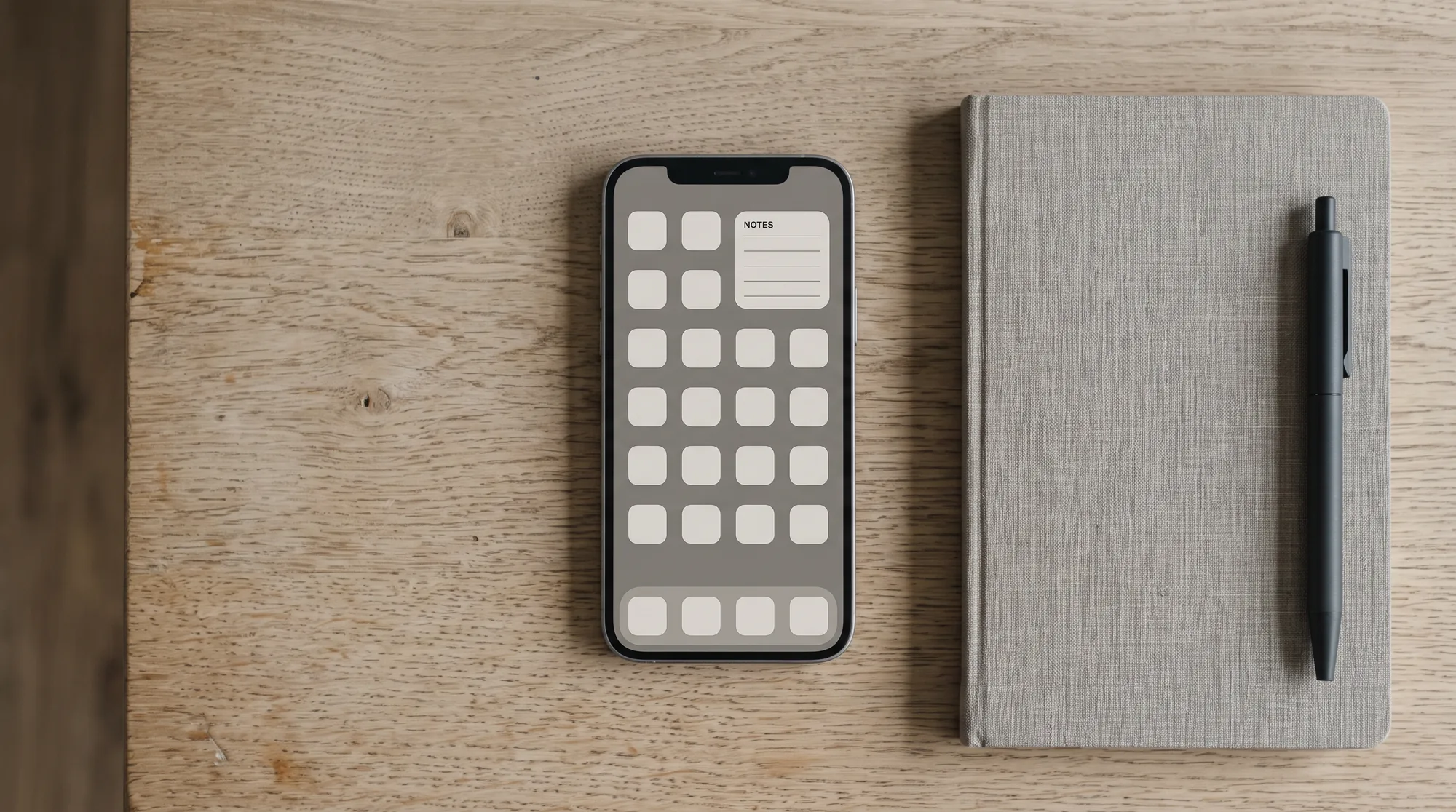
A OneNote widget removes the three taps between having a thought and writing it down. Instead of unlocking, finding the app, waiting for it to open, choosing a notebook and then starting a page, you tap one tile on the home screen and you are already writing. Microsoft offers the same three creation widgets on both platforms: one for a new typed note, one for an audio note, and one for a picture note. Each does exactly what its name says, and each skips opening OneNote entirely.
That gap matters more than it sounds. Most notes that never get written are lost in the few seconds it takes an app to load, because the thought arrives while you are walking, or on a call, or halfway out of the car. The picture widget in particular tends to become the most-used one, since photographing a whiteboard or a receipt straight into a notebook is faster than photographing it into your camera roll and dealing with it later.
Android
How to add a OneNote widget on Android
Microsoft’s steps are short. Press and hold a blank space on one of your Android phone’s home screens. At the bottom of the home screen images, tap Add widgets. Tap the Search widgets box at the top and search for OneNote, which saves scrolling a list of every widget on the phone. Pick the one you want, whether that is OneNote audio note, OneNote new note or OneNote picture note, then tap it to add it to the home screen. From then on, tapping it adds an audio note, a new note or a picture to OneNote directly.
Removing one is the same gesture in reverse: press and hold the widget until a small menu appears, then tap Remove. Worth knowing before you commit home screen space to all three, because most people find they only use one or two and would rather have the room back.
iPhone and iPad
How to add a OneNote widget on iPhone or iPad
The same three creation widgets exist on Apple’s side. Microsoft states that OneNote for iOS has widgets for creating a new note, an audio note or a picture note without opening OneNote. To add one, long press anywhere on your iPhone or iPad home screen, select the plus sign at the top of the screen, search for OneNote, and select the widget you want. After that you can view or create notes directly from the home screen.
One honest caveat: Microsoft’s iOS page describes these widgets by what they do rather than naming them individually, and it does not publish the available sizes. What appears in your widget picker depends on your iOS version and the app build you are running, so treat the picker itself as the authority rather than any list, including ours. The three functions are what Microsoft commits to.
The other two
The Recent widget and home screen shortcuts
Creating notes is only half the problem. Getting back to one is the other half, and there are two separate answers that most write-ups blur together with the creation widgets.
| Option | What it does | Where |
|---|---|---|
| New, audio and picture note widgets | Creates a note without opening the app | Android and iOS |
| Recent widget | Shows your most recent notes on the home screen | Android |
| Page, section or notebook shortcut | Opens one specific place you already use | Android |
| Sticky Notes | Quick capture, syncing across your devices | Android and desktop |
Microsoft describes the Recent widget as a way to get to your most recent notes right from your phone’s home screen, and separately lets you add a favourite page, section or notebook to the home screen for quick access. That second one is not a widget at all, it is a shortcut, and it is the better choice for anyone with a notebook they open every day. A shortcut to your running work log beats a generic new-note button, because the note lands where it belongs instead of in a pile you sort out later.
There is also a change worth knowing about if you have used OneNote on Android for a while. Microsoft states that Quick Notes are being replaced by Sticky Notes for Android phone, and points to Sticky Notes as the way to capture quickly and then view and edit across your devices. If you built a habit around Quick Notes, that is where it moves to.
Troubleshooting
When the OneNote widget does not show up
If OneNote returns nothing in the widget search, the usual cause is the app itself rather than the widget. Widgets are published by the installed app, so a OneNote that has not been opened and signed into since installation often will not have registered them yet. Open OneNote, sign in, let a notebook load, then go back to the widget picker. If you are on Android and installed OneNote recently, the home screen sometimes needs a restart before new widgets appear in the list at all.
The other failure is subtler and it is worth checking before you blame the widget: a note captured on a phone that is not syncing will sit there looking fine and never reach your other devices. That is a sync problem rather than a widget problem, and it shows up the same way on every platform. Our guide to OneNote for Android covers the setup properly, and the OneNote for iPad guide does the same on Apple’s side.
That last point is the one that decides whether any of this sticks. A widget makes capture fast, but fast capture into an unstructured notebook just builds a bigger pile. Give the destination a shape first, with a section per area of work and a template on every new page, and the widget becomes the front door to a system rather than a faster way to lose things. Our OneNote templates handle the destination, and the wider best note-taking app comparison covers whether OneNote is the right home for your notes in the first place. The OneNote hub has the rest.
If you use a OneNote widget daily, tell us in the comments which one earned its place and what you pinned it to. The setups that survive past the first fortnight are the useful ones, and they are the part no support page describes.
FAQ
Common questions, answered briefly
Does OneNote have a widget?
How do I add a OneNote widget on Android?
How do I add a OneNote widget on iPhone?
What happened to Quick Notes on Android?
Can I pin one OneNote page to my home screen?
If yours isn’t above, drop the question in the comments and we’ll add it.
People also ask