Your Scribe notes arrive as a pile. This is where they land.
Yes, the Kindle Scribe sends notes to OneNote. What nobody mentions is what turns up: a whole notebook at once, every page an image of your handwriting with OCR text of wildly variable quality, in one undifferentiated dump. This is the receiving end.
Instant download. Permanent link in your account.
Ten sections, one job each.
Nothing here is decoration. Every section exists because a Scribe export produces something that needs somewhere to go.
Inbox
Where exports land and wait. Meant to be empty most of the time, with a capture template and a worked example already in it.
Triage
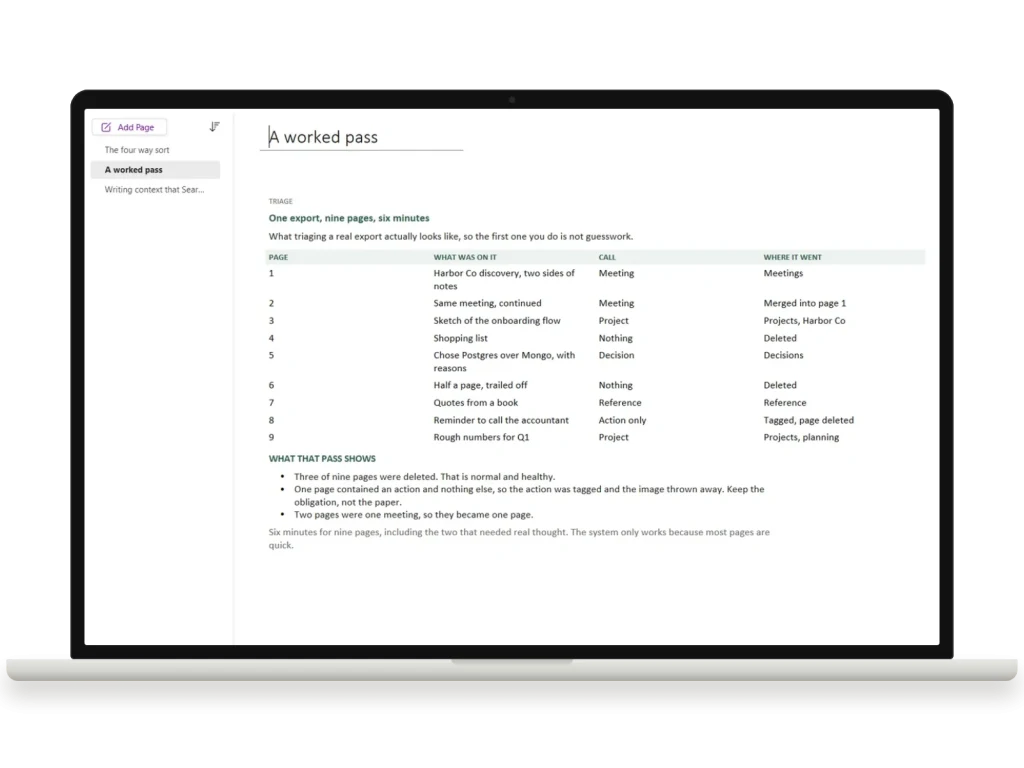
The four way sort that does the actual work: meeting, project, decision or reference. Plus a real nine page pass, showing which three got deleted.
Routing
Meetings, Projects and Reference, each with an index, a template and a filled example so the first one is not guesswork.
Decisions
The pages handwriting loses most often. What you chose, what you rejected, and why, because in a year somebody will ask.
Actions
Tag driven. One click pulls every open action across the notebook into a single pane. It is a query you re-run rather than something that updates itself, so you press the button at your weekly review and the picture is current.
OCR and Search
What the handwriting recognition can and cannot do, in a table, honestly. Then how to write titles that make a note findable in eight months.
The export is not the problem. The pile is.
Built around one principle
The image is the truth, the OCR text is the index. You never retype your handwriting. You add two typed lines so Search has something reliable to match on, then route the page. Two minutes per export, not per page.
Native pages, not a background picture
Every page is real OneNote tables and text you can type into and edit. The common complaint about premium templates is that the layout turns out to be an image you cannot align anything to. Not here.
Honest about the limits
The path is one way and nothing syncs back to your Scribe. OCR fails on cursive. OneNote cannot sort anything for you, and any template implying otherwise is showing you a screenshot. All of that is written down inside.
Ten minutes a week.
Import once
Open the package on Windows and put the notebook in your OneDrive. It then appears on Mac, iPad, Android and the web automatically. A guide for every route is in the download.
Send an export
Any Scribe notebook. Let it land in the Inbox exactly as it arrives. Do not tidy it first.
Triage it
Title each page, add two lines of context, tag the actions, then move it to Meetings, Projects, Reference or Archive. Delete what was never worth keeping.
Find it later
Which is the entire point. Search matches your typed titles and context, so a note from eight months ago takes seconds rather than an afternoon.
The things worth asking first.
Does the Kindle Scribe actually send notes to OneNote?
Do my edits go back to the Scribe?
I am on a Mac. Can I still use it?
How good is the handwriting recognition?
Does it work with the free OneNote?
Will it work with a reMarkable or a Boox?
Stop losing the notes you took the trouble to write.
Import once, then ten minutes a week keeps everything findable. Works in the free OneNote, on the device you already write on.
The rest of the OneNote line
We make six OneNote notebooks, each built for one job, and they sit side by side in the same notebook stack:
- OneNote project management template: projects, the kanban board and the registers behind them.
- OneNote CRM template: clients, deals and renewals.
- OneNote meeting notes template: agendas, decisions and actions.
- OneNote dashboard template: a one-page view of where everything stands.
- OneNote calendar template: undated day, week, month and year pages.
The five work notebooks also come together as OneNote Templates for Work, for less than buying them one at a time.
Be the first to say something.
Nobody has written about this one yet. If it is on your device, yours is the first thing the next person reads.
Instant download.
Your file is in your account the moment you check out, yours to re-download any time. A receipt lands in your inbox, too.
One-time purchase.
No subscription, no annual renewal, no upgrade nags. Pay once and the file is yours.
Quiet, secure checkout.
Stripe. Apple Pay. No spam, no “partners,” no reselling your details. Receipt, file, done.


