The basics
Is OneNote good, and free, on iPad?
OneNote for iPad is one of the better free note-taking apps you can put on the device, and yes, it is genuinely free. You download it from the App Store at no cost, sign in with a Microsoft account, and start writing; there is no separate purchase and no trial clock. The only practical limit is storage, because OneNote syncs through OneDrive, and a free Microsoft account includes 5GB of it. Text and handwritten notes are tiny, so most people never come close, but if you paste in hundreds of images or large PDFs you may eventually need a paid OneDrive plan. For ordinary note-taking, OneNote on iPad costs nothing and stays that way.
What you get for that is a full notebook, not a stripped-down phone app. OneNote organises notes into notebooks, sections and pages, takes typed and handwritten input side by side, and keeps everything in sync with every other device you own. If you are still choosing a note app at all, our wider guide to the best note-taking app sets OneNote against the field; this guide assumes you have an iPad and want to get OneNote working well on it.
Setup
Setting up OneNote on your iPad
Setup takes about five minutes. Install OneNote from the App Store, open it, and sign in with a Microsoft account, or create one for free if you do not have it. The app immediately connects to OneDrive, which is where your notes live and how they reach your other devices, so there is nothing extra to configure for sync. From there, the structure is worth learning because it is what makes OneNote powerful: a notebook holds sections, like the tabbed dividers in a binder, and each section holds pages. Set up one notebook for work and one for personal, add a few sections inside each, and you have a system that scales without ever feeling cluttered.
Two settings make the iPad experience better right away. Turn on the option to keep notes available offline so you can write on a plane or a patchy connection, and pin your most-used notebook so it opens first. After that, the same notebook you build on the iPad is the one that opens on your laptop or phone, automatically, which is the whole point of using OneNote rather than a device-locked app.
Handwriting
Handwriting on iPad with the Apple Pencil
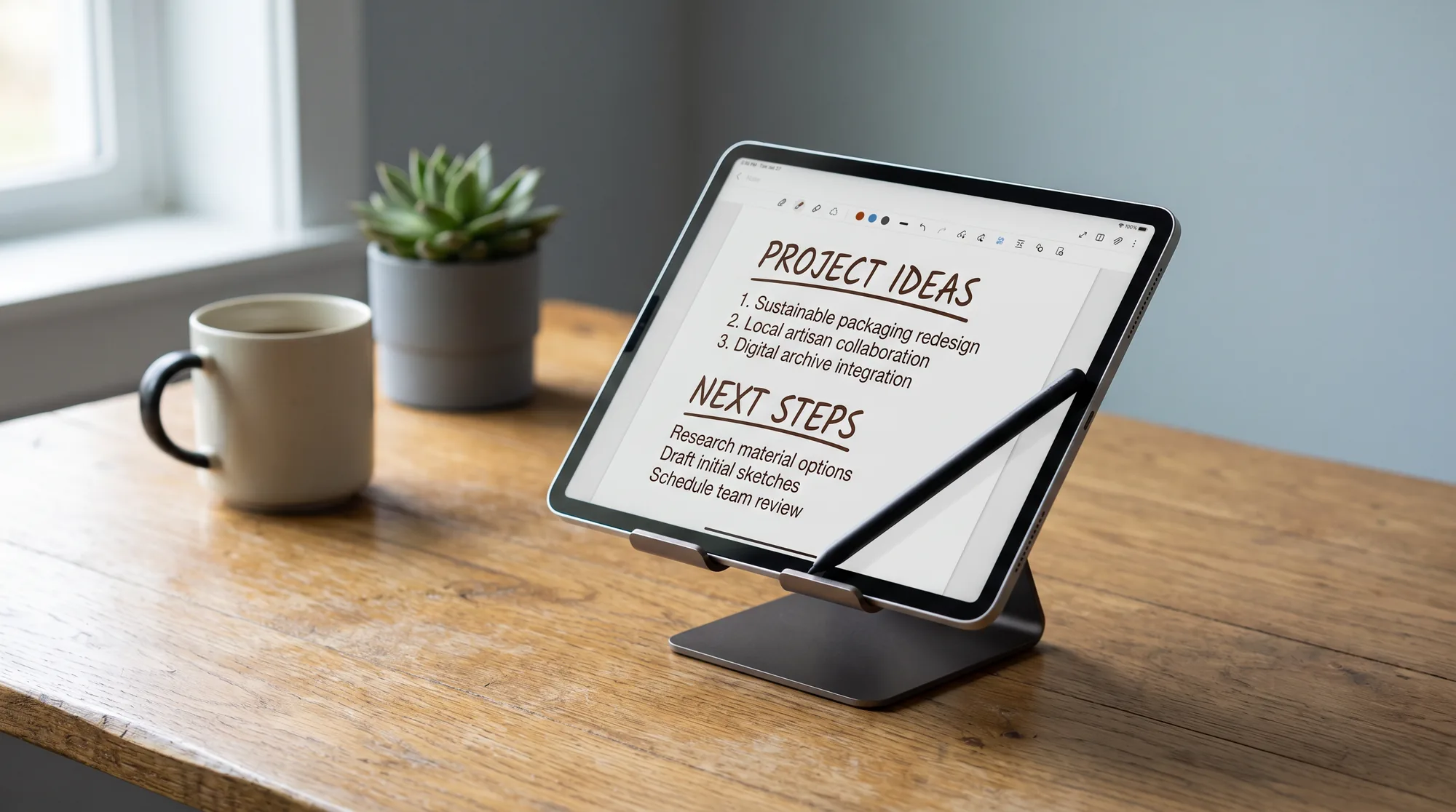
Handwriting is where OneNote for iPad earns its place. Pair an Apple Pencil and you can write and draw directly on the page in the Draw tab, switching between ink and typed text in the same note, with a range of pen colours and thicknesses and a proper eraser. It feels close to writing in a paper notebook, which a keyboard never does, and it is the reason many people put OneNote on an iPad in the first place. Apple’s Scribble also works, so you can handwrite into a text box and have it become typed text as you go.
The features that make ink genuinely useful, rather than just pretty, are conversion and search. OneNote can convert a block of your handwriting into typed text in a couple of taps, so messy meeting notes become something you can paste into an email. And because it runs handwriting recognition in the background, you can search your handwritten notes by keyword and actually find them, which is the thing paper can never do. Write by hand for the focus, then let the software make the ink searchable and shareable.
Write by hand for the focus, then let the software make the ink searchable and shareable.On handwriting in OneNote
Versus Apple Notes
OneNote for iPad vs Apple Notes
The fair comparison on an iPad is OneNote against Apple Notes, the app already on the device. Both are free and both take the Apple Pencil, so the real question is structure and reach.
| Feature | OneNote | Apple Notes |
|---|---|---|
| Price | Free | Free |
| Apple Pencil | Yes | Yes |
| Works on Windows and Android | Yes | No, Apple only |
| Structure | Notebooks, sections, pages | Folders and notes |
| Handwriting to text | Yes | Yes |
| Templates | Yes, page templates | Limited |
Apple Notes is simpler and beautifully native, and if you live entirely inside Apple devices it is a fine choice. OneNote wins the moment a Windows PC or an Android phone enters your life, because the same notebooks open everywhere, and its notebook-section-page structure suits anyone with a lot to organise. For students and professionals who switch between an iPad and a work laptop, that cross-platform reach is the deciding factor.
Templates
Using templates in OneNote on iPad
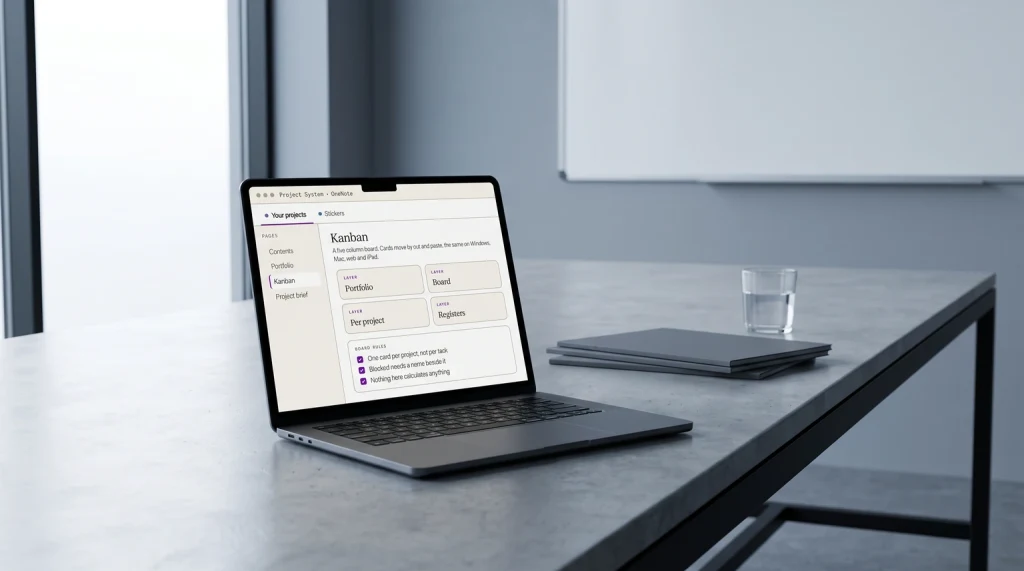
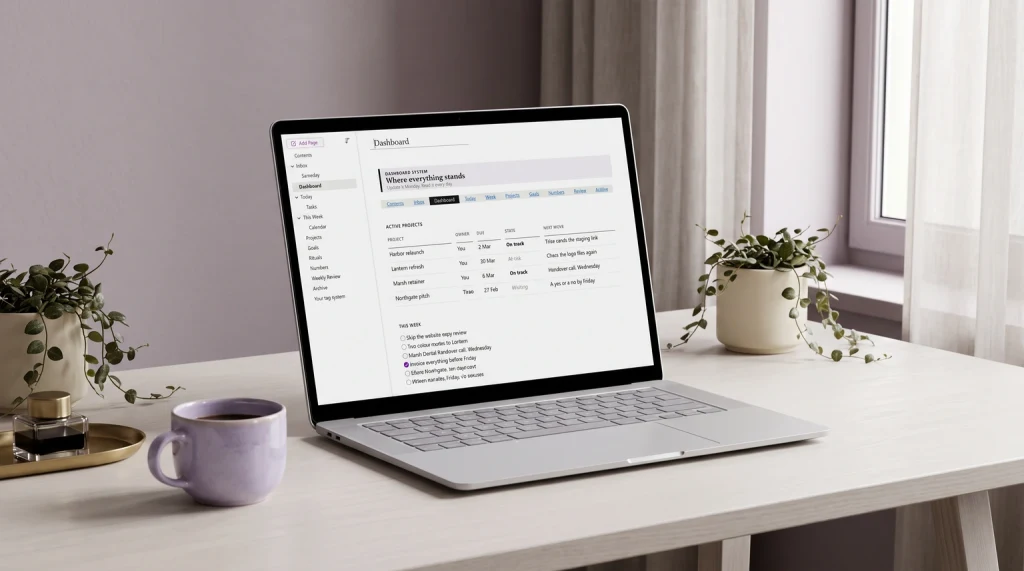
A blank page is a slow start, which is why page templates make OneNote on iPad far more useful day to day. Instead of drawing the same planner grid or meeting-notes layout every time, you drop in a ready-made page and write straight onto it with the Apple Pencil. A weekly planner, a daily log, a project tracker or a meeting-notes page turns OneNote from a notebook into a system you actually keep up. Our OneNote templates are built to load straight into the app, and a structured OneNote dashboard ties them together into one home page you tap into each morning.
The workflow that sticks is simple: one notebook, a section for each part of your life, and a template applied to each new page so you are never starting from nothing. Set that up once on the iPad and it syncs to every device, so the planner you fill in with a pencil on the sofa is the same one open on your desk in the morning.
Who it suits
Who OneNote on iPad is for
OneNote on iPad is the right pick if you want a free, handwriting-capable notebook that follows you onto a Windows or Android device, or if you like to organise notes into a clear structure rather than a flat list. Students taking handwritten lecture notes, professionals running meetings across a laptop and a tablet, and anyone building a planner system all fit it well. It is the wrong pick only if you live entirely in Apple’s world and want the simplest possible native app, where Apple Notes is the easier life. For everyone else, a free app that handwrites, converts, searches and syncs everywhere is a lot of notebook for no money. Once it is set up, our OneNote hub collects the template and structure guides worth reading next.
If you take notes in OneNote on an iPad, tell us in the comments which Apple Pencil tricks and templates you rely on. Real workflows from other users sort this better than any feature list, and they help the next person set theirs up.
FAQ
Common questions, answered briefly
Is OneNote free on iPad?
Does OneNote for iPad work with the Apple Pencil?
Is OneNote or Apple Notes better on iPad?
Can you convert handwriting to text in OneNote on iPad?
Do OneNote notes sync from iPad to other devices?
If yours isn’t above, drop the question in the comments and we’ll add it.
People also ask