Answer
Can reMarkable 2 write in color: the direct answer
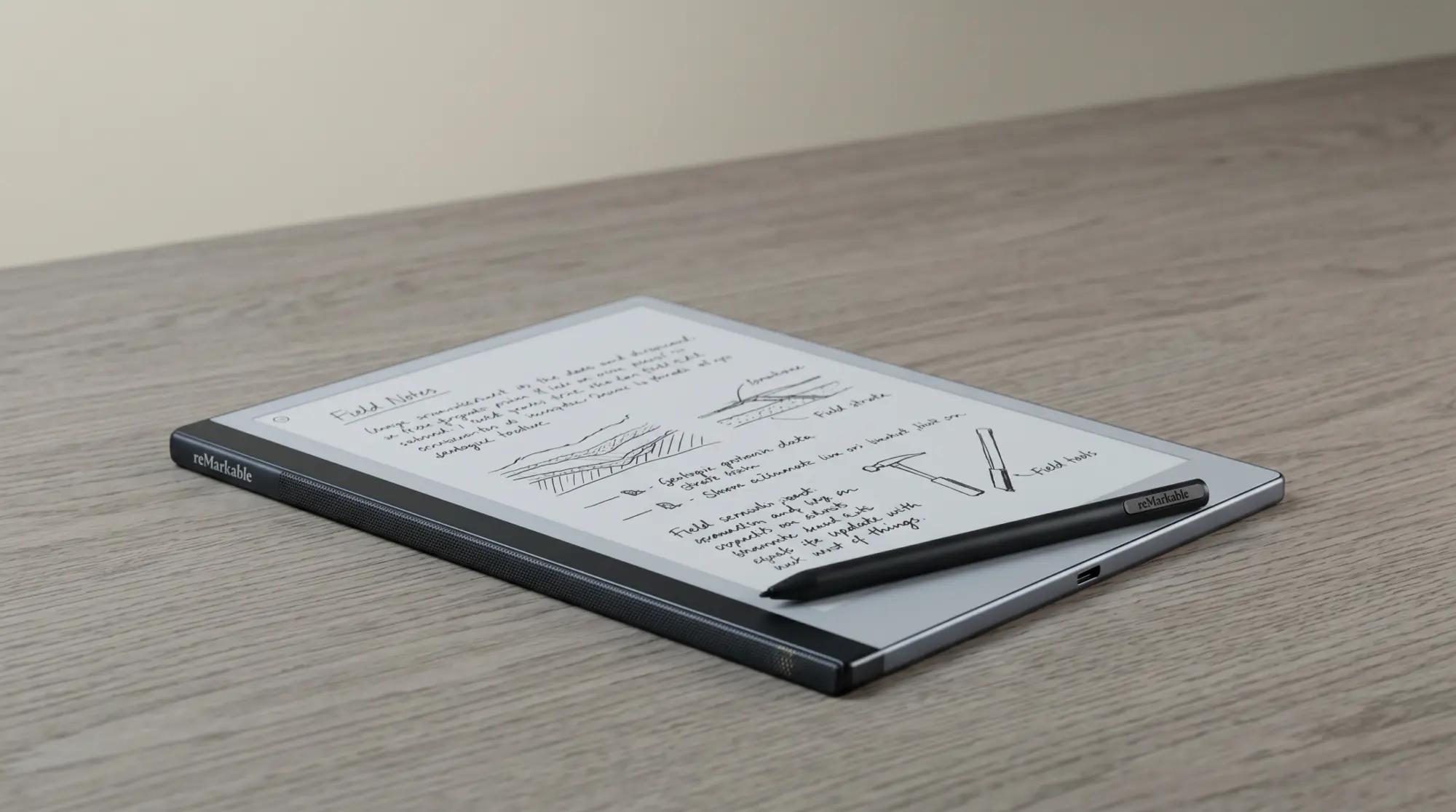
Can reMarkable 2 write in color on the device itself? No. The rM2 ships with a monochrome e-ink display (16-shade greyscale Carta 1200 panel). Pen colours you select in the toolbar (red, blue, green, yellow, etc.) all render as black or greyscale on the device’s screen. The pen choice does change the underlying file metadata, but the visual output on the device is mono regardless of what colour you picked.
This is by design, not a bug or a missing feature. When the reMarkable 2 launched in 2020, no colour e-ink panel existed at the writing-tablet size and price reMarkable wanted to ship at. The mono Carta panel was the trade-off for the paper-feel writing surface and the long battery life. Six years later the rM2 still uses the same panel; if you want colour on a reMarkable in 2026, the upgrade path is the reMarkable Paper Pro with its 11.8-inch Canvas Color panel.
Workarounds
Workarounds when you cannot write in color on rM2
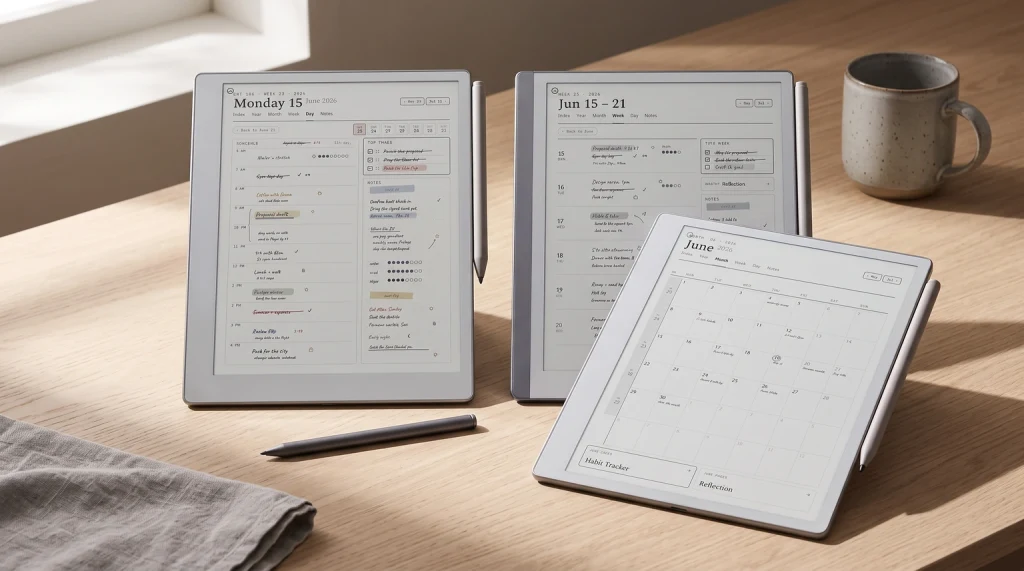
Three workarounds answer the can reMarkable 2 write in color question on the practical side: they simulate colour-coded note-taking even though the device cannot write in colour visually. The first is the colour metadata trick: pick different pen colours in the toolbar even though they all show as black on the device. The reMarkable app on desktop and mobile renders the colours when you view the same notebook off-device. Useful if you mostly review notes on a laptop and only write on the rM2.
Use pen colour metadata for off-device review.
Pick red for action items, blue for ideas, black for plain notes. On the rM2 they all render mono; in the desktop and mobile reMarkable apps the colours appear correctly. This is the closest the rM2 gets to colour-coded note-taking.
Vary pen style and thickness for visual coding.
Use the fineliner for body text, the highlighter for emphasis, the calligraphy pen for headers. Different pen styles render distinctly even in mono, which gives you a visual coding system that survives on the device.
Use layer organisation instead of colour.
Put different note types on different layers (notes, action items, references). Layers can be hidden and shown independently, which is the rM2’s closest analogue to filtering by colour. Especially useful for diagrammatic notes where you want to declutter.
The honest verdict on workarounds: they help, but none replicates true colour writing. If colour matters genuinely (for art, for visual planning, for design work), the rM2 is the wrong device. If colour is a nice-to-have for organisation, the workarounds above cover most use cases.
Upgrade
If you need colour writing, the reMarkable line in 2026
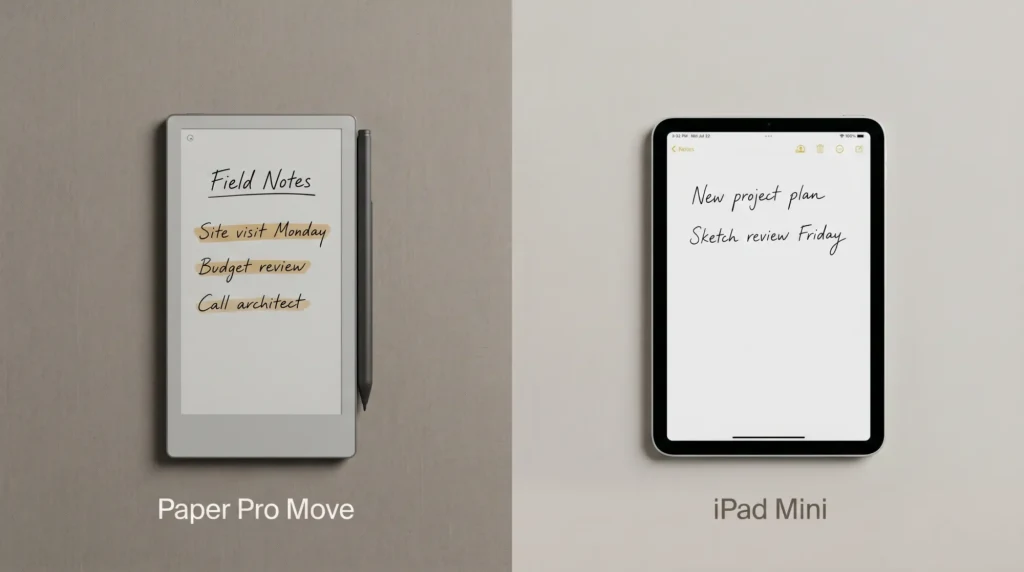
If can reMarkable 2 write in color is a deal-breaker question for you, the upgrade path within reMarkable is the Paper Pro at $629. The can reMarkable 2 write in color answer for the Paper Pro is yes; the rM2 itself stays mono. The Paper Pro ships an 11.8-inch Canvas Color panel, and the Paper Pro Move ($449) puts the same colour display in a 7.3-inch pocket size. The Paper Pure ($399) stays mono, and so does the discontinued rM2 (refurb from $399).
Outside the reMarkable line, Boox reaches colour a different way, with Kaleido 3 panels at lower prices (Note Air 4C at $500). The Boox trade-off is Android complexity rather than reMarkable’s deliberate constraint. We compare in reMarkable Paper Pro vs Boox. For the wider colour-e-ink field including Kindle Scribe Colorsoft, our reMarkable alternatives roundup covers the options.
If you have used the colour-metadata workaround on the rM2 and have a workflow we did not cover, drop it in the comments. Reader-shared workflows are how this post stays current with the actual ways people work around the mono limitation.
FAQ
Common questions, answered briefly
Can the reMarkable 2 write in color natively?
Why does the reMarkable 2 have a colour picker if it cannot show colour?
Which reMarkable can write in color in 2026?
Will reMarkable 2 colour notes display in colour on a Paper Pro?
Are there third-party tools to add colour to the reMarkable 2?
If yours isn’t above, drop the question in the comments and we’ll fold it in next refresh.
People also ask