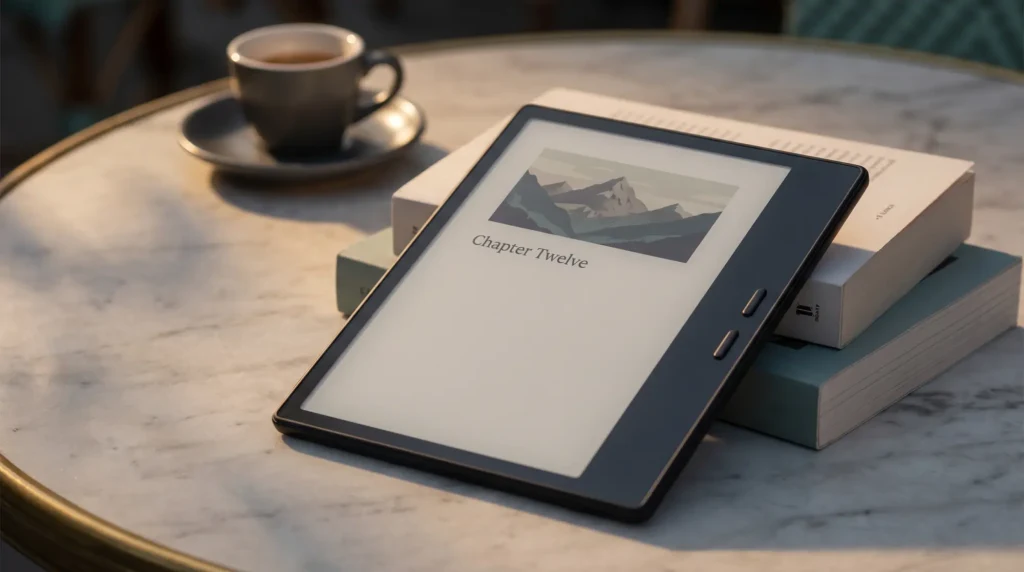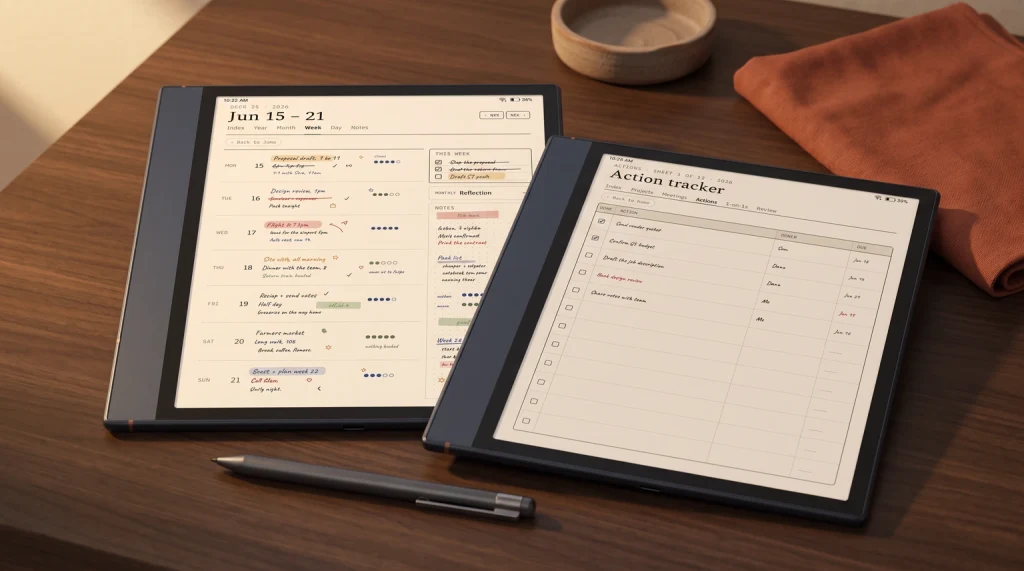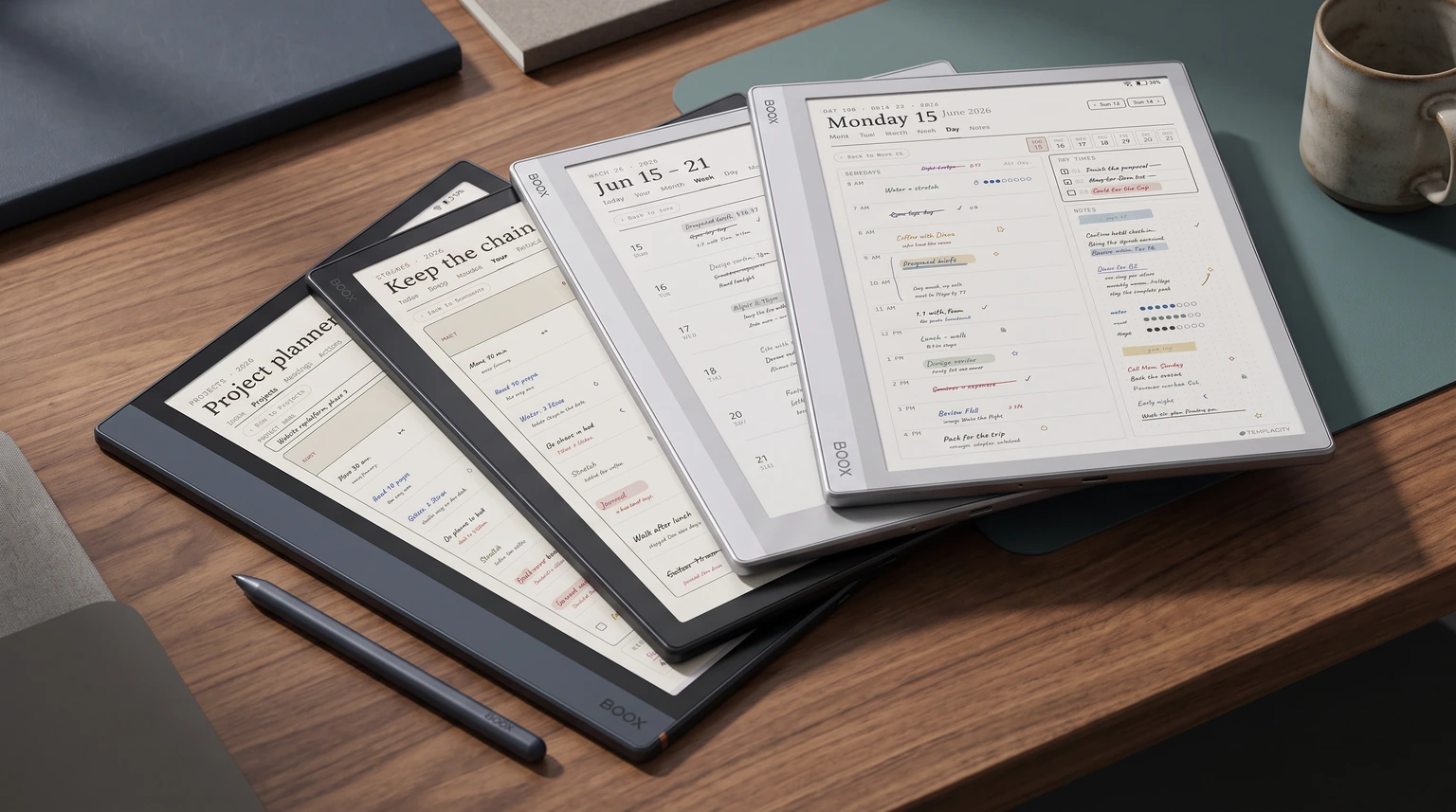
| Job | Our pick | Price | Free alternative |
|---|---|---|---|
| Planning the year | Boox Digital Planner | $49 | Built-in Notes templates |
| Weekly, daily and daybook pages plus notebooks | Boox Templates Bundle | $39 | Free PDFs listed below |
| A schedule-first day page | Boox Daily Planner | $29 | A lined built-in page |
| One full page for every day | Ichinichi Page a Day Planner | $49 | A blank built-in page per day |
| Planner plus money, habits, wellness, training and work | The Complete System | $99 | None that covers it all |
Premise
What Onyx Boox templates actually have to do
Onyx Boox templates have one job: make the writing surface feel like a notebook page rather than a blank rectangle. The Boox lineup ships with default templates inside the Notes app (lined, dot grid, checkbox, blank) and they’re usable for casual notes. Long-term workflows almost always benefit from a custom template that matches how you actually plan, journal, or track. The default templates work for the first week; the templates you choose afterwards are what determine whether the device sticks past month three. New to the device itself? We also make The BOOX Device Guide.
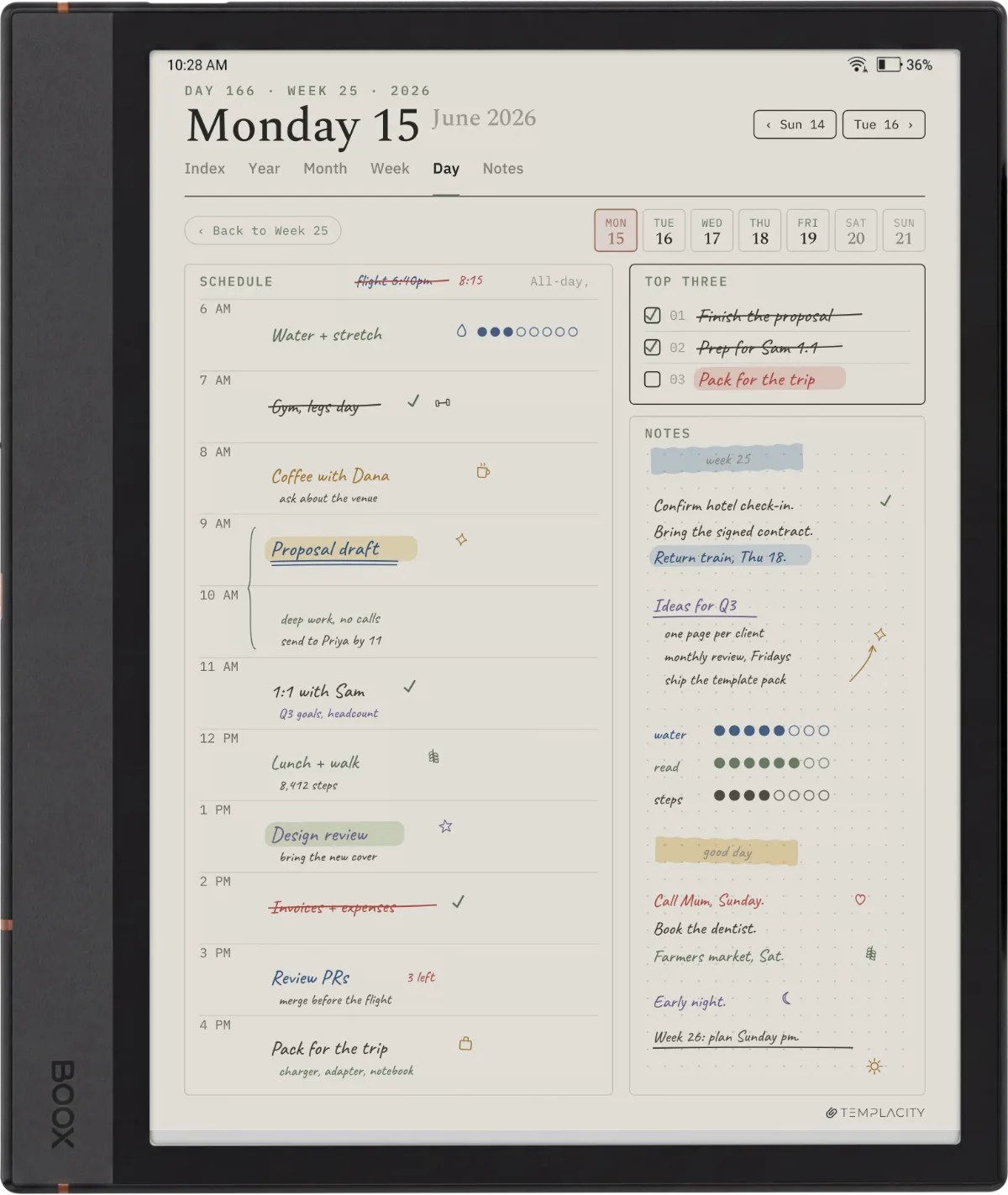
Boox layouts land cleaner than reMarkable equivalents in one specific way: the Notes app imports your own PDF and PNG pages directly, with no template installer or developer-mode unlock. That puts the whole job on the file itself: it has to work as visual cue and structural anchor at once. The template you pick has to do both.
Picks
Boox templates by role: the five that earn their place
| Role | What to look for | Avoid | Best Boox fit |
|---|---|---|---|
| Daily log | Single column, light time guides, generous notes area | Dashboard dailies with priority/gratitude/mood/water panels stacked | Note Air 4C, Go 10.3 |
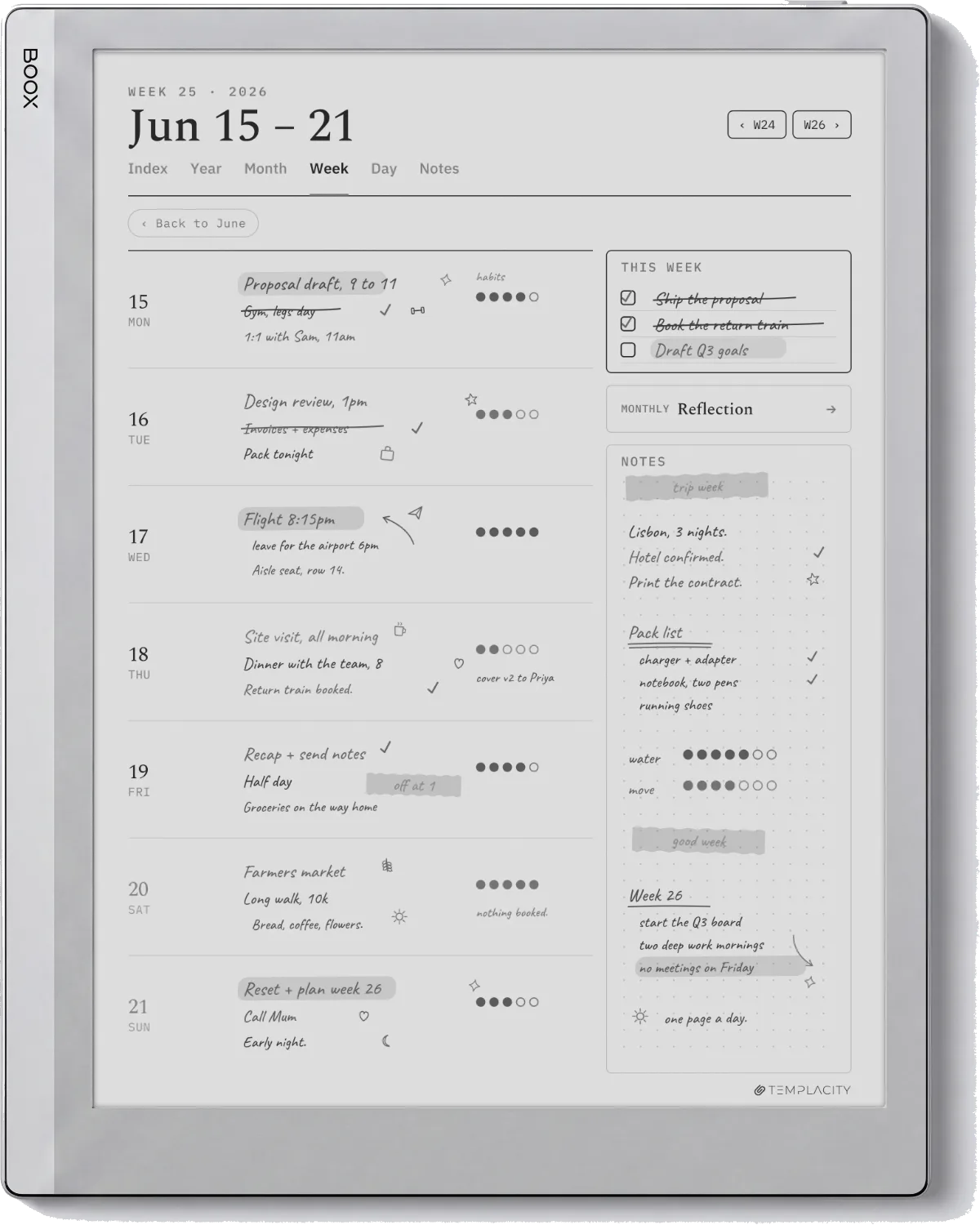
| Weekly planner | Seven equal day rows, one weekly task panel | Tall narrow vertical columns that cramp each day | Note Air 4C, Tab Ultra C Pro |
| Monthly view | Classic month grid, week numbers, light goal column | Daily-detail micro-cells that pixelate at native resolution | Note Max (13.3″ gives breathing room) |
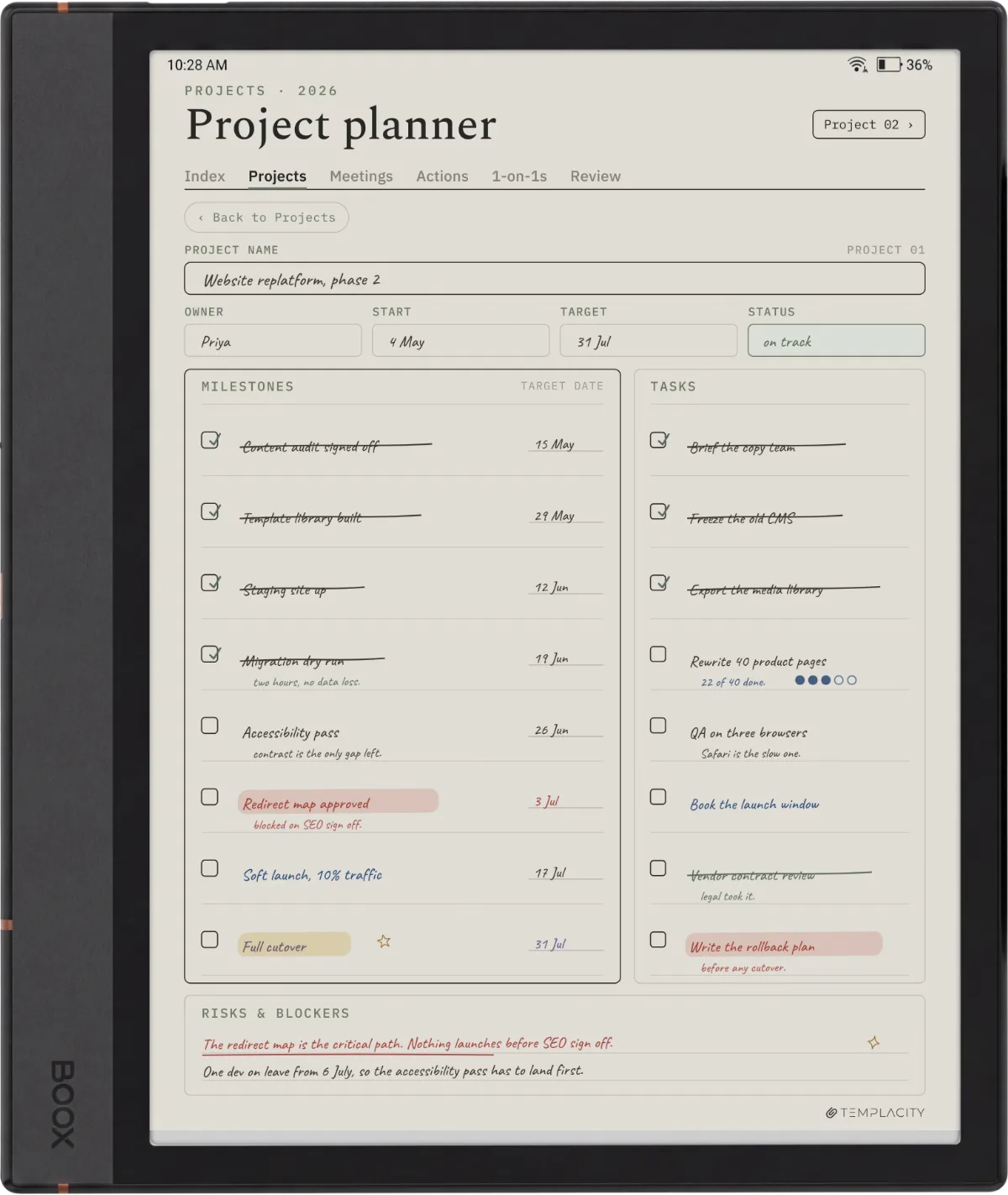
| Project page | Single-page project canvas, milestone strip, notes area | Multi-page project planners (sync drift kills them) | Note Air 4C, Tab Ultra C Pro |
| Reading log | Book row with author, dates, two-line reaction field | Book trackers with 12 metadata fields per entry | Go 7, Palma 2, Go Color 7 |
Read the table as a filter. Most Boox users need three of these roles, not all five. Buying a bundle that ships all five doesn’t save time if you only use the daily and weekly; you’ve just paid for three templates you never open. The exception is anyone managing a multi-stream workflow where the project page earns its place beside the weekly. Match the template count to your actual planning style.
Format
PDF vs PNG: the two install paths for Boox
Boox templates ship in two formats and each maps to a different workflow. PDFs work as pages you write on top of; one PDF, one set of pages. Get the file onto the tablet first: BOOX recommends BOOXDrop (tablet and computer on the same network, the address from the app typed into your browser), the send2boox website does it over your ONYX account, and a Google Drive, Dropbox or OneDrive account bound under Library and the cloud icon downloads files straight to the Library. Then open a note and pick Page+ > From Files, which builds note pages on the PDF and keeps its hyperlinks clickable (firmware V4.0, January 2025). This is the friction-free path and the right answer for templates you use occasionally (a project page for a new project, a weekly planner for the current week).
PNGs work as page templates inside a note. BOOX’s V4.0 notes put it plainly: bring in your PNG planners, habit trackers or to-do lists, and they serve as templates you switch between in Page+ on the side toolbar (Page+ > From Images adds a page built on the picture). Boox’s native Notes handles this directly, no developer mode or sideload needed. The PNG path is the right answer for templates you use every day (a daily journal, a recurring weekly planner) where you want the template applied without re-opening a PDF each time.
Sizing matters more than most template sellers admit. Templates designed at A4 proportional pixels (2480 x 3508) render cleanly on every Boox at a small margin. Templates designed at specific Boox device native resolutions use every pixel; for the Note Air4 C and Tab Ultra C Pro that’s 1860 x 2480 (10.3″), for the Note Max it’s 2400 x 3200 (13.3″), for the Go Color 7 it’s 1264 x 1680 (7″). For maximum legibility design or pick at the target device’s native size; for general use A4-proportional covers every Boox without redesign. Per-device page sizes, including the PDF page in points, are in our e-ink PDF size database.
The sizing cheat-sheet in one place, since this is the detail most template sellers skip. Pick native for the sharpest lines on a known device; pick A4-proportional when one template has to cover the whole shelf.
| Boox device | Screen | Native pixels | Template to pick |
|---|---|---|---|
| Note Air4 C | 10.3″ Kaleido 3 | 1860 × 2480 | Native, or A4-proportional |
| Tab Ultra C Pro | 10.3″ Kaleido 3 | 1860 × 2480 | Native, or A4-proportional |
| Note Max | 13.3″ mono | 2400 × 3200 | Native for monthly grids |
| Go Color 7 | 7″ | 1264 × 1680 | Native, small screen needs it |
| Any Boox | Universal | 2480 × 3508 (A4) | Safe default, small margin |
Devices
Boox templates by device: which template fits which Boox
The Boox lineup spans 6 inches to 13.3 inches, and the template that works on a Palma 2 is not the template that works on a Note Max. The 10.3-inch Note Air line (the Note Air6 C today, and the Note Air 4C and Tab Ultra C Pro many people already own) sits in the middle and handles the widest range of template styles cleanly, which is why it’s the default recommendation for users who want a single Boox to serve daily, weekly, and project roles. The Note Max (13.3″) is the desk device for users who want monthly views, dashboard planners, or PDF annotation at scale. The Go 7 and Palma 2 (7″ and 6.13″ respectively) are the pocket devices for short-form daily logs and reading trackers (the Palma 2 is sold out on Boox’s US store as of 22 October 2026; the 6.13-inch Palma 2 Pro is the in-stock pocket model). If you are choosing within the Go family, our reviews of the Go 6, Go 7, and Go 10.3 cover where each one fits.
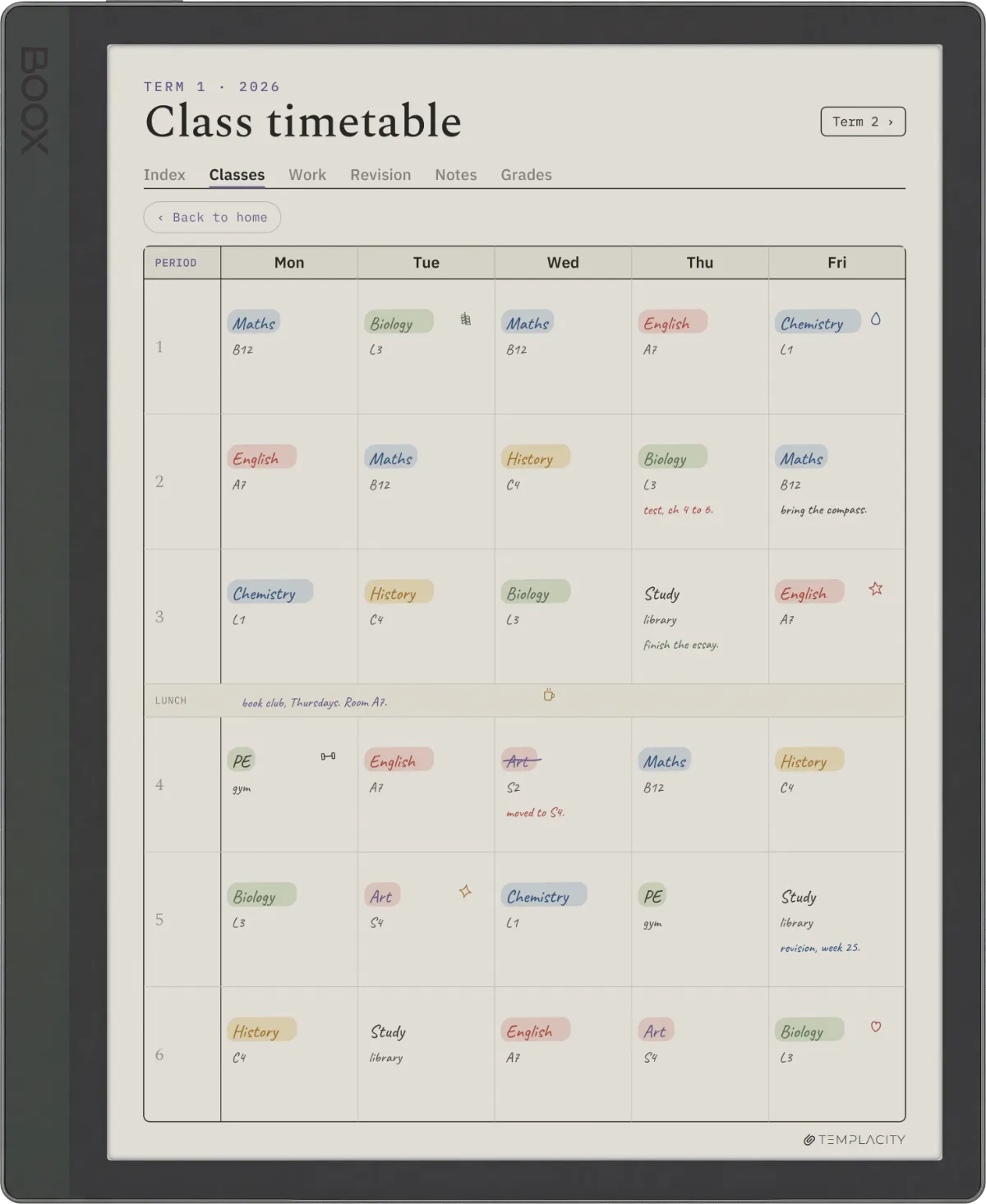
The colour variants (Note Air 4C and Tab Ultra C Pro use Kaleido 3, Go Color 7 uses Kaleido 3 on a smaller panel) add a templates consideration: colour renders at 150 PPI versus mono at 300 PPI on the same screen. Templates with colour pre-printed (decorative headers, coloured form lines) render softer than templates designed mono. Pick mono templates for the colour Boox devices unless the colour is doing structural work (category dividers, time-block coding) where 150 PPI is fine. Don’t pay for the colour panel to soften your mono daily.
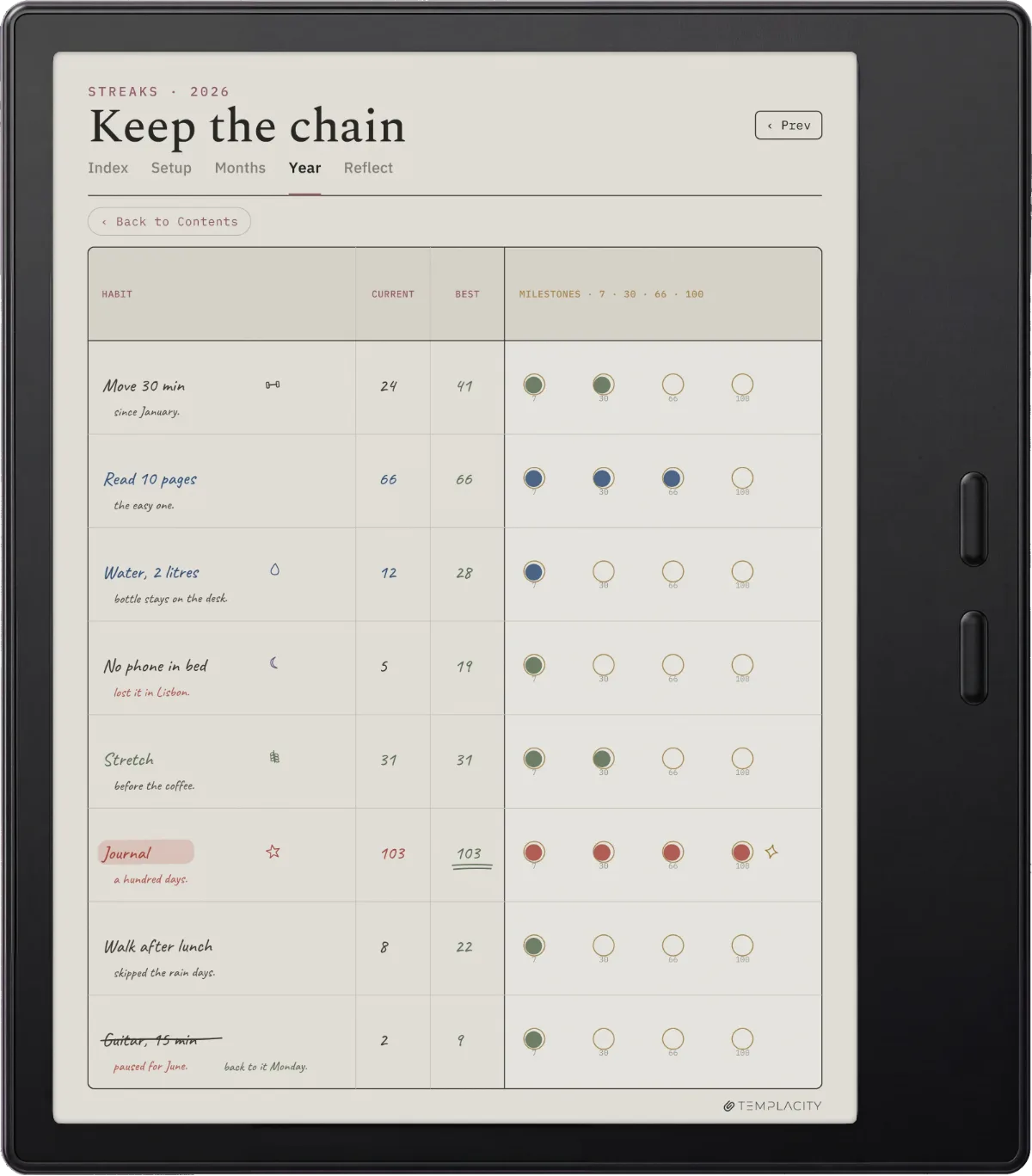
Boox templates that survive past week three are role-shaped, native-resolution sized, and applied through the PNG-background path in the Notes app. Bundles that stack roles you don’t use are the templates equivalent of buying a 40-app productivity suite to write one paragraph.Picks section
Free
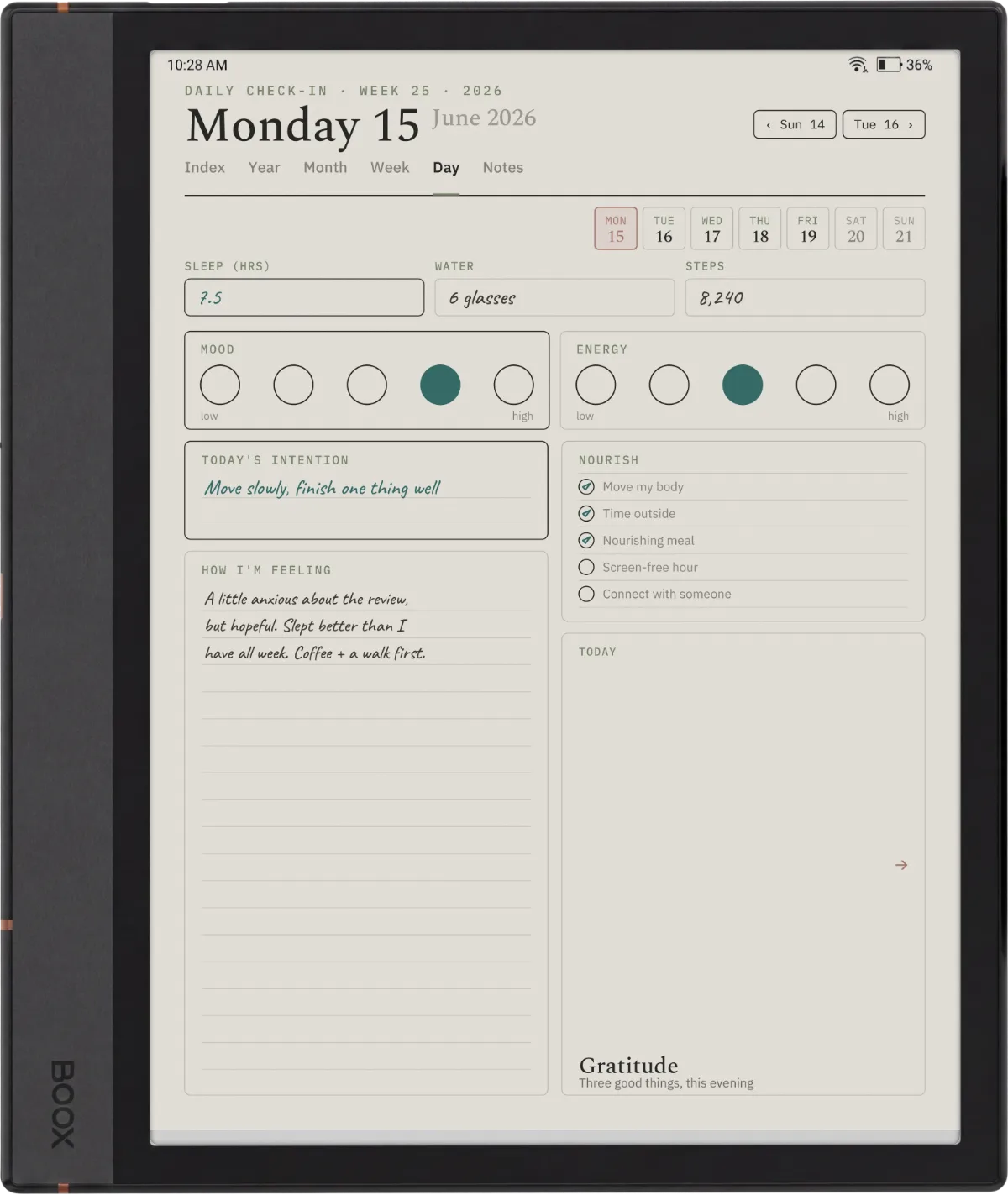
Where to get free Boox templates, including free PDF downloads
Four sources cover almost every free Boox template worth installing in 2026, and all but the built-in set deliver PDF or PNG files you download and load straight into the Notes app. Free templates work cleanly when they’re shaped to your exact role and sized at the right native resolution. They fall short when they’re A4-print-designed pages that haven’t been adjusted for E Ink (heavy black lines, busy backgrounds that wash out, decorative colour that pixelates at 150 PPI on Kaleido 3).
| Free source | What you get | Format | Watch for |
|---|---|---|---|
| Built-in Boox templates | Lined, grid, dotted, blank, basic calendar | Native | Generic; no real planning structure |
| r/Onyx_Boox (Reddit) | Community dailies, weeklies, trackers | PDF + PNG | Sizing varies; check the resolution before loading |
| Boox Community forum | Owner-shared template threads | Some are A4-print, not tuned for E Ink | |
| General template sites | iPad / Goodnotes freebies | Resample for E Ink or the lines render heavy |
Reasonable filter for any free download: light grey form lines (not black), minimal decoration, native-resolution sizing for your Boox, and PDF format unless you specifically want the PNG-background workflow. The community-maintained threads on Reddit (r/Onyx_Boox) are the highest-signal source for free PDFs; the built-in set is the fastest zero-download option if you only need a grid or lined page.
The honest trade with free Boox templates is curation time. The free ecosystem is the right place to test which roles you actually use before paying for anything. Once you know your three or four real roles, our paid bundle ships them as PDFs sized for the Note Air 4C, Tab Ultra C Pro, Go 10.3, and Note Max, so you stop hunting and resampling. Free first to find the fit; paid to lock in the set.
Apps
Boox templates inside Android apps: Notion, OneNote, Notability
The Boox lineup runs Android with Play Store, which means you can install Notion, OneNote, Notability, Goodnotes, or any other Android-compatible note app and bring those ecosystems’ template libraries with you. The advantage: massive template selection across well-maintained apps. The disadvantage: the writing latency is slightly worse in third-party apps than in Boox’s native Notes app, because the Boox writing pipeline is optimised for the native app and third-party apps go through the Android touch stack.
Most Boox users settle on a hybrid: native Notes for daily handwriting (best latency), Notion or OneNote for organised long-term knowledge (best app ecosystem), and PDF or PNG templates inside Notes for the structured planning shapes. Templates from app ecosystems work but they’re not the default recommendation. Stay with native Notes templates unless you need the cross-device sync that Notion or OneNote provide. Our Paper Pro vs Boox comparison covers the OS-philosophy decision in more depth if you’re cross-shopping reMarkable.
If you’ve built a Boox template workflow that has stuck for a year or more, drop the device + template stack in the comments. The combinations that work for consultants, researchers, and creatives often differ; specific patterns from long-term owners help calibrate the recommendations above.
FAQ
Common questions, answered briefly
What are the best Boox templates in 2026?
How do I install templates on a Boox?
What size should Boox templates be?
Are free Boox templates worth using?
Where can I download free Boox templates as PDF?
Can I use OneNote or Notion templates on a Boox?
Which Boox device is best for templates?
If yours isn’t above, drop the question in the comments and we’ll fold it in next refresh.
People also ask