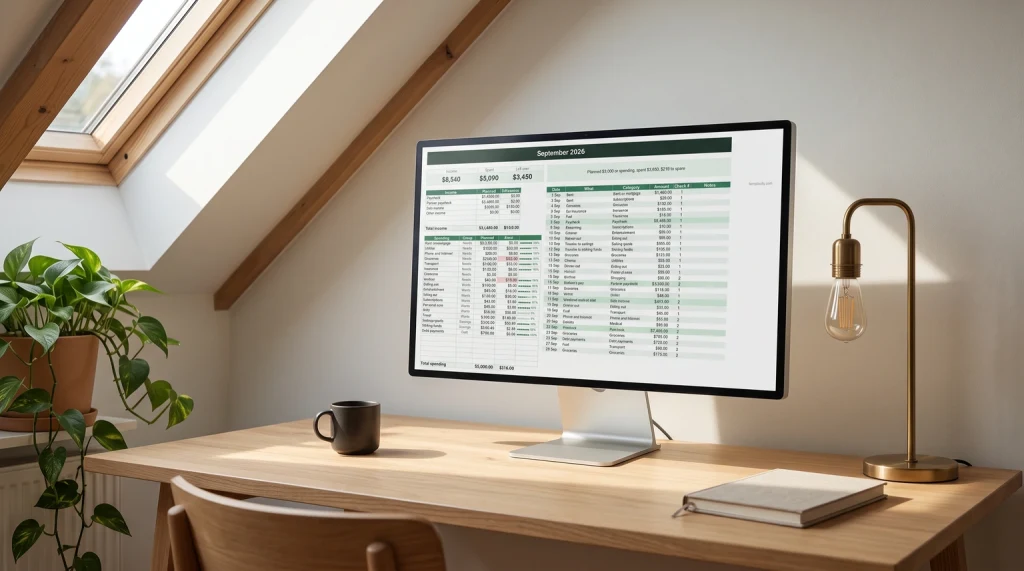
The layout
Start with four sheets, in this order
The first decision in how to make a budget in Excel is not which formula to use. It is what goes where, because a budget that mixes planning and recording on one sheet becomes unusable the moment there is a second month.
-
1
Settings
The month you are budgeting, your income, and your category list. One place for everything the other sheets need to look up, so nothing is ever typed twice.
-
2
Plan
One row per category, one column for what you intend to spend. Short by design: if this sheet needs scrolling, the category list is too long.
-
3
Log
Date, amount, category, optional note. This is the only sheet that grows, and everything about its design should make adding a row fast.
-
4
Compare
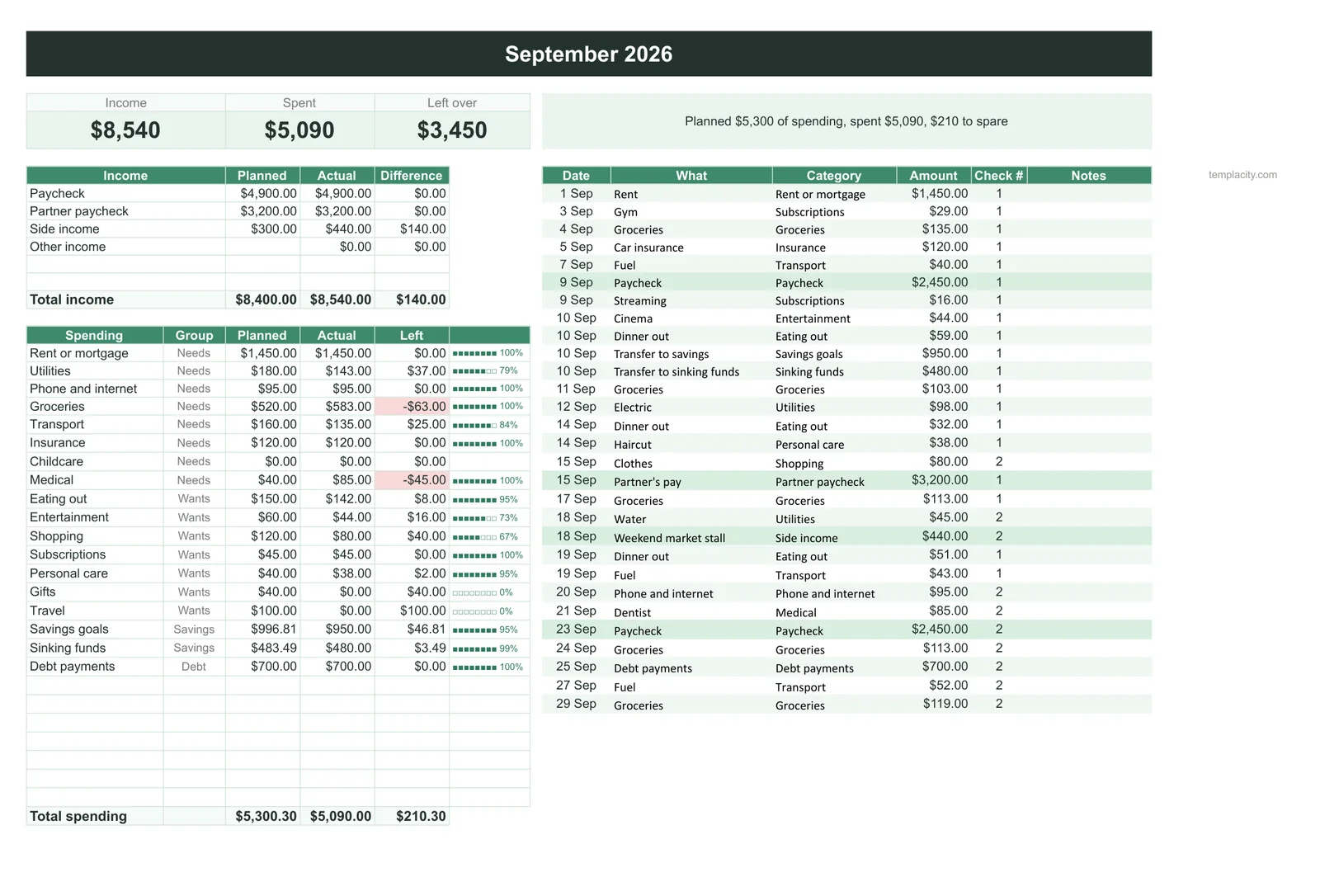
Planned against actual, per category, with the difference. Nothing on this sheet is ever typed; every cell is a formula reading the other three.
The division that matters is between the Plan and the Log. One is what you decided, the other is what happened, and a budget is the comparison between them. Merge those two and you lose the only thing the document was for.
Categories
Write the categories before anything else
Categories are where budgets fail, and they fail by being too detailed rather than too crude. A long list feels rigorous and behaves like friction: every extra category is another decision at the moment you are trying to log something quickly, and hesitation is what ends the habit.
Eight to twelve is enough for most households. The test is whether every transaction has one obvious home. If you have to think about whether a corner-shop sandwich is groceries or eating out, the list is wrong, and the fix is fewer categories rather than more discipline.
Put the list on the Settings sheet once, and point the Log’s category column at it as a dropdown. That single step prevents the most common quiet failure in a home-made budget, which is a typo creating a second version of a category that then splits your spending in two without telling you.
The formula
The comparison formula, and the range that ruins it
The Compare sheet needs one formula per category: add up everything in the Log with that category. Written naively it looks like a sum over a range of rows, and that is exactly where it goes wrong.
A log only ever grows. A formula reading rows 2 to 300 works beautifully until the log passes row 300, and then it silently stops counting the newest entries. Nothing errors and nothing turns red; the budget simply starts reporting that you are doing better than you are, which is the most dangerous direction for it to be wrong in.
A budget that undercounts reports that you are doing better than you are, which is the one direction of error nobody investigates.
Two fixes, and either is fine. Write the sum against whole columns so the range can never run out. Or turn the Log into an Excel Table and refer to it by name: Microsoft documents that “instead of using cell references, such as A1 and R1C1, you can use structured references that reference table names in a formula”, so the formula keeps describing the same data however long the table gets.
The Table has a second benefit worth having. Microsoft notes that entering a formula in one cell of a table column “creates a calculated column in which that formula is instantly applied to all other cells in that table column”, so anything you compute per row propagates to new entries without dragging. Our Excel budget template guide goes further into why this particular failure is the one that ends most spreadsheets.
The check
The five-minute check that keeps it honest
Once a month, three things. Add up the Log and compare it against what actually left your account; if the two are far apart, the problem is missing entries rather than overspending, and no amount of category tuning will fix it.
Then look at the categories where planned and actual are closest, not the ones where they are furthest apart. A category that lands exactly on its number every month is usually one you have stopped thinking about, and it is the likeliest place for a plan figure that was set once and never revisited.
If the income side is hourly rather than fixed, it needs its own sheet before it can reach the Settings tab, and our Excel timesheet template guide covers the arithmetic that gets hours into a number you can multiply by a rate.
Finally, click one comparison formula and read what it points at. Thirty seconds, and it catches the fixed range before it costs you a quarter of misleading numbers. If entry is the part that keeps slipping, our expense tracker guide covers the habits that make logging fast enough to survive, and they transfer directly to Excel. If the budget is for a business rather than a household, the shape is different and our Excel profit and loss template guide covers it. The Excel templates hub holds the free files if you would rather start from one.
Four sheets, a short category list, and one formula that cannot run out of rows. That is the whole build, and everything else is decoration you can add later once it has survived a month. Tell us in the comments how many categories you ended up with, because the number that lasts is almost always smaller than the number people start with.
If you would rather skip the build, our Budget & Money Planner ($39, Google Sheets and Excel) is the finished version of these four sheets: categories in one place, a month tab that compares planned with actual and says what is left, and a year page on top. It also carries the parts this guide leaves out, bills, debt payoff, sinking funds, savings goals and net worth.
FAQ
Common questions, answered briefly
What sheets does an Excel budget need?
How many budget categories should I use?
Why does my budget understate what was actually spent?
What should I check each month?
People also ask