Four categories
The four kinds of OneNote synchronisation issues
OneNote synchronisation issues come in four shapes, and the fix changes depending on which one you have. Naming the category first saves time, because the same symptom (“OneNote is not syncing”) can have four different root causes that need four different fixes.
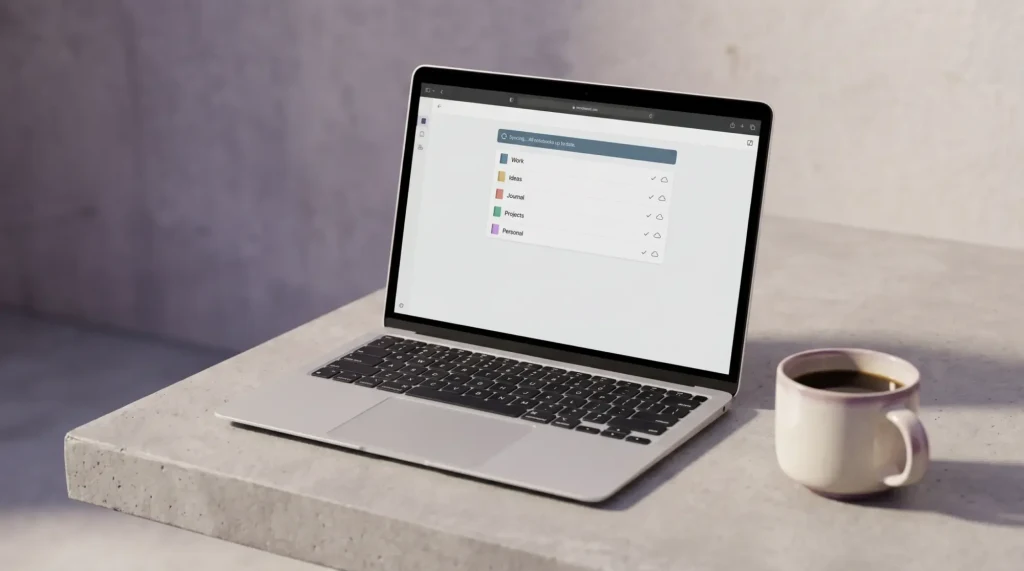
Category 1, sync queue stuck: pages save locally but never push to OneDrive. The sync indicator either spins forever or shows a red exclamation mark. Usually a corrupt cache, fixed by clearing the local OneNote cache directory and reopening the notebook from OneDrive.
Category 2, OneDrive disconnect: OneNote sync fails because OneDrive itself is not syncing. Look at the OneDrive cloud icon in the taskbar; if it has a slash through it or shows red, fix OneDrive first and the OneNote sync follows automatically.
Category 3, account-graph mismatch: you are signed into OneNote with one Microsoft account, but the notebook lives in a different account’s OneDrive. OneNote shows the notebook as “trying to sync” but cannot reach the source. Most common for template users who imported a shared notebook to one account and then opened OneNote signed in with a different account.
If you cannot tell which account or folder a notebook lives in, our guide to where OneNote files are stored shows how to read it from File, Info and File, Open.
Category 4, notebook corruption: rare but real. A specific page or section refuses to sync, sometimes with the error “We’re having trouble syncing this section.” The fix involves copying the salvageable pages to a fresh section, deleting the corrupt one, and reopening the notebook. If the whole notebook is past saving, our walkthrough on how to delete a OneNote notebook covers removing it cleanly from both the app and OneDrive, which matters because a half-deleted notebook keeps trying to sync.
The four fixes
OneNote sync issues: the four fixes in order
The service-status check at the top of the list saves the most time. Microsoft 365 has rolling OneNote service incidents about once a quarter, and during one of those incidents, no local fix will resolve the OneNote synchronisation issues you are seeing. The status page tells you in 10 seconds whether the problem is on your side.
Template gotcha
The template-sync gotcha most users miss
OneNote synchronisation issues that surface specifically after importing a template are usually account-graph mismatches in disguise. A template file (a .one or .onepkg) lives in someone’s OneDrive after import. If you imported the template into your personal account’s OneDrive but you sign into the OneNote desktop app with your work account, the template appears under “Open from OneDrive” but never actually syncs because the desktop OneNote cannot reach the personal-account OneDrive.
The fix is to pick one account graph and use it consistently. Our OneNote project-management template ships with a single-account install path to avoid exactly this issue. If you have already imported into the wrong account, export the notebook to a .onepkg backup, re-import into the right account, and the sync issue resolves. The sign in OneNote rundown covers the account-switching steps in more depth.
FAQ
Common questions, answered briefly
Why does OneNote say “trying to sync” forever?
How do I clear the OneNote cache?
What does “We’re having trouble syncing this section” mean?
Does OneNote sync without OneDrive?
If your question is not above, drop it in the comments. OneNote synchronisation issues evolve with each Microsoft 365 update; the FAQ is the first place we fold in new patterns readers report.
People also ask