The job
What a Google Sheets CRM template has to hold
The usual spreadsheet CRM is one tab: a name, a company, a phone number, a status, and a notes cell that grows a paragraph a month. It works until a client asks for a second project. Now there are two rows for one person, the notes disagree, and the status column cannot say “won the first job, quoting the second”. Then someone forgets to type the date of a call, and the list can no longer tell you who you have not spoken to in a month, which was the reason for keeping it.
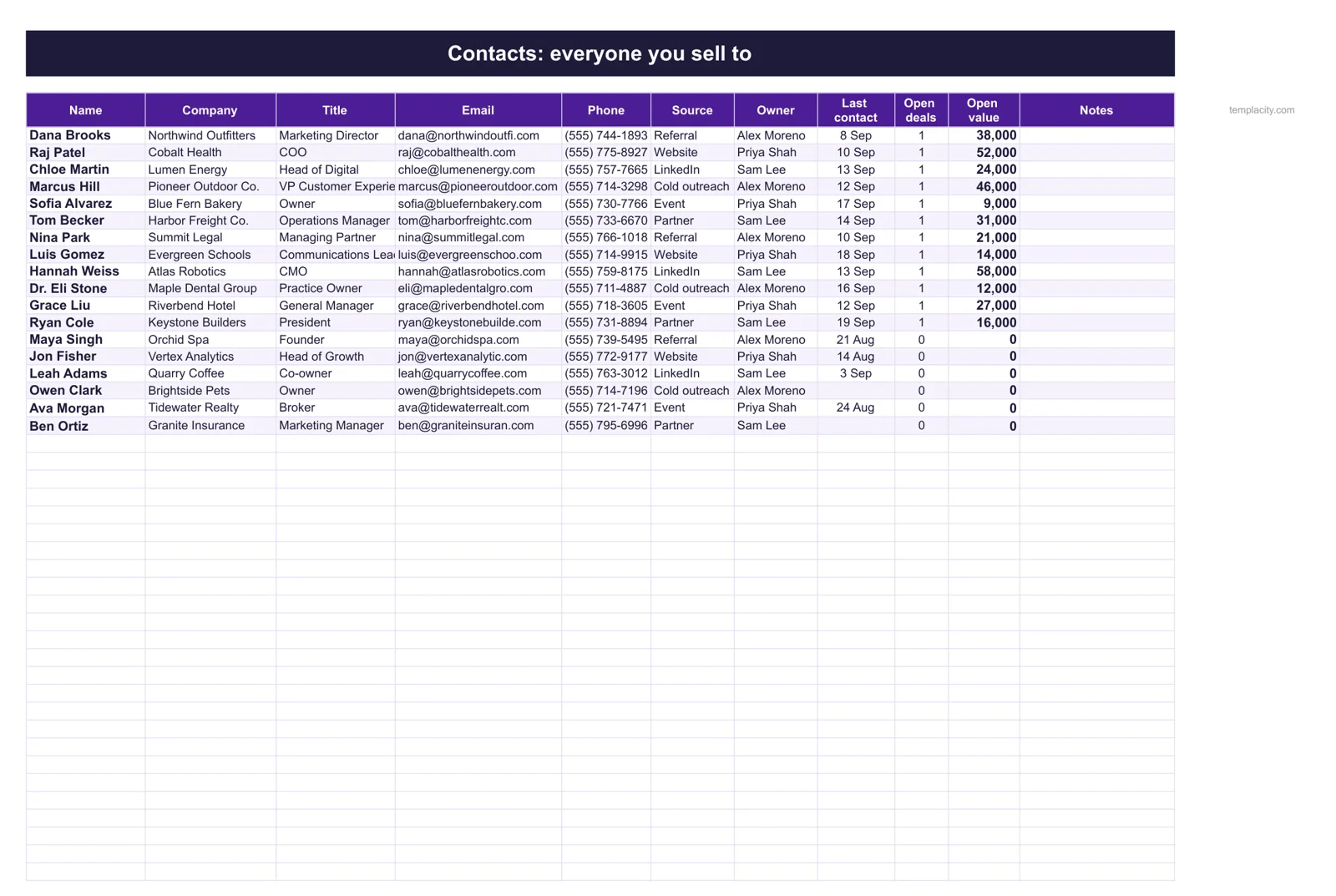
A Google Sheets CRM template that lasts splits the work into three lists, the same split every CRM product makes underneath:
- Contacts: one row per person, typed once.
- Deals: one row per thing someone might buy, pointing at a contact by name.
- Activities: one row per call, email or meeting, also pointing at a contact.
The contact name is the thread. As long as it is spelled the same way on all three tabs (a dropdown fed from Contacts makes sure of that), the sheet can answer the questions a CRM exists for: who needs a follow-up today, who has gone quiet with money on the table, and how much is open with each client.
The tabs
The three tabs and the columns each one needs
Keep each tab narrow. Every column you add is one more thing to fill in after a call, and a CRM that takes two minutes to update stops being updated.
| Tab | Typed columns | Worked out |
|---|---|---|
| Contacts | A Name, B Company, C Email, D Owner | E Last contact, F Open deals, G Open value |
| Deals | A Deal, B Contact, C Stage, D Value, E Expected close, F Follow-up date | Read by the follow-up list |
| Activities | A Date, B Contact, C Type (call, email, meeting), D What happened | Nothing: it is the log |
Two rules make the rest work. Contact on Deals and Activities is a dropdown from the Name column, so a typo cannot start a new person. And the Activities tab only ever grows: you add a row after each conversation and never edit old ones. That log is what lets the sheet work out the last contact date instead of trusting someone to type it.
The formulas
Four formulas that turn the lists into a CRM
Last contact goes in column E of Contacts. MAXIFS returns the largest value in a range filtered by a condition, and the largest date logged against a name is the most recent conversation:
=IF(A2="","",IF(COUNTIF(Activities!B:B,A2)=0,"Never",MAXIFS(Activities!A:A,Activities!B:B,A2)))
Blank rows stay blank; “Never” if nothing is logged for that name yet; otherwise the latest activity date. Format the column as a date.
Formula reviewed 1 November 2026
Open deals and open value count and sum the deals that are neither won nor lost: =COUNTIFS(Deals!B:B,A2,Deals!C:C,"<>Won",Deals!C:C,"<>Lost") in F, and =SUMIFS(Deals!D:D,Deals!B:B,A2,Deals!C:C,"<>Won",Deals!C:C,"<>Lost") in G. Sort Contacts by G and your biggest open relationships sit at the top.
The quiet flag is a conditional formatting rule on Contacts with a custom formula: =AND($F2>0,ISNUMBER($E2),TODAY()-$E2>30), filled red. It catches the person with an open deal you have not spoken to in a month. Plenty of deals are lost not to a rival but to silence. There is a reason last contact lives on Contacts rather than being looked up inside the rule. Google’s conditional formatting help says custom formulas “can only reference the same sheet” unless you reach across with INDIRECT, so the rule reads columns E and F, which already sit on this tab.
Plenty of deals are lost not to a rival but to silence.
Follow-ups due is the list you open each morning, on its own tab: =IFERROR(FILTER(Deals!A2:B,Deals!F2:F<>"",Deals!F2:F<=TODAY(),Deals!C2:C<>"Won",Deals!C2:C<>"Lost"),"Nothing due"). It shows every open deal whose follow-up date is today or past, with the contact beside it. Keep every range starting at row 2: FILTER needs each condition to be exactly the same length as the range, and returns #N/A when nothing matches, which the IFERROR turns into a friendlier line.
A deal with no follow-up date never appears on that list, which is the one hole in the design. Sort Deals by column F now and then, and give anything blank a date or close it as lost. Stages, the weighted forecast and why lost deals are worth keeping are their own subject, covered in our sales tracker spreadsheet guide.
Excel
The same CRM template in Excel: one catch
Everything above works in Excel with the same tabs and the same formulas, so a CRM template for Excel is not a different design. The catch is the version. Microsoft lists MAXIFS for Excel 2019 and later and Microsoft 365, and FILTER only for Excel 2021, 2024 and Microsoft 365. On an older desktop copy the last contact column shows #NAME? and the follow-up list never fills. If anyone on the team runs Excel 2016, use Google Sheets instead, or replace the follow-up list with an autofilter on the Deals tab.
The other difference is sharing. A Google Sheet is one live file that two salespeople can update at once from a phone after a meeting. An Excel file emailed around becomes three versions by Friday, so if more than one person sells, keep the CRM in Sheets or in a shared OneDrive file, never as an attachment. If your team already lives in OneNote rather than a spreadsheet, our OneNote CRM template guide covers the notebook version.
Which one
CRM or sales tracker: which spreadsheet you need
The two get searched for interchangeably and do different jobs. A sales tracker is a list of deals: where each one is and what the month will bring. A CRM adds the people, so it can tell you who you owe a call and who has gone cold. If you sell to a handful of new customers a month and never twice to the same one, a deal list is enough. If clients come back, refer others, or take months to decide, you want the contacts and the activity log as well, which is exactly what a Google Sheets CRM template adds. Most small businesses that invoice the same clients repeatedly are in the second group; pair the CRM with a Google Sheets invoice template and the work from first call to paid lives in one place.
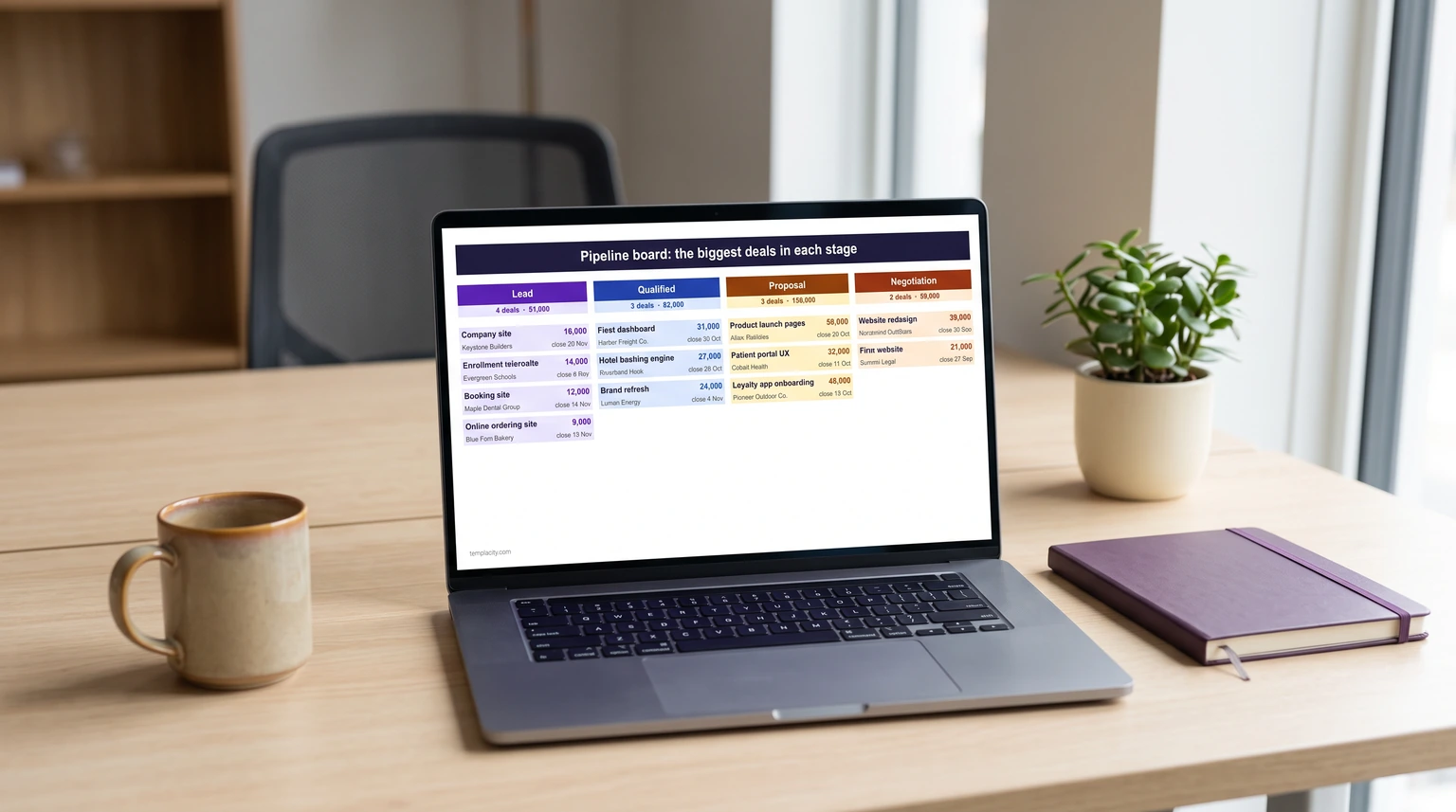
If you would rather start from a finished file, our Sales CRM & Pipeline Spreadsheet ($49, Google Sheets and Excel) is this design built out. Every deal is one row with a follow-up date, and a deal without one says “No date” until it gets one. Contacts pulls each person’s last contact from the Activities log and turns anyone quiet for 30 days with an open deal red. A Dashboard lists the follow-ups due and overdue, a Board lays the open deals out as a column per stage, and a Call Log holds the calls that have not become contacts yet. You get a blank copy and a filled example for each app, with a one-page Quick Start.
Running a small business on spreadsheets rather than one? The CRM also comes inside our Small Business Operations Spreadsheet Kit, with the Project Tracker, Small Business Bookkeeping and the Cash Flow Forecast: all four for $129, against $186 bought one by one. Working alone, the Freelancer & Solopreneur Spreadsheet Kit swaps cash flow for quotes and a to-do list: five sheets for $129, against $195.
The limit
When a free CRM beats a spreadsheet
Price is not the reason to choose a spreadsheet, because HubSpot offers a free CRM, so be clear about what the sheet gives up. A spreadsheet logs nothing by itself: every email and call is a row someone types. It sends no reminders; the follow-up list only helps if you open it. And it has no permissions worth the name, so everyone who can edit a deal can edit all of them. If your team sends more email than it can log by hand, or a manager needs each rep to see only their own deals, dedicated software earns its setup time.
Below that line the sheet usually wins. There is nothing to learn, no import, no seat to add when someone joins, and the whole customer list is one file you own and can sort any way you like. Plenty of businesses never cross the line at all. The rest of our spreadsheet guides, from a to-do list template to budgets, are on the Google Sheets hub.
Whatever Google Sheets CRM template you build or buy, start the Activities tab on day one, even if it feels like overkill. It is the only part of the file that cannot be rebuilt later. Tell us in the comments which column you added that we left out; every business sells a little differently.
FAQ
Common questions, answered briefly
Can you use Google Sheets as a CRM?
What columns should a CRM spreadsheet have?
Does a CRM template work in Excel?
What is the difference between a CRM and a sales tracker?
People also ask