reMarkable Sleep Screen: How to Change or Customise It (2026)
How to change the reMarkable sleep screen in 2026: why there is no setting for it, what the $12 RCU app changes, and the free SSH route.
Updated October 14, 20266 min read1,215 words
Built-in
What the official settings let you change
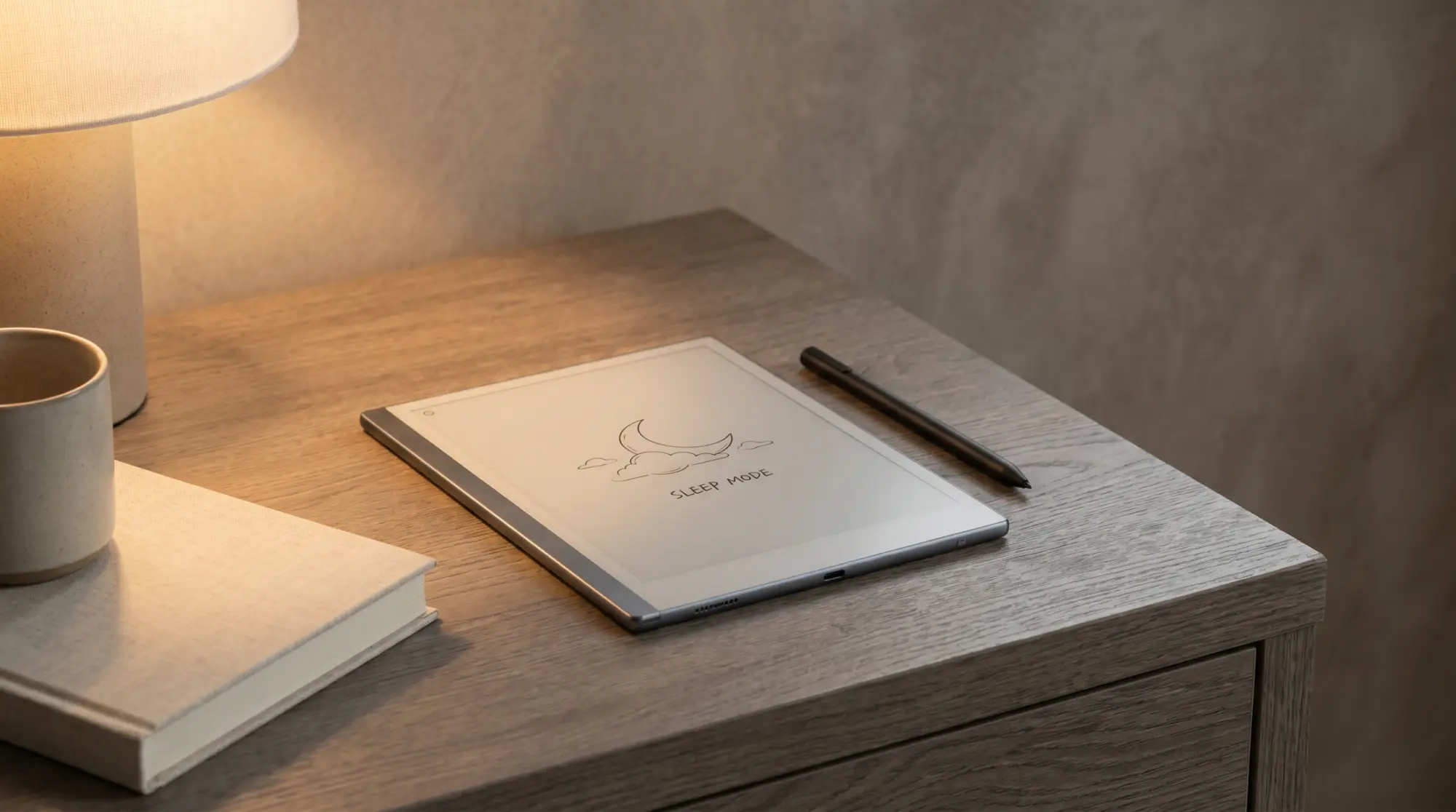
Nothing, as far as the sleep screen goes. The Paper Pro and Paper Pro Move user guides, which reMarkable publishes as PDFs, describe sleep in one line: press the power button once and the “reMarkable is sleeping” message appears. The settings they document around it are automatic sleep after 20 minutes of inactivity and an optional passcode on wake. Neither guide lists an option for the image itself, and there is no “last notebook page” choice to switch on.
That is why every route to a custom reMarkable sleep screen runs through access reMarkable does not support. The company prints the SSH password on the device itself, in the GPLv3 compliance section under General > Help > About, and its guide says plainly that any change made through SSH is done at the user’s own risk. Both routes below use that access; RCU just puts a desktop app in front of it.
RCU
Custom reMarkable screensaver through RCU
RCU (reMarkable Connection Utility) is a desktop app from an independent developer, sold for $12, that talks to the tablet over USB or Wi-Fi. Version 5.1.1, released on 20 August 2026, lists the reMarkable 1, 2, Paper Pro, Paper Pro Move and Paper Pure as compatible. Its Wallpaper feature sets custom images for six system screens: Suspended, which is the sleep screen, plus Power Off, Starting, Rebooting, Overheating and Battery Empty, and it reverts them to the factory originals when you want them back.
The practical advantage over doing it by hand is firmware updates. RCU’s own page says it repairs custom wallpapers automatically after a firmware upgrade, where hand-replaced files have to go back in each time. It works over the same SSH access as the manual route, so expect to need the device password, and on the Paper Pro family, Developer Mode.
SSH
Direct reMarkable screensaver replacement over SSH
For full control by hand, the SSH route replaces the image files the system shows in each state. On the reMarkable 2, the community guides name them in /usr/share/remarkable/: suspended.png for the sleep screen, plus starting.png, poweroff.png and rebooting.png. Replace each with a PNG at the device’s native resolution and the tablet shows it at the next state change.
Two caveats. First, on the Paper Pro, Paper Pro Move and Paper Pure, SSH needs Developer Mode switched on before the password works, according to the community-run remarkable.guide. Second, a firmware update can overwrite the files, so they go back in after each update. reMarkable’s own guide is explicit that changes over SSH are at your own risk, so keep the originals.
If you’ve built a custom reMarkable screensaver setup that uses one of these paths, drop the result in the comments. The community guides cover the mechanics well; the patterns of what makes a good sleep image (low ink density for slow refresh, useful information, brand vs notebook) are still being figured out across the user base.
FAQ
Common questions, answered briefly
How do I change the reMarkable screensaver?
reMarkable has no built-in setting for it. Both working routes use the SSH access reMarkable publishes on the device: RCU, a $12 desktop app that sets custom sleep, power-off, starting and other system screens and restores them after firmware updates, or replacing the image files yourself over SSH. On the Paper Pro, Move and Pure, SSH needs Developer Mode first.
What size should a reMarkable screensaver image be?
Native resolution per device: 1404 x 1872 pixels for the reMarkable 2, 1620 x 2160 for the Paper Pro, 954 x 1696 for the Paper Pro Move. Grayscale or low-colour PNGs render cleanest on E Ink. Keep ink density moderate so the slow refresh stays clean.
Will a custom reMarkable screensaver void my warranty?
reMarkable’s user guide says changes made through SSH access are done at the user’s own risk, and RCU’s own FAQ says it is unclear whether third-party tools affect the warranty. Neither route is a supported setting, so if the device needs service, put the factory images back first.
Can I set my last notebook page as the reMarkable screensaver?
Not as a setting. reMarkable’s guides document no option to show the last page when the tablet sleeps. The closest you can get is exporting a page as a PNG at native resolution and setting it as the sleep image through RCU or SSH, which shows that page every time rather than the latest one.
Why does my reMarkable screensaver keep reverting after firmware updates?
If you replaced the files by hand over SSH, a firmware update can overwrite them, and they go back in after each update. RCU says it repairs custom wallpapers automatically after a firmware upgrade, which is the main reason to pay for it.
If yours isn’t above, drop the question in the comments and we’ll fold it in next refresh.