For the broader buyer’s guide on running a remarkable planner across the lineup (which device fits, native templates vs PDF imports vs paid apps, free vs paid tradeoffs, and the Kindle Scribe comparison), see the pillar.
Premise
How to pick the best reMarkable planner for your work
The best reMarkable planner is rarely the most elaborate one. Most planner regret on the rM2 and Paper Pro comes from picking a layout that looks impressive on a screenshot and turns out to be unusable on week three. The pattern is the same as paper planners: the spread that feels comprehensive in October is the spread that gets ignored in January. The planners that earn long-term use are the ones that match how you already plan on paper or in a calendar app.
The reMarkable platform handles five planner roles cleanly: daily, weekly, monthly, project, and habit. Most users need one strong layout per role, not a forty-page bundle that tries to cover every possible workflow. The picks below are organised by role, and within each role the choice depends on whether you want a maximalist dashboard or a minimalist single-purpose page. Both approaches work; matching the style to how you actually think is the part that matters.
Picks
Best reMarkable planner picks across five roles
| Role | Best for | What to look for | Avoid |
|---|---|---|---|
| Daily | One-page-per-day work logs | Single-column structure, time blocks light, generous notes area | Five-column dashboards with priority/gratitude/mood/water/weather panels |
| Weekly | Bird’s-eye planning | Seven equal day columns or 5-2 work-weekend split, one weekly task panel | Vertical layouts cramped to fit “extras” panels |
| Monthly | Anchor view that frames everything else | Classic month grid, week numbers, light goal column | Monthly pages with daily-detail micro-cells |
| Project | Multi-task projects with deliverables | Single-page project canvas, deliverable list, milestone strip | Gantt-chart imitations that pixelate at native resolution |
| Habit | Long-term tracking | Month grid with one row per habit, simple tick or mark | Habit pages with mood charts, sleep, water, and exercise stacked |
Read the role grid as a filter, not a checklist. Most users need two or three of these roles, not all five. Buying a bundle that ships all five does not save time if you only use the weekly and project layouts; you have just paid for three planners you never open. The exception is anyone managing a complex multi-stream workflow, where the project layout earns its place alongside the weekly.
Daily
Best reMarkable daily planner: single-page work log
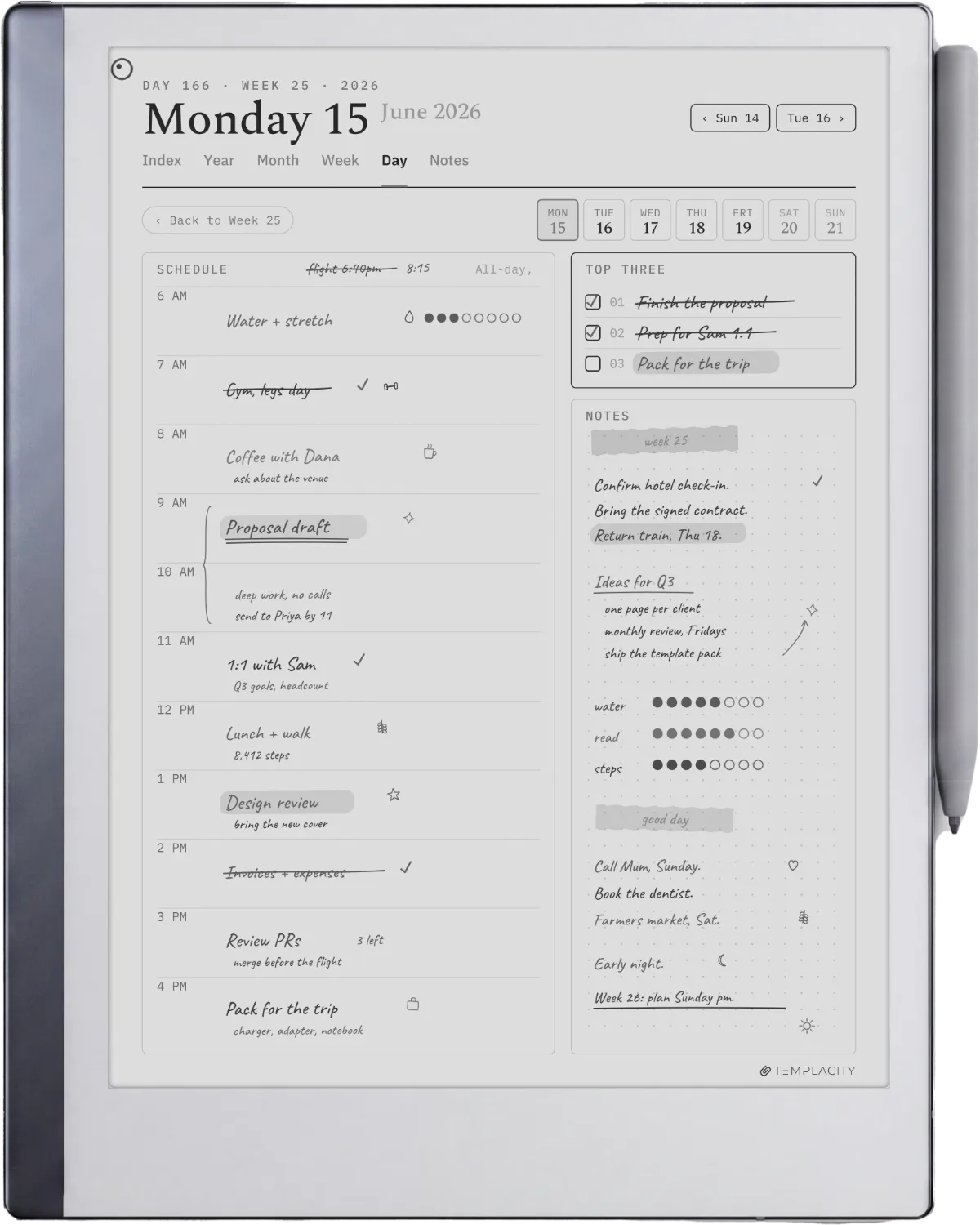
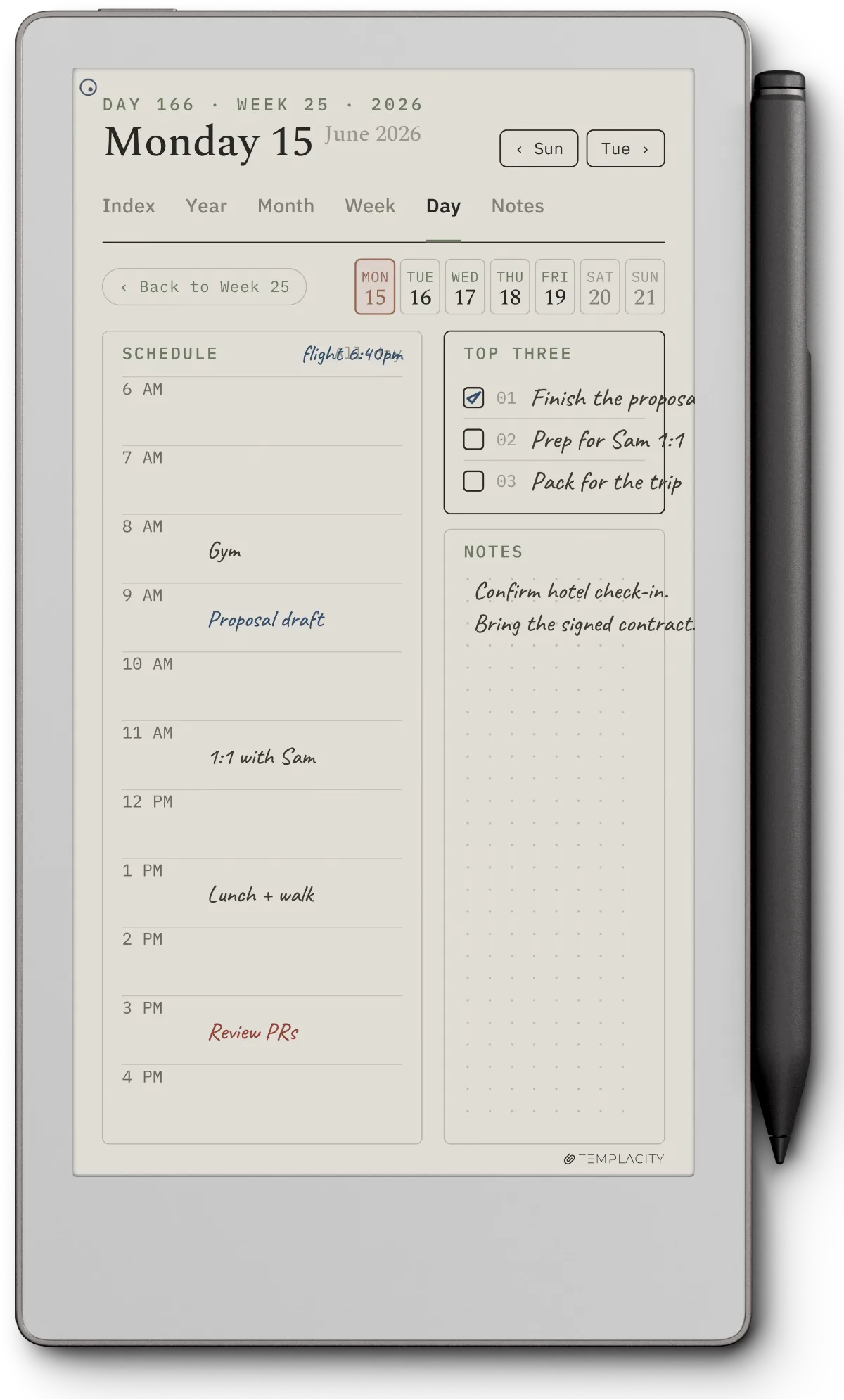
The best reMarkable daily planner is the one that fits the day’s worth of work and notes on a single page without the panel clutter most digital planners default to. Look for a single-column structure with the time blocks rendered light (so they guide rather than dominate), a notes area that takes at least half the page, and a small priorities band at the top. Skip the planners with priority, gratitude, mood, water-intake, weather, and goal panels stacked vertically; the visual noise makes the page feel like a form to fill in, not a tool to think on.
On the rM2, daily planners read best at A4-proportional sizes with a 20 to 30 millimetre outer margin. On the Paper Pro, the wider screen lets a daily layout add a thin right rail for tomorrow’s prep or a meeting note column without crowding. The Paper Pro’s colour layer earns its place on a daily planner only if the planner uses colour to encode time blocks (morning/afternoon/evening); otherwise the mono daily reads identically on the colour panel.
Weekly
Best reMarkable weekly planner: bird’s-eye on one spread
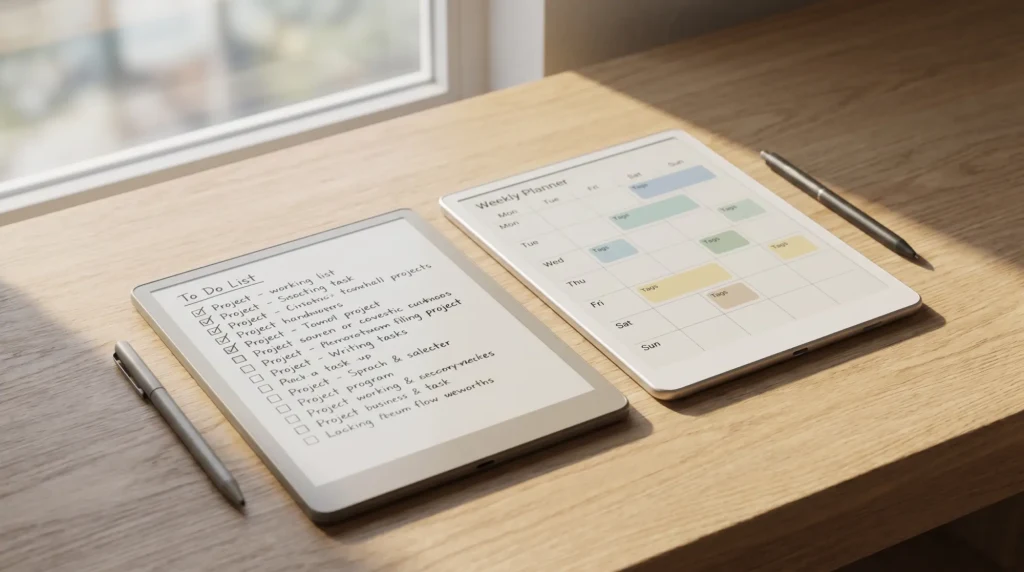
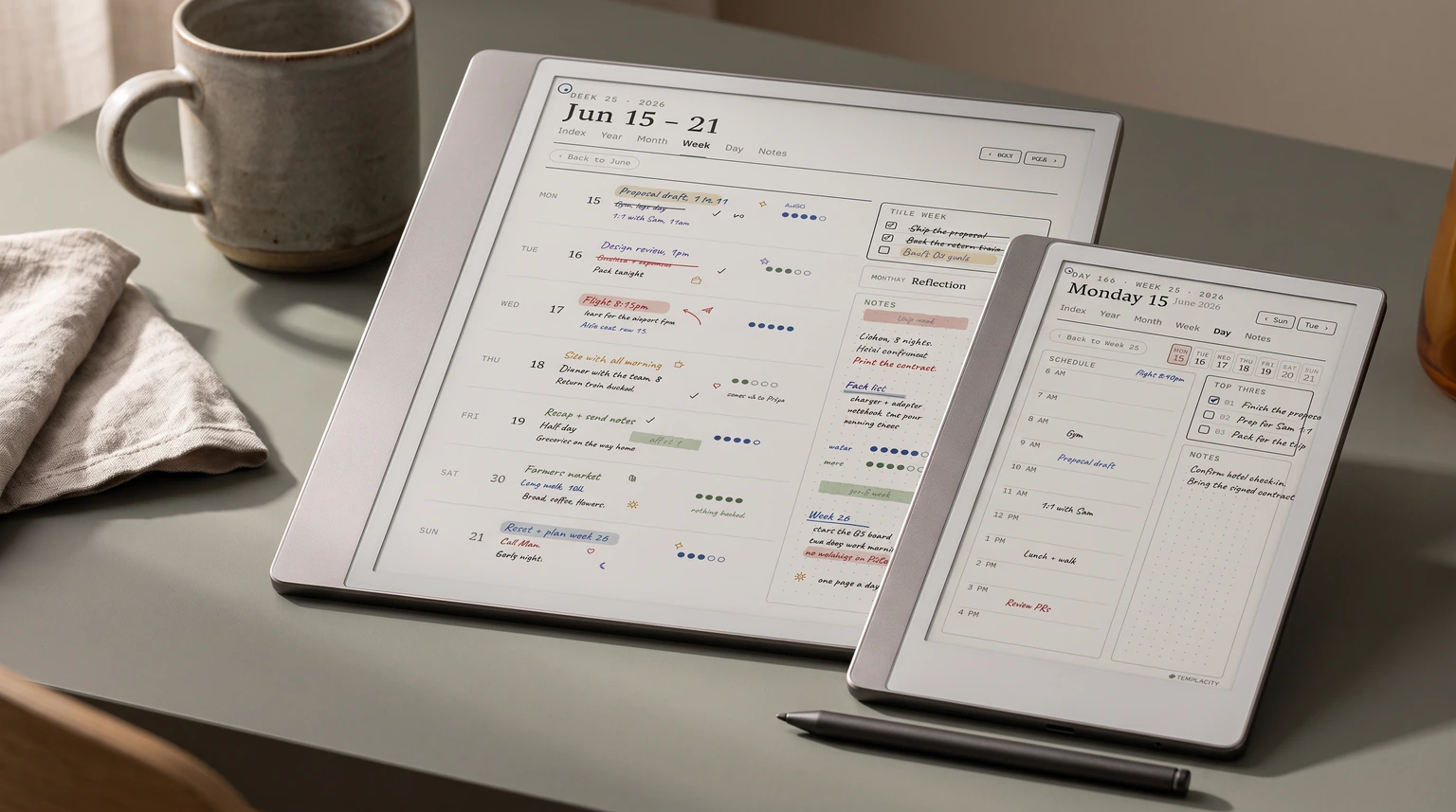
The best reMarkable weekly planner is the one you can read in three seconds on Monday morning and again on Thursday afternoon. Seven equal day columns is the safest default; a 5-2 work-weekend split works if your weekends are genuinely lighter. A single task panel on the right (or bottom) covers the week’s commitments without the per-day clutter most digital weeklies pile up. Anything more than that competes with the days for visual weight and ends up as a structure you fight rather than use.
Cramped vertical layouts where each day is a tall narrow column are the most common weekly planner mistake. The reMarkable screen is taller than it is wide, which suggests the columnar layout, but the practical result is that each day becomes too narrow to hold actual notes. Horizontal weekly spreads (one row per day, seven rows down) read better in practice. The Paper Pro’s wider screen gives this layout more room; the rM2 fits it but needs tight typography.
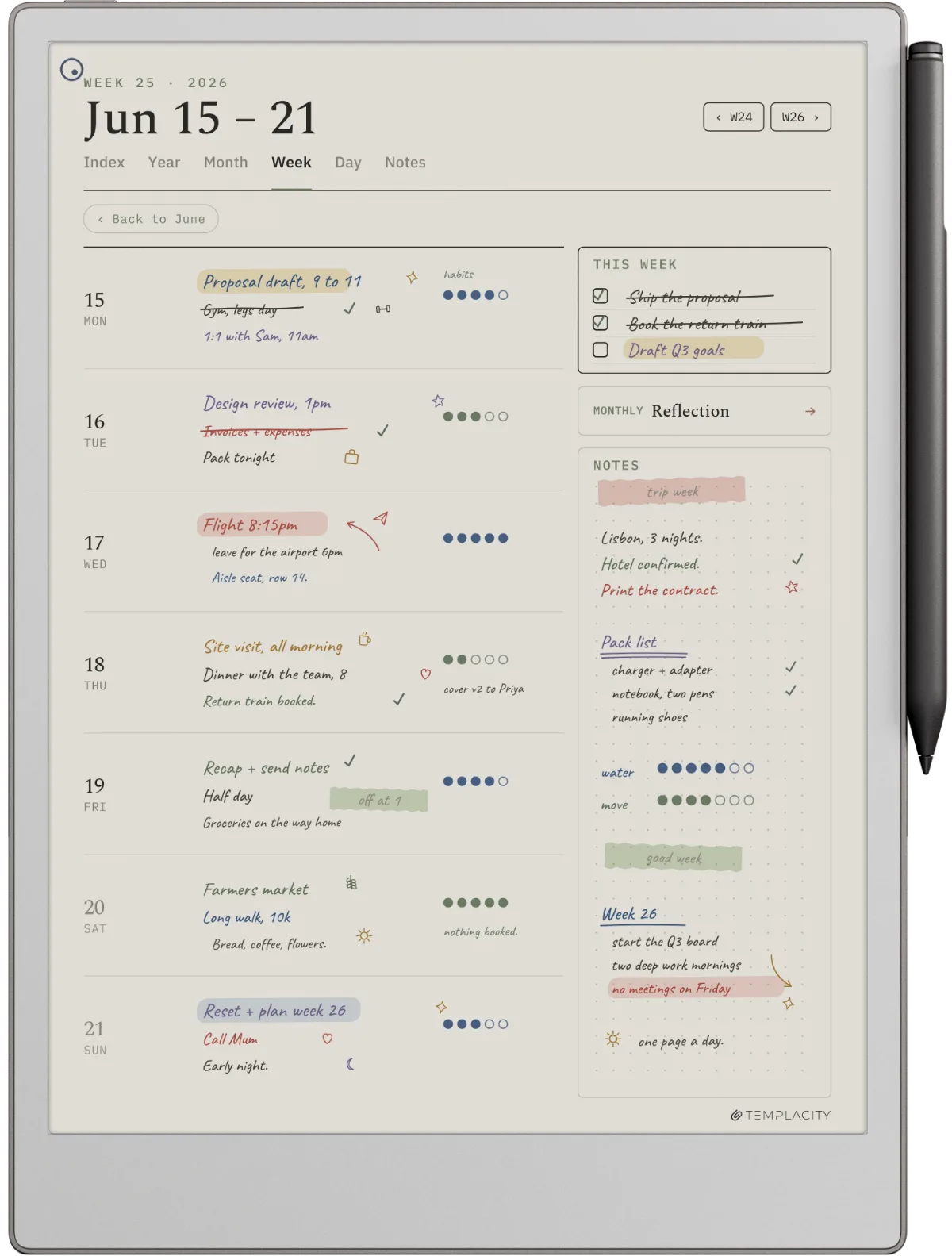
The best reMarkable planner is the one that disappears into the workflow on week three, not the one that wins the screenshot on day one.Premise section
Monthly
Best reMarkable monthly planner: the anchor view
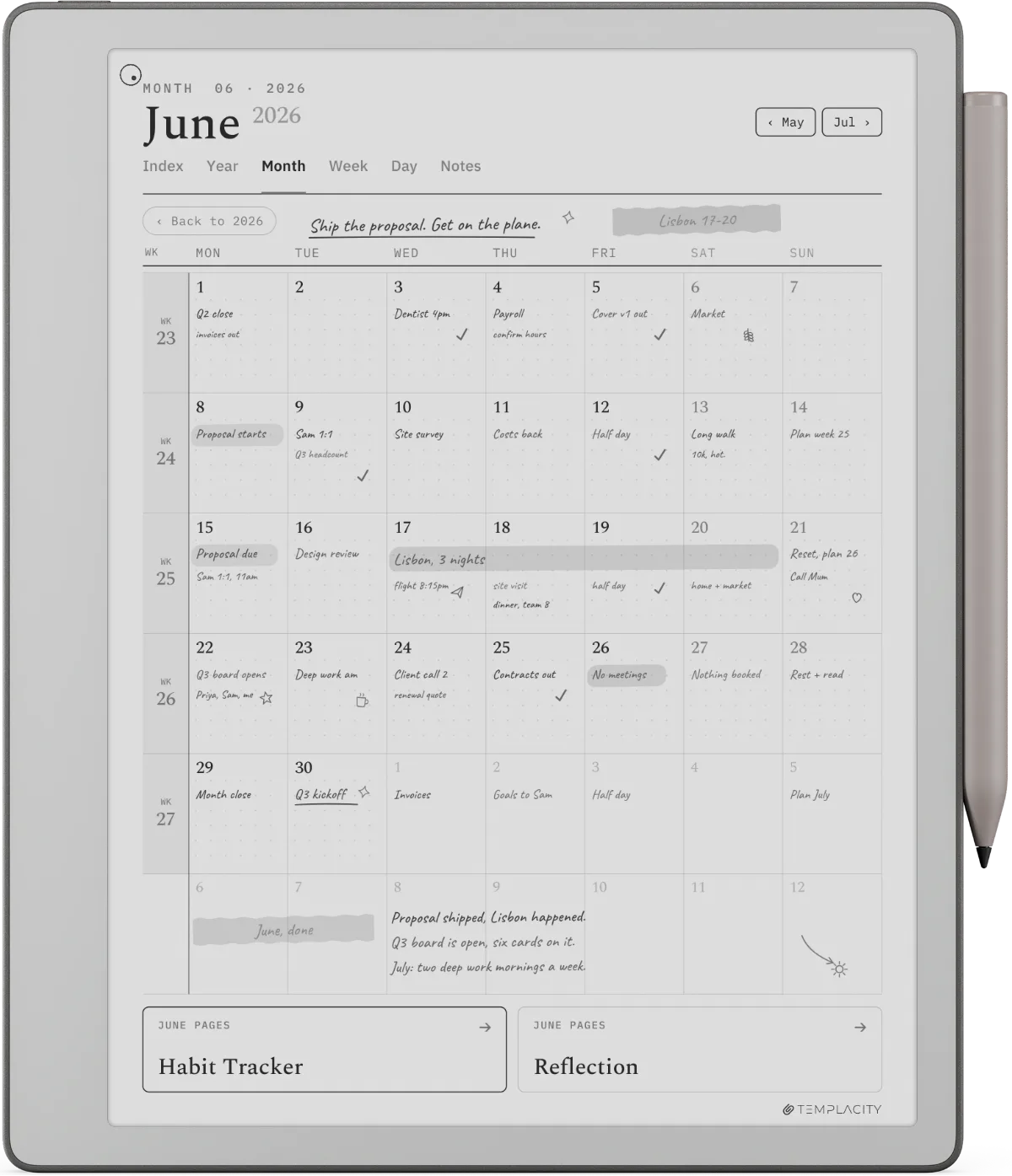
The monthly planner is the role most reMarkable users underuse. A classic month grid (seven columns, five or six rows) with week numbers down the left edge and a light goal column on the right gives you the long view that the daily and weekly cannot. The trap is the monthly planners that try to be daily planners in micro form: each cell crammed with appointment slots and priority dots. At reMarkable’s native pixel density, those micro-elements pixelate to the point of illegibility.
Pick a monthly that gives you the whole month at a glance, with enough cell space for two or three short notes per day. Anything denser belongs on the weekly or daily. Our reMarkable 2 planner templates roundup covers the rM2-specific monthly options in more depth; the Paper Pro’s wider screen gives monthly planners more breathing room without changing the structure.
Project
Best reMarkable project planner: one page per project
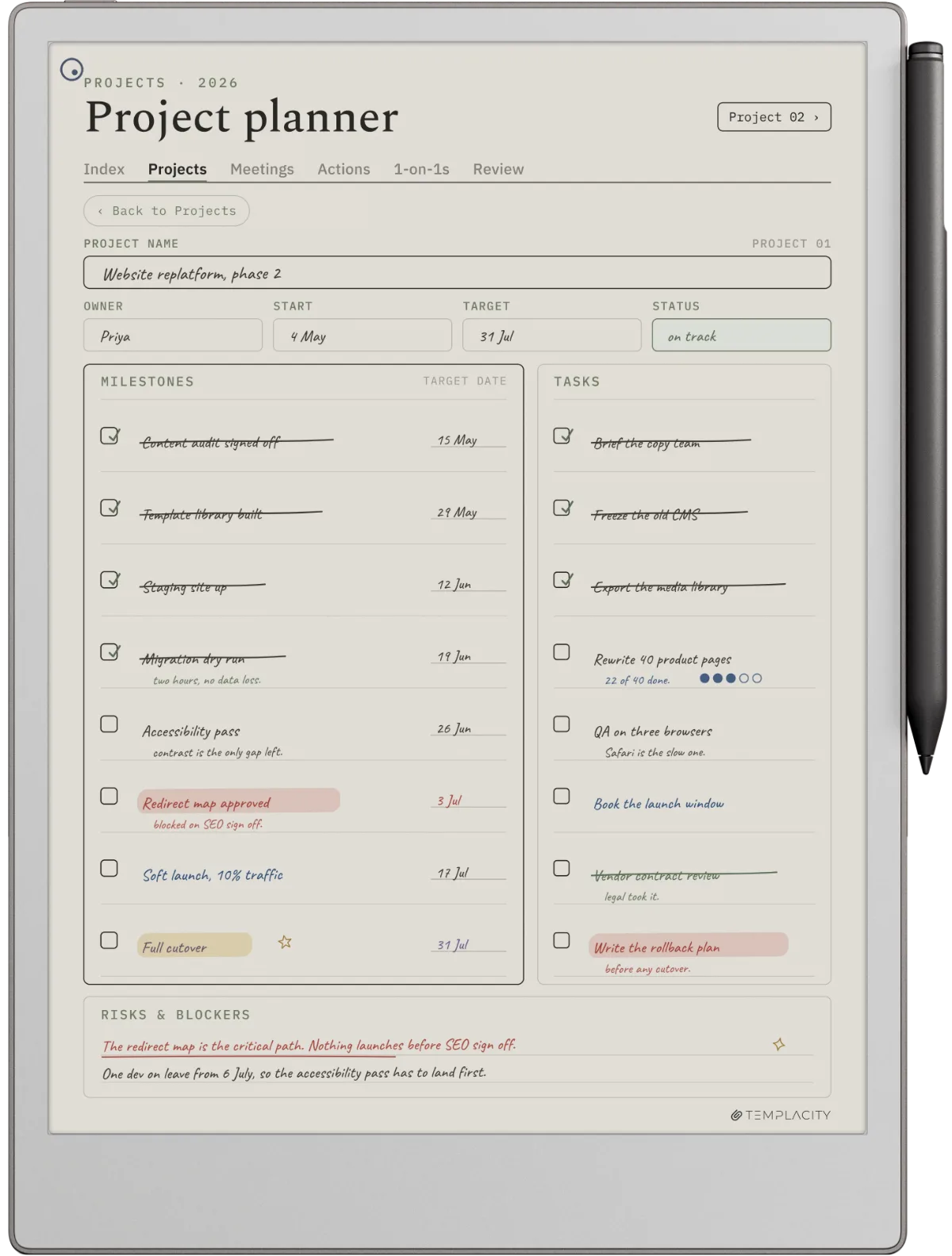
The best reMarkable project planner is the one that holds an entire project on a single page: deliverable list at the top, milestone strip across the middle, free-form notes below. The single-page constraint forces the project shape to stay legible. Multi-page project planners look comprehensive in screenshots and become unmaintainable in practice because keeping page two updated to match page one is the kind of friction reMarkable users abandon quickly. One project, one page, hand-updated as the project moves.
Avoid project planners that imitate Gantt charts. The reMarkable’s PDF renderer handles them but the pixel density is wrong for fine-grain time bars; the chart looks crisp on a laptop screenshot and renders fuzzy on the device. Stick to milestone-strip layouts (five to seven labelled milestones across a horizontal strip) and use the notes area to write actual project context. For lighter project work, a numbered task list with checkboxes works as well as anything more elaborate.
Install matters as much as the planner choice. PDF planners drop into the reMarkable mobile or desktop app, sync to the device, and open as notebooks you write directly on, with no unlocking needed on either the rM2 or Paper Pro. PNG templates (single-image backgrounds that appear on every new notebook page) install through the reMarkable Connect template installer on recent firmware or through RCU on older firmware. PDFs are the friction-free path; PNGs are more powerful but add setup steps. Our reMarkable template installer guide covers the PNG path step by step.
If you have a planner that has earned its place in your reMarkable workflow, drop the name in the comments. The roundup above is built around the five roles most users actually plan against; specific picks from owners are how we calibrate which planners deliver on day-three legibility rather than day-one impression.
FAQ
Common questions, answered briefly
What is the best reMarkable planner in 2026?
What is the best planner for the reMarkable 2?
What is the best planner for the reMarkable Paper Pro?
How do I install a planner on the reMarkable?
Are reMarkable planner bundles worth it over individual planners?
If yours isn’t above, drop the question in the comments and we’ll fold it in next refresh.
People also ask