Setup
How to split screen in Goodnotes on iPad
The week you are planning keeps sending you back to notes you took somewhere else: the meeting notebook, the class notes, the list you started on Sunday. Flipping between them one at a time is where the friction lives. Goodnotes split screen puts both in view, and on an iPad running iPadOS 26 or later it takes one setting and one drag.
Apple’s Multitask on iPad page, written for iPadOS 26 and later and published in September 2026, starts with that setting. Goodnotes’ own guide to multiple windows covers the drag. Here are the two together.
-
1
Turn on Windowed Apps
Open Settings, tap Multitasking & Gestures and select Windowed Apps. Apple’s side-by-side steps sit under that setting.
-
2
Open your planner full screen
Open Goodnotes and the notebook you plan in. This is the window the second one will sit beside.
-
3
Drag in the second window
Swipe up from the bottom of the screen to show the Dock, press and hold the Goodnotes icon until it lifts, and drag it to the left or right edge. Apple says the App Library and Spotlight work as the source too.
-
4
Set the split
Drag the bar in the middle to give one side more room, then open your notes notebook in the new window.
Once Goodnotes is open there are quicker routes, and Goodnotes lists four of its own. Press and hold a notebook or folder thumbnail in the Library and drag it to the side of the screen. Select the title under a thumbnail and choose Open in New Window. On a document tab, select the file name and choose Open in New Window, or press and hold the tab and drag it to the side. With an external keyboard, Command-N opens a new window, per Goodnotes’ keyboard shortcuts list.
When it fails
Goodnotes split view not working? Check the iPad setting first
Split View is the name most guides still use, and Goodnotes’ help page uses it too, alongside Slide Over. Apple’s iPadOS 26 page talks about windowed apps instead, and its side-by-side steps come after the Windowed Apps setting. So if Goodnotes split screen does nothing when you drag to the edge, open Settings, then Multitasking & Gestures, and see which option is selected. Apple’s Stage Manager page names the three there: Full Screen Apps, Windowed Apps and Stage Manager.
With some windows already open, Apple gives a second way in: swipe one window quickly to the left or right side of the screen, then swipe another to the other side. To find a window you lost track of, swipe up from the bottom, pause in the middle of the screen, lift your finger and tap the window you want.
Two checks sit on the Goodnotes side. Goodnotes says multiple Goodnotes windows are only available on iPadOS, so this is an iPad feature. And Goodnotes needs iPadOS 18.7 or later to receive updates, per its minimum versions page; an older iPad keeps the version it has, without new fixes.
If you would rather overlap windows than tile them, Stage Manager is the third choice. Apple turns it on from Control Center (swipe down from the top-right corner and tap the Stage Manager button) or from the same Multitasking & Gestures screen, and it lets you resize windows and see several overlapping in one view.
The layout
A Goodnotes split screen layout for planner and notes
The layout that earns the setup is a planner on one side and a working notebook on the other: the planner where you tap, the notes where you write. On an iPad a planner link opens when you tap it, and if a tap leaves a stroke instead, Goodnotes’ fix is Read Only Mode: the nav bar turns white, the writing toolbar hides, and a tab or a date opens with one selection. Select the mode icon again to write.
You do not need two files to see two pages. Open the planner, go to Thumbnails View or Favorites View, press and hold a page until it lifts and drag it to the side of the screen. Goodnotes opens that page in another window, and each window scrolls independently, so the month can stay on the left while today sits on the right. That is the closest Goodnotes comes to a spread: its list of requested features still shows a two-page book view in one window without the tick it gives supported ones.
| The job | Layout | How to open it |
|---|---|---|
| Plan the week from meeting notes | Planner beside a notes notebook | Drag the notes thumbnail from the Library to the edge |
| See the month and today together | One planner, two windows | Drag a page out of Thumbnails View |
| Jot a note over the planner | Slide Over window | Window controls, then Enter Slide Over (iPadOS 26.2 or later) |
| Several notebooks, one in view | Document tabs | Open each notebook, switch on the tabs bar |
Once both windows are open, content moves between them. Goodnotes’ multi-window guide lists what drags across: a Lasso selection, a screenshot taken with the Lasso Tool, an image, a folder between two Library views, and pages, which you drag as a stack from one Thumbnails View into the other. Dragging pages copies them, as Goodnotes’ page-copy guide also says, so delete the originals if you meant to move them. Dropping a page thumbnail onto a blank page adds it as an image, one page at a time, and its text is not searchable.
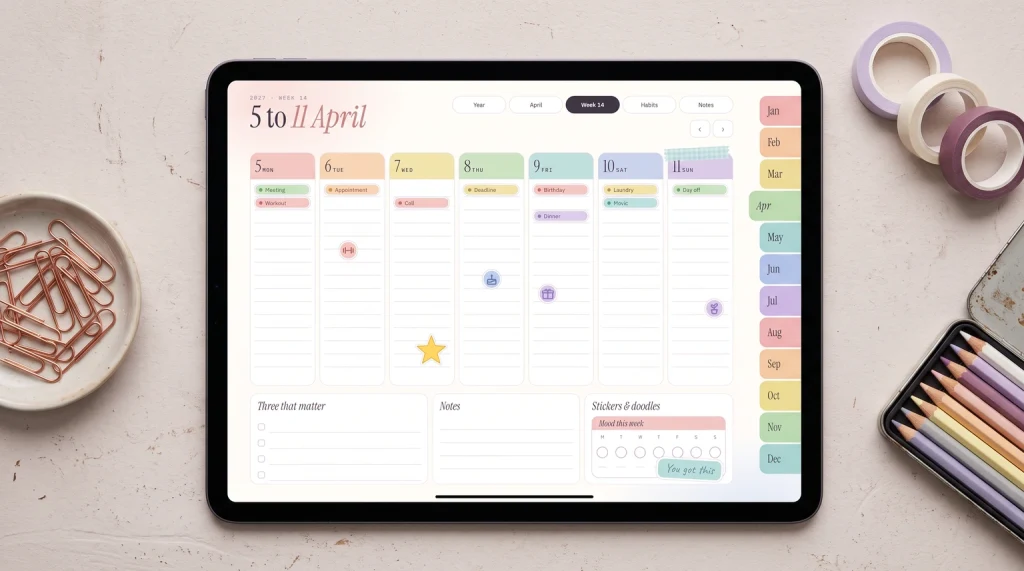
We make Goodnotes planners, so read this as a maker describing its own files. Our Goodnotes Digital Planner Set ($29) comes as separate PDFs: daily, daybook and weekly planners for 2026 and 2027, in blue or blush with Monday or Sunday starts, plus Infinite Notes pages in dots, grid and lines. That is the two-window layout already: a weekly planner in one window and an Infinite Notes file in the other. On Goodnotes’ free plan, which holds up to three files according to Goodnotes’ pricing page, that pair takes two of them.
The Planner for Goodnotes ($49) is the opposite shape: each 2027 edition, Monday or Sunday start, is one linked file of 487 landscape pages with a month tab on every page. With it, the route that fits is the page drag, the month in one window and the day in the other, both inside the same planner.
Tabs
Goodnotes tabs, and Slide Over for a quick note
Tabs are the lighter option when one notebook in view is enough. Goodnotes’ Document Tabs Bar sits just below the status bar, shows your open documents as tabs and gives you a way back to the Library. A tab can become a window: press and hold it and drag it to the side of the screen. With a keyboard, Command-W closes the current tab, and Option-Command-W closes all of them, a shortcut Goodnotes lists for iPadOS only.
Slide Over does a different job: one window that floats over the planner and gets out of the way. Apple’s page says it needs iPadOS 26.2 or later. Open Goodnotes in a window, tap and hold the window controls button and tap Enter Slide Over. Swipe the window off the left or right edge to hide it, and swipe in from that edge to bring it back. To leave, drag the window to the middle of the screen, or tap and hold the window controls button and tap Exit Slide Over.
Zoom Window
The Goodnotes Zoom Window is not split screen
One Goodnotes tool looks like a split screen and is not. The Zoom Window opens a magnified writing area so you can write small and neatly, while a box on the page shows the part you are writing into; the smaller the box, the higher the magnification. Goodnotes lists it for the iPad, and its Mac guide says it is not available on macOS.
Open it from the Zoom Window option in the toolbar, or press and hold the page with a finger and choose Zoom. You can also add it to the main toolbar from Goodnotes’ toolbar customization. With Auto Advance on, cross the middle of the Zoom Window with a stroke and a blue area appears; keep writing there and the box moves along the line, then down to the next one at the end of the page. Drag the bottom-right corner of the box to change its size, and set how far it drops to the next line from the three-dot icon, under Height.
Limits
When two windows slow Goodnotes down, and what it cannot do
A Goodnotes split screen with a few tabs behind it means several documents open at once, and Goodnotes’ guide to a slow or lagging app lists closing both among its fixes. To close tabs, open the current document, select its title at the top and choose Close Other Tabs. To close windows you forgot about, touch and hold the Goodnotes icon on the Home Screen, select Show All Windows and swipe up on each one you do not need.
Off the iPad the picture changes. Goodnotes’ feature list for Android, Windows and the web says multiple tabs are available there, while multi-window drag and drop is not. Our Goodnotes for Windows guide covers what else that app does and does not do.
For the planner itself, our Goodnotes digital planner guide sets out the checks that decide whether you still use one in March, and our hyperlinked digital planner explainer shows how the tabs you tap are built. Everything else we have for the app is on our Goodnotes hub.
How do you lay out your iPad when you plan: planner left and notes right, two pages of one planner, or a Slide Over list on top? Tell us in the comments; we check every tip against Goodnotes’ and Apple’s own pages before it goes into this guide.
FAQ
Common questions, answered briefly
How do you split screen in Goodnotes?
Why is Goodnotes split view not working?
Can I open two pages of the same notebook in Goodnotes?
Does Goodnotes have a two-page view?
What is the Zoom Window in Goodnotes?
Something in Goodnotes behaving differently on your iPad? Ask in the comments and we will check it against Goodnotes’ and Apple’s own pages.
People also ask