What they are
What Notability planner templates actually are
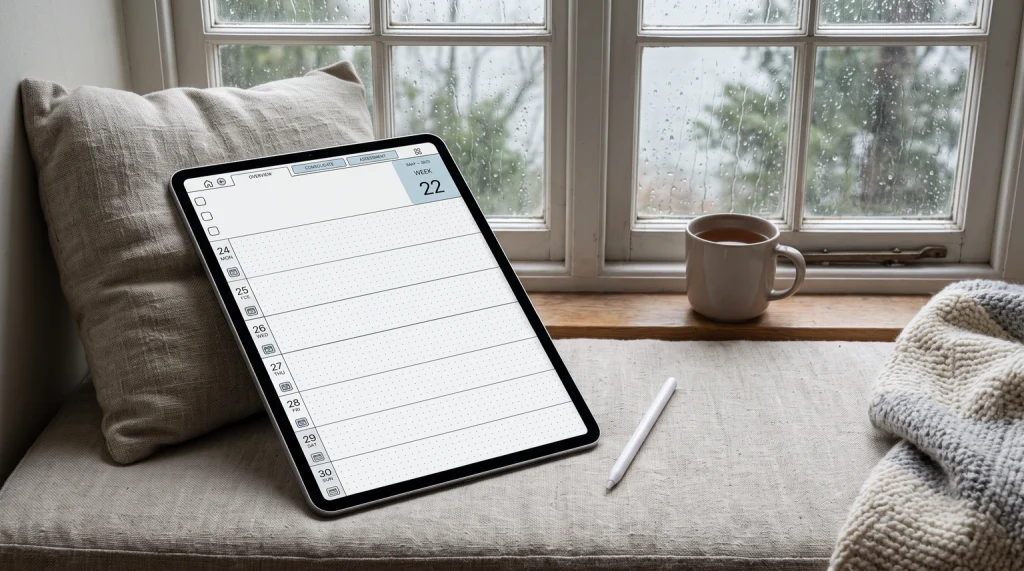
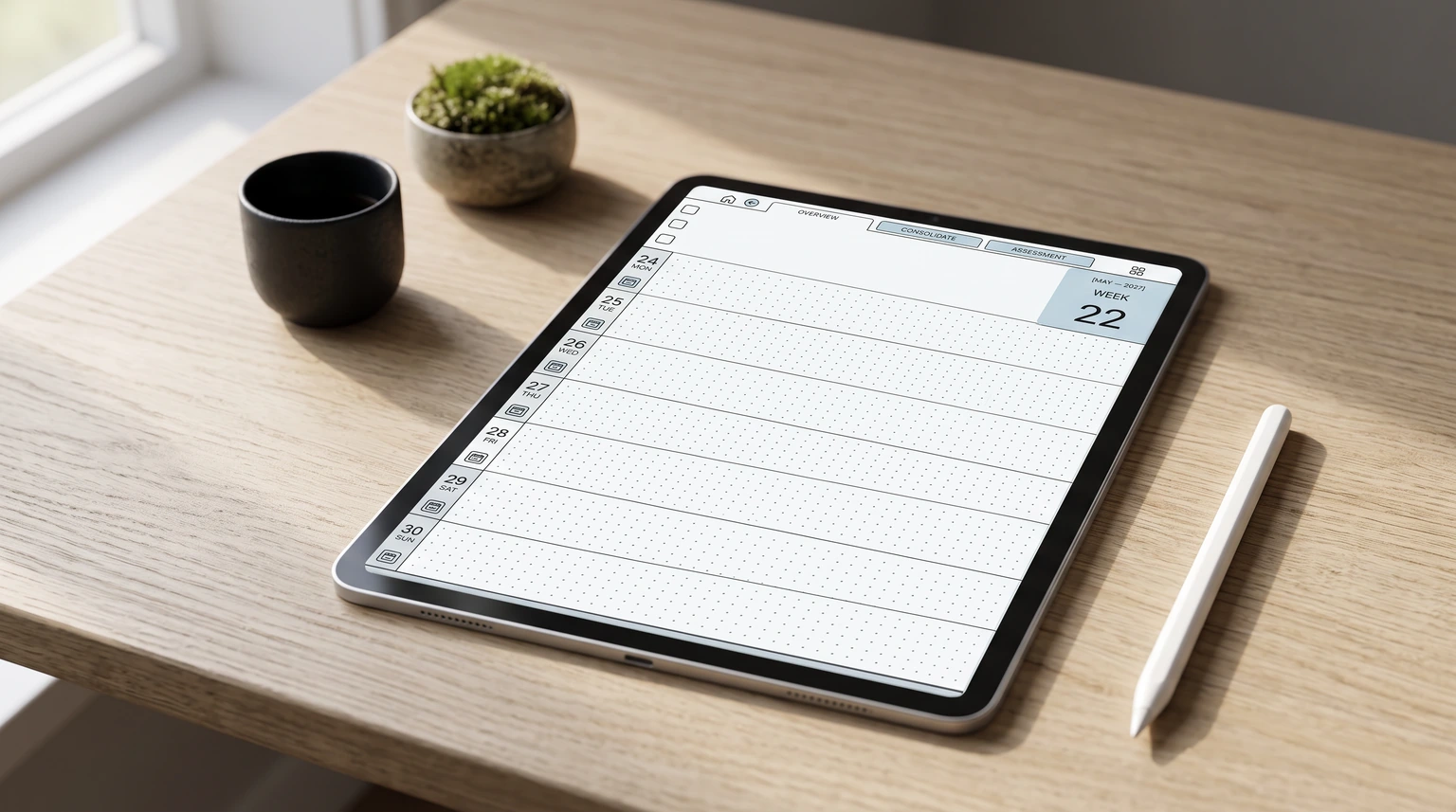
The phrase notability planner templates covers two things that behave nothing alike, and knowing which one you are looking at saves an afternoon. The first is the template library inside the app: backgrounds and page styles Notability ships, which you apply to a new note. The second is a planner file, almost always a PDF, that somebody else designed and you bring in from outside. Notability’s pricing page counts the built-in library at over 20,000 note-taking templates, so the app is not short of paper.
What the built-in library does not give you is a planner. A planner is a structure: a month view that leads into weeks, sections that belong to each other, and a contents page tying it together. That is why most people searching for notability planner templates end up importing a file rather than picking a background. The good news is that Notability treats an imported PDF as a first-class citizen rather than as an attachment, and the routes for getting one in are written down by the people who make the app.
Which to use
Which Notability planner to use: built-in, free PDF or paid
There are three kinds of Notability planner, and they do different jobs. The app’s own library is the quickest start: the pricing page lists access to more than 20,000 note-taking templates even on the free Starter plan. Those are single pages, though, not a dated year. A planner PDF is the other route, and it is the one that gives you a whole year in order, with an outline in the sidebar if the file was built with a table of contents.
| Option | What you get | Cost | Best for |
|---|---|---|---|
| Notability’s built-in templates | Single page layouts inside the app | Included, even on Starter | A to-do page or a one-off weekly sheet |
| A free planner PDF | Whatever the maker drew; outline only if the PDF has one | Free | Testing the routine before you commit |
| A dated planner PDF | A full year of pages in date order, imported as one note | Paid: ours, Notability Templates, is $29 | Daily or weekly planning for the whole year |
Full disclosure: we make the third kind. Notability Templates holds weekly, daily and daybook planners dated 2026 and 2027 plus undated notebooks, and every dated planner imports with its own contents outline, so you tap a month or a week instead of scrolling for it. Whichever you pick, the import steps below are the same.
Importing
How to import a planner into Notability
Ginger Labs publishes the steps in a help-centre article called Importing External Planners into Notability, and the short version is that there are three ways in. From the Library, tap the plus button to start a new item and choose the import route; tapping and holding the plus button offers Import directly. From inside a note you already have open, the Import control sits at the bottom of the page. And if the file is sitting somewhere else, in a downloads folder, a cloud drive or an email, you push it across using that app’s own share sheet instead.
For the full walk-through, every route in and how to keep all the pages rather than one, see our guide to importing a planner into Notability.
None of the three is better than the others. They are the same operation reached from wherever you happen to be standing. The one worth remembering is the share-sheet route, because it is the one that works when a file arrives as a download rather than as something already sitting in your files.
Reusing a page
Turn an imported page into a reusable template
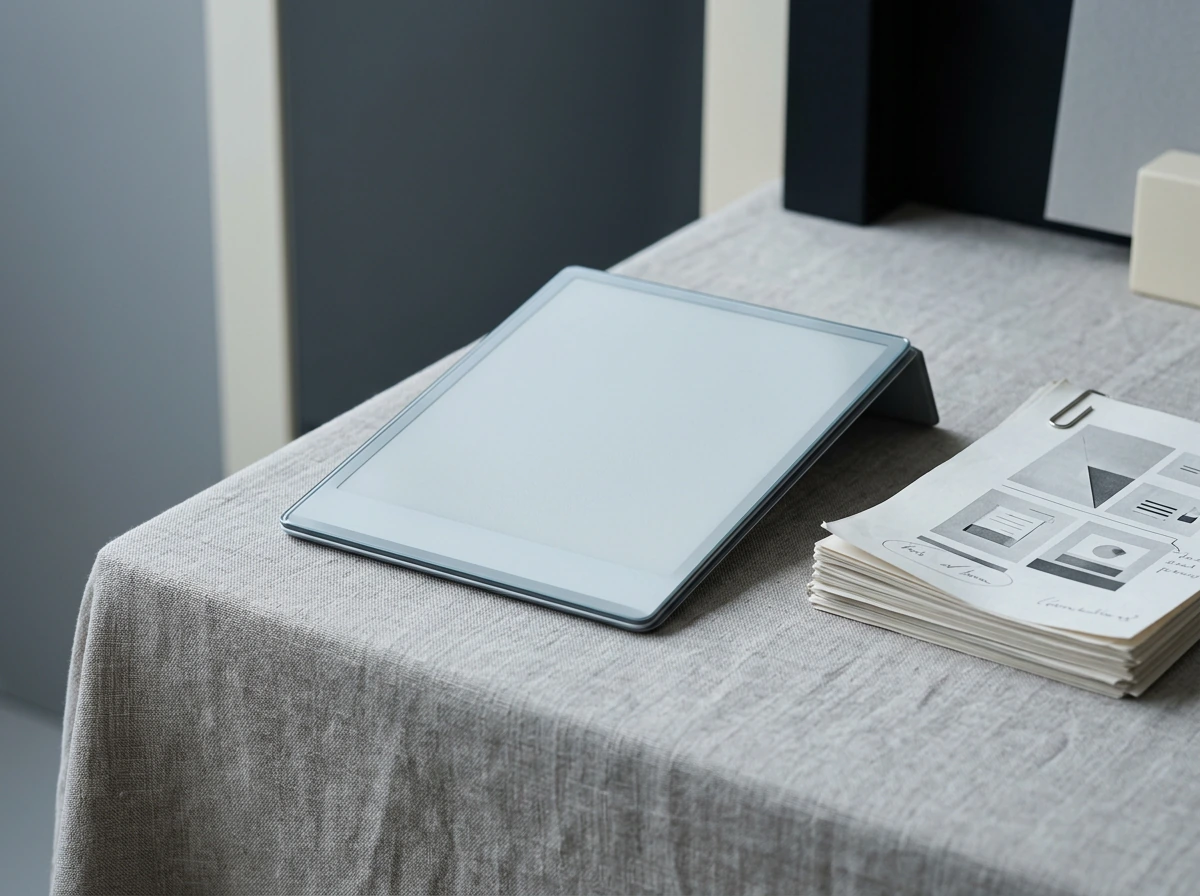
Importing gets the planner in once. If what you actually want is one page from it, a weekly spread or a habit grid, available every time you start a new note, Notability documents a route for that too, and it is the step most people miss. Open the note, open the Content Manager, and on the thumbnail of the page you want, choose Create Template. Name it and save it, and it lands in My Templates under Custom Templates, alongside the built-in ones.
This is the difference between owning a planner and running a system. A dated planner is something you work through from January. A saved custom template is a page you can pull up on any Tuesday for the rest of your life, which is why the undated pages in a good set are often the ones that keep getting used. If you are weighing this against the other big iPad app, our Goodnotes vs Notability comparison takes the same question from the app side rather than the file side.
Getting around
Navigating a long planner: the outline
A planner that runs to two hundred pages is only useful if you can reach page 143 without scrolling to it. Notability handles this with outlines, and the behaviour is documented. After importing a PDF that carries a table of contents, the app detects the document’s headings and sections and displays them. You open a note containing the PDF, open the Content Manager, and pick Outlines from the dropdown at the top. Tapping any heading in that list goes directly to that part of the document, and sections with subsections expand and collapse from the arrow beside them. Ginger Labs lists outlines as available on iPad, iPhone and Mac.
One thing we will not claim, because Ginger Labs does not document it anywhere: tapping a hyperlink drawn inside an imported PDF page is a different mechanism from the outline, and their help centre says nothing about whether it jumps. If in-page tab navigation is the reason you want a particular planner, test it with a free file on the free tier before you spend anything. That takes ten minutes and settles it for your device and your version of the app, which is worth more than anybody’s article about it.
A planner that runs to two hundred pages is only useful if you can reach page 143 without scrolling to it.
The free tier
What the free tier lets you do
The reason we keep saying test it first is that Notability lets you. The Starter plan costs nothing, and the pricing page lists PDF import among what it includes: adding PDFs and documents directly into your notes is not held back for paying users. The ceiling is note count rather than features, at five free notes, which is tight for daily use and entirely sufficient for checking whether a planner file behaves the way its listing says it does.
| Plan | Price | What it adds |
|---|---|---|
| Starter | Free | 5 notes, all editing tools, PDF and document import, 7-day version history |
| Lite | $11.99 a year, or $14.99 once | Unlimited notes, third-party backups on iOS |
| Plus | $15.99 a year, or $19.99 once | Audio recording and transcription, handwriting search, 30-day version history |
| Pro | $79.99 a year, or $99.99 once | Unlimited transcription and the AI study tools |
Prices read at notability.com in August 2026. The detail worth noticing is the one-time column: Notability sells a permanent licence beside every annual plan, which is unusual in this category and matters if you resent subscriptions. For a planner user specifically, Lite is usually the honest tier, because the thing you run out of first is notes rather than features.
Choosing a file
What to look for before you buy a planner file
Most listings for notability planner templates are describing the same PDF that every other app can open, which is good news and also means the listing is not telling you much. Three things separate a file that survives contact with a real year from one that does not. First, a real table of contents inside the PDF, because that is what produces the outline described above; a planner without one is a two-hundred-page scroll. Second, undated pages alongside the dated ones, so the set does not expire in December. Third, page dimensions that match your screen rather than a letter-sized page letterboxed into it, which is the difference between writing on a page and writing on a stamp.
We have a listing of our own now, Notability Templates, thirty files at $29. It is the same set as our Goodnotes planner at the same price, because the PDFs are identical, and saying so is more useful to you than pretending a Notability buyer receives something a Goodnotes buyer does not. Twenty-four of the thirty are dated books, and we opened every one to check the thing this page keeps insisting on: each carries a real outline inside the file, over 1,500 entries in the weekly, over 10,000 in the daily, over 18,000 in the daybook. The other six are the undated Endless Notebooks, which are plain paper by design and carry no contents at all, so do not expect an outline from those. Everything else we publish for this app sits in the Notability hub.
If you have run a planner in Notability for a full year, we would like to hear which pages you actually kept using and which ones you stopped opening by March. That gap is the most useful thing anybody can tell us about a planner, and it never shows up in a product listing.
FAQ
Common questions, answered briefly
Can you import a planner into Notability?
Does Notability have planner templates built in?
How do you save an imported page as a template in Notability?
Can you navigate a long planner in Notability?
Can you import a PDF into Notability for free?
If your question is really about which app to commit to rather than how importing works, the app-level version of that decision sits in our Goodnotes and Notability comparison, which weighs how each one organises your work rather than what it can open.
People also ask