Frame
What separates a free Kindle Scribe Colorsoft template worth keeping
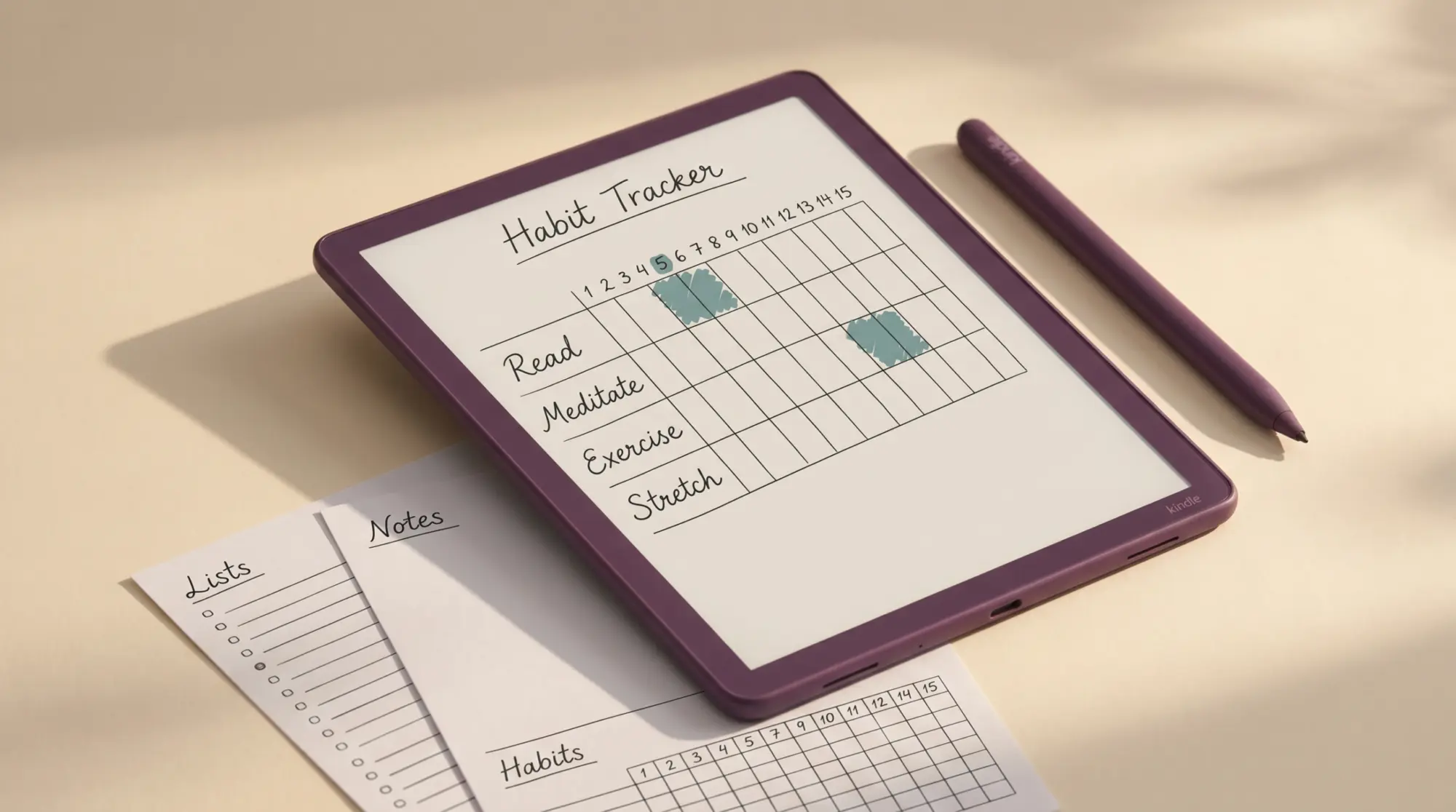
A free Kindle Scribe Colorsoft template is, in practice, a PDF or PNG file you load into a notebook on the Colorsoft Scribe and use as a background page. The Colorsoft Scribe’s color filter sits over the same 11-inch, 1980 x 2640 panel as the current monochrome Scribe, and both Scribe generations are 3:4, so any Scribe template loads. The question is whether the template uses color the panel actually renders well. A planner template designed for iPad Goodnotes with neon green status bars looks harsh on Colorsoft because the panel mutes the saturation. A template designed with sage green looks cohesive.
Three checks before downloading any free Colorsoft template. First, native sizing: 1980 x 2640 pixels at 300 DPI fits the panel without scaling artifacts. Second, color tuning for Colorsoft (subdued palette, color used for hierarchy not decoration). Third, real use case rather than “looks pretty in screenshots.” Templates that fail any of these three end up unused after the first week.
Pick #1
Native Kindle Scribe templates (free, built into the device)
Before downloading anything, the Colorsoft Scribe ships with a curated set of free notebook templates: lined, dotted, agenda, weekly, project tracker, and a few specialty layouts. They render in monochrome by design (no color elements), which makes them the most reliable starting point. There is nothing to verify because the device controls the rendering. Access through Notebooks, then New, then the template picker before you start writing.
The native templates do not use the Colorsoft color panel functionally; that is by design. For users who want to test the Scribe workflow before deciding whether color matters, the native set is the right week-one experiment. For users who specifically want color-coded templates, the picks below cover that gap.
Pick #2
Community PDFs from Reddit and GitHub
The most active source of free Kindle Scribe Colorsoft templates is community sharing on Reddit’s r/kindlescribe and r/eink, plus GitHub repositories where designers publish open templates. The verified-working ones are usually labeled “Colorsoft-tested” or include a screenshot of the template running on a Colorsoft device specifically (not just on a desk or iPad).
What to look for: posts dated 2025 or later (older PDFs were designed for the monochrome Scribe), threads with multiple confirmed-working comments, and screenshots of the actual Colorsoft rendering. Skip anything labeled “works on all Kindles” without specific Colorsoft testing notes; generic compatibility usually means generic monochrome design.
Pick #3
Free sample pages from paid creators
Many paid Kindle Scribe template sellers (Etsy, Gumroad) release free sample pages as marketing for full bundles. These are often higher-quality designs than free-only releases because the seller is showcasing what they want you to buy. The catch: many sellers historically targeted iPad Goodnotes, so their samples may use saturated palettes that look harsh on Colorsoft.
Filter for sellers who explicitly mention Colorsoft Scribe in product descriptions and post screenshots taken on a Colorsoft device. Free samples labeled “Colorsoft sample” rather than “Goodnotes sample” are the right starting point. Our broader free Kindle Scribe templates page covers verified samples across template categories beyond just Colorsoft-aware ones.
Pick #4
Templacity Colorsoft-aware preview pages
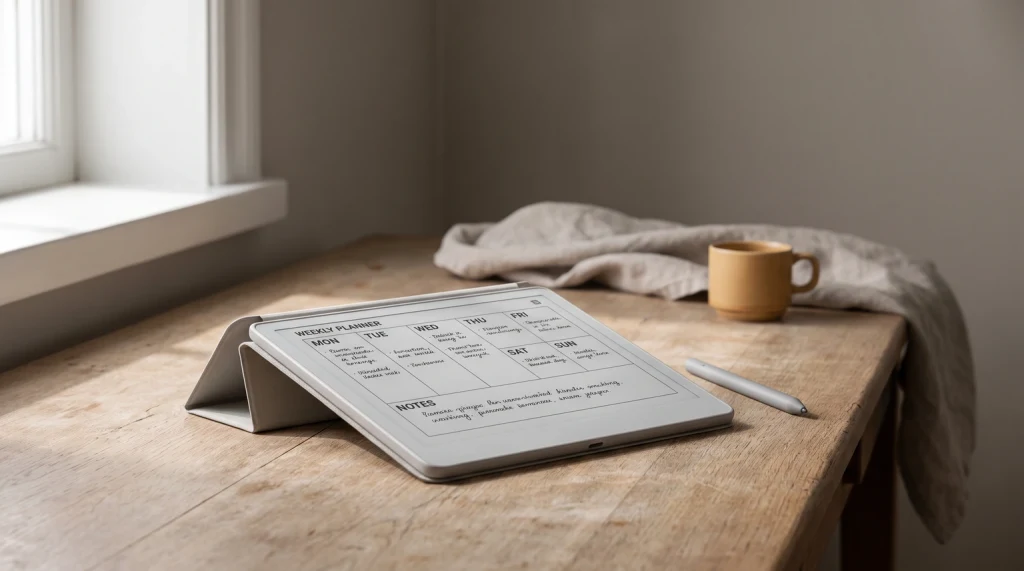
Templacity ships free preview pages from the Kindle Scribe bundle, including Colorsoft-aware weekly planner, meeting, and project templates designed specifically for the Colorsoft panel. These use the subdued e-ink-tuned palette (sage, brick red, slate, warm grey) rather than LCD-saturated equivalents, so the color hierarchy reads cleanly on Colorsoft instead of fighting the writing layer. The preview pages are limited to a few sample pages but are the most directly Colorsoft-tuned free option in this list.
For users who decide they want the full template system rather than samples, the paid Templacity Kindle Scribe bundle includes the Colorsoft-aware planner alongside meeting, project, and journal templates that share the same visual language across the suite.
Decision matrix
Which free Colorsoft template fits which workflow
| You want | Where to start |
|---|---|
| Instant start, no download, no risk | Native Scribe templates (Notebooks, New) |
| Color-coded weekly tuned for Colorsoft | Templacity Colorsoft-aware preview (free) |
| Latest community design, varying quality | Reddit r/kindlescribe verified-working PDFs |
| One sample of a paid bundle before buying | Etsy or Gumroad Colorsoft-labeled samples |
| Make your own custom Colorsoft template | See our DIY template how-to instead |
The honest order: start with the native templates first to confirm the Scribe workflow on the device, then download the Templacity Colorsoft preview as the most-tuned free color option, and only then explore community PDFs or paid samples if neither covers a specific need. For users who want to design their own templates, the make Kindle Scribe templates guide covers the spec and tooling. The full Colorsoft template overview covers the paid options.
Bundle
FAQ
Common questions, answered briefly
Where do you find a free Kindle Scribe Colorsoft template?
Do regular Kindle Scribe templates work on the Colorsoft Scribe?
What is the right size for a Colorsoft template PDF?
Why do most Kindle Scribe templates look bad on Colorsoft?
Are free Colorsoft templates as good as paid ones?
Can you make your own free Colorsoft template?
If you have found a free Colorsoft template that has held up over weeks of daily use, drop the source in the comments. Free templates are best surfaced by community recommendation, and the comments stay current in a way Reddit threads rarely do once they fall off the front page.