The short answer
Does Google Sheets have dark mode?
You open a budget at eleven at night, the room is dark, and the spreadsheet is a white rectangle at full brightness. So you go looking for Google Sheets dark mode and find a pile of answers that disagree. They disagree because the honest answer has two halves.
Yes, on a phone or tablet. The Sheets app for Android and for iPhone and iPad has a real dark theme, and it is a setting rather than a hack. No, on a computer. Google’s help article on the dark theme, Use Dark theme in Google Docs, Sheets & Slides, offers two platform tabs, Android and iPhone & iPad, and no computer tab at all. Everything you read about dark mode for Sheets in a browser is a workaround, and each workaround has a catch worth knowing before you pick one.
Phone and tablet
How to turn on dark mode in the Google Sheets app
The steps are the same in Docs, Sheets and Slides, and the setting lives inside each app rather than in your Google account.
-
1
Open the Sheets app
On your Android phone or tablet, or your iPhone or iPad.
-
2
Menu, then Settings
Menu is at the top left of the app’s home screen, the list of your files.
-
3
Theme, or Choose theme on Android
Pick Dark. System default follows your phone’s own light or dark setting, which is the better choice if your phone already switches at sunset.
Two details from Google’s page matter more than the steps. First, “Collaborators can’t see the theme you choose”, so turning it on changes nothing for anyone you share with. Second, the dark theme “automatically adjusts your documents and sheets to fit the theme”, which means the app is recolouring your cells for display. If you have colour-coded a sheet, that adjustment is worth checking.
On a computer
Google Sheets dark mode on a PC or Mac: three workarounds
The first thing most people try is Chrome’s own dark mode, and it does less than it looks. Google’s Chrome help page says that with it on, “your homepage, toolbar, settings, and some other pages will be dark”. The tabs and toolbar go dark; the spreadsheet stays white. Your computer’s system dark mode does the same thing for the same reason. That leaves three real options.
| Route | What goes dark | The catch |
|---|---|---|
| Browser extension | The whole page, every sheet you open | It repaints your colours too, and it reads the pages it changes |
| A dark sheet you build | That one file, exactly as you design it | Everyone you share it with sees it dark, and it prints dark |
| Dim the white | Nothing, but the glare drops | Not dark mode, just less light |
An extension is the closest thing to a switch. Several in the Chrome Web Store recolour Google’s editors, and they work on every file at once. The trade is in what they need: to repaint a page an extension has to be allowed to read and change it, and the page here is your spreadsheet. Read the permissions it asks for before you install, and prefer one that only asks for Google’s own sites over one that asks for every site you visit. Expect it to shift your own colour-coding as well, because it cannot tell a status colour from a background.
Dimming sounds like giving up, and for a late session it is often enough: lower the screen brightness, turn on your system’s night light so the white goes warm, and zoom the sheet so the grid fills the window rather than sitting in a sea of white margin. None of it needs an install or touches the file.
Build it
How to make the sheet itself dark in Google Sheets
The third route is to stop waiting for an app setting and make the file dark. It takes two minutes, it works in any browser, and it is the only version of dark mode that you control cell by cell. The order matters, because a Sheets theme does less than its name suggests.
- Darken the cells. Click the corner box above row 1 to select the whole sheet, then set the fill colour to a dark grey. Charcoal reads better than pure black, which makes white text glare.
- Lighten the text with a theme. Format, then Theme, then Customize. Set the text colour to a light grey and the chart background to match your fill. Per Google’s formatting help page, a theme sets the “font and color of grid text, charts, and pivot tables”, the hyperlink colour and the chart background. It does not fill cells, which is why step one comes first.
- Fix the cells that ignore the theme. Google notes that “if you change the format of an item in your spreadsheet, it will override the theme.” Any cell you once coloured by hand keeps that colour, so a header row in black text will vanish on charcoal. Select those cells and set their text colour directly.
- Repeat per tab. The fill applies to the sheet you selected, so each tab needs its own pass. The theme covers the whole file.
It is the only version of dark mode that you control cell by cell.
The catch is that this is formatting, not a viewing preference. Everyone you share the file with sees it dark, and it prints dark, which will empty an ink cartridge. Do it on a personal copy, or on a file only you use. If you want to try it on something with real data first, copy any of our free Google Sheets templates; they land in your own Drive, so recolouring one changes nothing for anyone else.
Colour-coding
What dark mode does to a colour-coded sheet
Every route above changes colour, and colour is often where a spreadsheet keeps its meaning. A bill that turns green when it is paid, a late task in red, a pastel band per category: the app’s dark theme adjusts those for display, an extension repaints them by its own rules, and a hand-built dark sheet leaves them exactly as they were, now sitting on charcoal where a pale green can look like a smudge.
So after switching, look at the cells that carry a decision rather than the ones that carry data. If paid and unpaid still look different at a glance, you are fine. If they do not, change those conditional formatting colours to stronger ones, a deep green and a clear red, which read on both dark and light. Our bill tracker in Google Sheets guide shows the paid-or-not rule this test is really about.
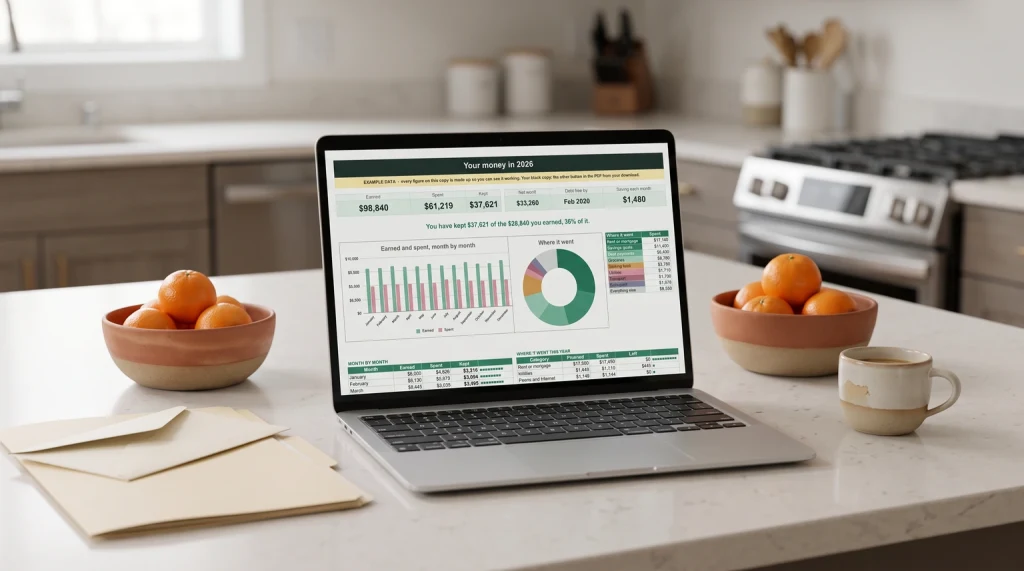
If you would rather start from a sheet where the colour-coding is already built, our Budget & Money Planner ($39, Google Sheets and Excel) has a bills grid that turns green as bills are paid, alongside paycheck budgets, debt payoff and net worth for the year. Our Google Sheets budget template guide covers the free route to the same plan.
Whichever way you go, dark on the phone takes ten seconds and dark on a computer takes a decision. Tell us in the comments which route you settled on, and whether your colour-coding survived it.
FAQ
Common questions, answered briefly
Does Google Sheets have dark mode?
How do I make Google Sheets dark mode on a PC?
Can collaborators see my dark theme?
Why is my Google Sheet still white with Chrome in dark mode?
People also ask